
Key Takeaways
- Build an Airtable interface page to deliver tailored dashboard layouts connected directly to underlying base records.
- Confirm you have Owner or Creator permissions in the base to create, configure, and publish interface assets.
- Follow four defined steps to launch Interface Designer, select a layout, connect data sources, and publish the page.
- Open the published Airtable interface page to confirm connected records appear correctly and collaborator access permissions function properly.
Airtable Interface Designer provides customized interactive pages that present base data in clean layouts for collaborators. Configuring page layouts and publishing them gives team members focused workspaces without exposing complex backend tables.
For plan limits and team seat pricing behind this workflow, read our Airtable review or connect Airtable to AI agents in Airtable API and MCP.
Key steps
What do you need before starting in Airtable?
Airtable requires the following workspace setup before you begin:
- Access to the base and the table the page should display.
- Owner or Creator permissions to create and publish interfaces.
How do you complete the steps in Airtable?
Follow these 4 steps in Airtable in order:
Open Interface Designer
Open the base where you want the page and click Interfaces near the top of the screen. If this is the first interface, click Start building and then Build an interface. For an existing interface, open its editor using the base/interface dropdown and choose Edit.
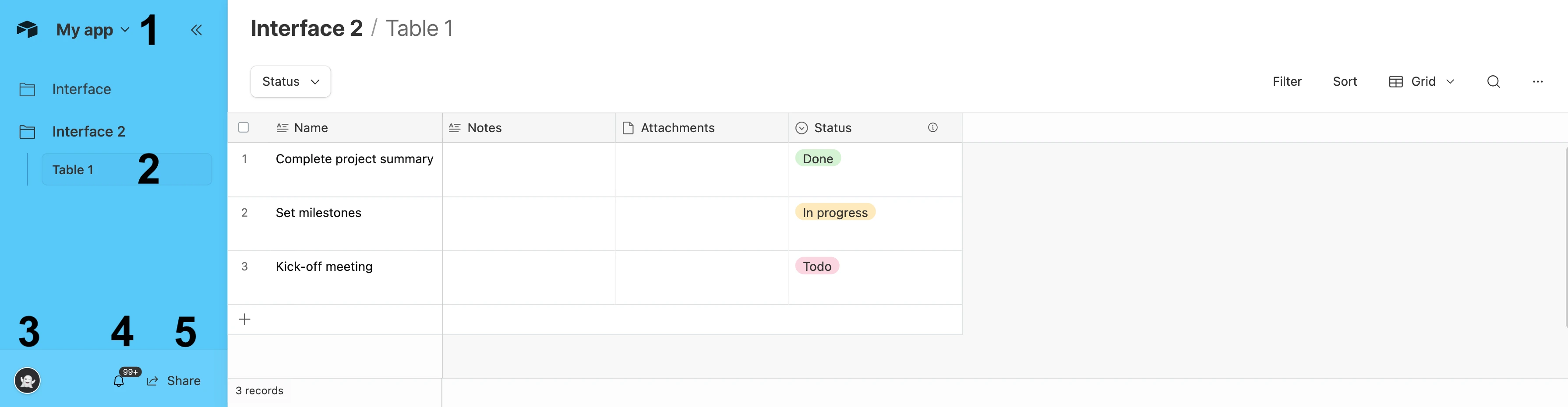
The Interface Designer sidebar lists interface pages beside a preview of the selected page. Screenshot source Choose a layout for the page
Select a layout that fits the task. For a task list, choose a table layout and select a visualization such as List, Grid, or Kanban. Click Next, choose the source table from the base, then click Finish. For a different purpose, the documented layout choices also include overview, form, dashboard, and record review.
Configure the page
Use the properties panel to set a clear page title and configure the page’s data, filters, appearance, and user actions. For example, a task page might use the Tasks table and a page-level filter for records with Status set to In progress. Interface page filters are configured separately from grid view filters.
Treat the page’s Filter by conditions as its own record selection. Grid view filters, sorts, groupings, and hidden fields do not carry into an interface page, even when both use the same table. Test the page against a record you expect to include and one you expect to exclude before publishing.
Publish the page
Click Publish near the upper-right corner when the page is ready. If you click Done instead, your edits remain a draft and collaborators will not see them in the published interface. After publishing, use the Share controls to grant collaborators access as appropriate.
After publishing, check access as a representative collaborator using the available Preview or View as options where appropriate. Confirm the page displays the intended records and that its visible fields and actions fit that person’s role. A page filter controls which records appear, but is not a substitute for access permissions.
How does this Airtable setup work in practice?
Give reviewers a focused intake page
An operations lead builds a dedicated interface page so reviewers can process incoming intake requests without browsing raw grid tables.
| Choice | Why it matters | How to check |
|---|---|---|
| Select the Requests table as the source | The page should read from the table that stores each request and its review status. | Confirm the page editor shows Requests as its source. |
| Set a page-level condition for Status is Awaiting review | This keeps decided requests out of the review queue regardless of how a grid view is configured. | Compare a known awaiting-review request with a known approved request. |
| Show only the fields reviewers need to evaluate a request | A focused page is easier to scan and limits unnecessary detail on the page, though it does not grant or remove underlying access by itself. | Inspect the page in preview and confirm the request details needed for review are visible. |
| Publish, then check the page with a reviewer access level | Collaborators see the published version, and access level affects which actions they can take. | Confirm the published page opens for the intended reviewer and the available actions match the expected permissions. |
If reviewers see the correct queue and can perform only the intended work, share access through the appropriate interface controls. If someone should not see underlying base data, verify their access setup separately because page filters are not access control.
How do you verify your result in Airtable?
Open the published interface and confirm the new page appears with the intended layout and records. Use Share to provide access to the collaborators who need this view of the data.
| Step | What you should see |
|---|---|
| Open Interface Designer | The Interface Designer editor opens, or the first-interface setup flow is displayed. |
| Choose a layout for the page | The page editor displays the selected layout connected to the intended source table. |
| Configure the page | The page title and its data settings reflect the intended use and source table. |
| Publish the page | The interface shows the published version, and the latest edits are visible when you open the page outside the editor. |
Related Airtable guides include How to add a linked record field in Airtable and How to arrange related work in an Airtable list view.
Which official Airtable sources were checked?
Every step and limit in this Airtable guide was verified against official documentation on 21 Nov 2026 following how we check figures, alongside more walkthroughs in our Airtable tutorials hub:
How do you troubleshoot common Airtable issues?
Why can’t collaborators see my latest edits?
The editor saves draft changes as you work, but collaborators see the published version. Return to the editor and click Publish after your latest edits.
Do filters from a grid view automatically apply to the interface page?
No. Interface pages read from a table and use their own page-level filters. Configure the page’s Filter by conditions in Interface Designer.
Why does a reviewer see records that the page filter should hide?
Inspect the interface page’s own Filter by conditions and whether they are joined with And or Or. A grid view filter does not control the interface page. Also confirm the reviewer is opening the intended published interface page.
Why can a collaborator open the interface but not edit a record?
Check their base or interface permission level, the page’s user actions, and any field or table editing permissions. Publishing a page does not by itself grant permission to edit its records.
 Reviewed byDanny Kirk
Founder of ReddiReach.
 Checked byAndrés Felipe
Digital designer and marketer.
Every figure is checked against the vendor's own page. Read our editorial standards.