
Key Takeaways
- Attach documents in Trello by clicking the Attachment option inside the card details pane and confirming the upload.
- Confirm board edit access in Trello and prepare local files, URLs, or connected workspace items before attaching them.
- Execute four structured steps in Trello to pick your file source, upload the asset, and preview the resulting card attachment.
- Verify the attachment in Trello by checking that the card details pane displays the new item in its Attachments section.
Attach local files or cloud links to a Trello card by opening card details and selecting your chosen source under the Attachment menu. Computer uploads store independent copies in Trello, whereas URLs maintain live connections to remote resources.
For plan limits and team seat pricing behind this workflow, read our Trello review or connect Trello to AI agents in Trello API and MCP.
Key steps
What do you need before starting in Trello?
Trello requires the following workspace setup before you begin:
- A Trello board and the specific card where the attachment belongs.
- A local file to upload, a URL to paste, or a recent Trello, Jira, or Confluence item.
- Board access for viewers opening uploaded files, or source-app access for linked pages.
How do you complete the steps in Trello?
Follow these 4 steps in Trello in order:
Open the card's attachment option
Open the target Trello card on your board, select Add, and choose Attachment. Starting from inside the specific card ensures your file or link attaches to the right work item and opens the menu for local uploads, pasted links, and recent connected work.
Choose the source
Upload a file from your computer, paste a link, or choose an item you recently worked on in Trello, Jira, or Confluence. Choose a computer upload when you want an independent snapshot stored inside Trello, keeping in mind that later edits to your local file will not update the card and Trello cannot attach local files without uploading them. Choose a link or recent item when you want the card to reference the live original page.
Insert the attachment
Verify your selection before adding it to the card. For a computer upload, confirm you chose the right file version from your local folder so teammates do not review stale content. For a pasted link or recent item, check that the URL resolves to the exact page or issue rather than a generic workspace home page, then select Insert.
Open or preview the attachment
Inspect the new entry in the Attachments section to verify it opens the expected resource. Trello can preview many document types directly in the app and display a thumbnail or attachment preview content on the card, including linked Jira issues. Test opening or previewing the item, and remember that viewers need board access for uploaded copies or source-app access for linked pages.
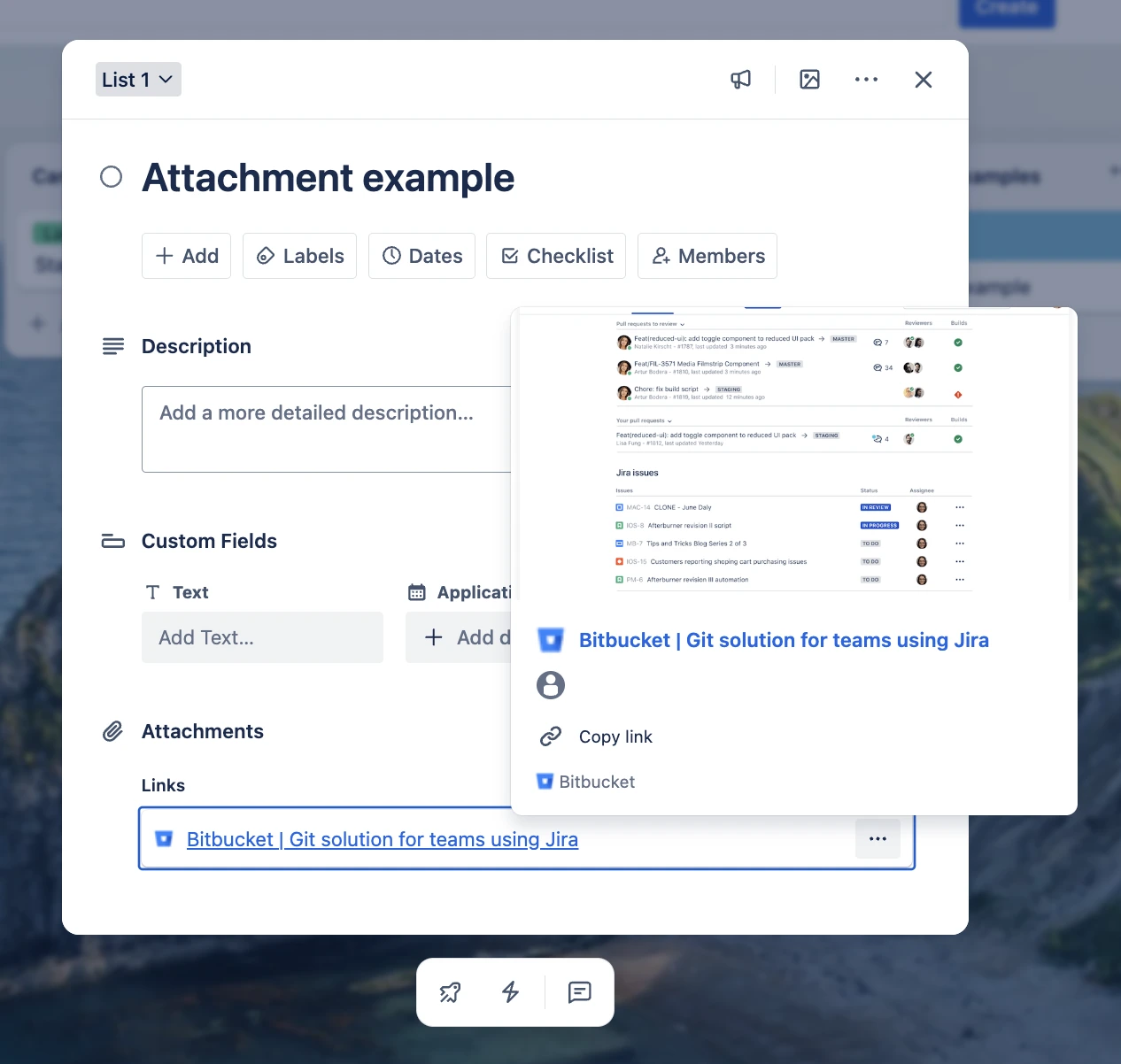
This card view shows attachments and linked Jira issues in the card details area. Screenshot source
How does this Trello setup work in practice?
Worked example: attaching a shared project brief to a launch card
A product team tracks a software release on a Trello board and requires the project brief accessible directly from the launch card while contributors continue editing the original cloud document.
| Choice | Why it matters | How to check |
|---|---|---|
| Open the launch card, select Add, and choose Attachment. | The Attachment option on the card opens controls for files and links. | Attachment options appear on the launch card. |
| Paste the cloud URL for the project brief. | A cloud link points to the original page so edits happen in its native app. | The pasted URL matches the intended project brief. |
| Select Insert and check the Attachments section. | Inserting adds the brief to the card with its title or preview. | The brief entry appears under Attachments on the card. |
Teammates open and edit the live brief directly from the Trello card using their existing cloud document permissions. If an immutable release snapshot is needed instead, the team uploads a static local file copy to Trello.
How do you verify your result in Trello?
The card now lists the item in its Attachments section. Computer uploads remain independent copies stored in Trello for board members, while pasted URLs and recent Trello, Jira, or Confluence items remain links edited in their original applications.
| Step | What you should see |
|---|---|
| Open the card's attachment option | The Attachment options menu is open on the intended card. |
| Choose the source | The intended local file, pasted URL, or recent item is selected. |
| Insert the attachment | The new attachment entry appears in the card's Attachments section. |
| Open or preview the attachment | The attachment's title, thumbnail, or preview matches the exact file or page you added. |
Related Trello guides include How to add labels to Trello cards and How to create a rule with Trello automation.
Which official Trello sources were checked?
Every step and limit in this Trello guide was verified against official documentation on 21 Nov 2026 following how we check figures, alongside more walkthroughs in our Trello tutorials hub:
How do you troubleshoot common Trello issues?
Will edits to my cloud document appear on the card?
When you attach a cloud document as a link, the card stores a link to the original page. You edit the document in its own application, so you never need to download and reattach it after making changes.
Why can't someone outside the board open my uploaded attachment?
Uploaded Trello attachments require the viewer to have access to the board where the file was uploaded. Anyone without board access may be prompted to log in or unable to view the file.
Can I attach a local file without uploading it?
No. Trello does not support attaching local files without uploading them to Trello. Upload a copy from your computer or attach a link to a file stored on another service.
 Reviewed byDanny Kirk
Founder of ReddiReach.
 Checked byAndrés Felipe
Digital designer and marketer.
Every figure is checked against the vendor's own page. Read our editorial standards.