
Key Takeaways
- Set up Weekly update, Scorecard, Smart Alert, or Manual alert rules from Settings > Notifications > + New notification > Metric.
- Add recipients as users inside your Databox workspace first, since metric notifications do not send to external email addresses.
- Five steps cover choosing a metric, configuring Weekly updates, building five-metric Scorecards, setting Smart or Manual alerts, and managing rules.
- Confirm delivery with the top-right headphones preview icon on Scorecards and verify your active rule in Settings > Notifications.
Metric notifications in Databox deliver scheduled KPI recaps, five-metric scorecards, anomaly Smart Alerts, and custom threshold alerts to Email, Slack, or Mobile. Teams use them to catch sudden drops or track weekly pacing without opening dashboards manually.
For plan limits and team seat pricing behind this workflow, read our Databox review or connect Databox to AI agents in Databox API and MCP.
Key steps
What do you need before starting in Databox?
Databox requires the following workspace setup before you begin:
- Databox access to Settings > Notifications, Metrics, or Custom Metrics
- Connected data sources feeding the metrics you want to monitor
- Registered Databox user accounts for all Scorecard or Manual alert recipients
How do you complete the steps in Databox?
Follow these 5 steps in Databox in order:
Open Notifications and choose a metric to monitor
Click your bottom-left profile name and select Notifications (or open Settings > Notifications), click + New notification, choose Metric, and pick your metric. You can also click ... > Notifications on a Metrics card or open the drop-down arrow > Notifications on Custom Metrics.
Metric notifications only send to users inside your Databox account; use scheduled dashboard snapshots or reports for external stakeholders.
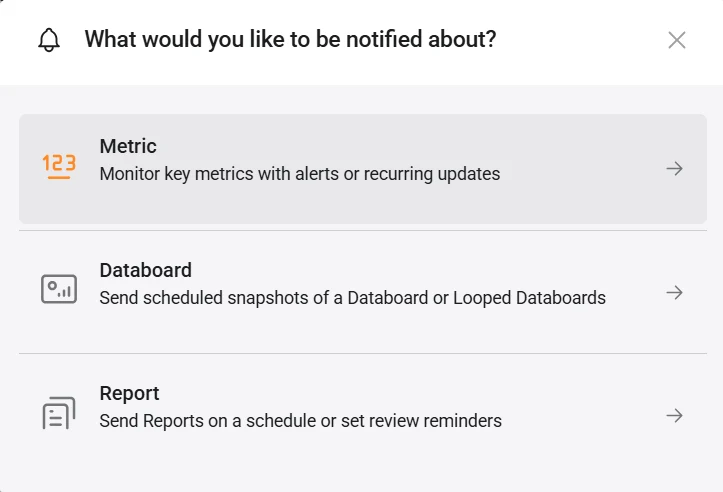
Select Metric after clicking + New notification to search for the connected KPI you want to monitor. Screenshot source Configure a recurring Weekly update for a single KPI
On the Weekly update tab, adjust the Unit dropdown if needed and select Every Monday at 8 AM (Last Week, Monday to Sunday), Every Friday at 4 PM (This Week), or Custom (Every / At and Data from). Choose Email under Delivery method.
Weekly updates give an owner a clean single-metric Monday or Friday inbox check-in without mid-week noise.
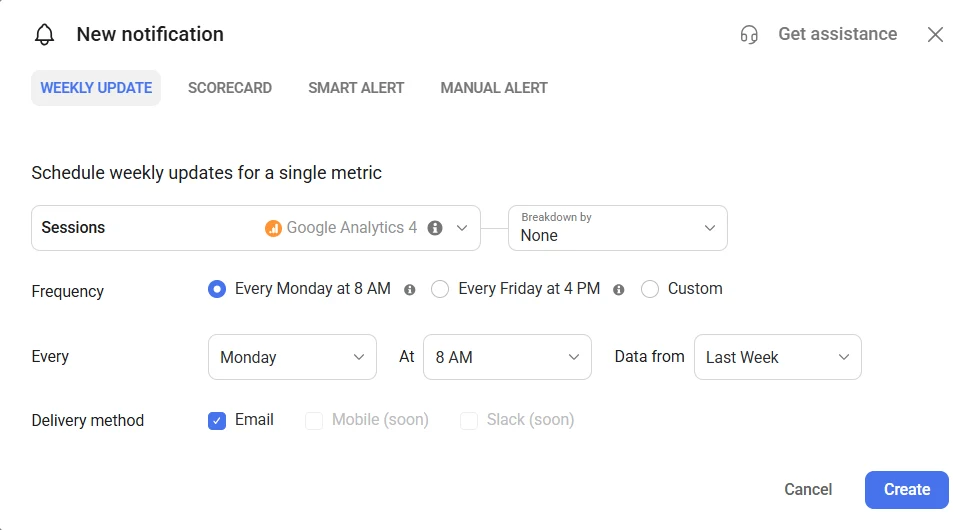
Choose Every Monday at 8 AM, Every Friday at 4 PM, or Custom timing on the Weekly update tab before clicking Create. Screenshot source Bundle up to five KPIs into a scheduled Scorecard
Open the Scorecard tab to add up to five metrics across data sources, then set Show data for, Compared to, Frequency / At, and Delivery method (Email, Mobile, or Slack). Pick Only me or Selected users under Recipients (optionally checking Automatically send this Scorecard to new users), enter a Scorecard name, and click the top-right headphones icon to send a preview.
Metrics lacking data for the selected range are excluded automatically, and no Scorecard sends if all five metrics are empty.
Set up Smart Alert anomaly detection or a threshold Manual alert
Choose Smart Alert to detect outliers automatically: set the With a score higher than slider (0 to 99; default 10 flags roughly 1% of points), select Daily, Weekly, or Monthly, and pick Email, Slack, or both. Or choose Manual alert to define Condition, Qualifier, In the period of, Frequency (Any time or Weekdays only, 8 AM to 5 PM profile time), Delivery method, Recipients, and Advanced settings placeholders ([metric], [datasource], [condition], [value], [period]).
Weekly on a Smart Alert requires Monday as your account's first day of the week. Increase the slider above 10 to flag more anomalies, or use Weekdays only on Manual alerts to avoid weekend pings.
Create, edit, or delete your metric notification
Click Create to activate the notification. To change thresholds, recipients, or schedules later, open Settings > Notifications, find the rule, and click Edit (then Save), or open the drop-down arrow and click Delete.
Reviewing Settings > Notifications periodically keeps Slack channels free of retired campaign alerts.
How does this Databox setup work in practice?
Worked example: Pairing a daily Slack Scorecard with a conversion drop alert
An ecommerce analytics lead sends a five-KPI morning Scorecard to leadership in Slack and monitors daily checkout conversions via Manual alert.
| Choice | Why it matters | How to check |
|---|---|---|
| Scorecard: 5 KPIs, Month to Date vs Previous period, Slack + Email | Sends one daily morning summary to Selected users and new hires. | Headphones preview delivers all five metrics cleanly. |
| Manual alert: Conversions decreases below threshold in Last 24 hours | Alerts the team on Weekdays only (8 AM to 5 PM) when checkouts drop. | Live preview renders [metric], [value], and [period] placeholders. |
| Smart Alert on ad spend at default score 10 | Flags unusual ~1% spend anomalies in Slack automatically. | All three rules show active in Settings > Notifications. |
Leadership reviews the daily Slack Scorecard each morning while growth owners get weekday alerts whenever checkout volume dips.
How do you verify your result in Databox?
Verify your rules appear in Settings > Notifications (and on the Scorecards page) with the expected channels and recipients. Next, tune Smart Alert sensitivity or customize Manual alert placeholders under Advanced settings.
| Step | What you should see |
|---|---|
| Open Notifications and choose a metric to monitor | The configuration panel opens showing Weekly update, Scorecard, Smart Alert, and Manual alert tabs. |
| Configure a recurring Weekly update for a single KPI | Weekly update shows your chosen schedule, data range, and Email delivery. |
| Bundle up to five KPIs into a scheduled Scorecard | Your test preview sends via the headphones icon and the Scorecard name is set. |
| Set up Smart Alert anomaly detection or a threshold Manual alert | Your sensitivity slider or live placeholder preview matches your target threshold and channels. |
| Create, edit, or delete your metric notification | Your metric notification appears active inside Settings > Notifications. |
Related Databox guides include How to create and track automated metric goals in Databox and How to set up scheduled dashboard notifications in Databox.
Which official Databox sources were checked?
Every step and limit in this Databox guide was verified against official documentation on 27 Nov 2026 following how we check figures, alongside more walkthroughs in our Databox tutorials hub:
How do you troubleshoot common Databox issues?
Why can I not send a Databox Scorecard or Manual alert to an external client email?
Metric notifications only deliver to registered users in your Databox account. Use scheduled dashboard snapshot notifications to email external stakeholders.
Why was my scheduled Databox Scorecard skipped today?
Databox omits metrics without data for the Show data for window and skips sending completely if every metric in the Scorecard is empty. Verify your data sources are syncing on the Metrics page.
Why is Weekly unavailable when setting up a Databox Smart Alert?
Weekly Smart Alerts require your Databox account's first day of the week to be set to Monday. Switch the account setting to Monday or choose Daily or Monthly frequency.
 Reviewed byDanny Kirk
Founder of ReddiReach.
 Checked byAndrés Felipe
Digital designer and marketer.
Every figure is checked against the vendor's own page. Read our editorial standards.