
Key Takeaways
- Mailchimp delivers subscriber downloads by hosting your uploaded file and inserting a clickable text link in the Final welcome email instead of an email attachment.
- Before opening the Mailchimp Form builder, prepare your file and select the target audience in the Audience drop-down when managing multiple audiences.
- Inside Mailchimp's Form builder, choose Final welcome email in the Forms and response emails drop-down, highlight anchor text, and select File in the link modal.
- Verify your Mailchimp delivery flow by opening the Signup form URL, completing the full opt-in signup process, and clicking the received file link.
Send files to new Mailchimp subscribers by adding a hosted file link to your audience's Final welcome email in the Form builder. Mailchimp uses hosted links instead of traditional attachments, giving subscribers download access right after opting in.
For plan limits and team seat pricing behind this workflow, read our Mailchimp review or connect Mailchimp to AI agents in Mailchimp API and MCP.
Key steps
What do you need before starting in Mailchimp?
Mailchimp requires the following workspace setup before you begin:
- A Mailchimp audience and access to its Form builder.
- The file to share, since Mailchimp hosts uploaded files and inserts a link rather than a traditional attachment.
- The target audience name if your account has multiple audiences, so you edit the right Final welcome email.
How do you complete the steps in Mailchimp?
Follow these 6 steps in Mailchimp in order:
Open the form builder for the right audience
Click Forms, then choose Other forms. If you manage more than one audience, open the Audience drop-down and select the audience whose subscribers should get the download so you do not edit another list. Select Form builder.
Choose the final welcome email
Open the Forms and response emails drop-down near the top of the page and select Final welcome email. Mailchimp sends this message after someone opts in to receive your campaigns, limiting access to confirmed subscribers.
Edit the email content
On the Build it tab, click inside the dashed lines to open the editor. Type a clear description of the download so subscribers know what to click, then highlight that text.
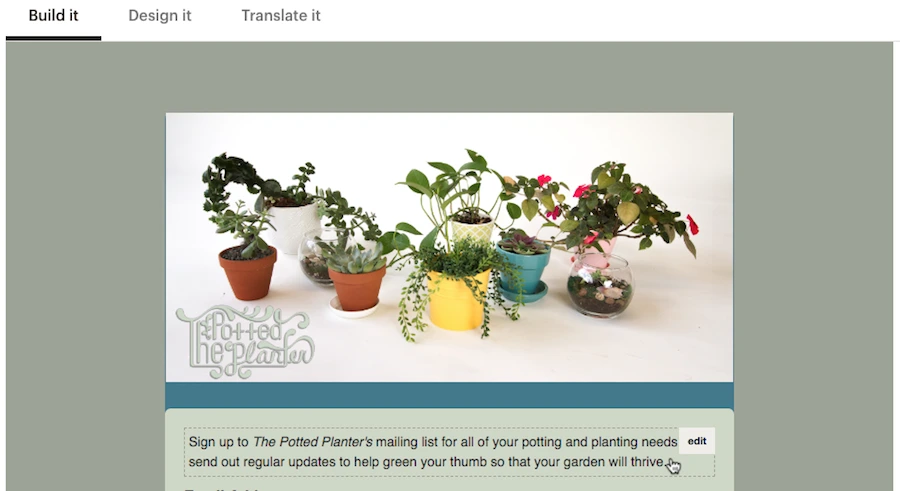
The screenshot shows the Build it tab and an edit control in the Form builder, where you open the email content for editing. Screenshot source Link the text to your file
Click the Link icon. In the Insert or Edit Link modal, choose File from the drop-down menu instead of a web address. Select an existing file or upload the file you want to share, then click Insert.
Save the final welcome email
Confirm your linked phrase reads clearly, then click Save & Close to return to the Form Builder. Leaving before clicking Save & Close discards your changes and link.
Test through the signup process
Open the Forms and response emails drop-down and select Signup form to copy your signup form URL. Complete the live signup and opt-in process and check the Final welcome email that arrives, as testing requires going through signup.
How does this Mailchimp setup work in practice?
Example: sharing a PDF planting guide with garden newsletter subscribers
The marketing team at The Potted Planter wants new retail subscribers to get a PDF planting guide in their Final welcome email without changing a separate wholesale audience.
| Choice | Why it matters | How to check |
|---|---|---|
| Select the retail audience in the Audience drop-down under Forms and Other forms, then open Form builder. | Each audience has its own Final welcome email, leaving wholesale subscribers unchanged. | Form builder opens for the retail audience. |
| Select Final welcome email, click inside the dashed lines on the Build it tab, highlight guide text, and choose File in the Insert or Edit Link modal to upload the PDF. | Mailchimp hosts the PDF and inserts a link on the highlighted phrase. | The text links to the PDF and stays visible after Save & Close. |
| Select Signup form in Forms and response emails, open the signup form URL, and complete opt-in. | Live signup checks Final welcome email delivery and hosted PDF access together. | The received Final welcome email opens the planting guide PDF. |
If the email or PDF link is missing in the signup test, reopen the retail audience's Final welcome email and check the saved text and selected file.
How do you verify your result in Mailchimp?
New subscribers who complete opt-in receive a Final welcome email with a working link to your hosted file, verified through your live signup flow.
| Step | What you should see |
|---|---|
| Open the form builder for the right audience | The Form builder is open for the audience that should receive the download. |
| Choose the final welcome email | The builder shows Final welcome email for your selected audience. |
| Edit the email content | Your download text is visible and highlighted in the email editor. |
| Link the text to your file | The highlighted text links to your intended file in the editor. |
| Save the final welcome email | The editor closes to the Form Builder and the download link remains in the saved content. |
| Test through the signup process | You completed signup and verified a working file link in the received Final welcome email. |
Related Mailchimp guides include How to build an audience segment in Mailchimp and How to create a popup signup form in Mailchimp.
Which official Mailchimp sources were checked?
Every step and limit in this Mailchimp guide was verified against official documentation on 21 Nov 2026 following how we check figures, alongside more walkthroughs in our Mailchimp tutorials hub:
How do you troubleshoot common Mailchimp issues?
Why is the download not attached directly to the email?
Mailchimp hosts uploaded files and links to them rather than adding a traditional attachment. Highlight text in the editor, click the Link icon, and choose File in the Insert or Edit Link modal.
Why can't I find the email I need to edit?
The Form builder groups multiple forms and response emails together. Open the Forms and response emails drop-down near the top of the page and select Final welcome email.
Why didn't a test email show the Final welcome email?
Testing this message requires going through live signup. Select Signup form in the Forms and response emails drop-down to get your form URL, complete signup, and check the email that arrives.
 Reviewed byDanny Kirk
Founder of ReddiReach.
 Checked byAndrés Felipe
Digital designer and marketer.
Every figure is checked against the vendor's own page. Read our editorial standards.