
Key Takeaways
- Update CRM data across multiple records simultaneously in HubSpot Sales Hub using bulk edit tools in filtered index table views.
- Verify you hold bulk edit permissions for the target CRM object in HubSpot and apply precise view filters before editing.
- Execute the five steps to isolate target rows, select record checkboxes, open bulk editing, define update behavior, and save changes.
- Verify updated values across several sample contact or deal records to confirm modifications applied correctly without overwriting unintended fields.
Bulk edit a property across HubSpot records by filtering a CRM object index in table view, selecting the target checkboxes, and clicking Edit above the table. Multi-value properties let you append, replace, or remove entries, while text and single-select updates overwrite existing values.
For plan limits and team seat pricing behind this workflow, read our HubSpot Sales Hub review or connect HubSpot Sales Hub to AI agents in HubSpot Sales Hub API and MCP.
Key steps
What do you need before starting in HubSpot Sales Hub?
HubSpot Sales Hub requires the following workspace setup before you begin:
- Access to the CRM object index containing the records to edit, such as Contacts, Companies, or Deals.
- A view or filter isolating the exact records that should change.
- Clarity on whether to append, replace, or remove multi-value entries, since text and single-select updates overwrite old values.
How do you complete the steps in HubSpot Sales Hub?
Follow these 5 steps in HubSpot Sales Hub in order:
Open the relevant records
Navigate to the object index for the records you want to edit, such as CRM > Contacts, CRM > Companies, or CRM > Deals. If your account displays More in navigation, open More and choose the appropriate object under CRM; otherwise, open the CRM object directly in table view.
Narrow the list to the intended records
Apply a view or filters to isolate your target records and verify visible rows before selecting anything. In table view, check boxes beside individual records, or use the top-left checkbox to select all records on the current page. To include every record in the view, click the Select all link when it appears.
Open the bulk edit action
With your target records selected, click the Edit action in the header bar at the top of the table. In the bulk edit dialog, open Property to update and search for or choose the specific property you want to modify.
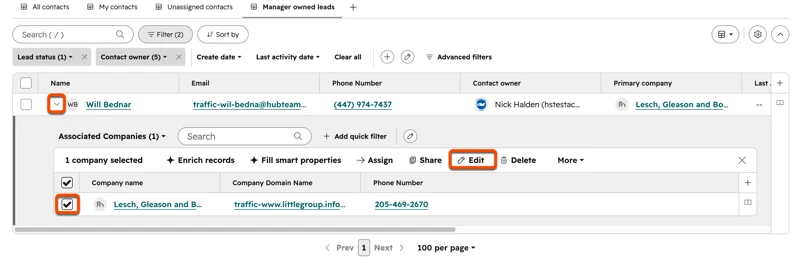
This screenshot shows the index-page Edit action for selected associated company records, a specific bulk edit context. Screenshot source Choose how values should change
For multi-value properties where value options appear, select Append to current value(s) to keep existing entries while adding new ones, or Replace current values(s) to overwrite them. To delete one entry, enter or select it and choose Remove from current value(s). For text or single-select properties, clicking Update overwrites old values on selected records.
Apply and inspect the update
Enter or select the new value in the dialog, then click Update. Once applied, inspect representative records in the object index or open individual record pages to check the property. If prior values changed unexpectedly or pages were missed, return to the affected records and correct the values.
How does this HubSpot Sales Hub setup work in practice?
Example: tagging trade show contacts in a sales follow-up view
A sales operations specialist needs to add "Event follow-up" to a multi-value segment property across conference contacts without clearing their existing segment tags.
| Choice | Why it matters | How to check |
|---|---|---|
| Filter CRM > Contacts in table view to the conference contact group. | Filtering isolates target contacts before selecting rows. | Visible rows list only conference contacts. |
| Check the top-left box and click Select all across multiple pages. | Select all captures the full view instead of one page. | Selected count matches total conference contacts. |
| Click Edit, choose the segment property, and pick Append to current value(s). | Appending keeps prior tags while adding the new value. | The dialog shows Append to current value(s). |
| Select "Event follow-up", click Update, and inspect sample contacts. | Record checks confirm prior values stayed beside the new tag. | Sample contacts show both old and new values. |
Once sample contacts show "Event follow-up" beside their earlier tags, the team can launch outreach or repeat the update on another segment.
How do you verify your result in HubSpot Sales Hub?
Every selected record receives the chosen property update once you click Update. Coverage depends on whether you selected individual rows, only the current page, or all records in the view via Select all. Check several records afterward to confirm existing values were preserved or overwritten as intended.
| Step | What you should see |
|---|---|
| Open the relevant records | The index page shows the CRM object type whose records you intend to update. |
| Narrow the list to the intended records | The selected count and visible record names match your intended update scope. |
| Open the bulk edit action | The dialog identifies the exact property you plan to edit. |
| Choose how values should change | The chosen operation matches whether you intend to add, replace, or remove values. |
| Apply and inspect the update | Selected records display the intended property value or value change. |
Related HubSpot Sales Hub guides include How to add a deal to a HubSpot Sales Hub pipeline and How to add line items to a deal in HubSpot.
Which official HubSpot Sales Hub sources were checked?
Every step and limit in this HubSpot Sales Hub guide was verified against official documentation on 21 Nov 2026 following how we check figures, alongside more walkthroughs in our HubSpot Sales Hub tutorials hub:
How do you troubleshoot common HubSpot Sales Hub issues?
Why did records I expected to update remain unchanged?
They were unchecked or sat on later pages when only the top-left page checkbox was selected. Reopen the filtered view and click Select all to include every matching record.
Why did existing values disappear?
Choosing Replace current values(s), or clicking Update on text or single-select properties, overwrites prior values. Select Append to current value(s) on supported multi-value fields to keep existing entries.
Why can't I find the Edit action?
Bulk actions stay hidden until rows are checked in table view. Select checkboxes beside target records first, then click Edit at the top of the table.
 Reviewed byDanny Kirk
Founder of ReddiReach.
 Checked byAndrés Felipe
Digital designer and marketer.
Every figure is checked against the vendor's own page. Read our editorial standards.