
Key Takeaways
- Edit trigger payload values inside Zapier test steps to validate downstream branch conditions against values absent from default test records.
- Open a Zap in draft edit mode containing a configured trigger step with at least one retrieved sample record.
- Complete the five steps to open sample records, duplicate test payloads, adjust target fields, test downstream steps, and clean inputs.
- Verify subsequent filter and formatting steps evaluate the customized value as intended before re-testing with live production samples.
Modify trigger sample data within Zapier to test how downstream filter and action steps handle uncommon edge-case values. These temporary edits persist solely inside the Zapier editor and do not alter production records in your connected applications.
For plan limits and team seat pricing behind this workflow, read our Zapier review or connect Zapier to AI agents in Zapier API and MCP.
Key steps
What do you need before starting in Zapier?
Zapier requires the following workspace setup before you begin:
- A Zap open in edit mode.
- A trigger test record with the field you want to change. You can select another record or use Find new records if the current one is unsuitable.
- A specific test scenario, such as checking whether a Filter continues when Flavor is Guava.
How do you complete the steps in Zapier?
Follow these 5 steps in Zapier in order:
Open the trigger’s test records
In the Zap editor, select the trigger step and open the Test tab. Review the test record fields and identify the one you need for your scenario. The available records come from test data, so the value may differ from the one you need to check.
To work with a different source record, select another record from the list or choose Find new records and select a result. A previous Zap run can also be used as a test record.
Create a modified trigger record
Select the record to open its details. In the side panel, choose Edit. Zapier creates a separate test record titled Modified Record at the top of the test record list.
The change is a builder copy for testing. It does not edit the original record in the trigger app. You can create up to 20 modified trigger records.
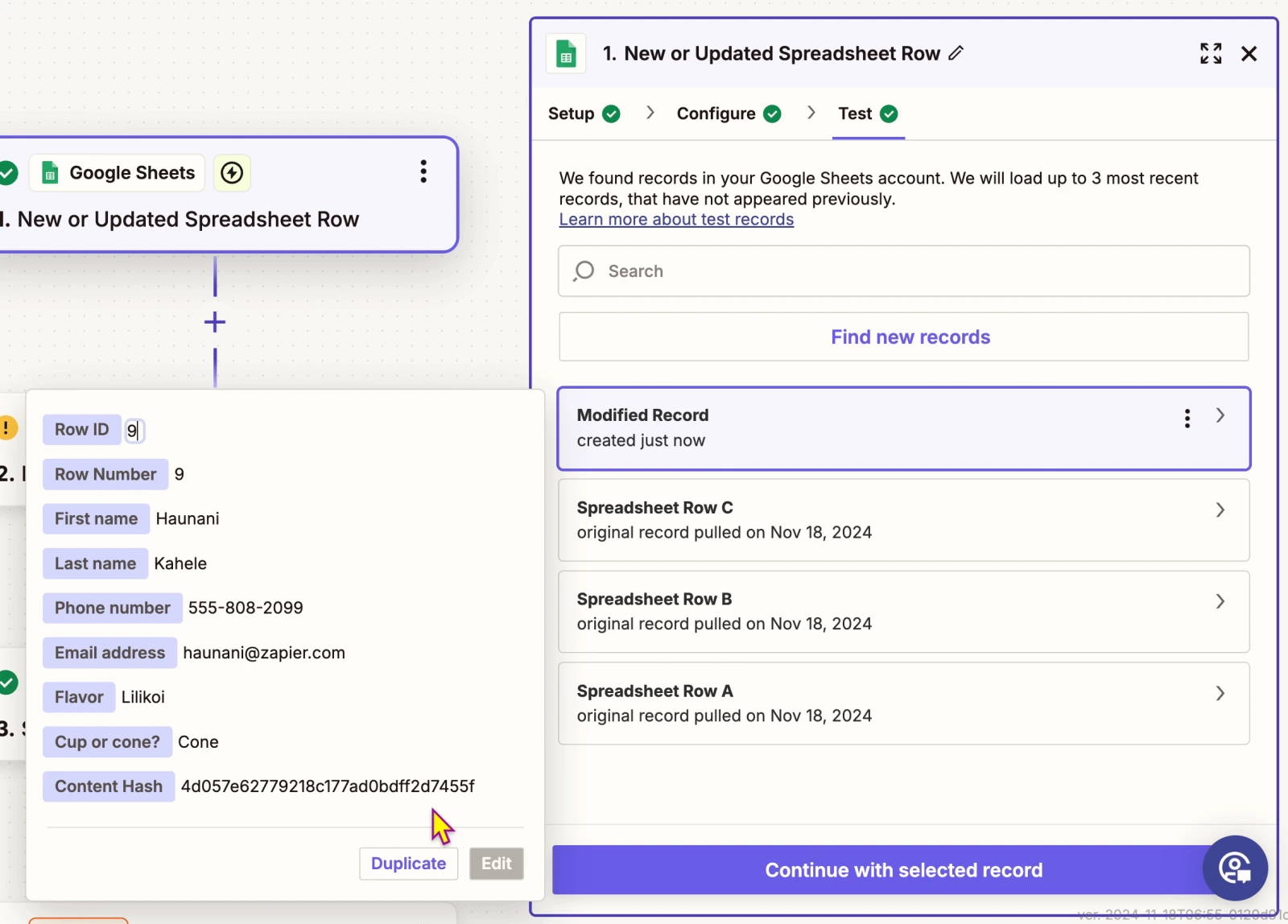
The visible test record has Flavor set to Lilikoi, and a Modified Record is listed for use as a separate test copy. Screenshot source Change only the value needed for the scenario
In the modified record, select the field value you want to change and enter the test value. For example, if the test is whether a Filter continues when Flavor is Guava, replace the sample Flavor value with Guava.
Click anywhere outside the edited value to save it. Keep the rest of the record as it is unless your test scenario depends on other fields too.
Use the modified record in later steps
Continue configuring the Zap and use the trigger data in the later step you want to test. For a Filter scenario, set the condition to check whether the trigger’s Flavor field matches Guava, then test the step using the modified record.
When you edit a step, changing a required field resets that step’s test, so test it again. Changing an optional field retains the prior test result, though you can test again to check the change.
Manage the modified record when you are done
To manage a modified trigger record, use the settings icon next to the selected test record. The menu includes Rename, Revert to original, and Delete. Revert removes the edits from that modified record. Delete removes the modified record.
If the edited test record came from a previous Zap run, it cannot be modified. Select a regular trigger test record to create an editable copy instead.
How does this Zapier setup work in practice?
Check a Filter for a value missing from the sample
An integration team is building a Zap that should continue only when a trigger's Flavor field is Guava, but the retrieved sample shows Lilikoi.
| Choice | Why it matters | How to check |
|---|---|---|
| Select the trigger record that contains Flavor | The field value to change must be present in the trigger test data. | Flavor is visible in the selected test record. |
| Create a modified copy and set Flavor to Guava | The test needs a record that matches the condition being checked, while preserving the original app record. | The separate Modified Record shows Flavor as Guava. |
| Set the Filter condition to check for Guava and test it | This connects the edited input to the workflow condition the team wants to inspect. | The test result shows how the Filter evaluated the modified record. |
| Decide whether another test is needed with a nonmatching value | A second case can help the team inspect the Filter’s behavior when Flavor differs from Guava. | The next decision is whether to create and test another scenario before publishing. |
Test the downstream filter step against the edited Guava record to confirm it passes, then verify live data routes properly.
How do you verify your result in Zapier?
You have checked how a later step behaves with the chosen test value while leaving the trigger app’s original data unchanged. This result describes the builder test. When you publish the Zap, it uses real, unedited data from the app, so the published workflow’s behavior depends on the values in actual trigger events.
| Step | What you should see |
|---|---|
| Open the trigger’s test records | The trigger’s Test tab is open, and the selected record contains the field you intend to test. |
| Create a modified trigger record | A Modified Record appears in the test record list. |
| Change only the value needed for the scenario | The modified record displays the intended value, and the value remains after you click outside the field. |
| Use the modified record in later steps | The later step is tested with the modified trigger data, and its result reflects the scenario you set up. |
| Manage the modified record when you are done | You can identify the modified record and, if needed, find its management menu. |
Related Zapier guides include How to add a Zapier filter before an action and How to build a Zapier automation with a trigger and action.
Which official Zapier sources were checked?
Every step and limit in this Zapier guide was verified against official documentation on 21 Nov 2026 following how we check figures, alongside more walkthroughs in our Zapier tutorials hub:
How do you troubleshoot common Zapier issues?
Why can’t I edit this test record?
It may have been created from a previous Zap run, which cannot be modified. Select a trigger test record from the regular test record list and create a modified copy from it.
Why did the later step’s test reset after I changed a field?
Changing a required field resets that step’s test. Test the step again to check for errors. A change to an optional field retains the prior result, but you can run the test again if you want to check the changed value.
Will the edited value change data in my app when the Zap is published?
No. A modified trigger test record is a copy that exists in Zapier for building and testing. A published Zap uses real, unedited data from the app.
 Reviewed byDanny Kirk
Founder of ReddiReach.
 Checked byAndrés Felipe
Digital designer and marketer.
Every figure is checked against the vendor's own page. Read our editorial standards.