
Key Takeaways
- Isolate structured substrings in Zapier Formatter by applying regular expression pattern extraction transforms to inbound trigger data.
- Ensure your Zap includes an upstream step providing a text field alongside a validated regular expression matching target characters.
- Follow the six steps to add Formatter Text actions, select Extract Pattern, specify search regex, set match behavior, and test output.
- Verify the test output pane in Zapier confirms exact matched strings and confirm downstream mapping fields populate with extracted data.
Extract specific text patterns from string fields using Zapier Formatter by applying the Text action with an Extract Pattern regular expression transform. Output the resulting strings directly into subsequent Zapier actions or line-item arrays.
For plan limits and team seat pricing behind this workflow, read our Zapier review or connect Zapier to AI agents in Zapier API and MCP.
Key steps
What do you need before starting in Zapier?
Zapier requires the following workspace setup before you begin:
- A Zap with a previous step that provides the text field you want to search.
- A clear definition of the text you want to capture and how many matches you need.
- A regular expression suitable for the field’s format. Zapier describes this as a Python regex. Regex is an advanced feature.
How do you complete the steps in Zapier?
Follow these 6 steps in Zapier in order:
Add a Formatter Text action
In the Zap outline, add an action step and search for Formatter. Select it, choose Text from the Action event menu, then continue.
Choose Extract Pattern and map the input
Set Transform to Extract Pattern. In Input, select the field from an earlier step that contains the text to search. Input can also be a line-item field, which is searched item by item.
Enter a pattern for the intended text
Enter a Python regex in Pattern that describes the text you want returned. Keep the pattern focused on the target content. If you need a named group label for matches, use Match All and a named group such as (?P<first_name>\w+\s). Zapier’s example applies it to names at the start of lines.
Set optional matching behavior
Use Match All when you want every occurrence returned as line items. With Match All set to Yes, the Input field will not work with line items. For multiline fields, MULTILINE changes how ^ and $ match line starts and ends. DOTALL lets . match newline characters. IGNORECASE ignores upper- and lowercase differences.
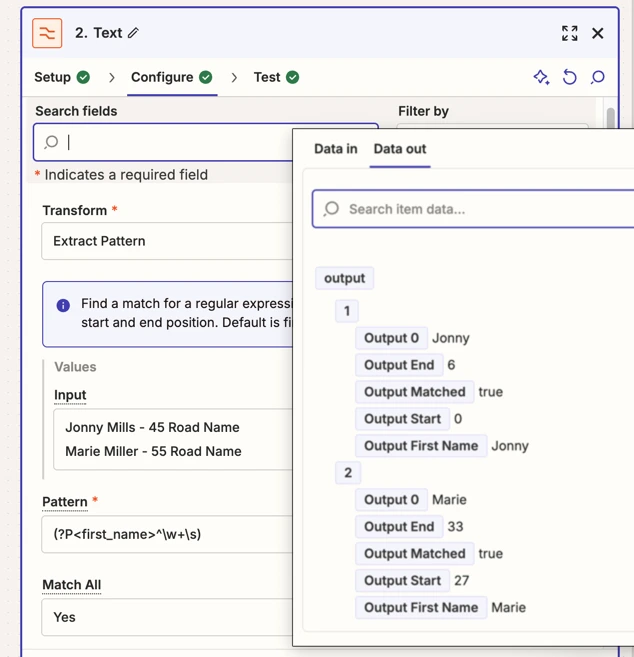
The screenshot shows the Match All configuration and its labeled results for two matches. Screenshot source Test the Formatter step
Continue to the test, then select Test step. Inspect Output for the matched text and any group label. Output includes match text and positions, plus whether it matched. Multiple matches are numbered in order, starting at 0.
Use the result in a later action
After the test confirms the extracted value, add another action and map the Formatter output field you need. If the test did not find the intended text, revisit the Input and Pattern before building on the result.
How does this Zapier setup work in practice?
Extract first names from a two-line field
An automated workflow receives customer entries containing name and address strings on separate lines, requiring extraction of only the first names.
| Choice | Why it matters | How to check |
|---|---|---|
| Map the multiline text field into Input. | The pattern needs the complete text value containing both records. | The Input field preview contains both lines. |
| Use a named first-name group and enable Match All. | The named group provides a readable label, while Match All requests every occurrence as line items. | The pattern includes the named group and Match All is Yes. |
| Test and inspect both returned items. | A successful test confirms whether the pattern found each intended first name. | Output shows two matches with the expected captured values. |
Confirm Formatter isolates the target names as separate output entities and map the resulting output variables into subsequent CRM steps.
How do you verify your result in Zapier?
The Zap now has a tested extraction step that returns the matching text and match metadata. With Match All enabled, the results are line items. The exact output fields depend on the chosen options and pattern.
| Step | What you should see |
|---|---|
| Add a Formatter Text action | The action setup is for Formatter and its event is Text. |
| Choose Extract Pattern and map the input | The mapped Input shows the intended source field and the transform is Extract Pattern. |
| Enter a pattern for the intended text | The pattern is visible in the Pattern field and its capture behavior fits the text you intend to extract. |
| Set optional matching behavior | Each enabled option addresses a specific property of your input, and Match All is compatible with the kind of Input selected. |
| Test the Formatter step | The test output contains the intended match or matches, and the match text is the value you need downstream. |
| Use the result in a later action | The next action uses the tested Formatter output rather than the original unsplit text. |
Related Zapier guides include How to add a Zapier filter before an action and How to build a Zapier automation with a trigger and action.
Which official Zapier sources were checked?
Every step and limit in this Zapier guide was verified against official documentation on 21 Nov 2026 following how we check figures, alongside more walkthroughs in our Zapier tutorials hub:
How do you troubleshoot common Zapier issues?
Why does the test return no match?
The source field may not contain text that fits the entered pattern. Check that Input is mapped to the right field and that the pattern describes the actual text structure, then test again.
Why does Match All not work with my line-item Input?
Zapier states that Match All set to Yes does not work when Input is line items. Use a non-line-item field for Match All, or leave Match All off when searching line-item input.
Why is the captured group label missing?
The named group label example is for Match All. Confirm Match All is Yes and that the pattern uses a named group, then inspect the test output.
 Reviewed byDanny Kirk
Founder of ReddiReach.
 Checked byAndrés Felipe
Digital designer and marketer.
Every figure is checked against the vendor's own page. Read our editorial standards.