
Key Takeaways
- Segment contact directories in HubSpot Sales Hub by filtering contact records against related company association properties and role labels.
- Ensure access to the HubSpot CRM Contacts index with populated company associations across target contact records.
- Execute the six steps to open table views, configure association filters, narrow relationship labels, apply company criteria, and save views.
- Verify the filtered list populates exclusively with contacts linked to matching company records and save the view tab for recurring access.
Filter HubSpot contacts by an associated company property from the Contacts index in table view using the **Add association** control for Companies. Close the filter panel to inspect matching records, then click **Save** to retain the view after refresh.
For plan limits and team seat pricing behind this workflow, read our HubSpot Sales Hub review or connect HubSpot Sales Hub to AI agents in HubSpot Sales Hub API and MCP.
Key steps
What do you need before starting in HubSpot Sales Hub?
HubSpot Sales Hub requires the following workspace setup before you begin:
- Access to your HubSpot account and Contacts index.
- A clear company property criterion, plus whether any associated company or a specific association label should qualify.
- Association volume within limits, since cross-object filtering is unavailable if the object has more than two million associations.
How do you complete the steps in HubSpot Sales Hub?
Follow these 6 steps in HubSpot Sales Hub in order:
Open the Contacts index in table view
Go to CRM > Contacts in HubSpot. If your account places Contacts under More, open More first and choose the Contacts page there. In the upper right, select the table view icon so the index displays records in rows and columns with table filter controls available.
Open the association filter controls
Select Add association in the filter area above the table, then open Choose an association and select Companies. Choosing Companies tells HubSpot to evaluate each contact against its linked company records rather than filtering on contact-level fields. Remember that this option requires two million or fewer object associations.
Optionally narrow by association label
If you only want contacts linked to companies under a particular association label, open Any company and select the relevant label. Leave the default Any company scope unchanged when any associated company record should qualify the contact, preventing accidental exclusion of contacts without labeled company ties.
Add a company property filter
Select Add company filter, choose the company property that represents your criterion, and configure its value or other available criteria. Verify you selected the company property rather than a similarly named contact field. Add additional company properties only when an associated company must meet multiple conditions together.
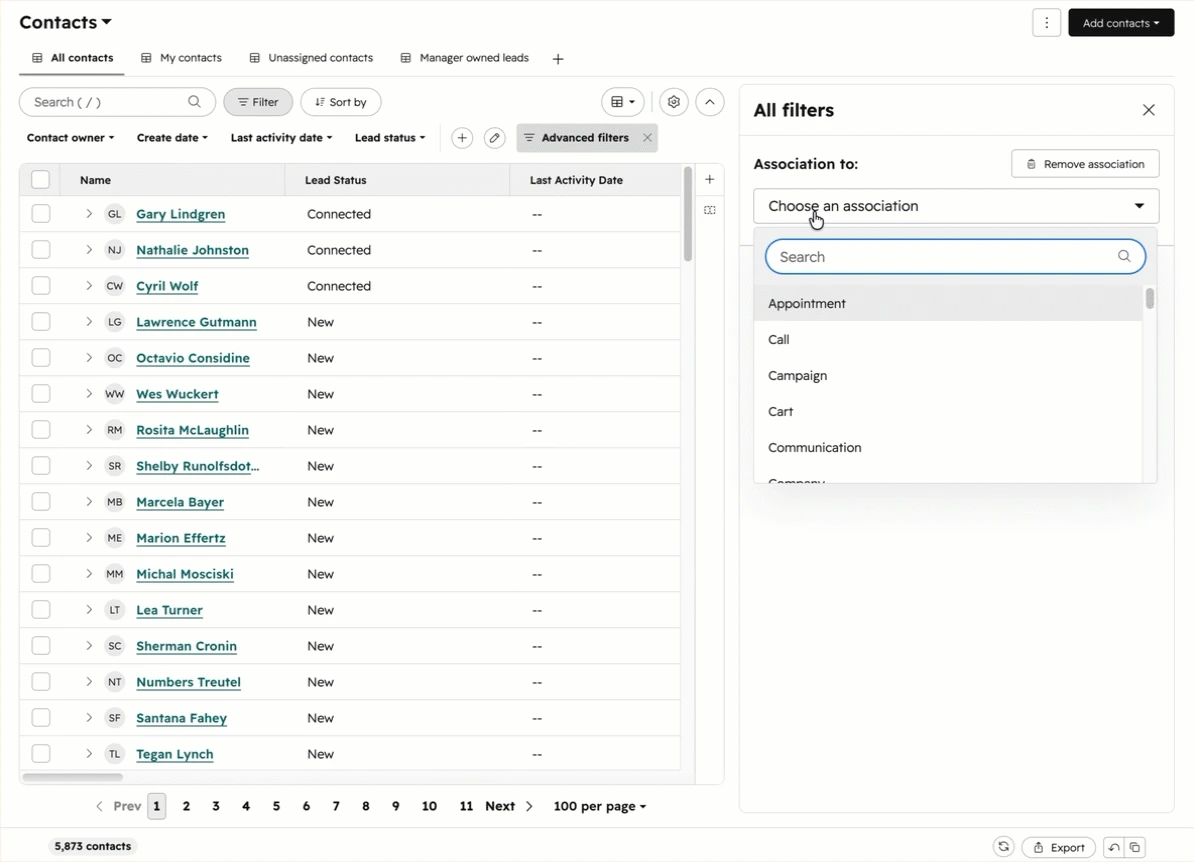
The screenshot shows the Contacts index and association filter area, including the association selector. The visible selected example criteria are not a required value for this workflow. Screenshot source Apply and inspect the matching contacts
Close the filter panel using the X in its upper right so HubSpot applies the filters to the Contacts index. Spot-check several returned contacts and their associated company records to confirm the criterion matches your target segment, tightening Any company if secondary company links appear.
Save the view if you need to keep it
Filters applied on the index clear on page refresh unless saved. Select Save in the bottom right to store the company association filter on the saved view tab you are currently using, or leave the filter unsaved if you only need it during the current session.
How does this HubSpot Sales Hub setup work in practice?
Example: filtering contacts by company status for sales coordinator outreach
A sales coordinator needs a saved view of contacts tied to companies matching the team's active company status value, excluding contacts linked only through secondary company associations.
| Choice | Why it matters | How to check |
|---|---|---|
| Open CRM > Contacts in table view. | Association filtering runs from the Contacts index in table view. | Contact rows appear in the table. |
| Select Add association, pick Companies, and check Any company. | Companies targets linked company records and a label excludes secondary ties. | Companies and the chosen scope appear. |
| Choose Add company filter and set the company status criterion. | The shared company status field matches the team's account definition. | Verify the selected property and criterion. |
| Close with X and click Save in the bottom right. | Saving retains the filter in the current view after refresh. | Refresh and confirm the filter remains active. |
Check whether the returned contacts fit the planned follow-up. If the list is too broad or narrow, refine the company criterion or Any company association label rather than editing records.
How do you verify your result in HubSpot Sales Hub?
The filtered Contacts index displays contacts whose associated company records match your selected company property criteria and any association label refinement. Clicking Save preserves the filter on your view tab across refreshes without modifying any contact or company records.
| Step | What you should see |
|---|---|
| Open the Contacts index in table view | The Contacts index is open and displays records in table view. |
| Open the association filter controls | The association selector in the filter panel displays Companies. |
| Optionally narrow by association label | The association scope reflects either Any company or your chosen association label. |
| Add a company property filter | The filter shows the intended company property and its selected criterion. |
| Apply and inspect the matching contacts | The Contacts index displays matching results under your company association filter. |
| Save the view if you need to keep it | After saving and refreshing the page, the saved view retains your filter. |
Related HubSpot Sales Hub guides include How to add a deal to a HubSpot Sales Hub pipeline and How to add line items to a deal in HubSpot.
Which official HubSpot Sales Hub sources were checked?
Every step and limit in this HubSpot Sales Hub guide was verified against official documentation on 21 Nov 2026 following how we check figures, alongside more walkthroughs in our HubSpot Sales Hub tutorials hub:
How do you troubleshoot common HubSpot Sales Hub issues?
Why can't I add an association filter?
Cross-object filtering is unavailable when the object has more than two million associations. Also confirm the Contacts index is in table view.
Why did my filter disappear after I refreshed?
Index filters clear on refresh unless saved. Select Save in the bottom right to retain the filter in your saved view.
Why are contacts linked to other companies included?
The scope defaults to Any company, so any matching company qualifies. Refine Any company with a specific association label.
 Reviewed byDanny Kirk
Founder of ReddiReach.
 Checked byAndrés Felipe
Digital designer and marketer.
Every figure is checked against the vendor's own page. Read our editorial standards.