
Key Takeaways
- Constrain relational record selection in Airtable by applying dynamic comparison conditions between current and foreign table fields.
- Confirm you have creator permissions to modify base fields and verify your base resides on an Airtable plan supporting dynamic filters.
- Navigate the six steps to identify shared comparison fields, open field settings, toggle selection filtering, configure conditions, and test records.
- Verify the linked record picker displays filtered options when matching values exist and handles records with empty criteria as expected.
Filter selectable linked records dynamically in Airtable by editing field configurations to compare linked table fields against values on current records. This ensures team members choose records relevant to the current entry without seeing incompatible cross-table options.
For plan limits and team seat pricing behind this workflow, read our Airtable review or connect Airtable to AI agents in Airtable API and MCP.
Key steps
What do you need before starting in Airtable?
Airtable requires the following workspace setup before you begin:
- An Airtable base with a linked record field connecting the current table to the table of selectable records.
- Airtable access that allows editing the field configuration. Dynamic filtering is available on paid plans according to the product information.
- A dynamic comparison based on supported field types, such as compatible text, number, user, date, select, or linked record fields. The two compared fields must have the same field type.
How do you complete the steps in Airtable?
Follow these 6 steps in Airtable in order:
Identify the two sides of the comparison
Before editing the field, identify the table you are selecting records from and the current table where the linked field appears. The left side of a dynamic condition is a field in the linked table. The right side is a field on the current record.
Read the intended rule as: “Show linked-table records whose [left field] matches this current record’s [right field].” This direction matters even when both fields have the same name.
Open the linked record field settings
In the base, locate the linked record field and open its field menu. Select Edit field to reach the configuration for that field. Dynamic filtering is set at the linked field level, including when that field is later used in a form.
Enable record selection filtering
Turn on Filter record selection by a condition, then choose Add condition. This setting limits the available linked record choices according to conditions attached to this field. You can combine static and dynamic conditions if your use case needs both.
Choose Dynamic condition and set its fields
Open the condition type selector and choose Dynamic condition. Select the field from the linked table on the left, then select the corresponding field on the current table on the right. The screenshot shows a dynamic condition labeled “Where Skills New has any of” and a field picker for “Skills required”. It is an example of the configuration view, not a universal field naming scheme.
Use fields of the same type. Airtable does not support comparing different field types within an individual dynamic filter. For select fields, option names must match exactly.
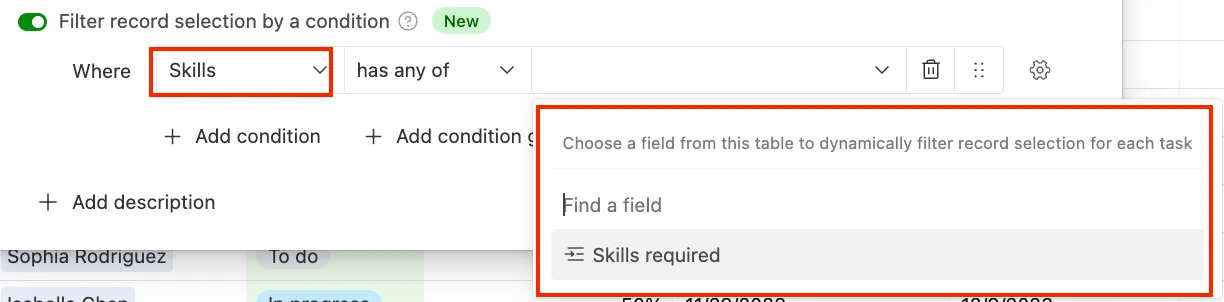
The visible condition editor shows the dynamic comparison setup and the current-table field selection. Screenshot source Test with representative records
Open records with different values in the current-table field and inspect the linked choices for each. Confirm that records with matching values appear and unrelated records do not. Test an empty current value too: when that side is empty, the condition does not narrow the picker, so all linked-table records may be offered.
If linked-table records with empty values should remain selectable, add a second condition for that field being empty and join the conditions with Or.
Review form behavior before using it there
A form can use a linked record field that already has dynamic filtering configured, but the configuration belongs to the field, not the form's static filter properties. Forms cannot filter these choices by the identity of whoever is filling out the form because there is no current record or submitter identity available for that comparison before submission.
If using a dynamic condition in a form, consider whether the form provides enough earlier information for the comparison. A linked record field with a dynamic condition also cannot show additional record-card fields in the form.
How does this Airtable setup work in practice?
Worked example: match people to required skills
A project coordinator maintains an Airtable task base where task assignments require filtering a People table by matching specific required skill tags.
| Choice | Why it matters | How to check |
|---|---|---|
| Set the linked field on Task to choose from People. | People are the records the task editor needs to select. | The field links the Task table to People. |
| Set the dynamic condition's linked-table side to People.Skills. | This is the field Airtable checks for each selectable person. | The left field belongs to People. |
| Set the current-record side to Task.Skills required. | This supplies the requirement from the task being edited. | The right field belongs to Task and has a compatible type. |
| Test one task requiring Design and another with a different requirement. | Different current-record values reveal whether the condition follows the task context. | The available people reflect each task's configured requirement. Empty values are tested separately. |
Verify that assigning a person to a task restricts choices to individuals possessing the required skill, and confirm empty-field fallback behavior.
How do you verify your result in Airtable?
The linked record picker now uses the current record's field value to narrow choices according to the configured condition. Confirm the comparison from each side and test empty values, since those cases can broaden or remove options in ways that affect data entry.
| Step | What you should see |
|---|---|
| Identify the two sides of the comparison | You can name the linked-table field and current-record field, and the rule reads correctly from left to right. |
| Open the linked record field settings | The field editor is open for the linked record field you intend to configure. |
| Enable record selection filtering | The condition area is visible and ready for a filter condition. |
| Choose Dynamic condition and set its fields | The left field belongs to the linked table, the right field belongs to the current table, and their types and values are compatible. |
| Test with representative records | The picker behaves as intended for matching, non-matching, and relevant empty-value cases. |
| Review form behavior before using it there | The configured condition uses values available on the record being created, and the form's choice display meets the needs of its submitters. |
Related Airtable guides include How to add a linked record field in Airtable and How to arrange related work in an Airtable list view.
Which official Airtable sources were checked?
Every step and limit in this Airtable guide was verified against official documentation on 21 Nov 2026 following how we check figures, alongside more walkthroughs in our Airtable tutorials hub:
How do you troubleshoot common Airtable issues?
Why does the picker show every linked record?
The current record's comparison field may be empty. With no value to compare, the dynamic condition does not narrow the list. Populate that field or design the workflow to handle the empty state.
Why are records I expected missing?
The linked-table field may not match the current record's value, the field types may differ, or select option names may not match exactly. Check both sides of the condition and their stored values.
Can a form filter choices based on who is filling it out?
No. A form submission has no current record or submitter identity for that dynamic comparison before submission. Use an interface for current-user filtering, or ask for an identifying value and compare it with a matching field.
 Reviewed byDanny Kirk
Founder of ReddiReach.
 Checked byAndrés Felipe
Digital designer and marketer.
Every figure is checked against the vendor's own page. Read our editorial standards.