
Key Takeaways
- Use the date picker in Google Analytics standard reports to compare metrics across preceding calendar periods or matching previous-year timeframes.
- Verify Viewer access to your Google Analytics property and select a standard report that supports date filtering, excluding the Realtime report.
- Follow 4 direct steps to open the report date picker, set the primary time window, select a comparison period preset, and apply the dual view.
- Confirm that report charts and tables display primary and comparison date ranges side by side with calculated percentage changes for each metric.
Google Analytics provides date comparison controls in standard reports to benchmark site performance against prior periods or prior years. Configure custom ranges or calendar presets to isolate seasonal patterns and quantify changes in sessions, engagement, and conversion metrics.
For plan limits and team seat pricing behind this workflow, read our Google Analytics 4 review or connect Google Analytics 4 to AI agents in Google Analytics 4 API and MCP.
Key steps
What do you need before starting in Google Analytics 4?
Google Analytics 4 requires the following workspace setup before you begin:
- Access to the Google Analytics property and report you want to review.
- A report that supports a date picker. The Realtime report does not have one.
How do you complete the steps in Google Analytics 4?
Follow these 4 steps in Google Analytics 4 in order:
Open a report and its date picker
In Google Analytics, open the report you want to analyze, such as an acquisition or engagement report. Select the date picker in the upper-right corner. The Realtime report has no date picker because it shows immediate data.
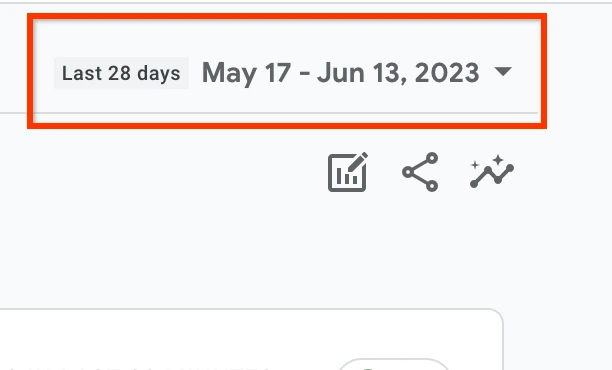
The date-range dropdown is at the top of the report. Screenshot source Choose the primary date range
Select a preset range, such as Last 7 days, or choose a custom range from the calendar. For example, use the last full week if you want to compare a completed period such as a full previous week. The dates you choose set the primary period for this report.
Use completed dates when partial current-day data could distort the comparison. For a campaign that ended on Sunday, for example, select the full campaign dates rather than a range that includes today's incomplete data. Record the selected dates if you need to reproduce the review later.
Choose the comparison period
Select Compare, then choose a comparison option. Previous period compares with the preceding range. Previous period (match day of week) aligns the earlier range to the same weekdays. Previous year compares with the same range in the prior year. Choose the option that answers your question. For example, use Previous year to check seasonal change, or Previous period (match day of week) when weekday patterns matter.
Choose the comparison based on the source of variation you want to control. Previous period is useful for a recent sequential change. Previous period (match day of week) can reduce weekday mix differences. Previous year is more relevant when annual seasonality is the question. These choices answer different questions, so do not treat them as interchangeable.
Apply and read both periods
Select Apply. Review the report's data for the selected range and its comparison. Google Analytics synchronizes the selected report date range across your other reports in your own session, but other users won't see your date change. Google notes that the Previous year (match day of week) option has been removed. Use Last calendar year when you need the prior calendar year.
Check that both displayed ranges have the same intended length and boundaries. If the report appears surprising, reopen the date picker and verify the primary dates and comparison option before interpreting the change.
How does this Google Analytics 4 setup work in practice?
Worked example: comparing weekday promotion performance against the previous week
An ecommerce team runs a five-day promotional campaign and compares daily traffic and transaction volumes against the preceding five business days.
| Choice | Why it matters | How to check |
|---|---|---|
| Open the relevant acquisition report and set the primary range to the promotion's five completed weekdays. | Including a weekend or incomplete day could change the traffic mix. | Confirm the date picker shows the promotion start and end dates. |
| Select Compare, then Previous period (match day of week). | Matching weekdays helps avoid comparing a Monday-Friday mix with a different set of weekdays. | Confirm Compare is enabled and the intended option is selected. |
| Apply the dates and inspect the same session metric in both periods. | Keeping the metric constant makes the period comparison interpretable. | Verify the report shows the promotion period and comparison period. |
| If a meaningful difference appears, inspect the channel or campaign detail next. | The aggregate change alone does not identify which traffic source contributed or establish why it changed. | Use a relevant detail report and retain the same date ranges where possible. |
Evaluate channel performance changes between the two periods, switching to prior-year comparisons when analyzing broader seasonal trends.
How do you verify your result in Google Analytics 4?
Verify that the report shows data for both chosen periods and that the date ranges match your intent. Use the comparison to decide which metric or channel deserves a closer look, then inspect the relevant report detail.
| Step | What you should see |
|---|---|
| Open a report and its date picker | The date-range panel is open on a report that has a date picker. |
| Choose the primary date range | The date picker shows the intended primary date range. |
| Choose the comparison period | Compare is enabled and the selected comparison option matches the analysis you want to make. |
| Apply and read both periods | The report updates and shows the primary range alongside the selected comparison period. |
Related Google Analytics 4 guides include Find GA4 events in DebugView and How to build a summary card for a Google Analytics overview report.
Which official Google Analytics 4 sources were checked?
Every step and limit in this Google Analytics 4 guide was verified against official documentation on 21 Nov 2026 following how we check figures, alongside more walkthroughs in our Google Analytics 4 tutorials hub:
How do you troubleshoot common Google Analytics 4 issues?
Why can't I find a date picker?
You may be viewing the Realtime report, which does not have a date picker because it shows immediate data. Open a standard report to select and compare date ranges.
Which comparison should I use for a seasonal check?
Choose Previous year to compare the selected range with the same range last year. For the previous calendar year, use Last calendar year. Google says Previous year (match day of week) has been removed.
Why do I see different totals after reopening the report in another session?
The selected report date range is synchronized across reports in your own session, but other users do not see your date change. Reopen the date picker in the other session and set the intended primary range and comparison again.
 Reviewed byDanny Kirk
Founder of ReddiReach.
 Checked byAndrés Felipe
Digital designer and marketer.
Every figure is checked against the vendor's own page. Read our editorial standards.