
Key Takeaways
- Help Scout lets all users create email saved replies inside conversations while Account Owners, Administrators, and permitted Users manage, style, and copy replies in Inbox Settings.
- Before building your library, verify whether your User role has permission to edit existing saved replies and agree on a numeric or group-prefix naming convention.
- Across five steps, you save a reply from an active conversation, build a rich reply in Inbox Settings, format text and variables via Markdown or Insert, insert replies in email threads, and organize or copy them across inboxes.
- Confirm your setup by typing / or clicking + inside an email reply editor and checking that your saved reply appears in alphanumeric order and populates cleanly.
You can answer recurring customer emails in seconds by creating formatted saved replies from either the Help Scout conversation editor or inbox settings. Standardizing numbered prefixes, variables, and cross-inbox copies keeps every agent's shortcut menu fast to search and consistent across support queues.
For plan limits and team seat pricing behind this workflow, read our Help Scout review or connect Help Scout to AI agents in Help Scout API and MCP.
Key steps
What do you need before starting in Help Scout?
Help Scout requires the following workspace setup before you begin:
- Access to at least one email-enabled Help Scout inbox (all users can create from a conversation)
- Account Owner, Administrator, or granted Saved Replies management permission to edit, delete, or copy existing replies in Settings
- User-based Plus or Pro plan, or any contact-based plan, if you want to refine drafted replies with AI Assist
How do you complete the steps in Help Scout?
Follow these 5 steps in Help Scout in order:
Save a new reply directly from an email conversation
Type the standard response text you want to reuse inside the Help Scout conversation editor, then open the shortcut menu by typing a slash (/) or clicking Insert (or use the search bar to locate the command) and select Saved Reply > Save this reply. Enter a clear name, adjust the text if needed, optionally use AI Assist (on user-based Plus and Pro plans, or any contact-based plan) to refine spelling, grammar, tone, length, or translation, and click Save Reply.
Saving directly from live threads is the fastest way for frontline agents to capture proven troubleshooting answers right after solving a new product question. Team leads can later review and standardize formatting inside inbox settings.
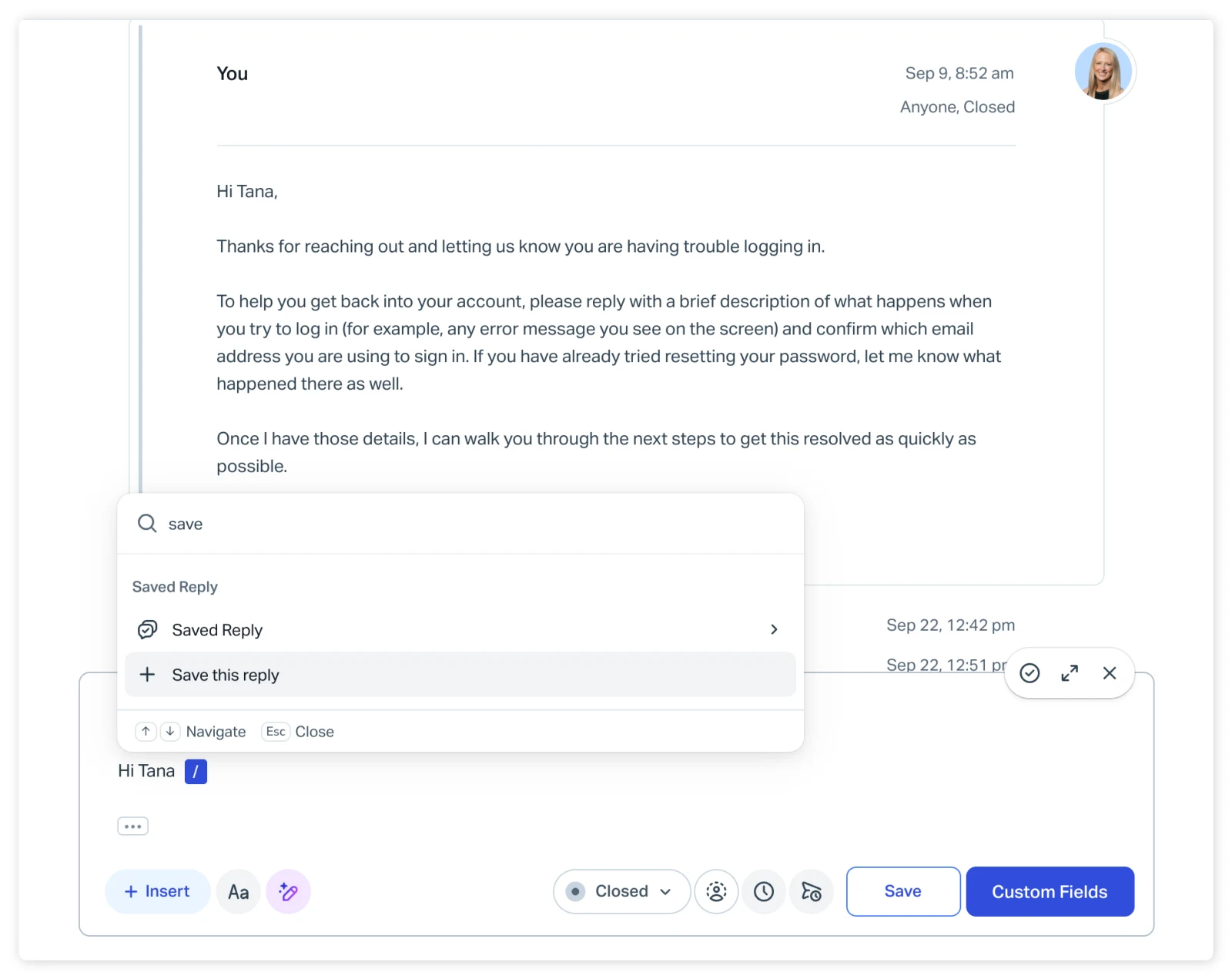
Type a slash or click Insert in the conversation editor and select Saved Reply > Save this reply to capture your drafted response. Screenshot source Create a saved reply from Inbox Settings
Click Settings (gear icon) > Inboxes, select your target inbox, click Saved Replies from the left sidebar, and click New Saved Reply at the top of the page. Enter a descriptive name, compose your email response in the text editor, optionally paste plain text into the Chat Content field if chat is enabled on the inbox, and click Save Reply.
Building replies from Settings gives Account Owners, Administrators, and permitted Users full styling controls alongside optional dual email-and-chat authoring on a single screen.
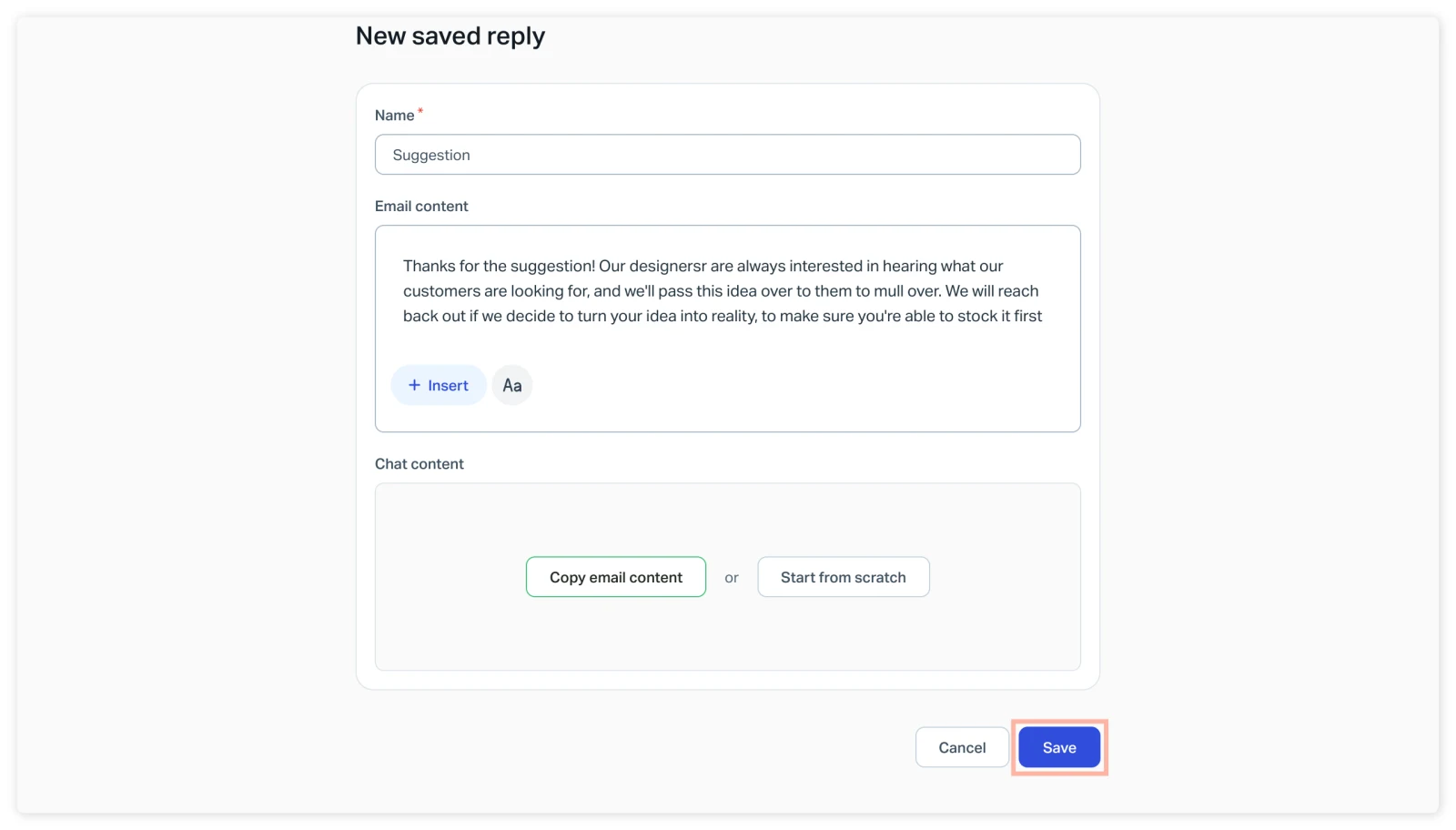
Enter a prefix-ordered reply name, compose your formatted message in Inbox Settings, and click Save Reply. Screenshot source Format text, tables, images, and variables
Inside the inbox settings editor, style text as you type with supported Markdown (**bold**, *italic*, ~strikethrough~, ` code , > blockquote, 1. numbered list, or - / * bullet list with Tab to indent), highlight text to use the tooltip menu or keyboard shortcuts (Cmd + B bold, Cmd + I italic, Cmd + U underline, Cmd + Shift + 8 bullets, Cmd + Shift + 7 numbers, Cmd + K link, using Ctrl on Windows), or type /` or click Insert to add an image, table, or Help Scout variables.
Keep in mind that non-image files cannot be attached directly to saved replies. When you need to share a PDF guide or downloadable template, host the file externally and add a link via Cmd + K (Ctrl + K), remembering that every recipient receives that identical URL.
Insert a saved reply when answering customer emails
Open any customer email thread in Help Scout, bring up the shortcut menu by typing / in the editor or clicking the plus (+) button in the bottom-right corner, and choose Saved Reply. Type a keyword or group prefix in the search bar (or scroll through the list) and select the reply you want to insert.
Always scan resolved variables and customize one opening or closing detail before sending so standard answers still read naturally for the customer's specific question.
Organize naming prefixes and copy replies across inboxes
Go to Settings (gear icon) > Inboxes > choose your inbox > Saved Replies to click any reply and edit it (Save Reply), delete an outdated entry via the trash can icon at the bottom right, or click Copy in the bottom-right corner to duplicate the reply into another inbox. Prefix reply titles with numbers (such as 01 - ) or category labels (such as Billing - ) and save your updates.
Because Help Scout sorts saved replies strictly in alphanumeric order in both the conversation shortcut menu and the settings list with no manual drag-and-drop, numeric and group prefixes let you pin high-volume answers to the top and filter whole categories instantly in search.
How does this Help Scout setup work in practice?
Worked example: Standardizing billing saved replies across two regional inboxes
A SaaS support manager wants agents in both US Support and EU Support inboxes to answer invoice-copy, refund-policy, and tax-form emails using a shared, searchable reply set.
| Choice | Why it matters | How to check |
|---|---|---|
| Create three replies in Settings > Inboxes > US Support > Saved Replies prefixed Billing - 01, 02, and 03 | Forces alphanumeric ordering and lets agents type Billing in the / menu search box to filter all three. | Typing Billing in the Saved Reply search bar returns only the three ordered billing snippets. |
| Insert customer variables via / or Insert and link a hosted W-9 PDF with Cmd + K | Personalizes greetings while sharing a downloadable PDF without unsupported file attachments. | The saved reply populates customer variables and a clickable hosted PDF link in test drafts. |
| Open each reply and click Copy in the bottom-right corner to copy into EU Support | Replicates all three formatted snippets into the second inbox without retyping or reformatting. | All three Billing - 01 through 03 replies appear inside EU Support > Saved Replies. |
Agents in both regional inboxes insert consistent, variable-personalized billing answers in two keystrokes using /, while managers maintain a predictable alphanumeric structure.
How do you verify your result in Help Scout?
Open a draft email reply in your inbox, press / to choose Saved Reply, and type your category prefix to verify your new replies filter cleanly and insert with intact formatting and variables. Next, convert your highest-volume email saved replies into plain-text chat versions if your inbox also handles live chat.
| Step | What you should see |
|---|---|
| Save a new reply directly from an email conversation | Clicking Save Reply stores the snippet immediately and makes it selectable from the Saved Reply menu in email conversations. |
| Create a saved reply from Inbox Settings | Your newly saved reply appears in the alphanumeric Saved Replies list inside Inbox Settings. |
| Format text, tables, images, and variables | Formatted headings, lists, inline images, tables, and dynamic variables render cleanly inside the saved reply editor preview. |
| Insert a saved reply when answering customer emails | The selected saved reply's full formatted text and variables populate directly inside your email reply editor. |
| Organize naming prefixes and copy replies across inboxes | Saved replies display in predictable numeric and category order and copied replies appear inside the destination inbox's Saved Replies list. |
Related Help Scout guides include How to create and convert saved replies for chat in Help Scout and How to enable and customize Docs contact with Beacon in Help Scout.
Which official Help Scout sources were checked?
Every step and limit in this Help Scout guide was verified against official documentation on 27 Nov 2026 following how we check figures, alongside more walkthroughs in our Help Scout tutorials hub:
How do you troubleshoot common Help Scout issues?
Why can I create a saved reply from a conversation, but cannot edit or delete existing ones in Settings?
All Help Scout users can save new replies from the conversation editor, while editing and managing existing saved replies is restricted to Account Owners and Administrators by default. Ask an Account Owner or Administrator to grant your role permission under User Roles and Permissions.
Why can I not attach a PDF document directly to a Help Scout saved reply?
Help Scout saved replies only support inline images via the / or Insert command menu and do not allow non-image file attachments. Upload your PDF to your website or a file-sharing service and link to it in the reply text, keeping in mind every recipient gets that same URL.
How do I reorder saved replies when there is no drag-and-drop handle in Settings?
Help Scout displays saved replies strictly in alphanumeric order in both Settings and the conversation shortcut menu. Add leading numbers (such as 01, 02) or group prefixes (such as Shipping -) to reply names to control their exact order and group search results.
 Reviewed byDanny Kirk
Founder of ReddiReach.
 Checked byAndrés Felipe
Digital designer and marketer.
Every figure is checked against the vendor's own page. Read our editorial standards.