
Key Takeaways
- Open CRM > Deals in HubSpot Sales Hub and access Board settings to specify displayed card properties and configure pipeline column groupings.
- Confirm you have permissions to manage CRM views and verify that your HubSpot subscription supports custom pipeline and board settings.
- Execute the 4-step customization by opening the board view, entering Board settings, selecting visible card properties, and saving your layout changes.
- Verify the updated configuration by reviewing the pipeline columns to confirm that all deal cards now display the selected properties and groupings.
Customize your deal board in HubSpot Sales Hub by configuring pipeline lane groupings and selecting which card properties display on each deal. Tailoring card fields ensures sales teams see critical amounts, close dates, and next steps at a glance.
For plan limits and team seat pricing behind this workflow, read our HubSpot Sales Hub review or connect HubSpot Sales Hub to AI agents in HubSpot Sales Hub API and MCP.
Key steps
What do you need before starting in HubSpot Sales Hub?
HubSpot Sales Hub requires the following workspace setup before you begin:
- Access to CRM > Deals and an existing saved view configured for board view.
- Create CRM views permission to create or manage saved views. Multiple pipelines require a Starter, Professional, or Enterprise subscription. Basic board configuration can use an existing pipeline.
How do you complete the steps in HubSpot Sales Hub?
Follow these 4 steps in HubSpot Sales Hub in order:
Open a saved deal board
In HubSpot, click More > CRM > Deals, then select a saved view tab configured for board view, such as All deals. In the upper right, click the board view icon. If needed, use the pipeline dropdown to select the pipeline you want to work with.
Start with the saved view and pipeline the team actually uses for the review. If a board looks unexpectedly sparse, confirm the saved view’s filters as well as the pipeline dropdown. Either can limit which deals appear. Keep the view selection consistent when comparing layouts over time.
Open Board settings
Click the view configuration settings icon and select Board settings. Under Board group, choose the property that should define the lanes, such as Deal stage or another available enumeration property. To show records missing that value, turn on the No [property name] lane switch. Use Add in Select property values to include lanes, then drag them to reorder or remove a value with its X.
Choose a Board group that answers a specific review question. Deal stage suits a pipeline review. Another available enumeration property can help organize a different workflow. Include a No [property name] lane when records with missing values need follow-up, but recognize that this lane highlights incomplete data and may add clutter.
Adjust the deal card display
Click the back to view settings icon, then choose Card settings. Under Card display, use Show properties as to choose how card information appears. Turn Show empty properties on if you want blank fields visible for quick editing, or off to keep cards compact. You can also choose whether associations share one line, and whether cards show quick actions or activity.
Choose Card display options according to how people scan the board. Showing empty properties can make missing information visible, which helps data cleanup, but blank fields take space. Hiding them keeps cards more compact, though a reviewer may need to open a deal to notice missing details.
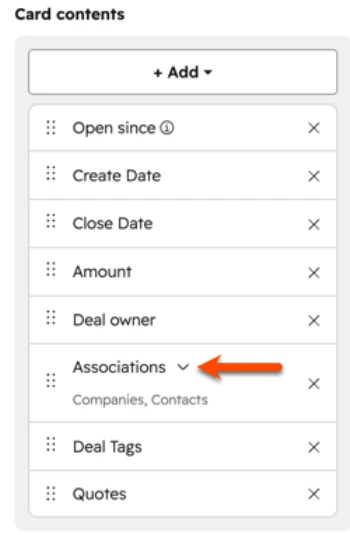
In the Card contents panel, reorder displayed properties and open Associations to show related records. Screenshot source Save and inspect the board
If your account offers the Card contents beta, use Add to include properties, associations, or sections on each card, then drag items to reorder them. This content editor is beta-specific. When your configuration is ready, click Save in the bottom right. Check several cards and lanes to make sure the view surfaces the details your team needs.
Save, then inspect cards in more than one lane, including a deal with missing values if that lane is enabled. If the Card contents beta is available, check that its selected properties and associations are useful on actual cards. A board that looks clear for one deal may become crowded when cards have longer names or more associations.
How does this HubSpot Sales Hub setup work in practice?
Worked example: preparing a deal board for weekly qualification pipeline reviews
A sales manager reviews open sales pipeline opportunities weekly and wants deal cards to display close dates, key decision-maker associations, and missing stage values.
| Choice | Why it matters | How to check |
|---|---|---|
| Open the team’s saved board view and confirm the intended pipeline. | A different saved view or pipeline could make the review incomplete before any layout changes are made. | The displayed deals belong to the pipeline selected for the meeting. |
| Set Board group to Deal stage and enable the No [property name] lane if available and needed. | Stage lanes match the review agenda. A missing-value lane can expose records that need correction. | The board shows stage lanes and, when enabled, a lane for deals without a stage value. |
| Keep empty properties visible if the manager needs to spot incomplete card fields. | This trades a denser board for easier data quality checks. Turn it off if blank fields make cards hard to scan. | Inspect cards with and without populated properties for readability. |
| Select only the card information used to decide the next review action, if the Card contents beta is available. | Focused cards reduce visual noise, while adding every available property can obscure key details. | Check cards in several lanes and confirm the selected information is legible. |
Save the board configuration and review sample cards across multiple pipeline stages to confirm that key properties and missing values display cleanly.
How do you verify your result in HubSpot Sales Hub?
Confirm the board has the intended lane grouping and that deal cards display the selected information. Use the updated board during deal reviews, and reopen Board settings if the team’s priorities change.
| Step | What you should see |
|---|---|
| Open a saved deal board | The selected saved view displays deals in board columns for the intended pipeline. |
| Open Board settings | The board settings panel shows your chosen grouping property and lane values. |
| Adjust the deal card display | Card settings reflect the property display and visibility options you selected. |
| Save and inspect the board | The board reflects the selected lanes and card settings after you save. |
Related HubSpot Sales Hub guides include How to add a deal to a HubSpot Sales Hub pipeline and How to add line items to a deal in HubSpot.
Which official HubSpot Sales Hub sources were checked?
Every step and limit in this HubSpot Sales Hub guide was verified against official documentation on 21 Nov 2026 following how we check figures, alongside more walkthroughs in our HubSpot Sales Hub tutorials hub:
How do you troubleshoot common HubSpot Sales Hub issues?
Why don’t my board lanes show the grouping I selected?
Reopen Board settings and check Board group and Select property values. Records without a value appear in a missing-value lane only when the No [property name] lane switch is on.
Why can’t I add or rearrange card contents?
The Card contents editor is marked beta in HubSpot’s guide. If it is not available in your account, use the standard Card display options instead.
Why does a deal appear in a missing-value lane even though its card shows a value?
Check which property is selected under Board group, then compare that property’s value on the deal with the lane configuration. A card can display other properties that do not control its lane. If the grouping property is genuinely missing, update the deal if the value is known. Otherwise leave it for the team’s data review.
 Reviewed byDanny Kirk
Founder of ReddiReach.
 Checked byAndrés Felipe
Digital designer and marketer.
Every figure is checked against the vendor's own page. Read our editorial standards.