
Key Takeaways
- Intercom Workflows let teams combine Or attribute filters, Message Content and Email subject keywords, Urgency rules, and Office hours checks to prioritize high-value and urgent threads.
- Before configuring these routing patterns, ensure workspace office hours, company spend/plan attributes, SLA targets, and dedicated Sales or language teams exist in Intercom.
- Across six steps, you filter new conversations by Or spend and plan attributes, chain Apply SLA and team Assign actions, escalate unanswered bug keywords after 15 minutes, route upgrade keywords and reply urgency, filter French and live-chat queues by Office hours, and add VIP-aware inactivity snoozing.
- Verify your routing by opening test conversations matching your spend, keyword, and office-hours criteria and checking applied SLAs, priority flags, and team assignments.
You can fast-track high-spend accounts, escalate unanswered bug reports, and route live-chat or multilingual threads in Intercom by combining attribute, keyword, urgency, and **Office hours** filters inside Workflows. Targeted **Or** conditions, timed priority escalations, and VIP snooze checks protect response SLAs without manual queue monitoring.
For plan limits and team seat pricing behind this workflow, read our Intercom review or connect Intercom to AI agents in Intercom API and MCP.
Key steps
What do you need before starting in Intercom?
Intercom requires the following workspace setup before you begin:
- Permission to build and activate Workflows in your Intercom workspace
- Synced company or user attributes (such as Monthly spend and Plan) and configured SLA targets for VIP routing
- Configured workspace office hours in Intercom before enabling any Office hours routing conditions
How do you complete the steps in Intercom?
Follow these 6 steps in Intercom in order:
Target high-value accounts with Or spend and plan filters
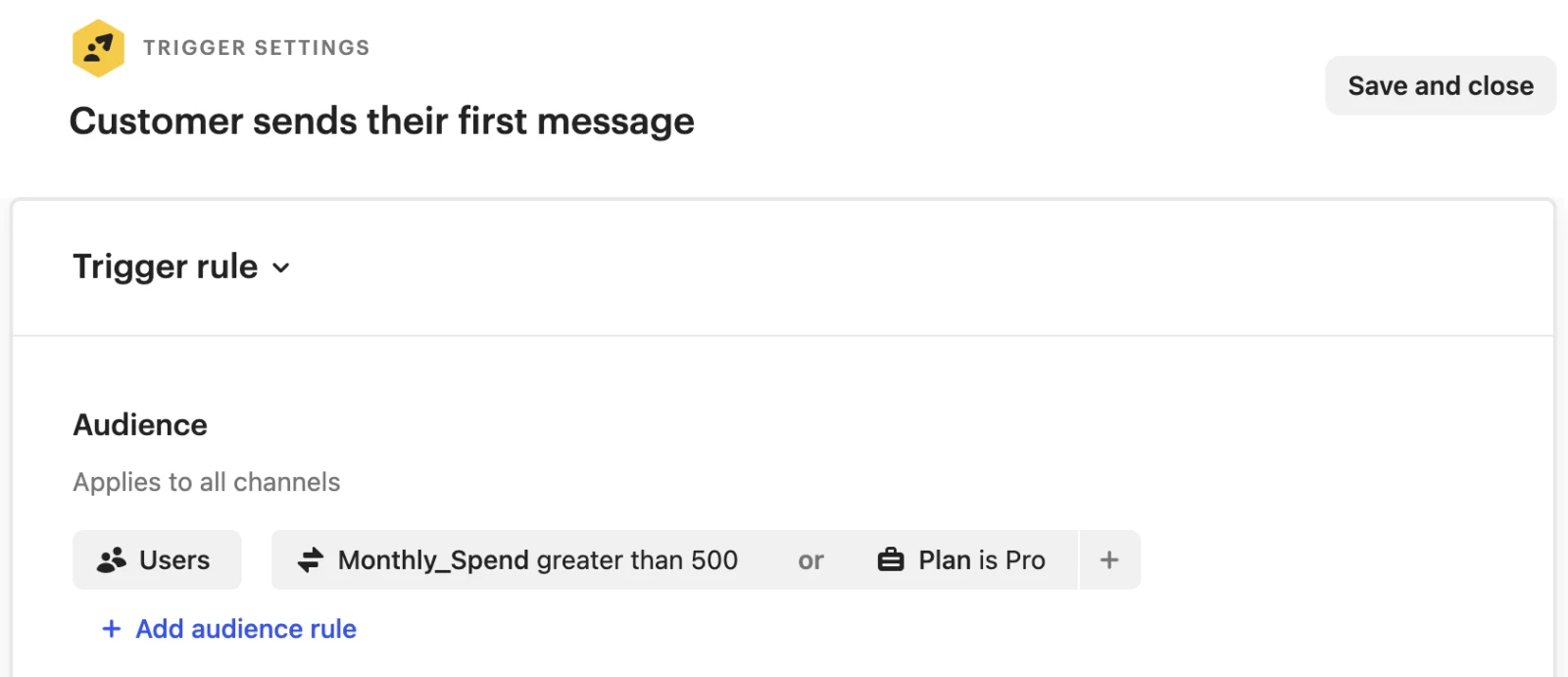
Create a Workflow starting from the New conversation trigger and configure Or filtering on company or customer attributes so the rule matches customers whose Monthly spend is greater than 500 OR whose Plan is Pro. Save the trigger filter before adding downstream inbox actions.
Using Or filtering instead of strict And logic catches both enterprise custom-spend accounts and standard Pro tier subscribers inside a single clean Workflow without maintaining duplicate rules.
Switch attribute conditions to Or so either Monthly spend greater than 500 or Plan is Pro triggers VIP SLA routing. Screenshot source Chain Apply SLA and team Assign actions for VIP threads
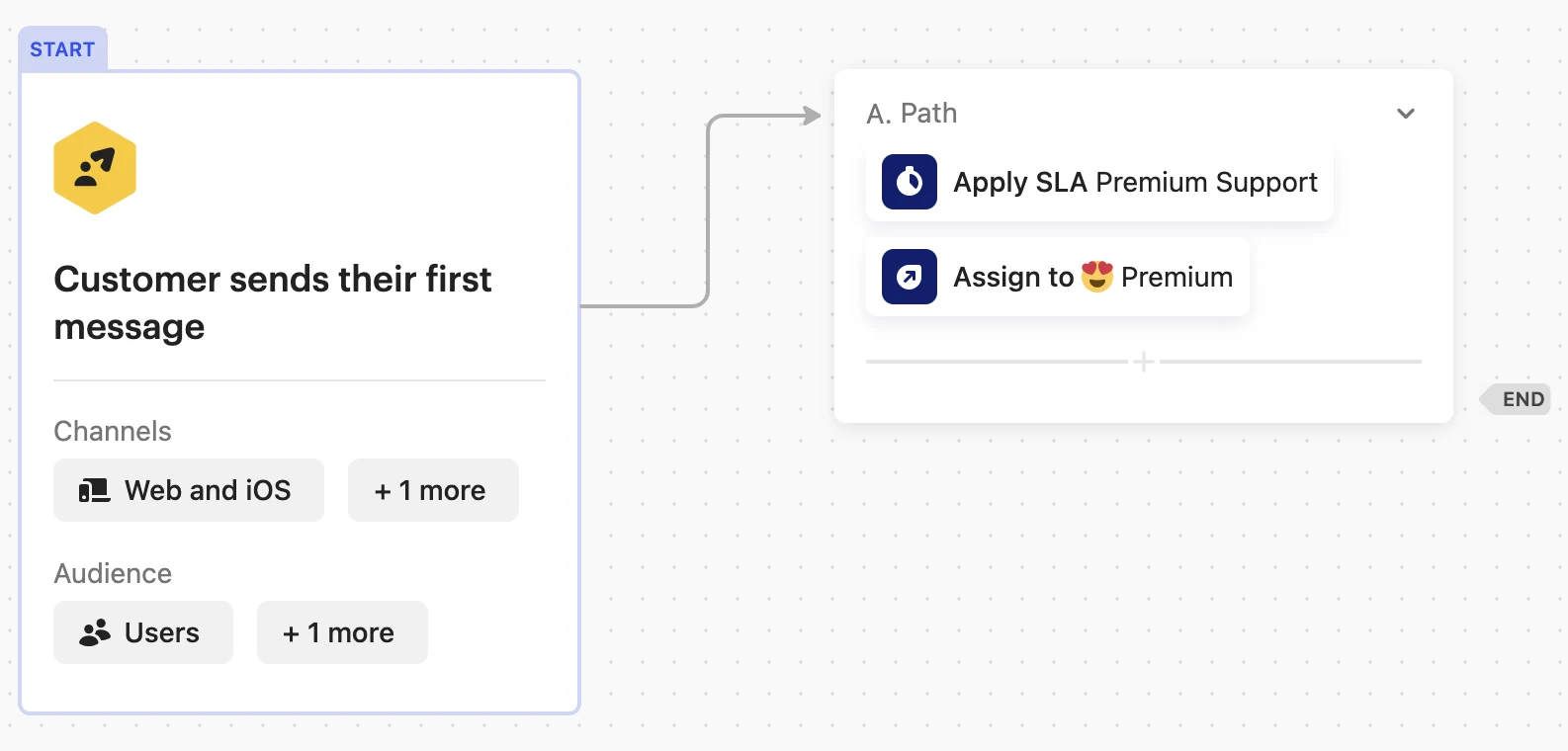
Directly beneath your Or-filtered New conversation trigger, add an Apply SLA step followed by an Assign conversation step pointing to your dedicated high-value support team. Keep Apply SLA positioned above Assign in the path.
Attaching the SLA target first ensures response-time countdown badges are already active on the conversation the moment it lands in your VIP team's inbox queue.
Chain Apply SLA above Assign under your New conversation trigger so high-value threads enter your specialist queue with active timers. Screenshot source Escalate unanswered bug or error reports after 15 minutes
Create an escalation Workflow that inspects Message content or Email subject for bug and error keywords when a conversation arrives. Add a 15 minutes wait window checking whether the conversation has received a teammate reply, and attach Mark as priority if it remains unanswered.
Giving frontline queues a 15-minute buffer prevents routine fast replies from generating unnecessary priority noise while guaranteeing untouched outage or error reports jump to the top of the inbox.
Route sales keywords and update urgency on ongoing replies
Build a keyword-routing Workflow with the Customer sends a message trigger and a Message Content filter matching 'upgrade', then add an Assign action pointing to your Sales team. For ongoing threads whose severity shifts mid-conversation, create a separate Workflow triggered after any reply in a conversation to scan specific keywords and update conversation urgency data dynamically.
Triggering urgency updates on any reply catches frustrated escalations that started as casual how-to questions three messages earlier.
Route language and non-low-priority live chat during Office hours
First confirm workspace office hours are configured, then build a language routing Workflow combining a customer language check (such as French) with an Office hours filter to assign and tag conversations for native speakers only while they are on shift. Similarly, configure a live chat Workflow that checks Office hours alongside an Urgency branch filter matching any conversation except low priority, then assigns matching threads to your live chat support team.
Scoping native-speaker and live-chat team assignments to Office hours prevents conversations from stranding in unstaffed regional queues overnight while keeping low-priority tickets out of synchronous chat lanes.
Check VIP status before snoozing unresponsive customer threads
Create an inactivity Workflow triggered when a customer has not responded for your set follow-up period, and insert a condition checking whether the conversation belongs to a VIP customer before applying a Snooze action until tomorrow.
Checking VIP status before snoozing lets account managers give high-value customers tailored outreach or longer grace windows while standard inactive threads snooze cleanly out of active agent queues until the next day.
How does this Intercom setup work in practice?
Worked example: Prioritizing Pro accounts, upgrade leads, and French live support
A B2B SaaS company wants Intercom to guarantee SLAs for high-spend and Pro customers, hand expansion signals straight to Sales, and route French chats only when bilingual reps are online.
| Choice | Why it matters | How to check |
|---|---|---|
| Set New conversation trigger with Or filter: Monthly spend > 500 OR Plan is Pro -> Apply SLA + Assign | Captures both high-MRR custom contracts and Pro subscribers in one SLA workflow. | A new message from a $600/month customer gets the SLA badge and VIP team assignment immediately. |
| Add Customer sends a message trigger with Message Content contains 'upgrade' -> Assign to Sales | Moves expansion-ready customers out of general support queues into Sales immediately. | Any message containing 'upgrade' routes straight to the Sales inbox. |
| Combine French language detection with an Office hours filter before assigning to French speakers | Prevents French threads from sitting unassigned in a closed regional queue after hours. | French chats during office hours tag and assign to native speakers, while after-hours chats follow fallback coverage. |
High-value accounts receive immediate SLA tracking, Sales captures upgrade inquiries in real time, and French customers only route to regional specialists when someone is on shift.
How do you verify your result in Intercom?
Send test messages from sample accounts matching your Pro plan, 'upgrade' keyword, and bug-report rules to confirm SLAs, team assignments, and 15-minute priority flags apply in the Intercom Inbox as expected. Next, double-check your workspace office hours schedule before holiday shifts so your Office hours language and live-chat Workflow filters stay accurate.
| Step | What you should see |
|---|---|
| Target high-value accounts with Or spend and plan filters | The New conversation trigger filter displays Monthly spend greater than 500 OR Plan is Pro. |
| Chain Apply SLA and team Assign actions for VIP threads | New conversations matching either VIP condition immediately receive the target SLA and route to the assigned team. |
| Escalate unanswered bug or error reports after 15 minutes | Conversations containing bug or error keywords in the message body or email subject automatically gain priority status if unanswered after 15 minutes. |
| Route sales keywords and update urgency on ongoing replies | Messages mentioning 'upgrade' assign directly to Sales, and mid-thread escalation keywords update the conversation's urgency attribute. |
| Route language and non-low-priority live chat during Office hours | During configured office hours, French conversations route to available native speakers and non-low-priority chats assign to the live chat team. |
| Check VIP status before snoozing unresponsive customer threads | Unresponsive conversations evaluate the VIP customer condition first before snoozing until tomorrow. |
Related Intercom guides include How to build background inbox automations with Workflows in Intercom and How to configure Workflow triggers, branches, and channels in Intercom.
Which official Intercom sources were checked?
Every step and limit in this Intercom guide was verified against official documentation on 27 Nov 2026 following how we check figures, alongside more walkthroughs in our Intercom tutorials hub:
How do you troubleshoot common Intercom issues?
Why is my Office hours language or live-chat routing condition not matching conversations?
Workflow conditions that filter by Office hours require office hours to be configured at the workspace level first. Configure and save your workspace office hours in Intercom Settings so the Office hours branch condition can evaluate active shifts accurately.
How do we target customers who either spend over 500 per month or subscribe to the Pro plan in one Workflow?
Switch the condition connector inside your New conversation trigger filter to Or instead of And, then add Monthly spend greater than 500 and Plan is Pro. Any conversation matching either attribute will receive your Apply SLA and Assign actions.
How can we prevent low-priority questions from flooding our synchronous live chat team?
Routing every daytime conversation directly to live chat overwhelms synchronous agents with non-urgent requests. Add a branch combining an Office hours condition with an Urgency filter that matches any conversation except those marked as low priority, then assign matching threads to your live chat team.
 Reviewed byDanny Kirk
Founder of ReddiReach.
 Checked byAndrés Felipe
Digital designer and marketer.
Every figure is checked against the vendor's own page. Read our editorial standards.