
Key Takeaways
- Build opt-in forms under Website > Sign-up forms using library templates or a blank layout connected to a subscriber list.
- Enable Klaviyo onsite JavaScript on your website and create destination subscriber lists before starting.
- Pick a template and list, customize blocks and styles, set visitor targeting rules, and preview before publishing.
- Verify in a private window with ad blockers off that the live form triggers and adds test contacts to your list.
You can build and publish targeted website sign-up forms in Klaviyo to capture email and SMS consent without custom code. Marketing teams use popups, flyouts, and embeds to grow subscriber lists and route new profiles straight into welcome flows.
For plan limits and team seat pricing behind this workflow, read our Klaviyo review or connect Klaviyo to AI agents in Klaviyo API and MCP.
Key steps
What do you need before starting in Klaviyo?
Klaviyo requires the following workspace setup before you begin:
- A website integrated with Klaviyo with onsite JavaScript (Klaviyo.js) enabled, plus embed code placed on the page if publishing an embedded form.
- At least one subscriber list in Klaviyo, or two separate lists when collecting email and SMS consent on separate steps.
How do you complete the steps in Klaviyo?
Follow these 4 steps in Klaviyo in order:
Choose a template or blank form and destination list
Select Website > Sign-up forms in Klaviyo and click Create form (entering a name, selecting Web, and clicking Create form if prompted). Filter templates with Form style and Template type, pick a template, name it, select your destination list, and click Create form, or choose Create blank form and Save and design.
Create subscriber lists beforehand, including separate email and SMS lists for multi-step forms. You can switch the list later by clicking the submit button in the editor.
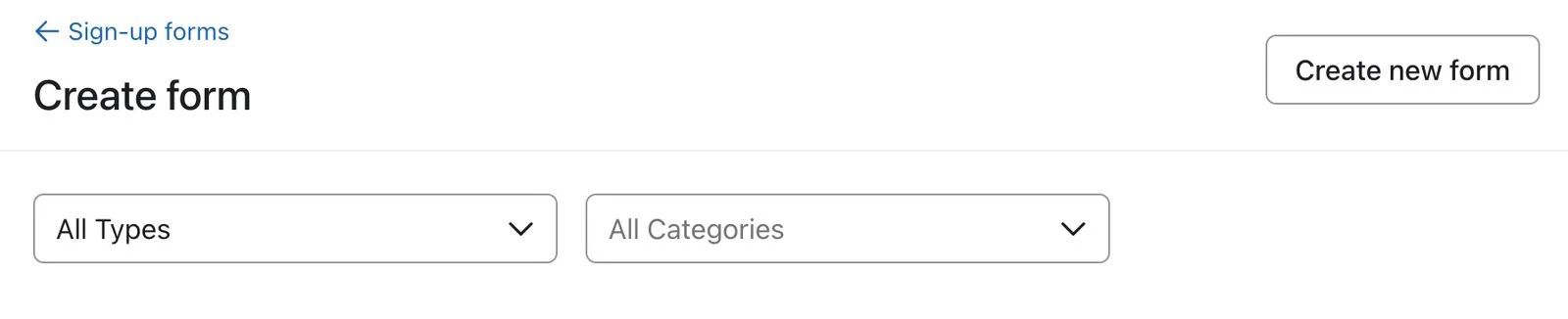
Use the filter dropdowns at the top of the Sign-up forms library to narrow pre-built templates before opening the editor. Screenshot source Customize styles, input fields, and compliance blocks
Open Edit styles to pick a format (Popup, Flyout, Full page, Embed, or banner) and style sizes, colors, and inputs. Open Add content to drag in Text block, Button block, Coupon block, SMS disclosure language block, Email input, or Phone number input, and set Placeholder text, Required text, and Invalid text.
Use multi-step forms when collecting both email and SMS consent, include SMS disclosure copy wherever phone numbers are requested, and set the final button to Submit form and Show next step to display your Success step. Add dynamic blocks for device-specific content or a teaser to reopen dismissed popups.
Set visitor targeting, timing, and banner actions
Configure display timing, frequency, devices, dismissal rules, and audience targeting by location, URL, UTM parameters, cart contents, or list membership; for banners opening another live form, set the button Action to Open another form. Exclude existing Klaviyo profiles when targeting new visitors.
For an exit-intent popup, trigger on page exit across all devices, reappear after 5 days if closed, and suppress after submission or URL-button click.
Preview on your website and publish live
Select Preview on website, enter a URL running Klaviyo's onsite JavaScript, and scan the QR code to test mobile rendering. Check Alerts to resolve any publishing errors, then click Publish now.
Preview links expire after 30 minutes and can update profiles even though preview activity stays out of live analytics, so submit test details only. Exit preview mode, test in a private window with ad blockers disabled, and connect an immediate welcome flow if promising a discount.
How does this Klaviyo setup work in practice?
Worked example: Exit-intent multi-step popup for first-time visitors
A skincare store wants unknown shoppers leaving product pages to opt in to email and SMS in exchange for an instant coupon.
| Choice | Why it matters | How to check |
|---|---|---|
| Multi-step Popup submitting to separate Email and SMS subscriber lists | Separating email and phone fields across steps reduces friction while keeping consent lists distinct. | Step 1 collects email and Step 2 collects phone with SMS disclosure copy. |
| Final button set to Submit form and Show next step with a Coupon block on Success | Reveals the promo code right away while a list-triggered welcome flow emails a copy. | Submitting Step 2 in preview displays the Success step coupon. |
| Exit-intent trigger on all devices, 5-day close delay, excluding existing profiles | Prompts only unsubscribed visitors leaving the site without pestering returning subscribers. | Targeting summary confirms exit intent and profile exclusion. |
After QR-code mobile testing, the team clicks Publish now and verifies in an incognito window without ad blockers that test entries populate both lists.
How do you verify your result in Klaviyo?
Verify your live form in a private browser window with ad blockers off by meeting every targeting rule, submitting test data, and checking your destination list. Next, monitor form analytics in Klaviyo and confirm your welcome flow sends promised incentives immediately.
| Step | What you should see |
|---|---|
| Choose a template or blank form and destination list | The form editor opens with your chosen layout linked to your destination subscriber list. |
| Customize styles, input fields, and compliance blocks | Each step shows styled inputs, required disclosure text, and a configured Success step on the canvas. |
| Set visitor targeting, timing, and banner actions | Targeting settings show your exit trigger, 5-day cooldown, device scope, and profile exclusion rules. |
| Preview on your website and publish live | The form goes live on your storefront and routes a private-window test sign-up into your destination list. |
Related Klaviyo guides include How to create and filter dynamic audience segments in Klaviyo and How to create segment and list-triggered flows in Klaviyo.
Which official Klaviyo sources were checked?
Every step and limit in this Klaviyo guide was verified against official documentation on 27 Nov 2026 following how we check figures, alongside more walkthroughs in our Klaviyo tutorials hub:
How do you troubleshoot common Klaviyo issues?
Why do I see a 301 Moved Permanently error in the form editor canvas?
Password protection, redirects on an old domain, or an invalid domain response commonly trigger this background preview message. Verify your live domain URL, as this canvas notice does not break your Klaviyo connection or block publishing.
Why is my published form not displaying when I visit my site?
Ad blockers can stop Klaviyo.js from loading, or your browser may already be cookied as an excluded Klaviyo profile. Test in a private window with ad blockers off, satisfy all targeting rules, and verify page embed code for Embed forms.
Does Klaviyo protect sign-up forms against bot submissions?
Yes, Klaviyo applies automatic bot protection to published sign-up forms without manual setup. Shoppers only see CAPTCHA when suspicious activity is detected.
 Reviewed byDanny Kirk
Founder of ReddiReach.
 Checked byAndrés Felipe
Digital designer and marketer.
Every figure is checked against the vendor's own page. Read our editorial standards.