
Key Takeaways
- Use the HubSpot mobile app on iOS or Android to log completed phone conversations directly onto a contact record timeline while working away from your desk.
- Start the entry from Contacts in the expand sidebar menu, tap Log Activity, and select Call so the activity automatically associates with the right person.
- Capture structured context on the Log Call screen by entering concise notes, setting Call outcome and Call type if used, checking Date / time, and toggling Follow up task.
- Tap Save in the top right and inspect the contact activity timeline to verify that the call note, timestamp, outcome, and any follow-up task appear accurately.
Log a completed phone call in the HubSpot mobile app by opening the contact record, tapping Log Activity, selecting Call, and saving your conversation notes and outcome to the activity timeline. Recording call details, outcomes, timestamps, and optional follow-up tasks directly from your phone keeps HubSpot Sales Hub records accurate for the rest of your team.
For plan limits and team seat pricing behind this workflow, read our HubSpot Sales Hub review or connect HubSpot Sales Hub to AI agents in HubSpot Sales Hub API and MCP.
Key steps
What do you need before starting in HubSpot Sales Hub?
HubSpot Sales Hub requires the following workspace setup before you begin:
- The HubSpot mobile app installed and signed in on an iOS or Android device.
- An existing contact record in HubSpot Sales Hub for the person you called.
- Key details from the conversation, including call notes, when the call happened, the appropriate Call outcome, and any applicable Call type.
How do you complete the steps in HubSpot Sales Hub?
Follow these 5 steps in HubSpot Sales Hub in order:
Open the contact record
Open the HubSpot mobile app on your iOS or Android device. Tap the expand sidebar menu in the upper left corner of the screen, select Contacts, and browse or search for the person you spoke with. Tap the contact name to open their mobile record. Starting from the specific person record ensures the activity attaches to the right contact timeline rather than a namesake or unrelated record.
Start a call log
On the contact record page, locate the quick action controls shown alongside Add Note and Create Task, then tap Log Activity. When the activity choices appear, select Call to open a blank call log form tied to that contact. Choosing Log Activity instead of Add Note stores the interaction as a dedicated call entry with structured outcome and timestamp fields.
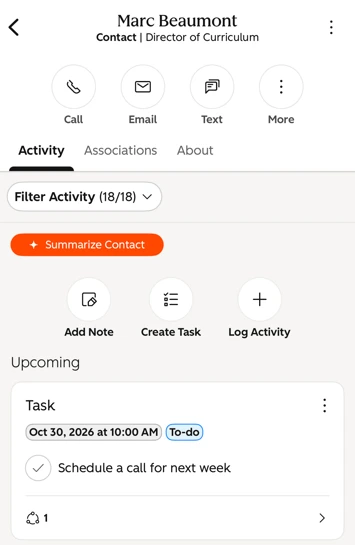
The contact screen shows the Log Activity control used to begin recording the call. Screenshot source Enter what happened
Type a clear, factual note in the call body describing why you called, what the contact shared, and any next steps you agreed on during the conversation. Keep the summary concise so teammates scanning the HubSpot Sales Hub timeline can grasp the context in seconds. If the conversation requires another outreach attempt or deliverable, turn on the Follow up task switch on the same screen so HubSpot creates a reminder task alongside the call log.
Set call details
Tap Call outcome on the Log Call screen and select the result that matches the interaction, such as reaching the contact or leaving a message. If your team categorizes outreach using call types in HubSpot Sales Hub, tap Call type and pick the applicable option. Next, inspect the Date / time control on the Log Call screen. Keep the default timestamp if you are logging the call immediately after hanging up, or tap Date / time to adjust it if you are catching up on calls made earlier in the day.
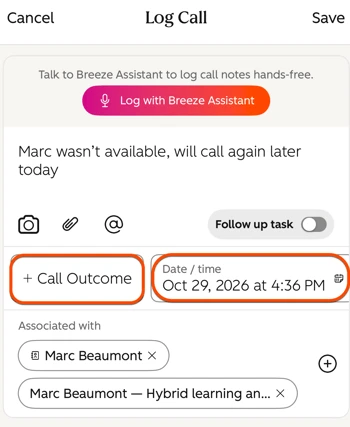
The Log Call screen exposes the outcome and date and time controls before saving. Screenshot source Save and confirm the log
Check the associated contact shown on the Log Call screen one final time to confirm the entry points to the intended person, then tap Save in the top right corner. After saving, return to the contact activity timeline and look for the newly created call card. If you enabled the Follow up task switch, confirm the corresponding task also appears so nothing slips through the cracks.
How does this HubSpot Sales Hub setup work in practice?
Example: logging an afternoon field sales check-in call from an iOS phone
An account executive finishes a phone call from a client parking lot with a procurement contact who asked to reconnect later in the week, and logs the interaction immediately in the HubSpot mobile app so the inside sales team sees the update.
| Choice | Why it matters | How to check |
|---|---|---|
| Open Contacts from the upper-left expand sidebar menu, select the procurement contact, tap Log Activity, and choose Call. | Starting directly on the contact record binds the call activity to the right person instead of creating an unlinked note. | The Log Call screen displays the procurement contact as the associated record. |
| Write a two-sentence note covering the pricing question discussed and the request to call back later in the week. | Specific, factual notes let colleagues read the contact timeline without needing a separate Slack or email handoff. | The note states the conversation topic and agreed next step without unverified assumptions. |
| Select the matching Call outcome, set Call type if used by the sales team, and confirm Date / time. | Structured call fields keep HubSpot Sales Hub reporting consistent and record the exact time the conversation happened. | Call outcome, Call type, and Date / time match the completed call. |
| Turn on the Follow up task switch and tap Save in the top right. | Enabling Follow up task creates the callback reminder in the same workflow before saving the call to the timeline. | Both the logged call and the follow-up task appear on the contact activity timeline. |
The inside sales team immediately sees the call outcome, timestamp, and conversation summary on the contact timeline, while the account executive has a scheduled follow-up task ready for the next outreach.
How do you verify your result in HubSpot Sales Hub?
The call is saved as a structured activity on the contact record in HubSpot Sales Hub, giving your team a shared timeline entry for the phone interaction. Review the contact association, conversation notes, Date / time value, and Call outcome on the timeline card to confirm accuracy, and verify that any follow-up task enabled during logging was created.
| Step | What you should see |
|---|---|
| Open the contact record | The mobile record page opens and displays the exact contact whose call you want to log. |
| Start a call log | The Log Call screen opens with the selected contact already associated. |
| Enter what happened | The note accurately summarizes the conversation and next action, and the Follow up task switch matches whether you need a reminder. |
| Set call details | Call outcome and any required Call type are selected, and the Date / time control reflects when the call actually took place. |
| Save and confirm the log | The completed call entry is visible on the intended contact activity timeline with the right notes, outcome, and timestamp. |
Related HubSpot Sales Hub guides include How to add a deal to a HubSpot Sales Hub pipeline and How to add line items to a deal in HubSpot.
Which official HubSpot Sales Hub sources were checked?
Every step and limit in this HubSpot Sales Hub guide was verified against official documentation on 21 Nov 2026 following how we check figures, alongside more walkthroughs in our HubSpot Sales Hub tutorials hub:
How do you troubleshoot common HubSpot Sales Hub issues?
Why can't I find the contact in the HubSpot mobile app?
Tap the expand sidebar menu in the upper left and make sure you selected Contacts rather than another object list. Search or browse carefully by the person's name and verify you have the exact contact record open before tapping Log Activity.
Why is my logged call missing from the contact timeline?
Either Save in the top right was not tapped before closing the screen, or the call was logged on a duplicate or different contact record. Reopen the intended contact from Contacts, inspect the activity timeline, and log the call again if it is missing.
How do I fix a call that shows the wrong date or time?
When logging a call made earlier, the Log Call screen defaults to the current time unless you change the Date / time control. Reopen the call activity if editing is available in your mobile view and update Date / time so it matches when the conversation actually occurred.
 Reviewed byDanny Kirk
Founder of ReddiReach.
 Checked byAndrés Felipe
Digital designer and marketer.
Every figure is checked against the vendor's own page. Read our editorial standards.