
Key Takeaways
- Create reusable Notion database templates to standardize document layouts, metadata properties, and recurring section headings across new entries.
- Ensure you have full editing permissions on the parent Notion database before designing and saving page layout templates.
- Execute five setup steps to access template menus, assign template titles, establish default properties, add content structures, and test creation.
- Create a fresh page from your saved Notion template to verify that predefined headers, checklists, and properties populate accurately.
Notion database templates establish predefined layouts, properties, and body sections for recurring pages. Configuring templates ensures new database items maintain consistent structure across team workspaces.
For plan limits and team seat pricing behind this workflow, read our Notion review or connect Notion to AI agents in Notion API and MCP.
Key steps
What do you need before starting in Notion?
Notion requires the following workspace setup before you begin:
- A Notion database where you can create and edit pages.
- A repeatable page structure, such as sections for agenda, notes, and action items.
How do you complete the steps in Notion?
Follow these 5 steps in Notion in order:
Open the template menu
Open the database where you want the reusable page format. At the top-right of the database, click the dropdown arrow beside New, then select + New template.
The template belongs to this database, so open the database where you expect to use it regularly.
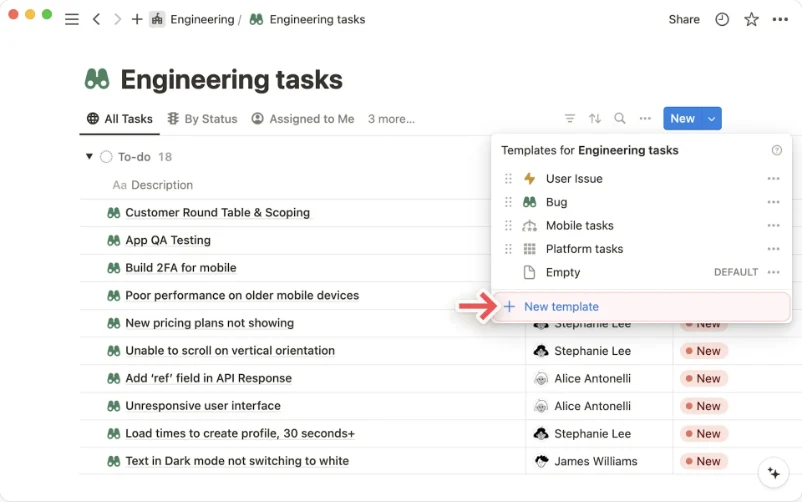
Open the dropdown beside New and select + New template. Screenshot source Name the template
Click the template title and enter a name such as Weekly meeting. This is the name you will choose when creating a database page from the template.
Choose a title that describes the page type, that can work for future meetings. That way, you can reuse it for each week.
Set default properties
Use the property fields at the top of the template page to set any values that should be prefilled on every page created from it. For example, you might set a Type property to Meeting if your database uses a Type select property.
Only set values that should be the same every time. Leave variable fields, such as meeting date or attendees, empty so you can fill them in for each new page.
For a template used across recurring meetings, set only stable values such as Type: Meeting. If the database has a Project relation, prefill it only when every page made from this template belongs to the same project. Otherwise leave it empty so a meeting is not accidentally linked to the wrong work. Check the relation value on a test page before reusing it.
Add the repeatable page sections
In the template page body, add headings or prompts such as Agenda, Discussion notes, and Action items. You can include other content types in a template, and the content will appear on pages created from it.
Keep the structure useful but flexible. A template is a starting point, and you can edit its content on each page you create.
Use prompts that make the next action clear, such as Decision needed, Owner, and Due date beneath Action items. This is useful when notes need to become follow-up work. Keep prompts as headings or text unless you specifically need database properties. A prompt in the page body does not itself populate a property.
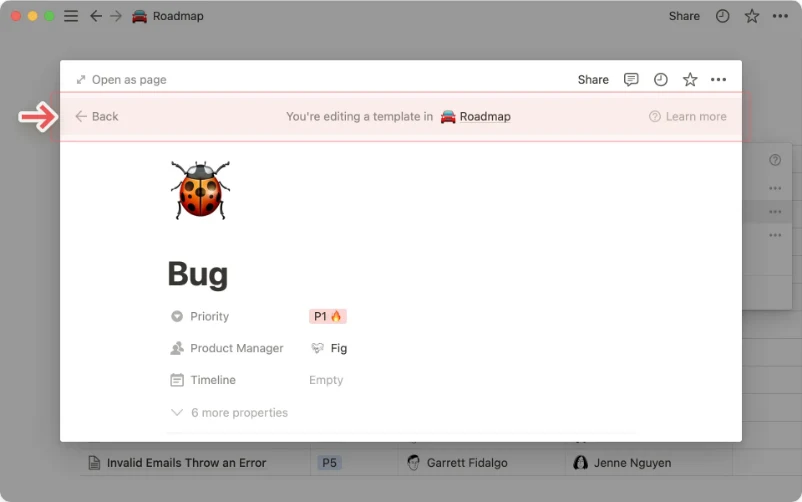
Add the default page content and sections in the template editor. Screenshot source Create a page from the template
Return to the database and open the dropdown to the right of the blue New button. Choose Weekly meeting to create a page from the template, then give the new page a unique title, such as Product sync, November 23.
Review the generated page before relying on the template in your routine. Edit any page-specific details, since the title and content can be changed after creation.
Before relying on the template for a real meeting, create one test page and enter a sample date and attendee. Confirm those details were not prefilled from the template, then edit the test page freely. If its title or body reveals a default that should vary, return to the template and clear that value.
How does this Notion setup work in practice?
Worked example: prepare a reusable weekly product sync note
A product organization builds a reusable Notion template to provide structured agenda headings, note sections, and action item tables for weekly syncs.
| Choice | Why it matters | How to check |
|---|---|---|
| Name it Weekly product sync | A page-type name stays useful across dates and helps distinguish it from other templates. | The template editing page shows that title. |
| Set Type to Meeting only | That classification is constant. Date and attendees change each week. | The template's property fields show the type and leave date and attendees blank. |
| Add Agenda, Decisions, and Action items sections | These capture the meeting's purpose, outcomes, and follow-up in a repeatable order. | Each section appears in the template body. |
| Create a test page titled Product sync, Nov 23 | A dated title distinguishes the resulting note, while a test reveals unintended defaults. | The page has the title, expected Type value, and sections, with no stale date or attendee. |
Creating a new meeting note from the template generates standardized agenda sections, ensuring consistency across recurring product sync discussions.
How do you verify your result in Notion?
Confirm that a page created from Weekly meeting includes its expected properties and body sections. Use the template as the starting point for the next meeting note, filling in its date, participants, and discussion.
| Step | What you should see |
|---|---|
| Open the template menu | Notion opens a new template editing page, with a bar indicating which database contains it. |
| Name the template | The template editing page displays the title Weekly meeting. |
| Set default properties | The template shows only the intended default property values. |
| Add the repeatable page sections | The template body contains the sections you want to reuse. |
| Create a page from the template | A new database page has its unique title, the intended default property value, and the template’s page sections. |
Related Notion guides include How to create a linked database view in Notion and How to create a Notion database with a board view.
Which official Notion sources were checked?
Every step and limit in this Notion guide was verified against official documentation on 21 Nov 2026 following how we check figures, alongside more walkthroughs in our Notion tutorials hub:
How do you troubleshoot common Notion issues?
Can I use this template in another database?
No. Notion’s Help Center says templates are available only in the database where you created them. Create a corresponding template in another database if you need the same structure there.
Should I prefill a relation property in the template?
Only if every page made from the template should link to the same existing page or pages. Otherwise leave the relation empty so each new page can be linked separately.
The test page includes text from the last meeting. How do I prevent that from recurring?
Open the template and inspect its body for copied notes, names, or dates. Remove meeting-specific content and leave prompts such as Decisions or Action items, then create another test page to confirm only the reusable structure remains.
 Reviewed byDanny Kirk
Founder of ReddiReach.
 Checked byAndrés Felipe
Digital designer and marketer.
Every figure is checked against the vendor's own page. Read our editorial standards.