
Key Takeaways
- Apply customized filter and sort criteria to Notion database views to isolate relevant tasks and arrange them by priority or date.
- Ensure your Notion database contains populated properties such as Status or Due Date before creating rule-based view filters.
- Follow five management steps to open views, configure filter rules, define sharing scopes, set sort hierarchies, and inspect layouts.
- Review the filtered Notion view against source data to verify that completed items disappear and active tasks order by deadline.
Notion view controls let you apply specific filters and sorting rules to organize database records. Configuring these parameters creates focused queues that display high-priority work in logical sequence.
For plan limits and team seat pricing behind this workflow, read our Notion review or connect Notion to AI agents in Notion API and MCP.
Key steps
What do you need before starting in Notion?
Notion requires the following workspace setup before you begin:
- A Notion database with at least one property you can filter and one you can sort, such as Status and Due date.
- A database view you can edit.
How do you complete the steps in Notion?
Follow these 5 steps in Notion in order:
Open the view you want to adjust
Navigate to the database and select the view tab you want to customize. Each view keeps its own settings, so choose the view where you want the filtered and ordered results to appear.
For example, create a separate table view called Open tasks if you want to preserve an unfiltered view for the whole project.
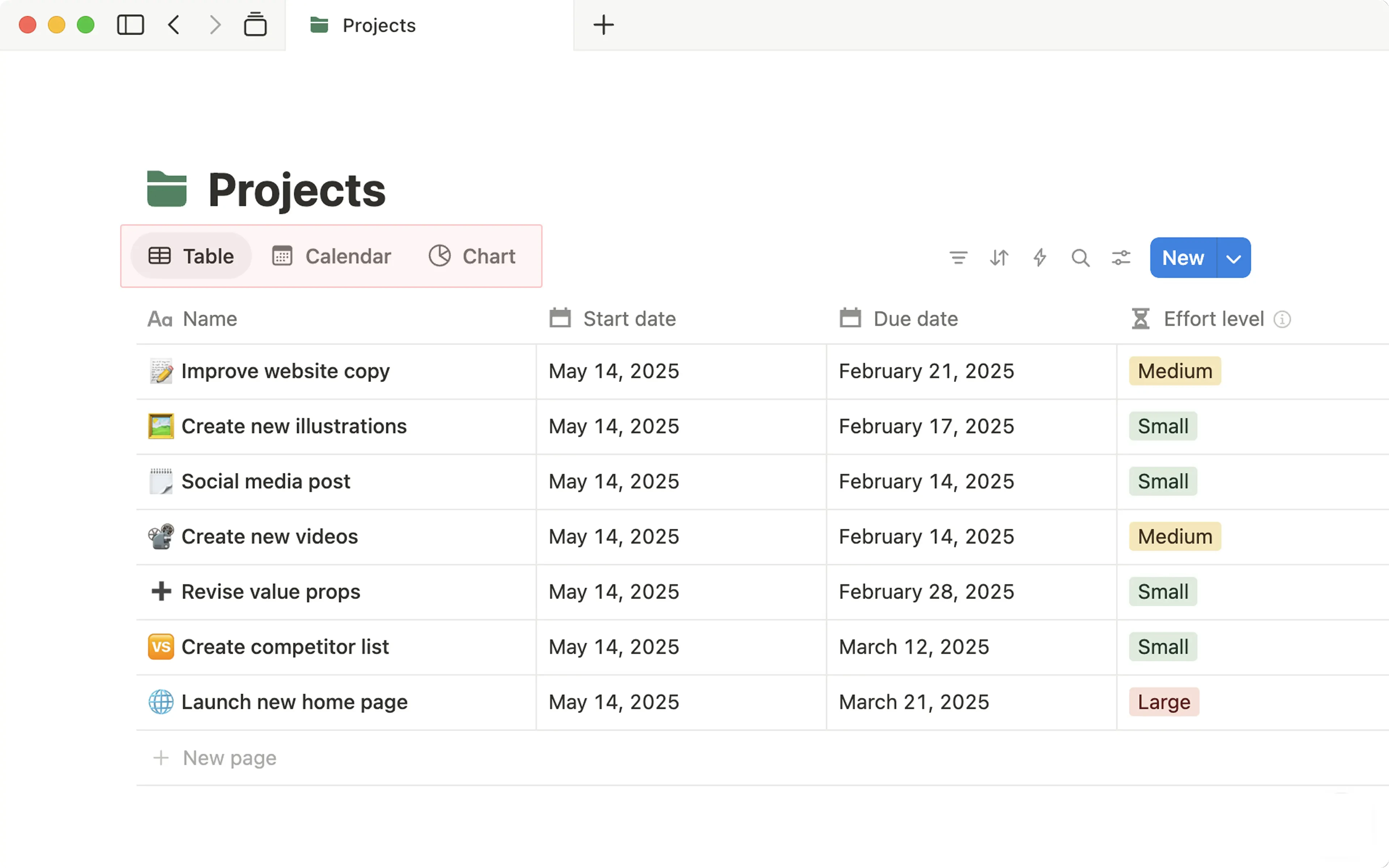
Choose the database view using the tabs above the table. Its toolbar includes filters and sorting. Screenshot source Add a status filter
Open the database settings menu in the top-right and select Filter under View settings. Choose the Status property, then set the condition and value. For an open work queue, use a condition that excludes completed records, or select the status values you want to keep.
Notion updates the view as you apply filter criteria. Use the condition that matches your database’s actual status options.
Before choosing the status condition, inspect the values your database actually uses. A team might use Blocked, In progress, and Done, while another uses different labels. Decide which statuses belong in this queue, then verify one known record from each included status remains and a completed record is excluded.
Choose whether the filter is shared
In the filter settings, choose Save for everyone if teammates should see the same filtered view. Leave that option unselected if the filter should apply only to your own view.
Use a shared filter for a team queue with an agreed definition of open work. Keep a personal filter private when you are narrowing the view for your own review.
Add a sort rule
Open the database settings menu again and select Sort under View settings. Choose the Due date property and set the order to Ascending to place earlier dates before later ones. Select a date property that is populated if you want the order to be useful.
You can add multiple sort rules. When there is more than one, drag them with the ⋮⋮ handle to set which rule takes priority.
If two tasks share a due date, the date sort alone may leave their relative order unclear. Add a second sort rule only when a property such as priority gives a useful tie-break. Check a pair with the same date to confirm the additional rule is ordering them as intended. Keep the rule list short enough to explain.
Save the sort scope and inspect the view
If the sort should apply to teammates too, choose Save for everyone. Otherwise leave it unselected. Review the filtered and sorted entries, then adjust the criteria if an expected record is missing. Text properties sort alphabetically, while numbers sort numerically, so choose a property suited to the order you need.
A due-date sort is most useful when dates are populated. Inspect records with blank dates separately if they matter to the queue, since the view still needs an explicit rule for what to do with unscheduled work. Do not infer that a blank-date task is low priority. Decide whether it belongs in this view or needs a separate review.
How does this Notion setup work in practice?
Worked example: build a focused queue for release follow-up
A release manager filters a shared Notion tasks database to show only open tickets sorted chronologically by due date and priority level.
| Choice | Why it matters | How to check |
|---|---|---|
| Open the release team's task view | The settings apply to the active view, so start from the view intended for the shared queue. | The intended view tab is active before editing. |
| Filter to the team's unfinished status values | Using actual database labels avoids accidentally excluding a status such as Blocked. | Known unfinished tasks remain visible, while a known Done task is hidden. |
| Choose Save for everyone for the agreed queue | The team should see the same criteria when the queue represents shared release work. | The filter's sharing choice matches the team's intended use. |
| Sort by Due date ascending, then Priority if dates tie | Earlier work leads. Priority provides a tie-break only where it adds useful meaning. | Compare dated tasks and two tasks sharing a date to verify both rules. |
The Notion view displays only unresolved tickets ordered by imminent deadline, giving the team a clean queue for release planning meetings.
How do you verify your result in Notion?
Verify that a record outside the filter criteria is hidden and that remaining records follow the chosen sort order. Keep the view as a focused queue for the next work session.
| Step | What you should see |
|---|---|
| Open the view you want to adjust | The selected database view is active before you change its settings. |
| Add a status filter | Records that do not meet the selected status condition disappear from this view. |
| Choose whether the filter is shared | The filter’s sharing setting reflects whether the view should be consistent for everyone or personal to you. |
| Add a sort rule | The view lists qualifying records in due-date order, with the earliest dates first. |
| Save the sort scope and inspect the view | The active view shows only matching records in the chosen order. |
Related Notion guides include How to create a linked database view in Notion and How to create a Notion database with a board view.
Which official Notion sources were checked?
Every step and limit in this Notion guide was verified against official documentation on 21 Nov 2026 following how we check figures, alongside more walkthroughs in our Notion tutorials hub:
How do you troubleshoot common Notion issues?
Why did another view stay unchanged?
Notion applies filter and sort settings to the current view. Select the other view and configure it separately if you want the same criteria there.
Why is a record missing from my filtered view?
Open Filter under View settings and inspect the property, condition, and selected value. The record may not match the criteria, or its property may be empty.
A task with a due date is appearing in an unexpected place. What should I inspect?
Check the active view's sort rules and their priority order. Confirm the task's due-date value is actually populated and compare it with another record. If dates tie, add a relevant secondary sort only if the team has a meaningful tie-break property.
 Reviewed byDanny Kirk
Founder of ReddiReach.
 Checked byAndrés Felipe
Digital designer and marketer.
Every figure is checked against the vendor's own page. Read our editorial standards.