
Key Takeaways
- Create a Notion Rollup property to calculate sums, ranges, or values derived from previously linked relational database pages.
- Confirm an active relation exists between both Notion databases and the source database contains populated numeric or date fields.
- Complete five sequential configuration steps covering relation verification, rollup property creation, source selection, and formula assignment.
- Inspect computed rollup values in the destination Notion database against original records to verify calculation accuracy and proper formatting.
Aggregate property values from linked Notion pages using a rollup to compute totals, averages, or dates across related databases. This enables project managers to calculate total hours or track milestone dates directly from parent database records.
For plan limits and team seat pricing behind this workflow, read our Notion review or connect Notion to AI agents in Notion API and MCP.
Key steps
What do you need before starting in Notion?
Notion requires the following workspace setup before you begin:
- Two Notion databases connected by a relation property.
- The related database has a populated property to summarize, such as a Number estimate or a Date deadline.
How do you complete the steps in Notion?
Follow these 5 steps in Notion in order:
Confirm the relation and source property
Open the database where you want the summary to appear, such as Projects. Confirm it has a relation to the records you want to summarize, such as Tasks. In the Tasks database, check that the property to summarize, such as Estimate, is populated on the related task pages.
A rollup reads through an existing relation. It does not create the connection between records by itself.
Define what one destination row represents before checking values. If a project relation includes archived tasks or tasks from multiple workstreams, the rollup will summarize the linked records it sees, not only the items you intended mentally. Review the relation contents and correct unintended links before relying on the summary.
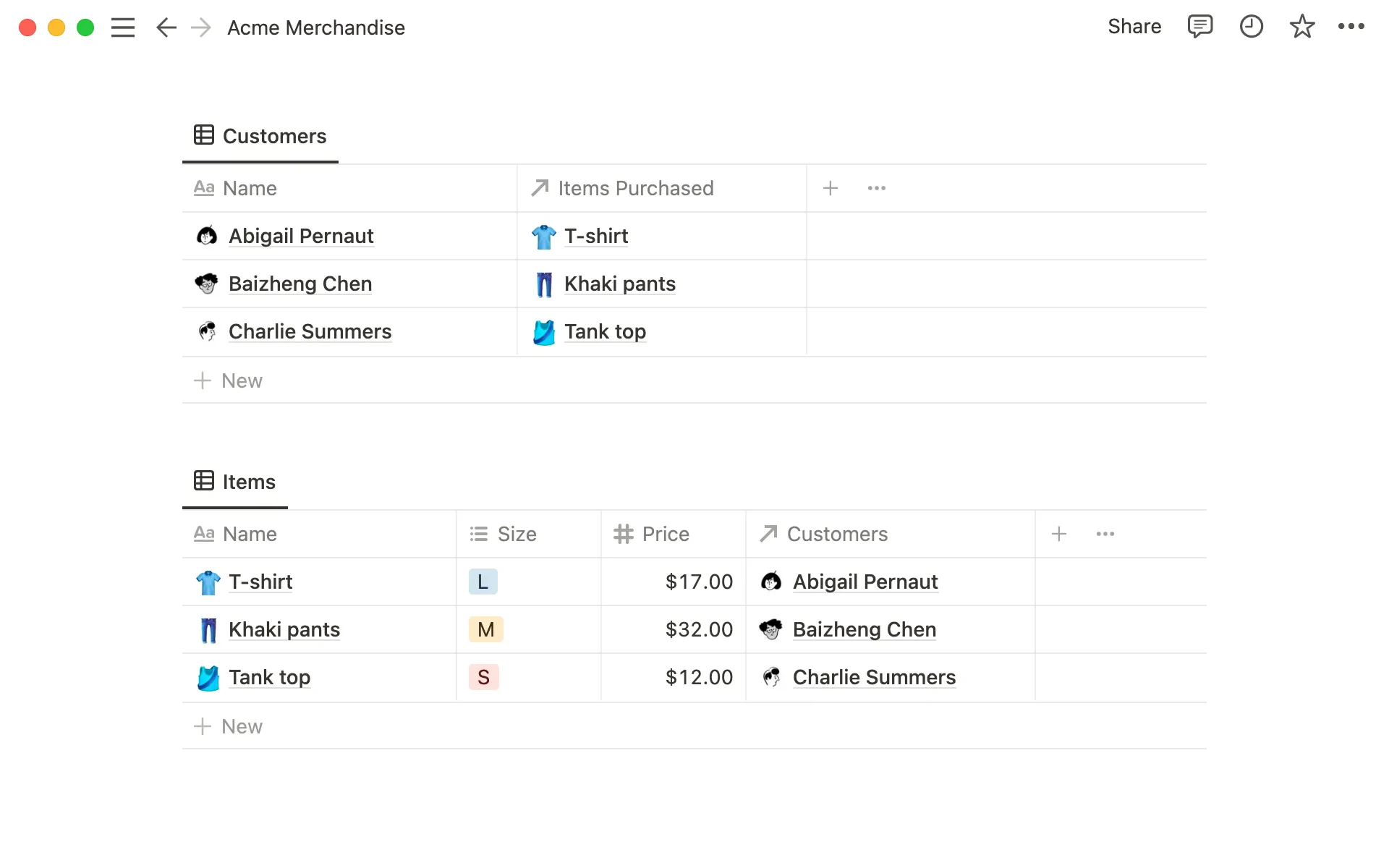
This Notion example shows a relation between Customers and Items. Confirm the relation and the Price property before creating a rollup. Screenshot source Add a Rollup property
In the destination database, select Add property and choose Rollup from the property type menu. Give it a name that describes the result, such as Total estimated hours.
Choose a name that tells you what the displayed number represents, especially when the database contains several possible summaries.
Select the relation to follow
Click a cell in the new rollup column. In the rollup configuration, choose the relation property that links to the relevant records, such as Tasks.
If you do not see the expected relation, return to the first step and confirm you are creating the rollup in the database that contains that relation.
Choose the related property
In the next rollup setting, choose the property from the related pages that you want to summarize, such as Estimate. The chosen property type determines which calculations Notion offers.
For number properties, Notion documents options such as Sum, Average, Min, and Max. For date properties, options include Earliest date, Latest date, and Date range.
Choose a calculation that answers the decision at hand. Sum is useful for total estimated effort, while Average can hide a single unusually large task. For dates, Latest date identifies the furthest date among linked values, while Date range communicates both ends of the schedule.
Choose and verify a calculation
Select Sum to total related numeric estimates, or choose a calculation that matches your source property. For example, use Latest date to find the latest related task date. Number rollups can also be given a number format and decimal placement.
Compare the result for one project with the values on its linked task pages. If no result appears, confirm the relation has linked pages and those pages have values in the chosen property.
When checking a numeric rollup, compare it with the source values for one project that has a small, known set of related records. Empty source values should not be mistaken for zero effort. If estimates use fractional hours, check the displayed number format and decimal placement before interpreting a rounded result.
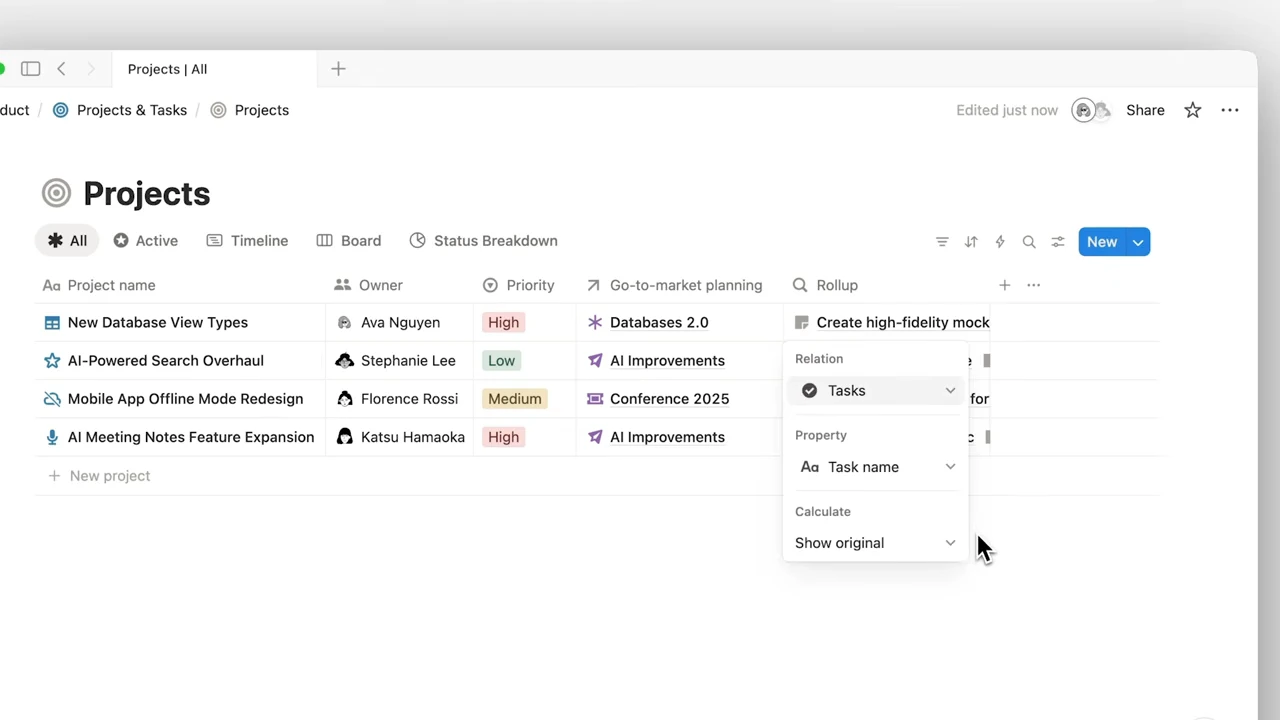
The Rollup menu lets you choose a relation, a property from the related database, and a calculation. Screenshot source
How does this Notion setup work in practice?
Worked example: estimating effort across a project’s linked tasks
A project lead wants to evaluate whether an upcoming release fits team capacity. The Tasks relation contains three release tasks with populated Estimate values of 2, 3, and 5 hours.
| Choice | Why it matters | How to check |
|---|---|---|
| Open the project row and inspect the Tasks relation | The total is meaningful only if it includes the intended release tasks and excludes unrelated or archived work. | Confirm the three intended task pages are linked and no unrelated task is included. |
| Add a Rollup named Total estimated hours | A descriptive property name makes clear that the value is effort, not task count or elapsed time. | The named property appears in the Projects database. |
| Select Tasks as the relation and Estimate as the related property | These choices follow the actual task links and read the numeric effort field. | The rollup configuration shows the relation and source property expected. |
| Choose Sum and compare with the three source values | Summing estimates answers the total-capacity question. An average would answer a different question. | For this illustrative data, the displayed total should agree with 2 + 3 + 5 hours. |
Treat the total as a planning estimate, not a promise of delivery time. If the rollup differs from the linked estimates, inspect relation membership, blank values, and number formatting before changing the team’s plan.
How do you verify your result in Notion?
Verify a project’s rollup by opening its related task pages and checking the chosen values against the displayed calculation. Use the resulting summary to scan project load or timing from the destination database.
| Step | What you should see |
|---|---|
| Confirm the relation and source property | The destination database has a working relation and the related pages have values in the property you plan to summarize. |
| Add a Rollup property | A new property named Total estimated hours appears in the destination database. |
| Select the relation to follow | The rollup configuration shows the intended relation property. |
| Choose the related property | The rollup is set to read the intended property from the related pages. |
| Choose and verify a calculation | The rollup cell displays the selected calculation for the related records, and the value is consistent with their source property values. |
Related Notion guides include How to create a linked database view in Notion and How to create a Notion database with a board view.
Which official Notion sources were checked?
Every step and limit in this Notion guide was verified against official documentation on 21 Nov 2026 following how we check figures, alongside more walkthroughs in our Notion tutorials hub:
How do you troubleshoot common Notion issues?
Why is the rollup empty?
Check that the selected relation contains linked pages and that those pages have values in the chosen property. A rollup summarizes properties through the relation, so either missing links or empty source values can leave nothing to show.
Can I roll up another rollup?
No. Notion’s Help Center says rollups cannot roll up other rollups. Choose a property on the related pages instead.
Why does a total look lower than the visible task estimates?
Check whether every intended task is linked in the relation and whether each related page has a populated Estimate. Also check the number format and decimal placement, since displayed rounding can make a value look different from its underlying total.
 Reviewed byDanny Kirk
Founder of ReddiReach.
 Checked byAndrés Felipe
Digital designer and marketer.
Every figure is checked against the vendor's own page. Read our editorial standards.