
Key Takeaways
- Open ... (More) > Automation > Templates in Pipedrive to choose from 36 pre-made automations grouped by sales process.
- Confirm your pipelines, lead labels, products, or campaigns already exist before opening the template setup dialog.
- Browse the four collections, complete the guided setup prompts, save the template, and manage or edit ownership on the automations page.
- Verify your new workflow appears under the Owned by me filter on the automations page and triggers on matching records.
You can launch ready-made workflow automations in Pipedrive to automate repetitive lead, deal, activity, and external app tasks without building triggers from scratch. Sales teams use the 36 curated templates to standardize follow-ups, stage handoffs, and campaign sends in minutes.
For plan limits and team seat pricing behind this workflow, read our Pipedrive review or connect Pipedrive to AI agents in Pipedrive API and MCP.
Key steps
What do you need before starting in Pipedrive?
Pipedrive requires the following workspace setup before you begin:
- An active Pipedrive account with access to ... (More) > Automation
- Existing pipeline stages, lead labels, or products referenced by your target template
- Configured email campaigns or external apps if using a campaign or external app template
How do you complete the steps in Pipedrive?
Follow these 5 steps in Pipedrive in order:
Open the automation templates gallery
In your Pipedrive navigation bar, click ... (More) > Automation > Templates. If you already have the automations page open, click Templates to reveal all ready-made workflows.
Starting from the gallery gives admins a tested baseline instead of wiring triggers manually. Check what reps currently repeat by hand first so you avoid duplicate follow-up tasks.
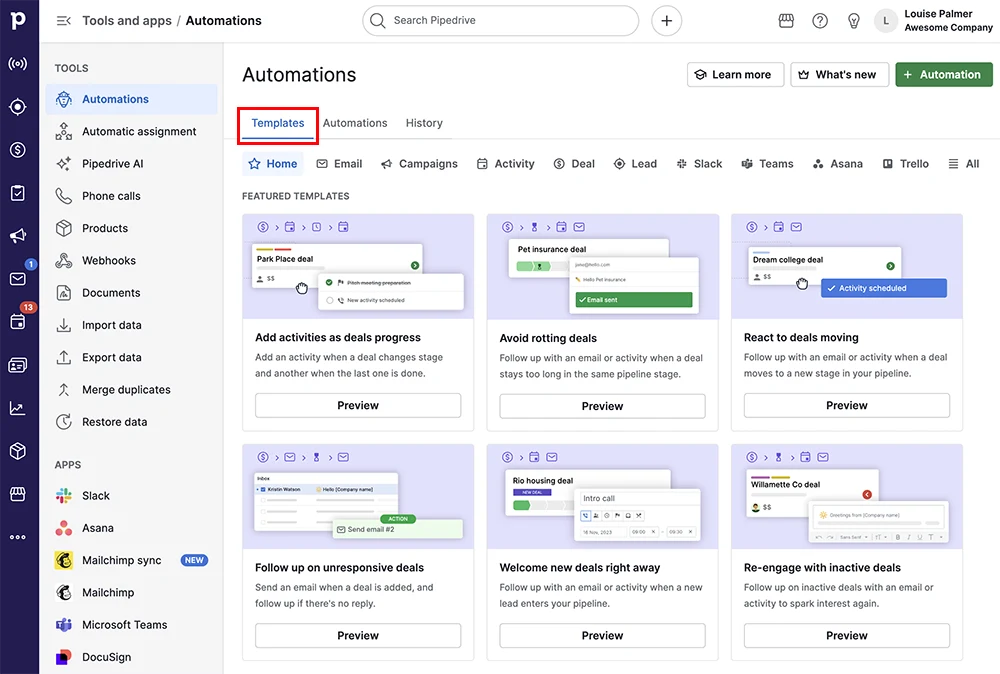
Open the More menu and select Automation, then click Templates to browse ready-made workflows. Screenshot source Choose a template from the curated collections
Browse the 36 templates across four collections: Focus on deals, Engage with leads, Optimize your work, and External apps. Click the template that matches your process, such as Avoid rotting deals, Qualify leads, or Nurture new leads.
Match the collection to the starting record. Use Focus on deals for stage changes or product attachments, and Optimize your work for converting labeled leads into deals or welcoming subscribed people.
Complete the template setup dialog and save
Enter all required details in the template setup dialog, such as target pipeline stages, lead labels, or products. After making your selections, click Save as draft.
Once saved, your automation is active immediately so it assists with live records right away. Double-check stage and label selections before saving so active deals do not trigger unintended actions.
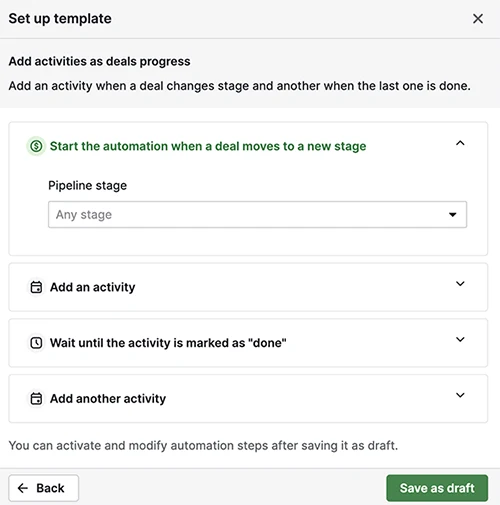
Complete the required fields in the template setup dialog and click Save as draft to finish. Screenshot source Customize the saved workflow on the automations page
Open the main Automation page and select your template-created workflow to apply additional customization beyond the initial setup prompts. Template automations behave just like automations created from scratch and remain editable anytime.
Teams often launch Engage with deals that are progressing quickly and refine specific field details later as pipeline rules mature.
Audit workflows with ownership filters
On the Automation page, use the Owned by me filter to view automations you created. Switch to Owned by others to inspect template automations built by colleagues.
Checking Owned by others before adding a new template prevents teammates from running duplicate follow-ups or external app alerts on the same deal stage move.
How does this Pipedrive setup work in practice?
Worked example: Automating lead qualification and deal products
A B2B sales team wants labeled leads converted into deals automatically and a standard onboarding product added whenever a deal enters Proposal.
| Choice | Why it matters | How to check |
|---|---|---|
| Select Qualify leads under Optimize your work | Converts a lead into a deal automatically whenever its lead label is updated. | Updating a lead label creates a matching deal automatically. |
| Select Add products to existing deals under Focus on deals | Attaches the onboarding product whenever a deal moves into the Proposal stage. | Moving a deal to Proposal adds the selected product. |
| Review Owned by others before saving | Confirms no colleague already runs a competing stage or label automation. | Only one workflow handles each transition across team filters. |
Both workflows appear under Owned by me and run automatically as reps update lead labels and advance deals.
How do you verify your result in Pipedrive?
Confirm your setup by opening Automation, selecting Owned by me, and testing a sample record to verify the expected follow-up or conversion fires. Next, explore External apps templates to notify your team automatically when deals are won or lost.
| Step | What you should see |
|---|---|
| Open the automation templates gallery | The Templates view displays ready-made automations grouped by type and collection. |
| Choose a template from the curated collections | Clicking your chosen template opens the guided template setup dialog. |
| Complete the template setup dialog and save | The dialog closes and Pipedrive activates your saved template automation. |
| Customize the saved workflow on the automations page | The workflow opens in the automation editor with full editing access. |
| Audit workflows with ownership filters | Your workflow appears under Owned by me alongside any custom automations you own. |
Related Pipedrive guides include How to add and configure a new pipeline stage in Pipedrive and How to configure automation conditions and branching in Pipedrive.
Which official Pipedrive sources were checked?
Every step and limit in this Pipedrive guide was verified against official documentation on 27 Nov 2026 following how we check figures, alongside more walkthroughs in our Pipedrive tutorials hub:
How do you troubleshoot common Pipedrive issues?
Why did my template automation start running after I clicked Save as draft?
In Pipedrive's template setup dialog, clicking Save as draft saves your inputs and activates the automation immediately. Open the workflow on the Automation page anytime if you need to adjust its settings.
Where can I see template automations created by my teammates?
Colleagues' workflows do not appear in your personal view by default. On the Automation page, switch from Owned by me to Owned by others to inspect teammate automations.
Can I edit a template-created automation after initial setup?
Yes, template-created automations behave identically to automations built from scratch. Select any template workflow on the Automation page to customize it further.
 Reviewed byDanny Kirk
Founder of ReddiReach.
 Checked byAndrés Felipe
Digital designer and marketer.
Every figure is checked against the vendor's own page. Read our editorial standards.