
Key Takeaways
- Configure multiple product options and values in Shopify admin to generate customer selectable variants with unique pricing and inventory.
- Ensure you hold administrative access to Shopify and have created the base product listing before defining variant options.
- Complete four steps to open the product editor, add option categories, input option values, and save generated variant combinations.
- Verify created variants by checking the Shopify product page preview to test that dropdown selectors accurately reflect available options.
Create distinct product variations in Shopify by assigning option types like size and color directly within the product editor. Adding these option combinations allows merchants to track specific pricing, SKUs, and inventory levels per item variation.
For plan limits and team seat pricing behind this workflow, read our Shopify review or connect Shopify to AI agents in Shopify API and MCP.
Key steps
What do you need before starting in Shopify?
Shopify requires the following workspace setup before you begin:
- Sign in to your store admin.
- Open a product you want to offer in more than one option.
- Plan the option names and values, such as Size with Small, Medium, and Large.
How do you complete the steps in Shopify?
Follow these 4 steps in Shopify in order:
Open the product
In Shopify admin, go to Products and click the product you want to edit. Find its Variants section. Shopify is gradually rolling out a redesigned product details page, so some stores may see variants managed together on the product page.
Add an option
In the Variants section, click + Add options like size or color. In the Option name field, enter the name customers should see, such as “Size.” In Option values, enter each available choice, such as “Small,” “Medium,” and “Large.”
Use option names and values customers can distinguish at selection time, such as “Size” with “Small” and “Medium.” Before adding values, decide whether each choice needs its own variant details such as price or inventory. Adding an option value can create combinations with other options, so avoid adding values that do not represent a real purchasable choice.
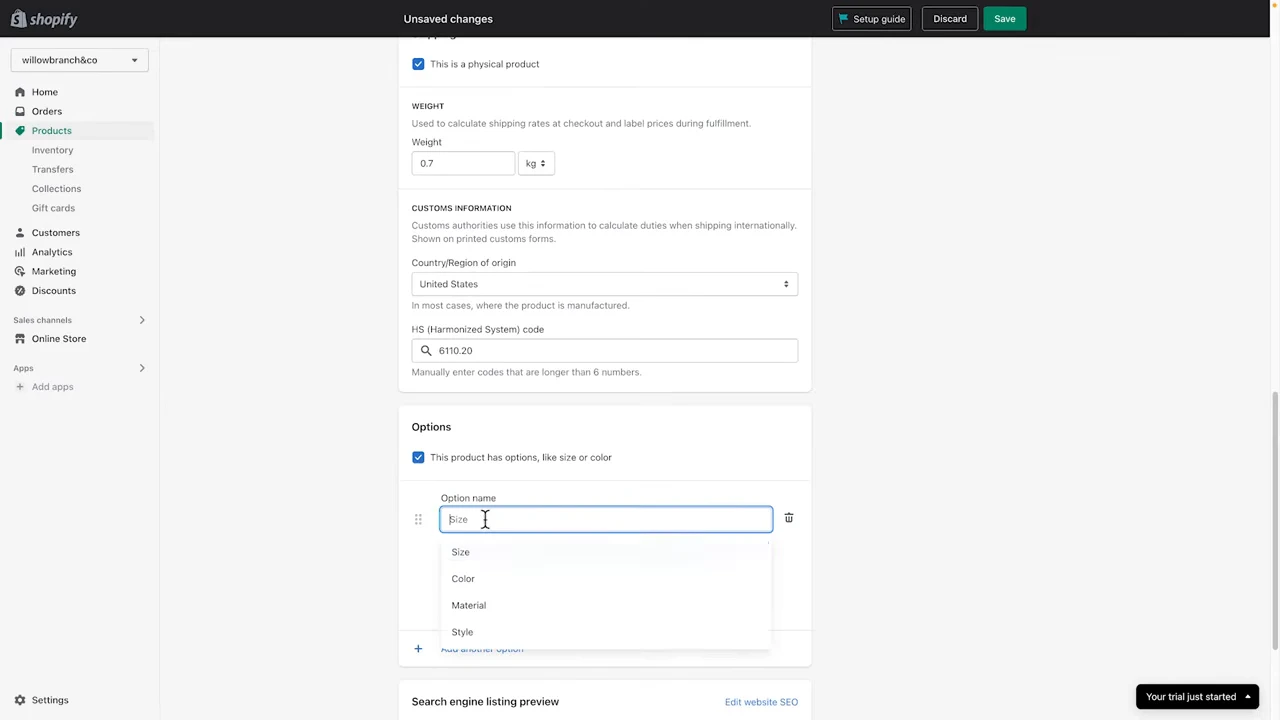
The product editor lets you enter an option such as Size and the values customers can select. Screenshot source Add another option if needed
If customers choose more than one attribute, click + Add another option and enter the next option name and its values, such as Color with Blue and Green. Each product can have up to three options. Shopify creates variants from the combinations of the values you enter.
Estimate the combinations before saving. For example, three sizes and two colors can produce six combinations. Each product can have up to three options, and Shopify’s current help states a product can have up to 2,048 variants. Check the generated list for combinations you do not actually sell. More than 100 variants can also be unsupported by some third-party themes, apps, or sales channels, so check those integrations if your catalog approaches that range.
Save and review the variants
Click Done, then click Save. After saving, review the generated variants. Set prices, inventory, or other details for each variant where they differ from the product defaults. If you only need to add one value to an existing option, edit that option and enter the new value. Shopify can generate the associated combinations.
Review variant-specific fields after the combinations are generated. A new combination may need its own price, inventory, SKU, or image. Do not assume the product-level information is suitable for every choice. If you only need one additional combination rather than all combinations of a new value, Shopify documents adding a variant manually as a single-variant method.
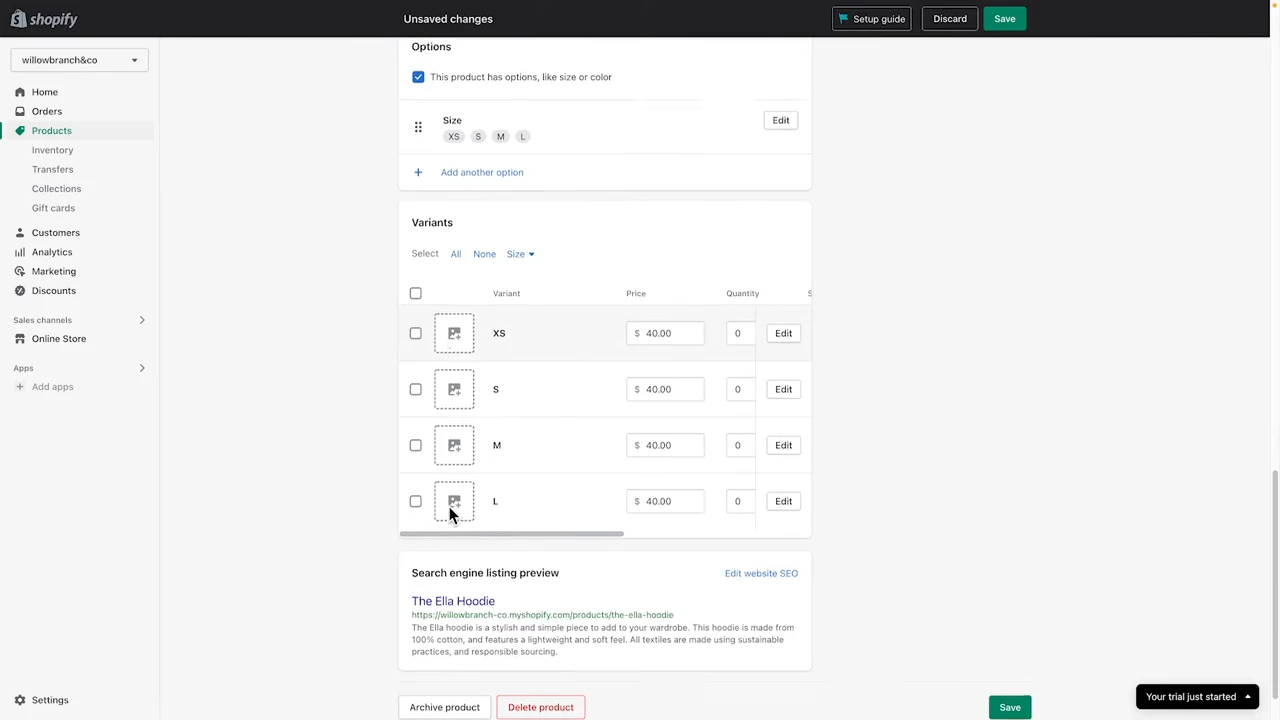
The Variants list shows the generated combinations with editable price and inventory values. Screenshot source
How does this Shopify setup work in practice?
Worked example: add shirt size and color options while limiting unwanted combinations
An apparel store sells an everyday shirt in three sizes and two colors, requiring each combination to be purchasable separately.
| Choice | Why it matters | How to check |
|---|---|---|
| Create “Size” values Small, Medium, and Large | These are distinct customer selections that may need separate inventory tracking. | Confirm the three values appear under the Size option. |
| Create “Color” values Blue and Green | Color changes the purchasable item and may need a distinct image or stock count. | Confirm the two values appear under the Color option. |
| Review the six generated combinations | Three sizes multiplied by two colors yields six size-color combinations. Inspect them before treating the product as ready. | Verify all six combinations are intended and none is unavailable or mislabeled. |
| Set variant details where they differ | Price, inventory, SKU, and image can vary by combination, so product defaults may not be correct for all six. | Compare each variant’s fields with the store’s product and inventory records. |
Save the product after checking that generated variant matrices accurately reflect available warehouse stock and pricing.
How do you verify your result in Shopify?
Reopen the product and verify the option names, values, and generated combinations. Review any variant-specific price or inventory fields, then preview the product page to confirm shoppers can select the intended options.
| Step | What you should see |
|---|---|
| Open the product | The product editor opens and displays the Variants section or the variant options area. |
| Add an option | The option name and each value appear in the product editor. |
| Add another option if needed | All intended option names and values appear, and you have no more than three options for the product. |
| Save and review the variants | The product editor lists the new variant combinations, and the product displays as saved. |
Related Shopify guides include How to add or rearrange menus in Shopify and How to create a discount code in Shopify.
Which official Shopify sources were checked?
Every step and limit in this Shopify guide was verified against official documentation on 21 Nov 2026 following how we check figures, alongside more walkthroughs in our Shopify tutorials hub:
How do you troubleshoot common Shopify issues?
Why did adding an option create several variants?
Shopify creates a variant for each combination of option values. For example, three sizes combined with two colors create size-and-color combinations. Check the combinations before saving if you only want a subset.
Can I add a choice that does not need its own price or inventory?
If the choice does not need its own SKU, price, or inventory, consider collecting it as a line item property instead. Shopify documents line item properties as extra product-page fields.
Why can’t a theme or sales channel display every new variant?
Shopify notes that some third-party themes, apps, and sales channels might not support more than 100 variants. If the product has more than 100, check the specific theme or integration’s compatibility and support guidance. The product can be saved while a connected storefront or channel still has limits.
 Reviewed byDanny Kirk
Founder of ReddiReach.
 Checked byAndrés Felipe
Digital designer and marketer.
Every figure is checked against the vendor's own page. Read our editorial standards.