
Key Takeaways
- Apply structured search modifiers in Slack search to isolate historical messages by sender, destination channel, and chronological date boundaries.
- Identify core search terms from the target message and note any known sender handles, channel names, or approximate date ranges.
- Follow the four steps by opening search, applying channel or sender modifiers, narrowing with calendar filters, and inspecting matching message threads.
- Verify search accuracy by opening the located result directly in its Slack conversation thread to confirm contextual conversation details.
Slack search modifiers isolate past messages by combining specific keywords with sender filters, channel scopes, and date parameters. Applying targeted query operators narrows thousands of archived workspace conversations down to the exact decision thread required.
For plan limits and team seat pricing behind this workflow, read our Slack review or connect Slack to AI agents in Slack API and MCP.
Key steps
What do you need before starting in Slack?
Slack requires the following workspace setup before you begin:
- Know at least one word or phrase from the message.
- If possible, know the channel, sender, or approximate date to narrow the results.
How do you complete the steps in Slack?
Follow these 4 steps in Slack in order:
Open the search bar
Click the search field at the top of Slack. Enter a distinctive keyword or put quotation marks around an exact phrase. For example, search for "launch checklist" if those words appeared together. Slack searches messages and other content, so use the Messages results when you want a past message.
Use a phrase only when you are confident the words appeared together in that order. If you remember only a topic, start with one distinctive word. An exact phrase can exclude a message that used a synonym or slightly different wording.
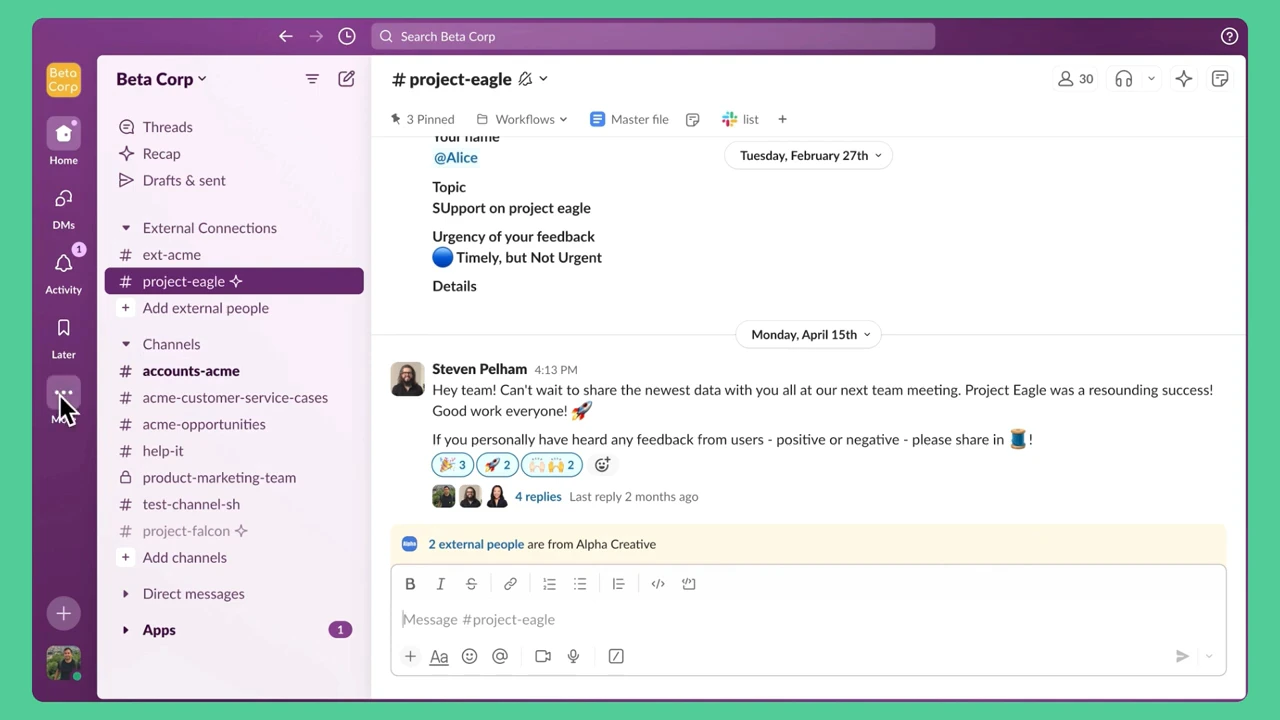
Open Search at the top of the desktop app to enter your message query. Screenshot source Add a channel or sender modifier
Add in: followed by the channel name to limit the search, such as in:#project-website. To look for a message from a specific person, add from: followed by their Slack display name, such as from:@Alex. Separate the query and modifiers with spaces, as in "launch checklist" in:#project-website from:@Alex. Use the display name as Slack suggests it if a typed name does not match.
Treat the display name Slack suggests as the reliable sender value, especially when teammates share similar names. Add one sender or channel clue at a time so you can see which clue actually narrows the result.
Narrow by date if needed
Add after:, before:, or on: followed by a date to focus on the period when the message was sent. For example, "launch checklist" in:#project-website after:2026-10-01. You can combine multiple modifiers in one query. If you only know the month or year, Slack also documents during: with a month or year.
Use a date boundary you can defend from the conversation context. If you know only the month, try during:monthname or during:year. If you know a rough interval, combine after: and before: and check whether the endpoints still include the likely date.
Inspect the matching message
Press Enter to see all results, then use the Messages tab or click Filters to refine the results. Open the likely match to jump to its conversation and surrounding context. If nothing appears, remove one modifier at a time or try a less specific phrase.
If several results look plausible, compare the sender, channel, and nearby replies before saving or sharing one. A keyword match alone does not establish that the message contains the decision you need.
How does this Slack setup work in practice?
Worked example: locating a launch approval decision within a project channel
A coordinator uses targeted search operators in Slack to locate a specific launch approval message sent by a team lead several weeks earlier.
| Choice | Why it matters | How to check |
|---|---|---|
| Start with the quoted phrase “launch checklist” | The remembered words may be distinctive, but quoting them searches for that phrase together. | See whether the Messages results include messages that contain those exact words. |
| Add in:#project-website | The decision is known to have happened in the project channel, which removes unrelated channel matches. | Confirm the channel modifier is present and the visible results are from that channel. |
| Add from:@Alex using Slack’s suggested display name | The sender clue reduces matches from other people discussing the checklist. | Inspect a result’s sender before treating it as Alex’s message. |
| Try during:october if the date boundary is unclear | A month-level modifier can fit a remembered month without guessing a day. | Open the likely result and confirm its displayed date falls in the remembered period. |
Open the conversation view from the search results to confirm the exact approval text and verify the surrounding decision context.
How do you verify your result in Slack?
Confirm the sender, channel, and surrounding conversation before relying on the result. Save the message or copy its conversation link if you need to return to it.
| Step | What you should see |
|---|---|
| Open the search bar | The search field contains your phrase or keyword and Slack displays suggestions or results. |
| Add a channel or sender modifier | Your query includes the selected channel and/or sender modifier, and the result set is narrower. |
| Narrow by date if needed | The query shows the date modifier and results correspond to the intended time range. |
| Inspect the matching message | A matching message is visible in search results, and opening it takes you to its Slack conversation. |
Related Slack guides include How to build a Slack request workflow with a form and How to organize your Slack sidebar with custom sections.
Which official Slack sources were checked?
Every step and limit in this Slack guide was verified against official documentation on 21 Nov 2026 following how we check figures, alongside more walkthroughs in our Slack tutorials hub:
How do you troubleshoot common Slack issues?
Why did my search return no messages?
The phrase or modifiers may be too specific. Remove one filter at a time, check the channel name and sender display name, or search using a distinctive single keyword.
Can I search for an exact phrase from a message?
Yes. Put quotation marks around the phrase in the search field, then combine it with modifiers such as in:, from:, or after:.
Why do I see files or canvases instead of the message I remember?
Slack search can return different content types. After searching, switch to Messages in the results view. If the item still does not appear, check whether your terms match the message text or whether the content you remember is in a file or canvas instead.
 Reviewed byDanny Kirk
Founder of ReddiReach.
 Checked byAndrés Felipe
Digital designer and marketer.
Every figure is checked against the vendor's own page. Read our editorial standards.