
Key Takeaways
- Configure multi-field sorts in Airtable views to organize records hierarchically by primary values and subsequent secondary tie-breakers.
- Confirm base edit permissions as an Owner, Creator, or Editor, or verify personal view editing privileges on the target Airtable table.
- Follow the five steps by opening sort controls, picking the primary field, adding tie-breakers, adjusting criteria order, and reviewing record sequences.
- Verify the sort hierarchy by inspecting records with identical primary values to ensure secondary fields correctly dictate final row placement.
Airtable enables users to sort view records hierarchically by combining a primary field sort with secondary tie-breaker criteria. Configuring multi-field sorts establishes consistent operational priorities across grid records without altering data in other base views.
For plan limits and team seat pricing behind this workflow, read our Airtable review or connect Airtable to AI agents in Airtable API and MCP.
Key steps
What do you need before starting in Airtable?
Airtable requires the following workspace setup before you begin:
- Access to the Airtable base and table containing the view.
- Permission to modify the view. Owners and Creators, Editors, and Commenters modifying their own personal views can modify views.
- Decide the primary sort field, tie-breaker fields, and the desired order for each field type.
How do you complete the steps in Airtable?
Follow these 5 steps in Airtable in order:
Open the target view’s sort settings
Open the base and table, then select the view whose record order you want to change. From the view configuration menu, choose Sort. The configuration applies to the current view, so confirm the view name before adding criteria.
You can search for a field in the field list if the table has many columns.
Choose the primary sort field and order
Select the field that should determine the main ordering. Choose an order appropriate to its field type. Text can sort alphabetically or in reverse alphabetical order. Numbers can sort ascending or descending. Dates can sort from earliest to latest or latest to earliest. Other field types use their own ordering, such as checkbox state or select option order.
In almost all cases, ascending sorts place blank values first. If you want blank dates last, the documented workaround is to sort that date field from latest to earliest.
Add a tie-breaker field
Choose Add another sort, then select the field to use when records tie on the first field. Set its order as well. Repeat for additional tie-breakers when needed.
The order of sort rows matters: Airtable applies the first field first, then uses the next field to order records within ties. Avoid adding a secondary field ahead of the priority field by accident.
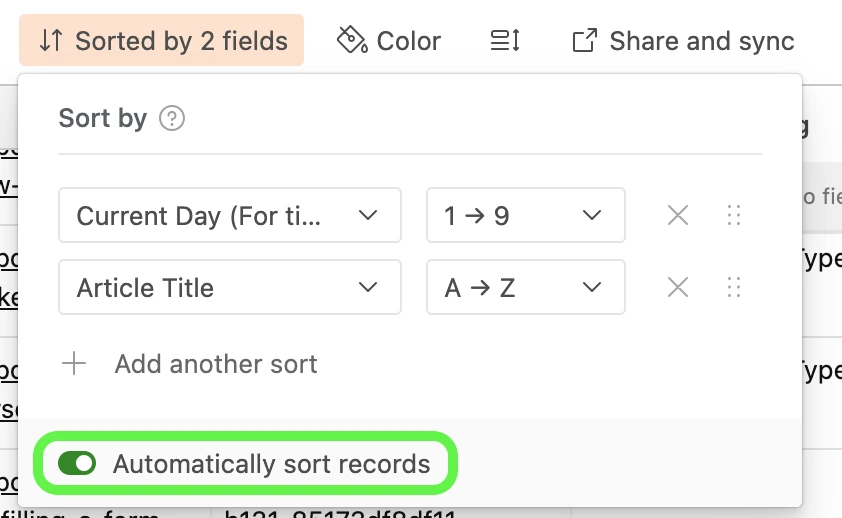
The visible panel shows two sort criteria and the automatic sorting setting. Screenshot source Reorder or remove criteria
To change priority, drag a sort using its handle and drop it at the desired position. To remove a criterion, use the X beside its field. Reordering changes which field takes precedence when records have different values.
A multi-field sort changes only the selected view’s configuration. Other views of the same table are not reordered by this change.
Review the resulting records
Inspect the records in the view and check a tie case: records sharing the primary value should be ordered by the next criterion. In grid view, sort order determines row order. In a gallery, cards sort left to right and then top to bottom. Other view types apply sorting according to their presentation.
If records should automatically move when their values change, check whether Automatically sort records is on. When it is off, records sort when the sort is reapplied, and manual reordering is available in supported views.
How does this Airtable setup work in practice?
Worked example: organizing an editorial production queue by publication date and urgency
A content operations team configures multi-level sorting on an Airtable editorial calendar to group assignments by due date and then order by priority.
| Choice | Why it matters | How to check |
|---|---|---|
| Set Due date as the first sort, earliest to latest. | The team wants the soonest dated work to appear first. | Compare records with different dates and confirm the earlier date appears first. |
| Add Priority as the second sort, using the field’s intended option order. | Priority should resolve ordering among records with the same due date. | Find two records sharing a date and confirm their relative order follows the configured option order. |
| Keep the date first and priority second. | This preserves due date as the stronger criterion. Reversing the rows would make priority primary. | Inspect the sort panel and verify the date criterion is above the tie-breaker. |
| Check how blanks are ordered before sharing the view with the team. | Ascending date sorts generally place blanks first, which may affect the queue’s opening rows. | Inspect records without a due date and decide whether the date direction or workflow should be adjusted. |
Review adjacent records sharing the same deadline to verify that high-priority tasks consistently appear above standard assignments in the view.
How do you verify your result in Airtable?
The current view orders records according to the first sort field, using later fields to resolve ties. This changes the view’s order, not the ordering configured in other views. Confirm the actual row or card order, especially for records sharing the primary value.
| Step | What you should see |
|---|---|
| Open the target view’s sort settings | The sort panel is open for the intended view, and the available fields belong to the expected table. |
| Choose the primary sort field and order | The first sort row names the intended primary field and displays the desired direction. |
| Add a tie-breaker field | The sort rows are in priority order, with the primary criterion first and tie-breakers below it. |
| Reorder or remove criteria | The list contains only the intended criteria, arranged in the order the workflow requires. |
| Review the resulting records | The visible order follows the primary field and at least one tie-breaker. The automatic or manual behavior matches the intended workflow. |
Related Airtable guides include How to add a linked record field in Airtable and How to arrange related work in an Airtable list view.
Which official Airtable sources were checked?
Every step and limit in this Airtable guide was verified against official documentation on 21 Nov 2026 following how we check figures, alongside more walkthroughs in our Airtable tutorials hub:
How do you troubleshoot common Airtable issues?
Why are blank dates appearing first?
Ascending order generally puts blank values first. For a date sort where blanks should appear last, change the direction to Latest → Earliest and check the resulting view.
Why does my second field seem to have no effect?
The secondary field only orders records tied on the earlier sort criteria. Check that some records share the primary value, then inspect their order under the secondary field.
Why do records not move as their values change?
The view may have Automatically sort records turned off. With it off, records sort when you reapply the sort, and manual reordering is available. Check the toggle and the view’s resulting order.
 Reviewed byDanny Kirk
Founder of ReddiReach.
 Checked byAndrés Felipe
Digital designer and marketer.
Every figure is checked against the vendor's own page. Read our editorial standards.