
Key Takeaways
- Apply summary functions in the Airtable view summary bar to calculate aggregate metrics across numeric columns or selected rows.
- Ensure access to an Airtable view type supporting summary bars, such as grid views, containing populated numeric or currency fields.
- Follow the five steps by locating the target numeric field, selecting row subsets, accessing summary options, choosing a formula, and reviewing output.
- Verify the calculation by checking that the aggregate summary figure adjusts dynamically when filtering or selecting specific Airtable records.
Airtable provides summary bar functions at the base of view columns to calculate immediate totals, averages, or ranges across numeric records. Inspecting summary metrics gives instant quantitative insight into visible rows or selected cell ranges without creating separate calculation fields.
For plan limits and team seat pricing behind this workflow, read our Airtable review or connect Airtable to AI agents in Airtable API and MCP.
Key steps
What do you need before starting in Airtable?
Airtable requires the following workspace setup before you begin:
- Open the Airtable table and view containing the numeric field you want to inspect.
- Use a view type that displays the summary bar. It appears at the bottom of some view types.
- Identify whether you want to summarize every visible record, a selection, or groups of records.
How do you complete the steps in Airtable?
Follow these 5 steps in Airtable in order:
Open the view and locate the field
Open the table view containing the records you want to understand. Find the numeric field, such as a number, currency, percent, or autonumber field. Look at the bottom of that field for its summary bar. The bar is at the bottom of some view types, so its absence may mean this view does not display one.
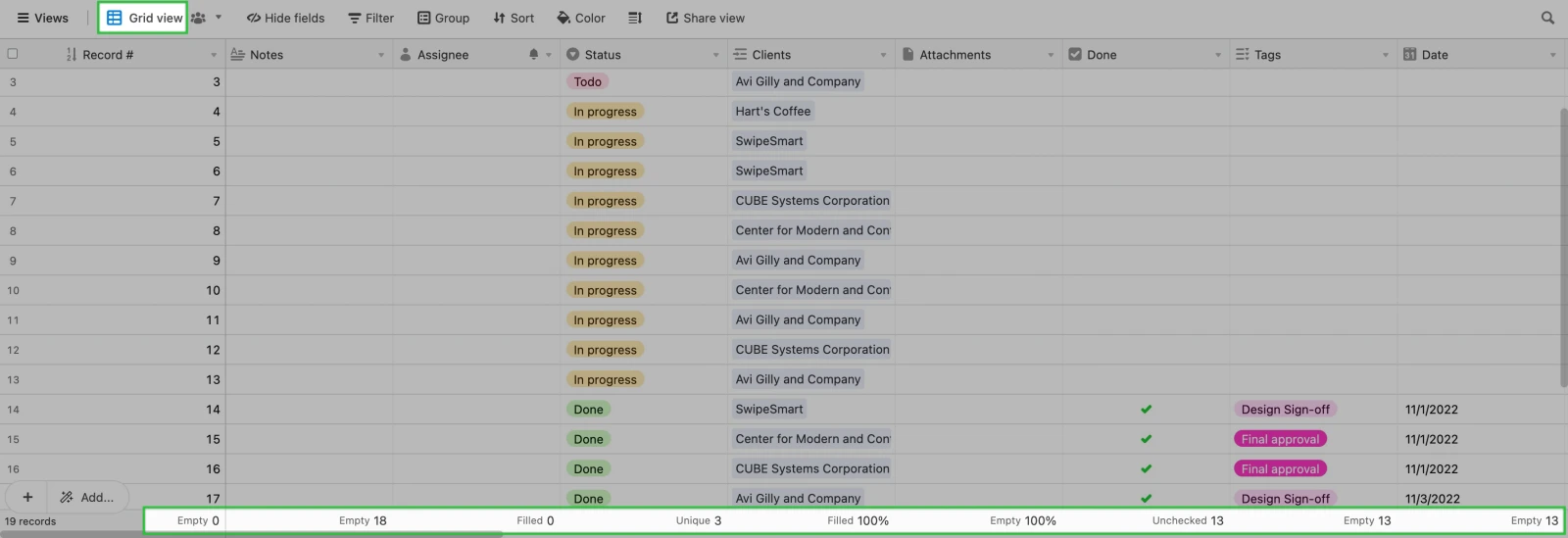
The grid view shows summary controls beneath the field, including the visible Filled and Unique options. Screenshot source Choose the records to include
To summarize all records represented in the view, leave the cells unselected. If you need a smaller subset, select the relevant range of rows or cells before choosing a summary. The bar then summarizes only cells within that selection. In a grouped view, summaries are shown separately for each group and for the field as a whole.
Open the summary function menu
Click the summary bar beneath the numeric field. This opens the available summary functions for that field. Numeric fields support Sum, Average, Histogram, Min, Max, Range, Median, and Standard Deviation. Other field types have different options, so use the menu for the field you selected.
Select the calculation you need
Choose a function based on the question. Sum totals the values. Average gives their arithmetic average. Min and Max show the smallest and largest values, while Range describes the spread between them. Median gives the middle value, and Standard Deviation describes variation. Histogram provides a distribution view. The current function for a numeric field defaults to Sum.
Interpret the result in context
Read the displayed summary with the current view or selection in mind. A grouped view has per-group summaries as well as a total. If you change the selected range, the summary changes to match. Summary values are metadata for understanding the records and cannot be referenced by record-level formulas.
How does this Airtable setup work in practice?
Worked example: reviewing average cost distributions across project expense records
An operations lead inspects numeric cost fields in an Airtable budget grid using column summaries to evaluate spending patterns across active projects.
| Choice | Why it matters | How to check |
|---|---|---|
| Open the project view and locate the cost field's summary bar. | The summary is attached to the field in the view, so identifying the correct field sets the scope. | The cost field and its bottom summary area are visible. |
| Select the few project rows under discussion. | A selection makes the summary cover those cells instead of all records in the view. | Only the intended rows are selected. |
| Choose Average from the summary menu. | For this hypothetical review, the question is about a typical cost across the selected records rather than their combined total. | The summary label indicates Average and applies to the selected cells. |
| Compare with Min and Max if the spread matters. | Those functions show the low and high values, which can reveal whether the average represents the group well. | Each displayed function is interpreted against the same selection. |
Check the summary bar value under the cost column to confirm the calculated sum and average accurately reflect the active filtered record set.
How do you verify your result in Airtable?
You have a quick calculation for a numeric field within the view's current scope. Treat it as a view-level aid for inspection. It does not create a value that a record formula can use.
| Step | What you should see |
|---|---|
| Open the view and locate the field | You can identify the numeric field and see its summary area at the bottom of the view. |
| Choose the records to include | The intended records are either the full view, a selected range, or the displayed groups. |
| Open the summary function menu | The function menu is open and the available choices correspond to the numeric field. |
| Select the calculation you need | The bar displays the chosen function and its result for the intended records. |
| Interpret the result in context | You can state which records the result covers and what the selected function says about them. |
Related Airtable guides include How to add a linked record field in Airtable and How to arrange related work in an Airtable list view.
Which official Airtable sources were checked?
Every step and limit in this Airtable guide was verified against official documentation on 21 Nov 2026 following how we check figures, alongside more walkthroughs in our Airtable tutorials hub:
How do you troubleshoot common Airtable issues?
Why don't I see a summary bar?
The bar appears at the bottom of some view types. Check whether the current view displays it, and confirm you are looking beneath the field rather than elsewhere in the table.
Why is my summary different from the whole view?
A selected range of rows or cells limits the summary to that selection. Clear or change the selection if you want a different scope.
Can I use this summary in a formula field?
No. Summary values are metadata and are not currently accessible to record-level formulas. Use a record-level field or another calculation approach if a formula needs the value.
 Reviewed byDanny Kirk
Founder of ReddiReach.
 Checked byAndrés Felipe
Digital designer and marketer.
Every figure is checked against the vendor's own page. Read our editorial standards.