
Key Takeaways
- Set up Brand Knowledge in Settings > Workspace > Brand Knowledge so Surfer AI features prioritize your brand identity, audience, and terminology.
- Each Surfer SEO workspace supports one Brand Knowledge profile and works with or without Google Search Console via your website URL.
- Follow four steps: open Workspace Brand Knowledge settings, edit auto-generated sections, add custom rules and click Save, and verify per-query toggles in Content Editor.
- Confirm your setup when new Content Editor queries display Brand Knowledge enabled by default at step 4 of query creation.
Configure Brand Knowledge in your Surfer SEO workspace so AI outlines, drafts, and optimizations match your business positioning and audience. Defining brand facts and custom writing rules keeps Surfy Assistant, Auto-Optimize, and Insert Outline aligned with your product rather than competitors.
For plan limits and team seat pricing behind this workflow, read our Surfer SEO review or connect Surfer SEO to AI agents in Surfer SEO API and MCP.
Key steps
What do you need before starting in Surfer SEO?
Surfer SEO requires the following workspace setup before you begin:
- Active Surfer SEO Workspace (one on Standard, multiple on higher plans like Pro)
- Business website URL (Google Search Console connection is optional)
- Approved brand positioning, proprietary terms, and competitor mention rules
How do you complete the steps in Surfer SEO?
Follow these 4 steps in Surfer SEO in order:
Open Brand Knowledge in Workspace Settings
Follow the setup prompt after creating a new Workspace by pasting your website URL, or open Settings > Workspace > Brand Knowledge in an existing workspace.
Each workspace holds one Brand Knowledge profile. On multi-workspace plans like Pro, create separate workspaces for distinct client brands rather than blending multiple companies into one profile.
Review auto-generated business, audience, and competitor fields
Inspect the fields Surfer generates automatically: Business description, Industry or service type, Topics and target audience, and Competitors. Edit summaries or remove inaccurate competitor names directly.
Refining Topics and target audience keeps AI output matched to conversion or educational intent, while pruning Competitors prevents AI tools from citing unrelated vendors.
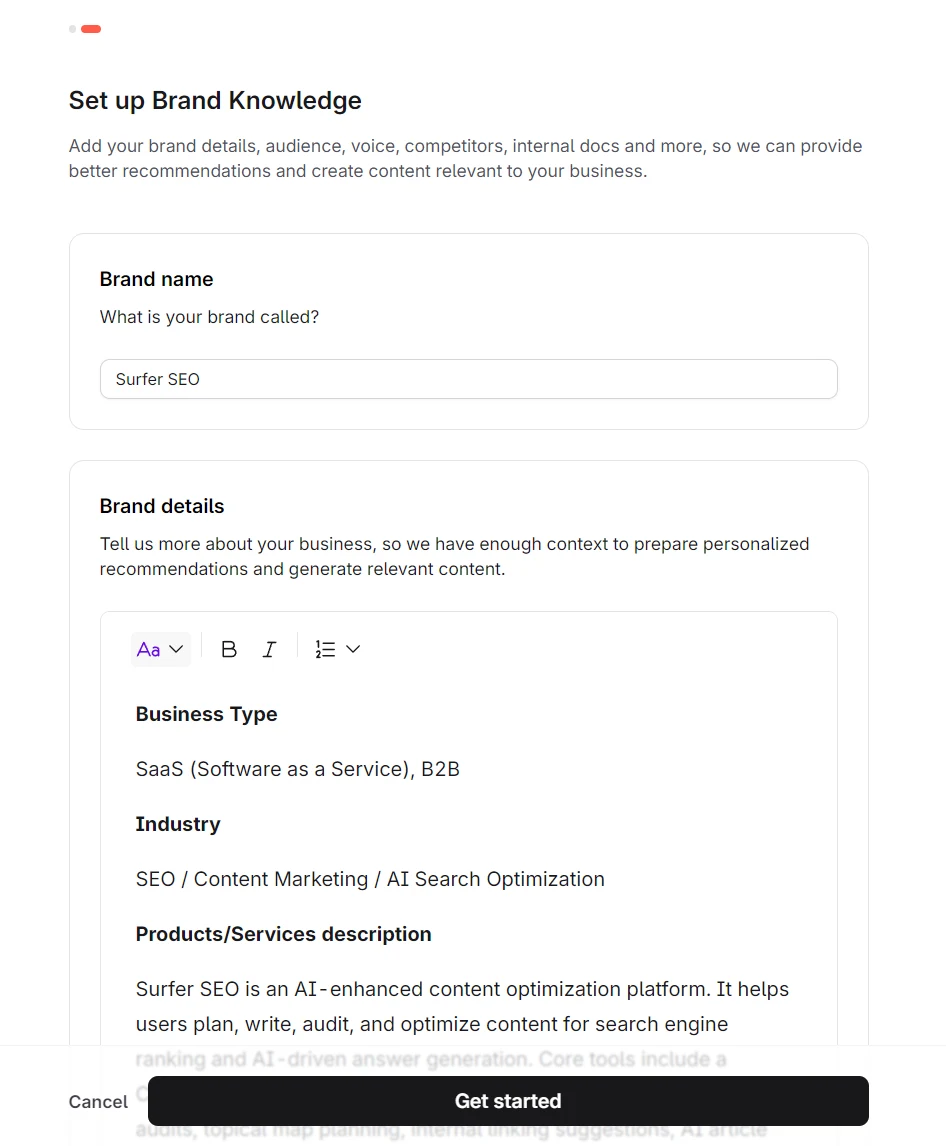
Inspect the auto-generated Business description, Industry or service type, and Topics and target audience sections for accuracy. Screenshot source Add custom writing instructions and click Save
Add custom sections or writing directives (such as avoiding competitor mentions and using unique brand terms), then click Save.
Surfy Assistant, Auto-Optimize, and Insert Outline always use your latest saved profile. Updating Brand Knowledge later automatically updates older Content Editors that had it enabled.
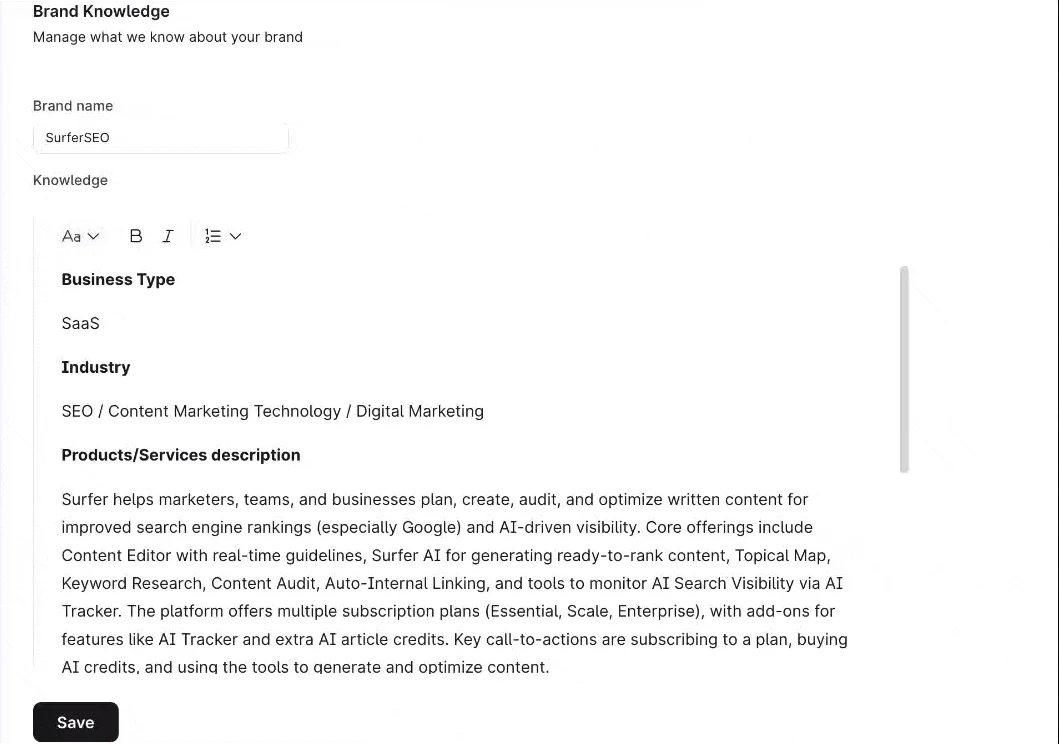
Add custom brand instructions or edit sections freely, then click Save to apply Brand Knowledge across workspace AI tools. Screenshot source Manage Brand Knowledge in new Content Editor queries
Start a new Content Editor and check the 4th step of query creation (Context & instructions), where Brand Knowledge is enabled by default. Choose Edit to customize per project or Disable this time for neutral articles.
Queries created without Brand Knowledge cannot enable it afterward; if disabled by mistake, create a new Content Editor document.
How does this Surfer SEO setup work in practice?
Worked example: Aligning AI writing tools for a B2B payroll brand
A content lead configures Brand Knowledge so Surfy Assistant and Auto-Optimize use approved payroll terms and stop referencing enterprise HR suites.
| Choice | Why it matters | How to check |
|---|---|---|
| Open Settings > Workspace > Brand Knowledge and refine Business description and audience | Focuses AI drafts on mid-market finance teams rather than consumer tax software. | Business and audience sections specify mid-market payroll buyers. |
| Add custom instructions requiring proprietary feature names and zero competitor mentions | Keeps Insert Outline, Surfy Assistant, and Auto-Optimize aligned with brand rules. | Custom writing directives save inside the workspace profile. |
| Leave Brand Knowledge active at step 4 of Content Editor (using Disable this time only on glossaries) | Applies brand context by default while allowing neutral educational drafts. | New Content Editor queries open with Brand Knowledge active. |
Writers generate outlines and run Auto-Optimize with accurate product context automatically across every enabled draft.
How do you verify your result in Surfer SEO?
Confirm under Settings > Workspace > Brand Knowledge that your profile is saved, then open a new Content Editor wizard to verify it defaults on at step 4. Update your profile whenever messaging shifts so Surfy Assistant, Auto-Optimize, and Insert Outline stay current.
| Step | What you should see |
|---|---|
| Open Brand Knowledge in Workspace Settings | The Workspace Brand Knowledge screen opens showing generated brand sections. |
| Review auto-generated business, audience, and competitor fields | All four auto-generated fields accurately reflect your offering, audience, and real competitors. |
| Add custom writing instructions and click Save | Clicking Save activates your customized Brand Knowledge profile across the workspace. |
| Manage Brand Knowledge in new Content Editor queries | Step 4 of new Content Editor setup shows Brand Knowledge enabled with Edit and Disable this time options. |
Related Surfer SEO guides include How to create and optimize articles in Surfer SEO Content Editor and How to review on-page SEO metrics in Surfer SEO Audit.
Which official Surfer SEO sources were checked?
Every step and limit in this Surfer SEO guide was verified against official documentation on 27 Nov 2026 following how we check figures, alongside more walkthroughs in our Surfer SEO tutorials hub:
How do you troubleshoot common Surfer SEO issues?
Can I enable Brand Knowledge inside an older Content Editor created without it?
No, Content Editor queries created without Brand Knowledge cannot turn it on retroactively. Create a new Content Editor document after saving your profile so it activates at step 4.
Is Google Search Console required to configure Brand Knowledge?
No, you can set up Brand Knowledge without Google Search Console. Paste your website URL when creating your Workspace instead of selecting a Search Console property.
Do edits to Brand Knowledge update my previously created Content Editors?
Yes, all AI tools pull from the current saved version of your workspace Brand Knowledge. Updating or replacing your profile automatically switches older enabled Content Editors to the new version.
 Reviewed byDanny Kirk
Founder of ReddiReach.
 Checked byAndrés Felipe
Digital designer and marketer.
Every figure is checked against the vendor's own page. Read our editorial standards.