
Key Takeaways
- Webflow Collection template pages automatically render unique content for each CMS record through a single shared dynamic layout design.
- An existing Webflow CMS Collection containing defined schema fields and at least one populated item is required before editing the template.
- Designing templates involves six steps: opening the template, picking a preview record, building shared layouts, binding dynamic fields, testing records, and saving.
- Toggle between different preview items in the Webflow top bar to verify that dynamic content updates correctly while the page structure remains consistent.
Webflow Collection template pages dynamically render consistent layouts for every individual record housed within a CMS Collection. Connect typography, media, and link elements directly to CMS fields using purple dynamic binding controls to populate unique record content automatically.
For plan limits and team seat pricing behind this workflow, read our Webflow review or connect Webflow to AI agents in Webflow API and MCP.
Key steps
What do you need before starting in Webflow?
Webflow requires the following workspace setup before you begin:
- Have a CMS Collection with fields and at least one item to preview.
- Open the site in the Webflow Designer.
How do you complete the steps in Webflow?
Follow these 6 steps in Webflow in order:
Open the Collection template
In the left toolbar, open the Pages panel. Under CMS Collection pages, choose the template for your Collection, such as Recipes template. Webflow creates a blank Collection page when you create a Collection. This page is the shared design used for each item, so a layout change here affects every item page.
Choose an item to preview
Use the Collection page menu in the top bar to switch between Collection items. Pick an item with the fields you expect to use, so you can see how the template handles real content. If you are building a recipe page, a sample item with a name, image, and instructions makes it easier to identify which fields are available.
Choose a preview item with representative content, not only the most complete or shortest item. If the Collection contains long and short titles or items with different optional fields, switch among those examples while designing. This can reveal whether the shared layout still reads well when real item values vary.
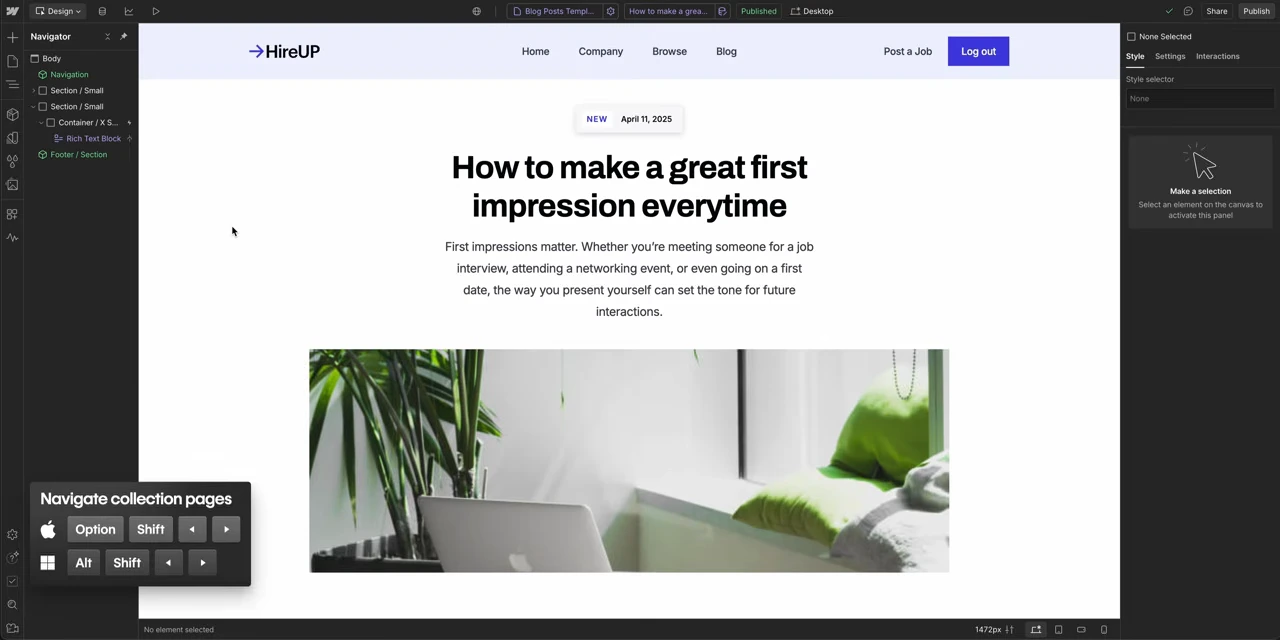
The Collection page preview lets you switch between items and inspect the page layout. Screenshot source Build the shared page structure
Add page elements as you would on a static page. For example, create a title area, image area, and body section for a recipe. Remember that every element you add to the Collection template appears on every item page. Use static elements for content that should stay the same, such as a section label, and reserve dynamic connections for content that changes from item to item.
Bind changing content to fields
Select an element and open the Settings panel. Click the purple icon above the relevant setting, such as Text, Image, or Alt Text, then choose the Collection field to connect. Connect the page heading to the item name, the image element to an image field, and a rich text area to a rich text field if your content requires formatted body copy. A connected element is dynamic and uses the selected item’s data.
Match each dynamic setting to a field with the same content purpose. A heading should use the item name or another title field. An image should use an image field. If the purple Settings control offers several plausible fields, compare their values on the selected preview item before connecting one. Confirm the displayed value matches the intended field.
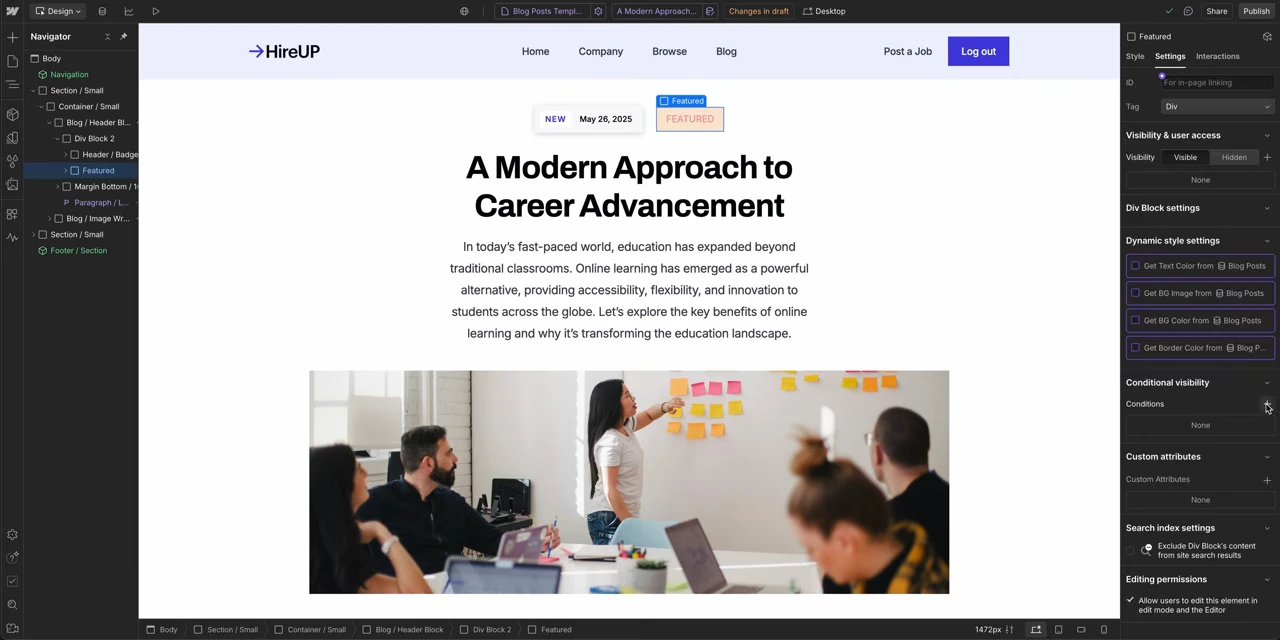
Dynamic style controls appear in the right sidebar while the selected element is on the canvas. Screenshot source Preview another item
Return to the Collection page menu in the top bar and choose a different item. Check whether the title, image, and body change while the shared layout stays consistent. This is a useful way to catch missing fields or a design that only works for one unusually short or long entry.
When comparing items, check both the changing values and the parts meant to remain shared. A title or image that does not change may be static or connected to a field whose value happens to be the same in both samples. Pick a second item with visibly different values before diagnosing the binding.
Save and review template settings
If you need to configure page-level settings, hover over the Collection template in the Pages panel and click its settings icon. Collection page settings include SEO, Open Graph, RSS, and custom code options, and can use dynamic values for each Collection item. For this design task, confirm the template itself previews correctly before moving on to those settings.
How does this Webflow setup work in practice?
Worked example: binding a recipe template to item-specific fields
A cooking blog requires a unified single-recipe layout template that dynamically presents unique recipe names, photography, and preparation instructions for each published record.
| Choice | Why it matters | How to check |
|---|---|---|
| Preview a recipe with a distinct name, image, and notes | Distinct sample values make it easier to tell whether bindings change when the item changes. | The Collection page menu shows the selected preview item. |
| Connect the page heading’s Text setting to Name | The heading should identify the current recipe rather than repeat static text. | The heading shows that item’s name and has a purple dynamic indicator. |
| Connect the image element’s Image setting to Recipe image | This lets each item supply its own image through the shared template. | The preview displays the selected item’s image, and the setting shows a dynamic connection. |
| Connect the body area to Preparation notes if it is a rich text field | Formatted notes need a field suited to formatted body content. If the field is plain text or the design needs different structure, choose an appropriate element and field based on the actual setup. | The preview shows the selected item’s notes in the intended area. |
| Switch to a second recipe with different values | A visibly different item helps confirm that the layout is shared while the connected content changes. | The second item shows its own name, image, and notes in the same template layout. |
Cycling between preview items confirms that recipe titles and images update dynamically while preserving the global layout, header styling, and typography.
How do you verify your result in Webflow?
Switch between at least two Collection items in the top bar and confirm that dynamic content changes while the page structure remains consistent. Next, add or refine item content in the CMS so the template has complete data to display.
| Step | What you should see |
|---|---|
| Open the Collection template | The selected page is the Collection template, indicated by Webflow’s purple visual treatment. |
| Choose an item to preview | The top bar shows the item you selected for preview. |
| Build the shared page structure | The template has the layout elements that should appear on each Collection item page. |
| Bind changing content to fields | The connected elements show purple dynamic indicators and display values from the preview item. |
| Preview another item | The second item’s field values appear in the same template layout. |
| Save and review template settings | The template remains accessible under CMS Collection pages, and its selected preview item displays the intended layout. |
Related Webflow guides include How to add a CMS reference field in Webflow and How to build a Collection list in Webflow.
Which official Webflow sources were checked?
Every step and limit in this Webflow guide was verified against official documentation on 21 Nov 2026 following how we check figures, alongside more walkthroughs in our Webflow tutorials hub:
How do you troubleshoot common Webflow issues?
Will changing the template change every item page?
Yes. Collection pages share one layout and design, so template edits apply across the Collection’s item pages.
Why does an element stay the same when I switch items?
It may be static. Select it, open Settings, click the purple icon for its setting, and connect it to the Collection field whose value should change.
Why is a field missing from the purple Settings choices?
Check that the Collection has a field suitable for the selected setting, such as an image field for an image element or a rich text field for formatted content. If the needed field is not part of the Collection, review the Collection structure and add an appropriate field there before trying the binding again.
 Reviewed byDanny Kirk
Founder of ReddiReach.
 Checked byAndrés Felipe
Digital designer and marketer.
Every figure is checked against the vendor's own page. Read our editorial standards.