
Key Takeaways
- Zapier Formatter Split Text parses text strings at specified delimiter characters to extract designated segments or generate separate line items.
- An active Zapier workflow containing an earlier trigger or action that provides text containing consistent separators is required.
- The setup involves five sequential steps: adding Formatter Text, choosing Split Text, defining delimiters, testing output values, and mapping results downstream.
- Check the Zapier Formatter Data Out window during testing to verify that the extracted segment matches the required sub-string exactly.
Zapier Formatter Split Text actions isolate targeted character segments from raw string data using consistent delimiters such as commas, slashes, or spaces. Map your input field, define the separator, choose your desired segment index, and pass the isolated output to later workflow steps.
For plan limits and team seat pricing behind this workflow, read our Zapier review or connect Zapier to AI agents in Zapier API and MCP.
Key steps
What do you need before starting in Zapier?
Zapier requires the following workspace setup before you begin:
- A Zap with an earlier step that provides the text to split, or a sample string for a test.
- A consistent separator, such as a space between two name parts or a slash in an identifier.
- A clear choice of the segment or segments a later step needs.
How do you complete the steps in Zapier?
Follow these 5 steps in Zapier in order:
Add a Formatter Text step
In the Zap outline, click the Action step or plus + icon to add a step. Search for and select Formatter. In the right sidebar’s Setup tab, open the Action event field and select Text, then click Continue to reach Configure. Formatter is useful when a later app needs a specific portion of a value. For example, a contact action may need first and last names in separate fields.
Choose Split Text and set the input
In the Configure tab, open Transform and select Split Text. In Input, either type a sample string or map the text field from an earlier step. For a name example, map a value such as “Alex Johnson.” Use a field whose contents follow a consistent pattern. Split Text works best when the separator reliably divides the parts you need.
Use Split Text when a stable delimiter marks the boundary you need. For an identifier such as gid://shopify/FulfillmentOrder/13435721712000, / is a consistent separator and Last returns the trailing segment. If the source format can change, inspect more than one representative input before choosing a fixed index.
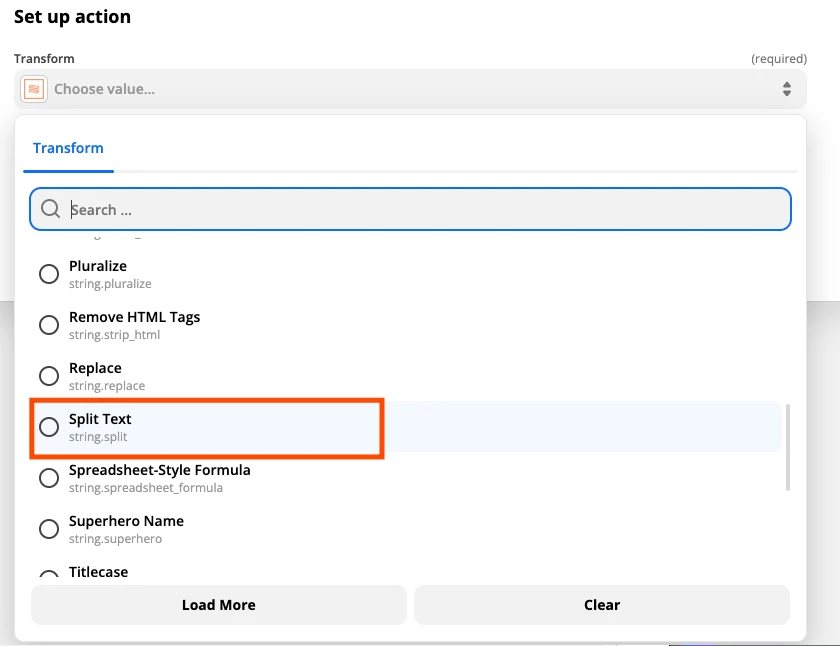
Choose Split Text from the Transform menu in the Formatter step. Screenshot source Enter the separator and choose the output
In Separator, enter the character or text that separates the parts. For a space, use the special syntax [:space:]. For comma-separated values that include a space after each comma, use, [:space:] so the space is removed along with the comma. Choose a Segment Index. Select First or Last for one part, or All (as Line-items) or All (as Separate Fields) when you need each segment. For a two-part name, choose First for the given name or Last for the family name. For names with more parts, Last is more reliable than Second when you need the final part.
Choose All (as Line-items) when a later step should receive a list of values, such as several tags. Choose All (as Separate Fields) when you need separately mappable outputs. A single First or Last selection is simpler when the later action needs only one segment.
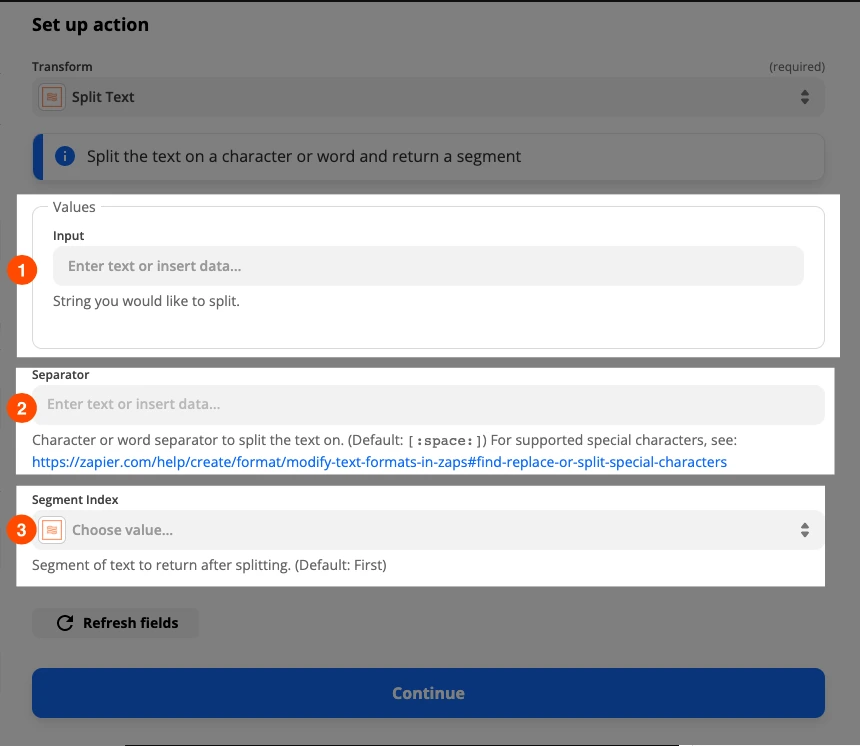
Set the input value, separator, and segment index before you test the step. Screenshot source Test the split
Click Continue to open the Test tab, then click Test step. Review the transform output in Data out. If the result is wrong, adjust the separator or Segment Index and test again. A leading separator can create a blank first segment. For a value such as /path/to/file, splitting on / gives a blank first segment, so choose Second or Last for the desired part, or remove the leading separator before splitting.
Check edge cases in Data out, especially repeated separators, a leading separator, or an input with fewer parts than expected. With a leading slash, the first segment is empty. A two-part input also makes Second to Last equal First, so test the shortest realistic value as well as the typical one.
Map the Formatter output into the next step
When configuring a later action, select the output from the Formatter step for the destination field. Do not map the original input field again, or the later action will receive the unsplit text. For a contact example, map the First output to the destination’s first-name field and the Last output to its last-name field. Check the mapped fields before testing the downstream action.
When mapping the result downstream, make sure the selected field belongs to the Formatter step and represents the intended segment or list. If the downstream action accepts only one value but the split returns line items, confirm its field can handle multiple values before using that output.
How does this Zapier setup work in practice?
Worked example: extracting a fulfillment order ID from a returned URL
An e-commerce order automation receives full fulfillment order URLs from an upstream platform but requires only the trailing numeric identifier for warehouse processing.
| Choice | Why it matters | How to check |
|---|---|---|
| Map the URL field from the earlier step into Input | Using mapped data lets the transform process each run’s value rather than a fixed example string. | Confirm the selected input field contains the complete URL in the sample record. |
| Set Transform to Split Text and Separator to / | The slash separates the URL’s path components in this sample format. | Inspect the configured separator and compare it with the actual characters between path parts. |
| Choose Last for Segment Index | The ID is the final component in the illustrative URL, regardless of how many earlier path components precede it. | Test the transform and confirm Data out contains only the trailing sample ID, with no slash or path text. |
| Map the Formatter output into the later action’s ID field | The downstream step needs the extracted value, not the original full URL. | Review the later action’s mapping and verify it references Formatter output. |
The Zapier Formatter step isolates the trailing numeric ID into the Data Out property, ready to be mapped into subsequent warehouse management actions.
How do you verify your result in Zapier?
Confirm the expected result in Data out, then map the Formatter output to the fields that need the split values. If a later action still receives the original text, replace its mapping with the Formatter output.
| Step | What you should see |
|---|---|
| Add a Formatter Text step | The new action is Formatter and its Action event is Text. |
| Choose Split Text and set the input | Transform is set to Split Text and Input contains the intended string or mapped field. |
| Enter the separator and choose the output | Separator and Segment Index match the input pattern and the data the next step needs. |
| Test the split | Data out displays the expected segment or segments for the sample input. |
| Map the Formatter output into the next step | The later action’s field mapping uses Formatter output values for each separated part. |
Related Zapier guides include How to add a Zapier filter before an action and How to build a Zapier automation with a trigger and action.
Which official Zapier sources were checked?
Every step and limit in this Zapier guide was verified against official documentation on 21 Nov 2026 following how we check figures, alongside more walkthroughs in our Zapier tutorials hub:
How do you troubleshoot common Zapier issues?
Why is the first segment blank?
The input may begin with the separator. Choose a different Segment Index, such as Second or Last, or add a Replace step before splitting to remove the leading separator.
Why does my later step still get the unsplit text?
Check its field mapping. Select the relevant output from the Formatter step instead of mapping the original field from the trigger or earlier action.
Why does Last return an empty value for some URLs?
Check whether the input ends with the separator, such as a trailing slash, which can leave an empty final segment. Inspect the original sample and Data out. If trailing slashes are part of the source format, use a suitable cleanup step before Split Text or another extraction approach, then retest with both URL forms.
 Reviewed byDanny Kirk
Founder of ReddiReach.
 Checked byAndrés Felipe
Digital designer and marketer.
Every figure is checked against the vendor's own page. Read our editorial standards.