
Key Takeaways
- Extract external link profiles using Ahrefs Site Explorer by exporting filtered backlink tables to CSV or Excel files.
- Verify that your Ahrefs subscription includes available export row credits before downloading large backlink datasets.
- Execute five concise steps covering report access, filter configuration, row selection, file format choice, and download confirmation.
- Open the generated spreadsheet to verify all filtered backlink records, anchor texts, and domain metrics exported accurately.
Export backlink data from Ahrefs Site Explorer into spreadsheet formats for detailed off-page analysis and prospecting. Apply report filters before initiating the export to ensure the downloaded file contains only relevant link records.
For plan limits and team seat pricing behind this workflow, read our Ahrefs review or connect Ahrefs to AI agents in Ahrefs API and MCP.
Key steps
What do you need before starting in Ahrefs?
Ahrefs requires the following workspace setup before you begin:
- The domain, URL, or subsection whose backlinks you want to export.
- An Ahrefs account with access to the Backlinks report and available export rows.
How do you complete the steps in Ahrefs?
Follow these 5 steps in Ahrefs in order:
Open the Backlinks report
In Site Explorer, enter the target domain, URL, or subsection and load its data. Select Backlinks from the left navigation. The report lists links pointing to the target. Use the target scope that matches the backlink list you need.
Match the target scope to the question you are answering. A domain-wide export and a URL-level export describe different backlink sets, so note the target you entered before comparing files or sharing conclusions.
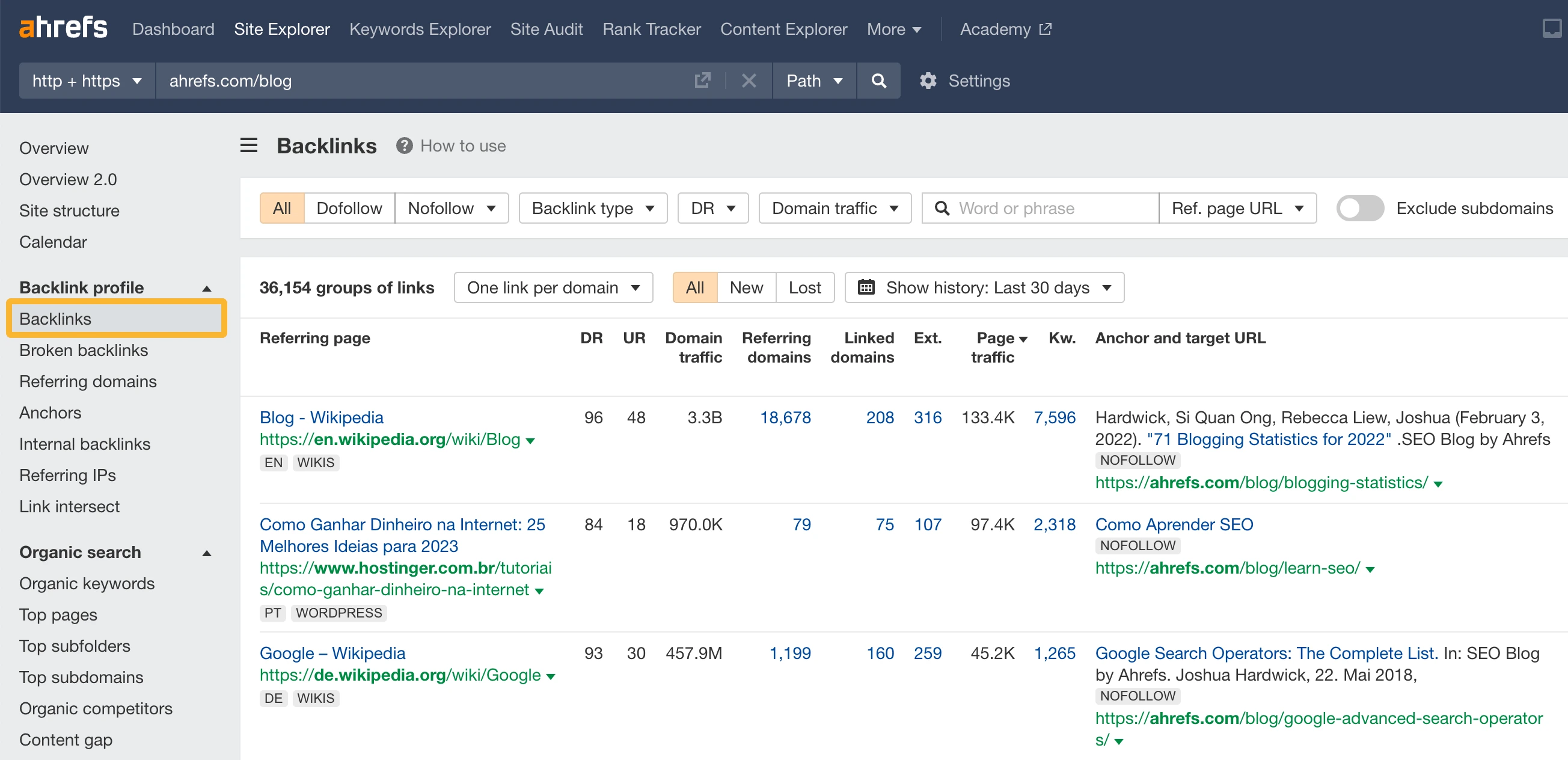
Open Backlinks from the Site Explorer sidebar to see the report and its filters. Screenshot source Set any filters before exporting
If you only need part of the backlink list, apply the relevant filters before exporting. For example, you might filter by link attribute or referring-page details. Check that the visible rows represent the data you want in the file.
Apply filters before opening Export, then check that the visible table still contains the rows relevant to your review. A filtered export is easier to analyze, but it will not represent the complete unfiltered backlink report.
Open the export options
Select Export at the top right of the report table. Ahrefs says table exports open a window where you can choose the number of rows and export format. If you do not see Export, check that you are viewing a table or graph that supports export.
Choose the rows and format
Choose the number of rows to export. Use Custom if you need a specific row count, and choose the format that suits your spreadsheet or analysis workflow. Keep the monthly export-row allowance in mind. The amount available depends on your account.
Use Custom when you need a specific row count. If the dialog indicates that the requested count exceeds the per-export limit, lower the count to the permitted amount or export a smaller filtered set. Monthly export allowance is a separate constraint.
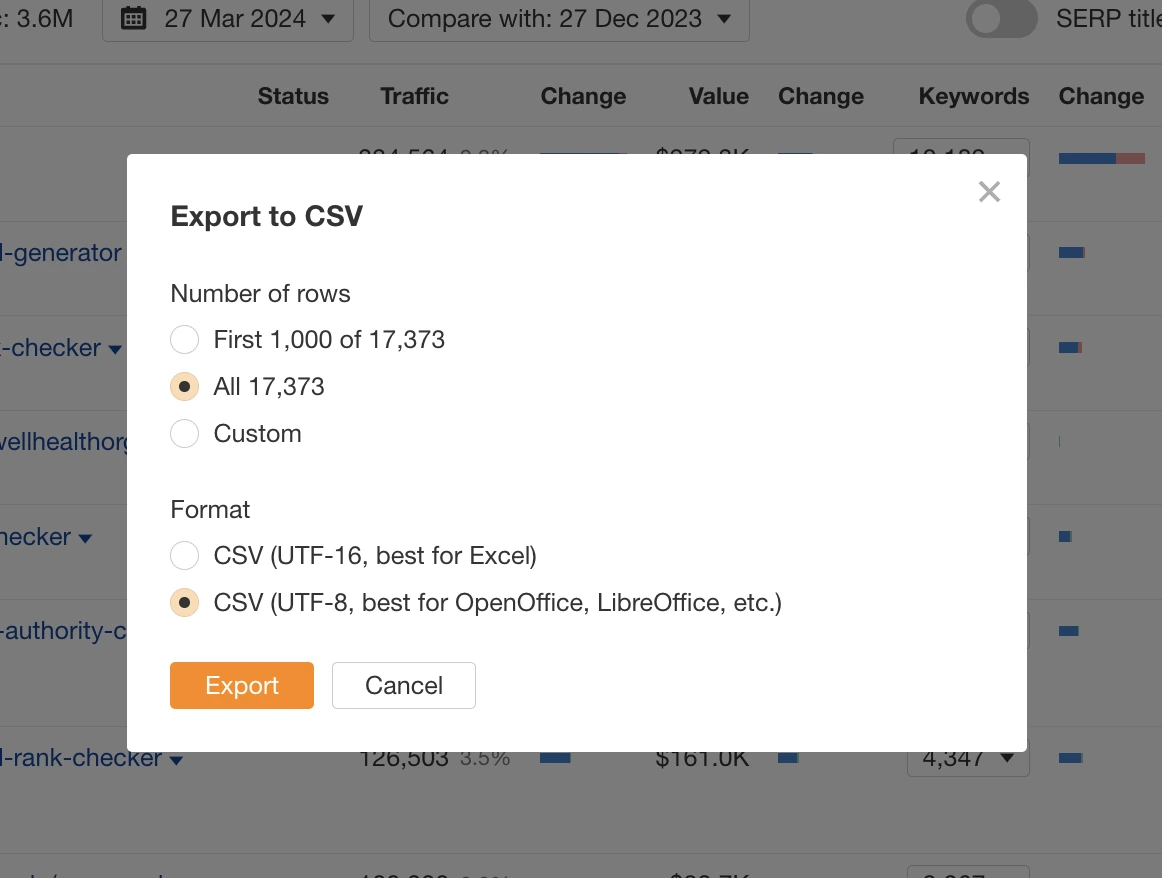
The export dialog lets you choose the number of rows and a CSV format. This is the same dialog used for Ahrefs report exports. Screenshot source Start the export
Select the orange Export button in the dialog. The file should download through your browser’s default download location. Open it to confirm the exported rows contain the expected backlink fields.
After the download, check the file’s target context and a few rows before using it. This catches cases where the browser downloaded a prior export or the selected scope and filters were not the ones intended.
How does this Ahrefs setup work in practice?
Worked example: export a filtered set for link review
An SEO specialist prepares an offline outreach file by filtering referring pages in Ahrefs Site Explorer to isolate specific editorial link attributes.
| Choice | Why it matters | How to check |
|---|---|---|
| Enter the client domain as the Site Explorer target | The review concerns backlinks to the domain overall, rather than one landing page. | The report heading or target reflects the intended domain. |
| Apply the relevant link-attribute filter | The review is scoped to that subset. The tradeoff is that other backlink rows will not be included. | The visible table reflects the intended filter. |
| Choose a row count that fits the dialog’s available allowance | A smaller export can preserve monthly rows and avoid exceeding the per-export limit. | The selected count is accepted without an over-limit message. |
| Choose the spreadsheet-compatible format and export | This supports sorting and annotation in the analyst’s spreadsheet workflow. | The downloaded file opens and contains backlink rows. |
The analyst confirms the exported file matches the active report filters and uses the spreadsheet to coordinate link cleanup tasks.
How do you verify your result in Ahrefs?
Confirm the downloaded file is present and includes the backlink rows and columns you expected. Use it to sort or annotate prospecting and audit work, while retaining the report filters that defined the exported set.
| Step | What you should see |
|---|---|
| Open the Backlinks report | The Site Explorer Backlinks report is open for the intended target. |
| Set any filters before exporting | The table shows the backlink rows you intend to export. |
| Open the export options | An export dialog appears with row-count and format options. |
| Choose the rows and format | The export dialog shows the intended row count and file format. |
| Start the export | A downloaded file appears in your browser’s downloads and opens with backlink data. |
Related Ahrefs guides include Ahrefs Link Intersect guide and Find broken internal links in Ahrefs Site Audit.
Which official Ahrefs sources were checked?
Every step and limit in this Ahrefs guide was verified against official documentation on 21 Nov 2026 following how we check figures, alongside more walkthroughs in our Ahrefs tutorials hub:
How do you troubleshoot common Ahrefs issues?
Why can’t I see the Export button?
Ahrefs says export is available on graphs or tables that have an Export button. Some tools, including Keywords Explorer, place it in a three-dot menu. Check that you are in the table view of Site Explorer’s Backlinks report.
Why did I receive fewer rows than the full report?
The export dialog lets you choose a row count, and your account has an export-row allowance. Select a larger available row count or export a filtered subset that fits your review.
Why is Export disabled after I choose a format?
If Google Sheets is selected, the export guide says a linked Google account is needed. Choose an available CSV format instead, or link the Google account and retry. Also check whether the requested row count exceeds the per-export limit.
 Reviewed byDanny Kirk
Founder of ReddiReach.
 Checked byAndrés Felipe
Digital designer and marketer.
Every figure is checked against the vendor's own page. Read our editorial standards.