
Key Takeaways
- Discover accessible organic targets in Ahrefs Keywords Explorer by applying maximum Keyword Difficulty score thresholds to idea reports.
- Ensure an active Ahrefs account with access to Keywords Explorer and prepare a relevant seed phrase before filtering.
- Complete four operational steps to search seed terms, open the Matching terms view, apply KD ceilings, and review terms.
- Confirm the filtered Ahrefs report displays only keyword suggestions with difficulty metrics at or below the specified threshold.
Filter keyword suggestions in Ahrefs Keywords Explorer by setting an upper limit on Keyword Difficulty. This targeted filtering highlights reachable search queries that align with your site's current authority and content production resources.
For plan limits and team seat pricing behind this workflow, read our Ahrefs review or connect Ahrefs to AI agents in Ahrefs API and MCP.
Key steps
What do you need before starting in Ahrefs?
Ahrefs requires the following workspace setup before you begin:
- A seed keyword or phrase to research.
- An Ahrefs account with access to Keywords Explorer.
How do you complete the steps in Ahrefs?
Follow these 4 steps in Ahrefs in order:
Search a seed keyword
Open Keywords Explorer, enter a seed keyword or phrase, select the country whose search data you want, then select Search. Use a seed broad enough to surface useful variations. For example, a home-gardening site could start with raised garden beds.
Choose the country that matches the audience whose search results you plan to assess. Search volume and keyword ideas are tied to the selected market, so a promising term in one country may not be useful for another.
Open Matching terms
From the keyword ideas reports, select Matching terms. Choose Terms match to include ideas containing the seed words in any order, or Phrase match to keep the words in the entered order. Use Terms match for a broader set of related queries.
Use Terms match when word order varies across relevant searches. Use Phrase match when the entered phrase should appear in order. This narrows the ideas and can omit useful variations that rearrange the words.
Set the KD maximum
In the report filters, open KD and set the maximum difficulty you want to consider. Ahrefs Academy illustrates a maximum KD of 10 alongside a minimum search volume of 500 for its example niche. Treat those values as an example and adjust them to your topic and capacity.
Treat KD as an initial screen, not a ranking promise. Set a ceiling that leaves a workable candidate set, then inspect the SERPs and whether the search intent fits the page you could create.
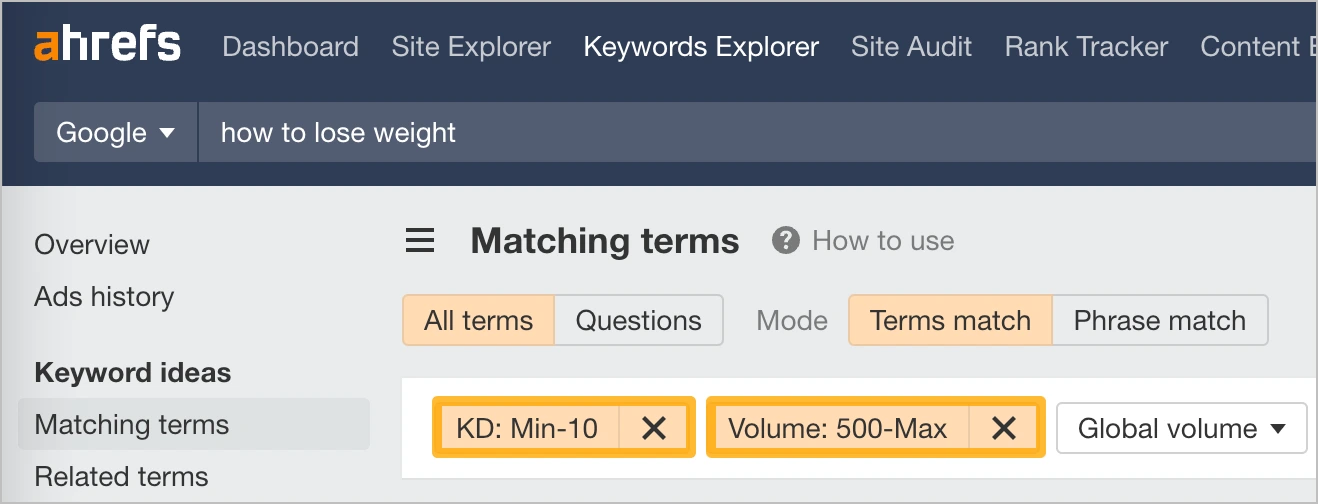
The selected limits appear above the keywords in Matching terms. Screenshot source Apply the filter and review the ideas
Apply the filters and inspect the resulting keyword ideas. If you also want to exclude very low-volume terms, set a minimum Volume filter before applying. Review search intent and the SERP for promising terms rather than choosing topics from KD alone.
If the results are too broad, combine the KD ceiling with a minimum Volume filter or inspect intent and SERPs for a smaller subset. If too few ideas remain, raise the ceiling gradually and compare the newly included results rather than accepting them automatically.
How does this Ahrefs setup work in practice?
Worked example: find local gardening topic candidates
A niche content team researches garden bed keywords in Ahrefs Keywords Explorer and sets a moderate difficulty limit to identify accessible search topics.
| Choice | Why it matters | How to check |
|---|---|---|
| Search “raised garden beds” with the United States selected | The publisher’s intended audience is in that market. | The overview names the seed and selected country. |
| Open Matching terms and select Terms match | Useful queries may include the seed words in a different order. | The report shows keyword ideas containing the seed terms. |
| Set a modest KD maximum and apply it | A ceiling narrows the research list, but may exclude relevant topics if set too tightly. | The results meet the displayed KD ceiling. |
| Inspect SERPs for candidates that fit the article goal | Similar phrases can have different intent or result types despite similar KD. | The ranking pages support the kind of article the publisher can produce. |
The team reviews the filtered keyword list against existing organic results to select terms that fit their production schedule.
How do you verify your result in Ahrefs?
Confirm the Matching terms table contains ideas at or below the KD ceiling you set. Use the filtered list as an initial prioritization aid, then inspect SERPs and business relevance before choosing a topic.
| Step | What you should see |
|---|---|
| Search a seed keyword | The Keywords Explorer overview appears for your seed keyword and selected country. |
| Open Matching terms | The Matching terms report displays keyword ideas for your seed. |
| Set the KD maximum | The KD filter shows the maximum value you entered. |
| Apply the filter and review the ideas | The results table is narrowed to keyword ideas that meet your maximum KD. |
Related Ahrefs guides include Ahrefs Link Intersect guide and Find broken internal links in Ahrefs Site Audit.
Which official Ahrefs sources were checked?
Every step and limit in this Ahrefs guide was verified against official documentation on 21 Nov 2026 following how we check figures, alongside more walkthroughs in our Ahrefs tutorials hub:
How do you troubleshoot common Ahrefs issues?
What KD value should I use?
There is no universal cutoff. Ahrefs Academy uses a maximum of 10 in one example and says filter values depend on the breadth of the niche. Set a threshold that gives you a useful list, then assess the SERPs.
Does a low KD guarantee that I can rank?
KD estimates ranking difficulty. Ahrefs describes it as a first filter and advises against basing SEO decisions on KD alone. Review the ranking pages and other factors before prioritizing a keyword.
Why did a relevant phrase disappear when I changed to Phrase match?
Phrase match requires the seed words to appear in the entered order, while Terms match allows them in any order. Return to Terms match when reordered variations are relevant, then assess each result’s intent.
 Reviewed byDanny Kirk
Founder of ReddiReach.
 Checked byAndrés Felipe
Digital designer and marketer.
Every figure is checked against the vendor's own page. Read our editorial standards.