
Key Takeaways
- Spot declining organic content in Ahrefs Site Explorer by reviewing top pages with significant negative traffic variations.
- Confirm domain access in Ahrefs Site Explorer and ensure the site possesses sufficient historical traffic data for comparisons.
- Execute five analytical steps to open declining opportunities, review change metrics, inspect URLs, and design content updates.
- Examine specific ranking drops for affected URLs in Ahrefs to verify whether page declines stem from altered search intent.
Identify web pages experiencing declining search traffic over six-month periods using the Opportunities section in Ahrefs Site Explorer. Analyze historical keyword movements for declining URLs to prioritize content updates and structural optimizations.
For plan limits and team seat pricing behind this workflow, read our Ahrefs review or connect Ahrefs to AI agents in Ahrefs API and MCP.
Key steps
What do you need before starting in Ahrefs?
Ahrefs requires the following workspace setup before you begin:
- Your site’s domain, using the correct www or non-www version.
- Access to Site Explorer for the site you want to investigate.
How do you complete the steps in Ahrefs?
Follow these 5 steps in Ahrefs in order:
Open Site Explorer for your domain
Choose Site Explorer from the Ahrefs navigation, enter your domain, and select the mode that matches the scope you want to check. For a site-wide view, use Domain or Subdomains as appropriate. Confirm that the target and mode are correct before opening a report.
For a site with separate regional subdomains, decide whether the question concerns one region or the whole domain before choosing the mode. A narrower scope can make the report easier to act on, but it may omit pages on other subdomains. Check that the header shows the intended target before comparing results.
Open the declining traffic opportunity
Open the Opportunities report in Site Explorer and choose Content with declining traffic. Ahrefs opens the Top pages report filtered for pages with lower estimated traffic than six months earlier. This path is a direct way to find declining pages without manually sorting every URL first.
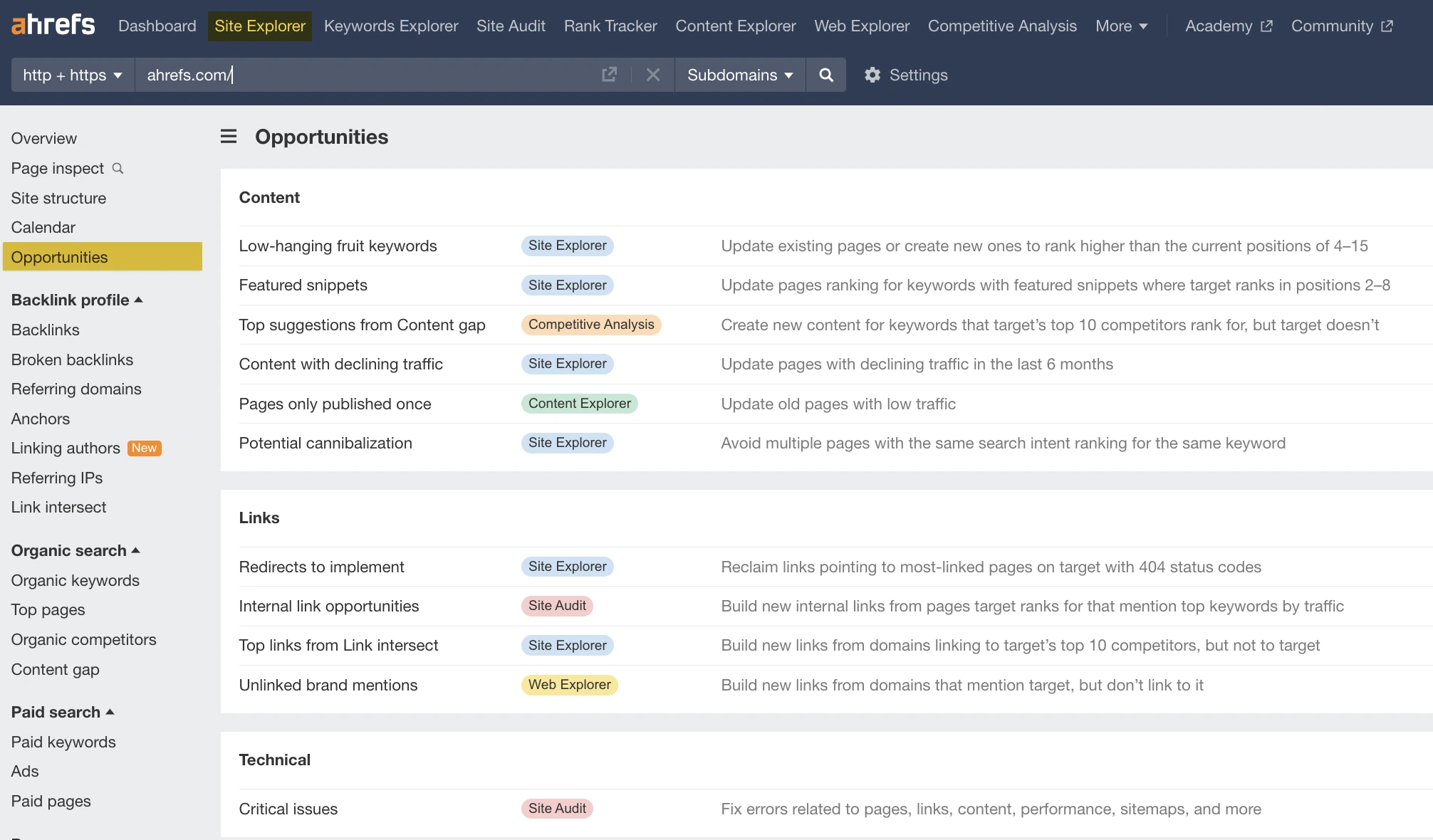
Open Opportunities in the Site Explorer sidebar and find Content with declining traffic. Screenshot source Review the traffic changes
Inspect the pages and their traffic change values. Hover over a Change bar to see the difference between the six-month periods. Use declines to decide which pages to investigate first.
Use the Change value to sort your review, not as a stand-alone measure of business impact. A large estimated drop on an old resource page may matter less than a smaller drop on a page tied to a current product. Note both the change and the page’s role, and verify the tooltip period before comparing pages.
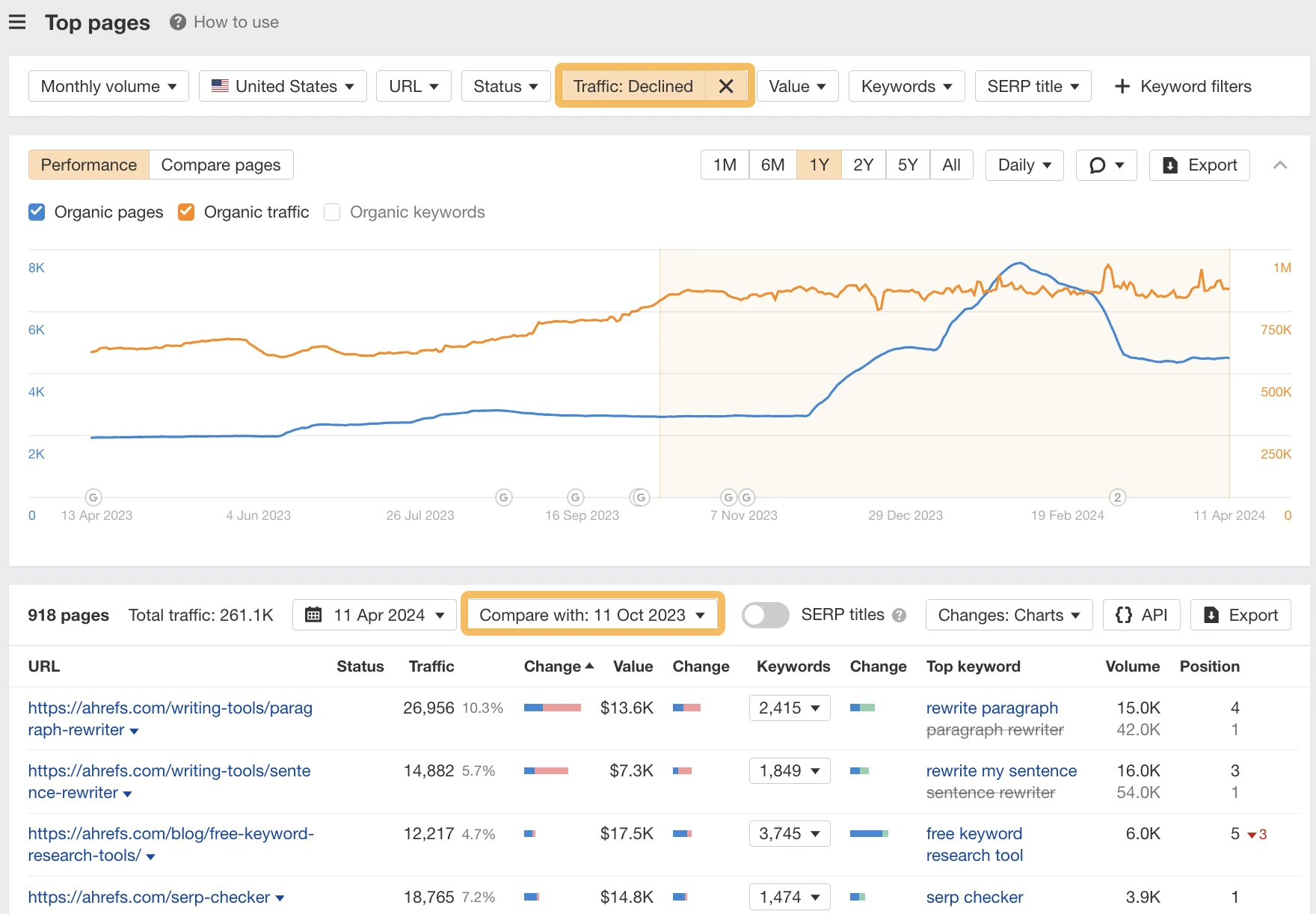
The Top pages traffic chart sits above the page rows. Use the Change column to identify which pages lost estimated traffic. Screenshot source Choose a page to investigate
Start with pages that have a clear negative change and matter to your business. Open a page’s URL and review the keywords associated with its traffic. Look for changes in ranking positions, keyword mix, or search demand that could help explain the drop. Ahrefs describes these traffic figures as estimates, so compare the direction and context of the change.
For example, suppose a hypothetical store finds that its category page lost estimated traffic while several product pages did not. Inspect the category page’s ranking keywords and note whether its previously visible terms lost positions or disappeared. This helps distinguish a ranking change from a shift in which searches bring traffic. Confirm the pattern across the affected terms before choosing a content edit.
Turn the finding into a content review
Record the affected URL, the comparison period, and the size of the estimated decline. Review whether the page still matches the intent of its target searches and whether competing pages have changed. If the traffic fell after a different keyword began driving visits, assess whether the page still serves the searchers you want.
How does this Ahrefs setup work in practice?
Worked example: prioritize a declining category page
An online retailer observes negative six-month traffic trends on a product category page in Ahrefs and evaluates keyword drops before revising copy.
| Choice | Why it matters | How to check |
|---|---|---|
| Confirm the domain scope and comparison | The team wants a whole-site view and needs to ensure the decline is measured against the report’s stated six-month comparison. | The header shows the intended domain scope, and the Change tooltip identifies the comparison. |
| Record the category URL and decline | A specific URL and estimate make the finding reproducible and keep the review focused. | The notes contain the URL, Change value, and date of review. |
| Inspect the page’s ranking keywords | Lost positions and a changed keyword mix point to different follow-up questions. | The team identifies which terms moved or no longer appear for the page. |
| Compare page intent with current search results | A page can lose relevance if the searches it ranked for now favor different content types. | The reviewer records whether the page still answers the likely searcher need before proposing an edit. |
The content team isolates lost commercial rankings and plans an on-page refresh tailored to current search engine result page requirements.
How do you verify your result in Ahrefs?
You have a prioritized list of pages with declining estimated organic traffic. Choose one page, inspect its keywords and search intent, and decide whether it needs a content update or another kind of investigation.
| Step | What you should see |
|---|---|
| Open Site Explorer for your domain | The Site Explorer page header identifies your domain and selected scope. |
| Open the declining traffic opportunity | Top pages shows the Content with declining traffic filter or a six-month comparison for the selected target. |
| Review the traffic changes | A Change bar tooltip displays the traffic difference for the compared periods. |
| Choose a page to investigate | You can identify a page URL with a negative traffic change and inspect its ranking keywords. |
| Turn the finding into a content review | Your review notes identify a specific declining page and one follow-up question to investigate. |
Related Ahrefs guides include Ahrefs Link Intersect guide and Find broken internal links in Ahrefs Site Audit.
Which official Ahrefs sources were checked?
Every step and limit in this Ahrefs guide was verified against official documentation on 21 Nov 2026 following how we check figures, alongside more walkthroughs in our Ahrefs tutorials hub:
How do you troubleshoot common Ahrefs issues?
Why do my traffic numbers differ from analytics?
Ahrefs reports estimated organic traffic using ranking and search data. Your analytics account measures visits to your site directly. Some difference is expected. Use the report to investigate trends and affected URLs.
Why do I see no declining pages?
The selected target may have no pages with lower estimated traffic in the comparison period, or the target scope may be too narrow. Confirm the domain and mode, and check the comparison shown in Top pages.
Several pages declined, but which one should I review first?
Compare the estimated change with each page’s business role and the keywords affected. Start with a page that matters to a current goal and has a plausible search or ranking explanation. Record the URL and evidence so the next review can check whether the issue persists.
 Reviewed byDanny Kirk
Founder of ReddiReach.
 Checked byAndrés Felipe
Digital designer and marketer.
Every figure is checked against the vendor's own page. Read our editorial standards.