
Key Takeaways
- Access the SERP overview button within Ahrefs Site Explorer reports to inspect past search engine ranking positions directly.
- Confirm your Ahrefs subscription tier includes historical data retention across the specific calendar dates you intend to inspect.
- Follow five sequential steps to load the target URL, open keyword SERP tables, select dates, and compare ranking records.
- Confirm SERP changes by checking whether recorded URLs shifted positions or dropped off the first search result page entirely.
Inspect historical search engine result pages in Ahrefs Site Explorer to track ranking movements across previous crawl dates. Compare past SERP snapshots against current positions to understand how search page compositions evolve over time.
For plan limits and team seat pricing behind this workflow, read our Ahrefs review or connect Ahrefs to AI agents in Ahrefs API and MCP.
Key steps
What do you need before starting in Ahrefs?
Ahrefs requires the following workspace setup before you begin:
- A URL to enter in Site Explorer and a keyword with a SERP button in its Organic Keywords 2.0 report.
- A comparison question, such as which pages appeared in results on a past date.
How do you complete the steps in Ahrefs?
Follow these 5 steps in Ahrefs in order:
Open the URL in Site Explorer
Enter the URL you want to investigate in Site Explorer, then open the `Organic Keywords 2.0` report. Locate the keyword whose search results you want to compare over time.
The screenshot shows an Organic Keywords report with a SERP overview table for a keyword and a historical date displayed. It is a specific example of the report interface. Your URL and search results will differ.
Open the keyword's SERP table
Choose the SERP button for the keyword. This opens the SERP table, where you can inspect the search results associated with the report's date.
In the screenshot, the SERP table includes a date label, result entries, URLs, and a `Target only` control. The image illustrates those visible elements and does not imply that the same results will appear for your keyword.
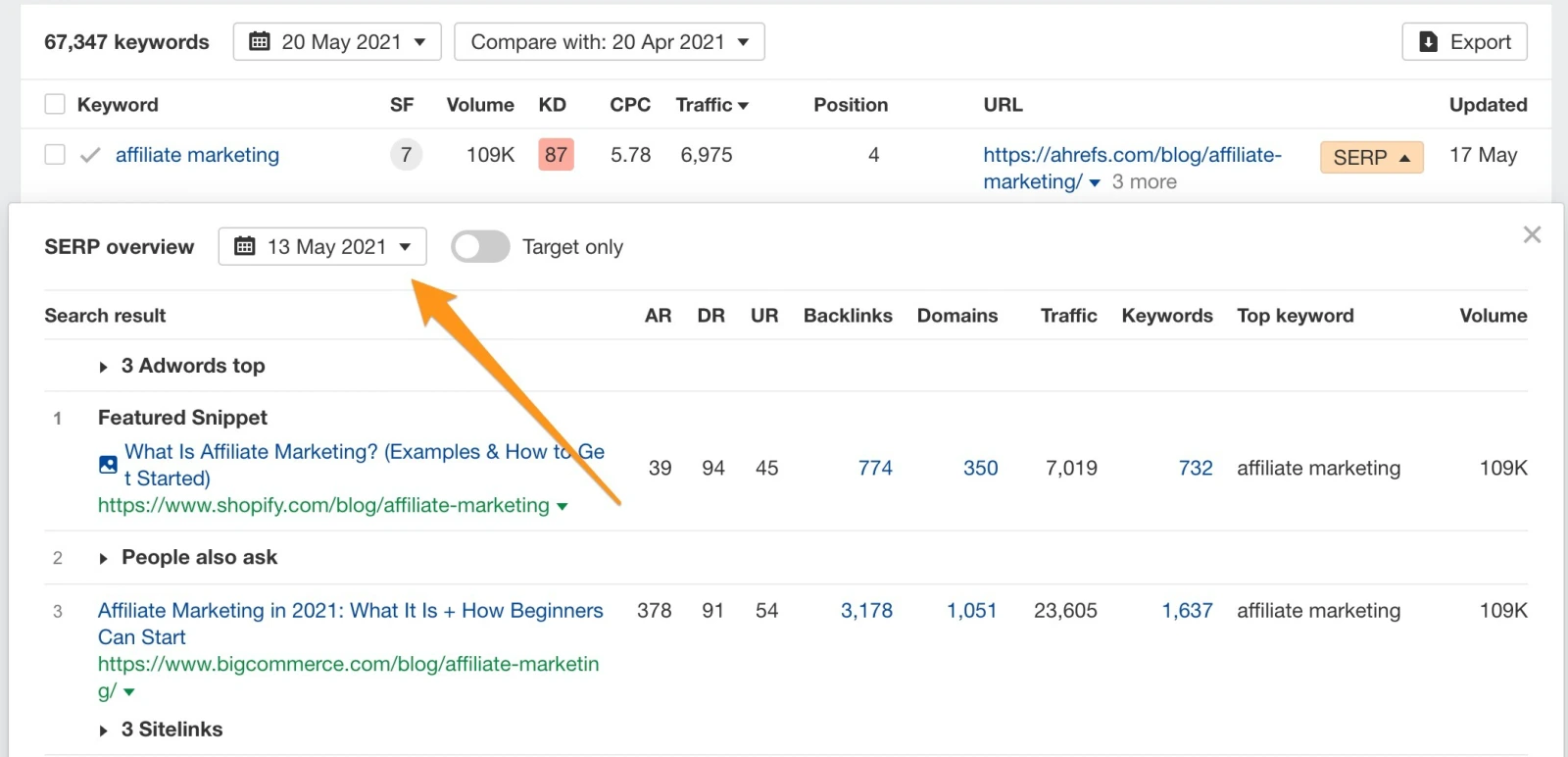
The visible table shows a dated SERP view, result URLs, and controls for focusing on target positions. Screenshot source Choose a historical date
Use the date picker in the SERP table to browse the historical results available for that keyword. Select a date relevant to your comparison question and review the results shown for it.
Historical data availability in Site Explorer is limited according to the account's plan. If the date you need is unavailable, choose another available date or adjust the comparison question to fit the accessible history.
Inspect target URLs and result entries
Review the result entries and URL column to see which pages were listed. If multiple URLs from the target are ranking, the URL column can show an `X more` link. Select it to see a SERP showing only target positions.
You can use `Target only` to focus on the ranking URL for the keyword. The screenshot shows this control and an example of multiple target URLs. Use the controls only when they appear in your report.
Compare with another available date
Return to the date picker and choose another date that is available, then inspect the SERP table again. Compare the result entries and URLs between the two dates.
Keep the keyword and report context the same. A historical SERP comparison shows what was recorded on the selected dates, but does not explain why a result changed.
How does this Ahrefs setup work in practice?
Compare search results across historical dates
A site owner reviews whether the ranking URLs for a primary keyword shifted between two crawl dates in Ahrefs.
| Choice | Why it matters | How to check |
|---|---|---|
| Open the URL's Organic Keywords 2.0 report and find the keyword. | The SERP table is opened from the keyword's report row. | The report and keyword match the question. |
| Open that keyword's SERP table and note the first displayed date. | The date anchors the first set of observed results. | The date and listed URLs are visible. |
| Use the date picker to choose another available date. | A second date makes a historical comparison possible, subject to available data. | The second date is selected and the table updates. |
| Compare URLs and inspect target-only details if needed. | The URL list shows which pages appear, while target-only controls can focus the view on target positions. | The notes distinguish the two dates and identify the relevant URLs. |
Decide whether the observed URL changes answer the question or whether inspecting an alternative date or target-only view provides clearer historical context.
How do you verify your result in Ahrefs?
You can inspect and compare the SERP entries recorded for a keyword on selected historical dates. The dates you can review are constrained by the historical data available in Site Explorer for your plan.
| Step | What you should see |
|---|---|
| Open the URL in Site Explorer | Site Explorer is showing the Organic Keywords 2.0 report for the intended URL. |
| Open the keyword's SERP table | The SERP table is open for the intended keyword and its displayed date is visible. |
| Choose a historical date | A date is selected and the SERP table shows the results associated with that date. |
| Inspect target URLs and result entries | You can identify the date and the URLs or target positions relevant to your question. |
| Compare with another available date | You have observations tied to two displayed dates for the same keyword. |
Related Ahrefs guides include Ahrefs Link Intersect guide and Find broken internal links in Ahrefs Site Audit.
Which official Ahrefs sources were checked?
Every step and limit in this Ahrefs guide was verified against official documentation on 21 Nov 2026 following how we check figures, alongside more walkthroughs in our Ahrefs tutorials hub:
How do you troubleshoot common Ahrefs issues?
Why can't I select the date I want?
Historical data in Site Explorer is limited according to the account's plan. Choose a date that is available in the picker or frame the comparison around accessible dates.
Why are multiple target URLs associated with the keyword?
More than one URL can rank for the same keyword. Inspect the URL column and, when shown, use the X more link to view a SERP showing only target positions.
Why do the results differ between dates?
The SERP table represents search results recorded for the selected date. Confirm the keyword and dates, then describe the observed URL changes without assuming their cause.
 Reviewed byDanny Kirk
Founder of ReddiReach.
 Checked byAndrés Felipe
Digital designer and marketer.
Every figure is checked against the vendor's own page. Read our editorial standards.