
Key Takeaways
- Configure multiple target segments in Semrush Position Tracking to monitor search engine visibility trends across locations and devices.
- Ensure an active Position Tracking campaign exists with available target slots and pre-selected keywords before adding regional profiles.
- Execute six clear steps to access target menus, define geographic locations, choose keyword lists, and review comparative visibility charts.
- Verify comparative metrics by checking that the Devices & Locations graph plots separate daily trend lines for each active target.
Set up multiple tracking targets in Semrush Position Tracking to compare keyword rankings across diverse geographic locations, languages, and device types. Review the Devices & Locations report to visualize regional search visibility differences over time.
For plan limits and team seat pricing behind this workflow, read our Semrush review or connect Semrush to AI agents in Semrush API and MCP.
Key steps
What do you need before starting in Semrush?
Semrush requires the following workspace setup before you begin:
- An existing Position Tracking campaign with a location, device, language, search engine, and keyword set.
- A clear comparison question, such as how the same tracked keywords perform across two locations or search engines.
- Access to multitargeting in the campaign. The source states this feature is available to Guru and Business SEO Toolkit subscriptions. Target variation limits differ by tier.
How do you complete the steps in Semrush?
Follow these 6 steps in Semrush in order:
Open the target dropdown in the campaign
Open the existing Position Tracking campaign and select the target dropdown at the top left. Review the targets already configured before adding another. The screenshot shows an older interface variant with a Targets dropdown, current target entries, and Add new target in the menu.
Use the visible target menu to start a new comparison target. The source describes multitargeting as available in both newly created and pre-existing campaigns.
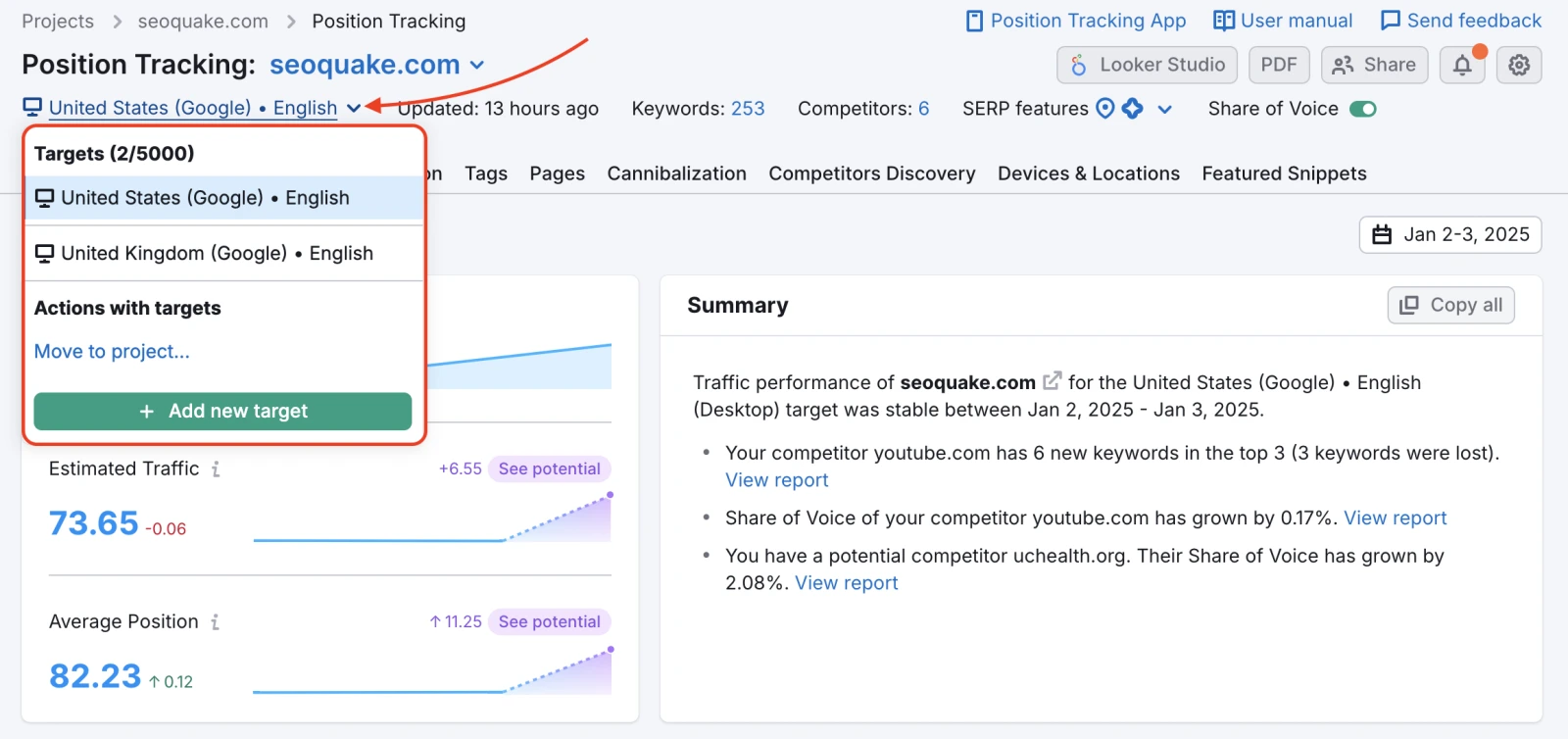
The open Targets menu shows existing target entries and the visible Add new target control. Screenshot source Add a target that answers a specific comparison question
Select Add new target and choose the variation that fits the comparison, such as a different location, device, language, or search engine. Keep the changed dimension clear so you can interpret differences later.
The documented limits are up to 10 target variations for Guru and up to 5,000 for Business in one campaign. Each new target’s keywords count toward account keyword tracking limits, including keywords already tracked elsewhere. Account for those constraints when planning the comparison.
Choose the target’s keyword set
When configuring the target, either import the same keywords from an existing campaign or add a new set. A new set can be entered manually, uploaded as a file, or imported from Google Analytics or Semrush Keyword Analytics reports.
For an apples-to-apples comparison, the same keyword set may be appropriate when supported by the question. If the target needs its own terms, use a target-specific set. The source also describes editing target keywords through the Keywords button or the settings menu’s Tracked keywords option.
Open Devices & Locations and inspect the overview
Open Devices & Locations and check the Targets Overview graph. Each selected target has a separate line for the displayed metric. Read the legend before drawing conclusions, especially when two targets share a country but use a different device, language or search engine. The screenshot compares two selected targets.
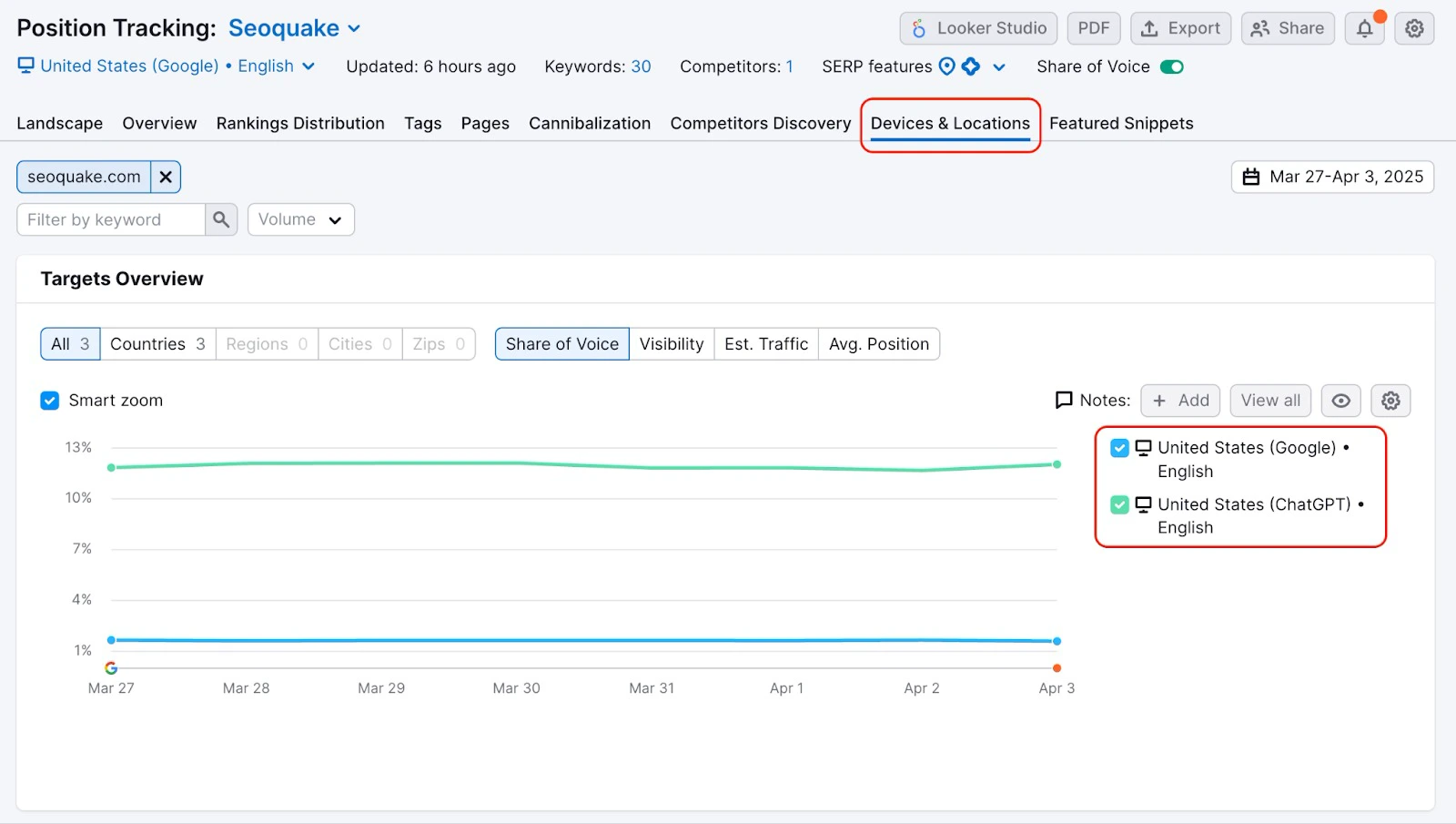
The report view shows the Targets Overview graph used to review target visibility. Screenshot source Select the targets to compare
Use the targets dropdown in the header of the rankings table under Devices & Locations to select or deselect targets. The menu shows the device type, search engine, and language assigned to each location, helping you verify what each line represents.
Compare visibility trends only after confirming which target settings and keyword assignments are represented. This keeps location or search-engine changes interpretable alongside device and language differences.
Review the comparison and decide what to investigate next
Look for differences in visibility trends across the selected targets. The report can help you compare how your site performs across locations or search engines. It does not itself explain why the difference exists.
If the comparison concerns local demand, the source says the table can be sorted by changes and filtered by keyword, and search volumes can differ by location. Use the observed differences to choose a focused follow-up, such as reviewing a keyword or reconsidering how you target searchers in a particular city.
How does this Semrush setup work in practice?
Compare search visibility across geographic targets
A local service business compares identical keyword tracking sets across two adjacent metropolitan territories to evaluate regional reach.
| Choice | Why it matters | How to check |
|---|---|---|
| Add a target for the nearby city while keeping device, language, and search engine the same. | Changing one dimension helps the team interpret a location comparison. | The target menu shows the intended city and matching remaining settings. |
| Import the same tracked keywords into the new target. | The team wants to compare the same terms across both locations. | The new target is assigned the intended shared keyword set. |
| Open Devices & Locations and select both targets. | The report displays target visibility trends for comparison. | Both targets are selected and identifiable in the dropdown. |
| Review any keyword-level differences before changing the local strategy. | The trend indicates where to investigate, while the underlying cause needs follow-up. | The team records one location and keyword question for further review. |
Decide whether the observed visibility difference justifies launching a granular keyword-level investigation across the underperforming municipal market.
How do you verify your result in Semrush?
You will have a target comparison with clear context for each target’s location, device, language, search engine, and assigned keywords. The Devices & Locations report presents visibility trends for the selected targets, with new targets appearing as graph lines and the report updating daily.
| Step | What you should see |
|---|---|
| Open the target dropdown in the campaign | The target menu is open and you have confirmed which target or targets are already configured. |
| Add a target that answers a specific comparison question | The new target’s location, device, language, and search engine combination matches the intended comparison. |
| Choose the target’s keyword set | The target has the intended keywords, and you know whether they were reused or selected specifically for that target. |
| Open Devices & Locations and inspect the overview | The report is open and the graph displays the targets relevant to your comparison. |
| Select the targets to compare | The selected targets are the ones intended, and you can identify their location, device, search engine, and language context. |
| Review the comparison and decide what to investigate next | You have recorded the targets compared, the visible difference, and a specific follow-up question. |
Related Semrush guides include How to add competitors in Semrush Position Tracking and How to build a Semrush My Reports report from a template.
Which official Semrush sources were checked?
Every step and limit in this Semrush guide was verified against official documentation on 21 Nov 2026 following how we check figures, alongside more walkthroughs in our Semrush tutorials hub:
How do you troubleshoot common Semrush issues?
Why can’t I add a new target?
The source states multitargeting is available only with Guru and Business SEO Toolkit subscriptions, and gives different per-campaign limits for each. Check whether the feature is available to your subscription and how many target variations are already configured.
Why did adding a target affect keyword tracking limits?
All keywords assigned to a new target count toward account keyword tracking limits, even when already tracked in another target or campaign. Review the target’s keyword set and account limits before adding further targets.
Why are the trends hard to compare?
The targets may have different locations, devices, languages, search engines, or keyword sets. Review the target dropdown and keyword assignments so you know which settings and terms each trend represents.
 Reviewed byDanny Kirk
Founder of ReddiReach.
 Checked byAndrés Felipe
Digital designer and marketer.
Every figure is checked against the vendor's own page. Read our editorial standards.