
Key Takeaways
- Examine the Semrush Position Tracking Pages report to identify every indexed URL ranking for your monitored keyword campaigns.
- Establish an active Semrush Position Tracking project with populated keyword sets and an established tracking timeframe before reviewing pages.
- Follow five structured steps to open the report, filter domains, compare page performance, expand keywords, and assess changes.
- Verify landing page health by expanding keyword tables to ensure multiple URLs are not competing for the exact same search query.
Analyze the Pages report in Semrush Position Tracking to discover which indexed landing pages capture rankings for your tracked keywords. Expand individual URLs to review underlying search terms, traffic estimates, and cannibalization risks.
For plan limits and team seat pricing behind this workflow, read our Semrush review or connect Semrush to AI agents in Semrush API and MCP.
Key steps
What do you need before starting in Semrush?
Semrush requires the following workspace setup before you begin:
- A Semrush Position Tracking campaign with keywords and a domain or competitor configured.
- A selected campaign time period for the comparison.
- A specific comparison in mind, such as identifying pages with the most tracked keywords or reviewing new and lost pages.
How do you complete the steps in Semrush?
Follow these 5 steps in Semrush in order:
Open the Pages report
Open the relevant Position Tracking campaign and select Pages. The report lists landing pages on the selected domain that rank for at least one campaign keyword. Confirm that you are in the intended campaign before comparing figures, since the report reflects its tracked keywords and settings.
Select the domain or subdomain
Use the input field at the top of the report to choose the domain or subdomain whose landing pages you want to inspect. You can use this to examine a competitor as well as your own tracked domain. Keep the same campaign and time period in mind when comparing domains.
Compare page metrics
Review the URL, keyword count, average position, total volume, and estimated traffic columns. The URL list is ordered by keyword count, with pages having more tracked rankings at the top. Use the date and difference columns shown in the report to understand movement over the selected period. Estimated traffic is an estimate based on position click-through rates and keyword volume, not observed visits.
Expand a page’s keyword list
Select the page’s keyword-count number to open its keyword details. Review the individual terms and their metrics to understand what contributes to the page-level totals. New or lost keyword labels may appear beside terms. The report description says to inspect the expanded list for those changes rather than relying on the New and Lost page filters.
Use New and Lost pages for page-level changes
Use the New and Lost controls near the filter bar to review pages that newly rank or no longer appear in Google’s top 100 during the selected time frame. These filters concern landing pages. To inspect new or lost keywords on an individual page, expand that page’s keyword list and review the labels there.
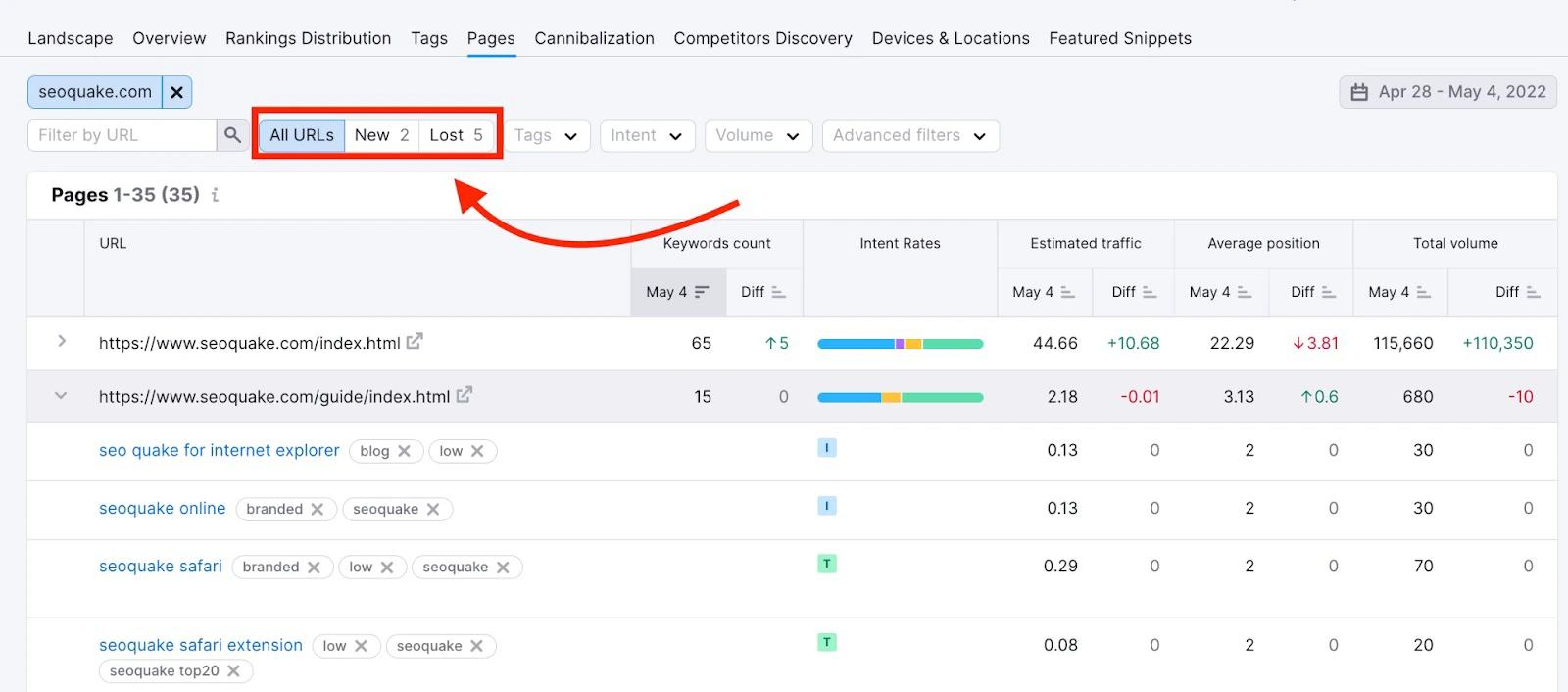
The visible New and Lost controls and page rows illustrate page-level ranking changes in this Pages report view. Screenshot source
How does this Semrush setup work in practice?
Analyze landing page performance after a campaign
A marketing team compares landing page visibility after completing a seasonal campaign to evaluate traffic concentration across site sections.
| Choice | Why it matters | How to check |
|---|---|---|
| Open Pages for the campaign and select the relevant domain. | The team needs the report for the site and tracking context under review. | The campaign and domain shown at the top match the scenario. |
| Sort or scan the available page metrics, beginning with keyword count and the period’s difference. | This gives a page-level view of breadth and movement during the selected range. | The team records the time range alongside the pages it wants to inspect. |
| Expand the keyword count for a page with an interesting change. | Individual keywords reveal which tracked terms contribute to the page totals. | The expanded terms belong to that landing page, and visible new or lost labels are recorded. |
| Decide whether to review another page or investigate the changed terms further. | The report indicates where to focus, while the keyword details make the next review more specific. | The next action is based on the observed page and keyword details, not on an assumed cause. |
Determine whether performance gains are distributed across multiple landing pages or concentrated within a single high-performing keyword group.
How do you verify your result in Semrush?
The report helps you identify which tracked landing pages rank for the campaign’s keywords and what terms and metrics sit behind each page. Use page-level counts and movement to choose what to examine next, then inspect the keyword list before drawing conclusions about why a page changed.
| Step | What you should see |
|---|---|
| Open the Pages report | The Pages report is open for the campaign whose rankings you want to review. |
| Select the domain or subdomain | The displayed domain or subdomain matches the site you intend to analyze. |
| Compare page metrics | You have identified the page metrics relevant to your question and noted the selected time period. |
| Expand a page’s keyword list | The expanded list belongs to the page you selected, and you can see the associated keywords and any visible change labels. |
| Use New and Lost pages for page-level changes | You have distinguished page-level New or Lost results from keyword-level changes within an expanded page. |
Related Semrush guides include How to add competitors in Semrush Position Tracking and How to build a Semrush My Reports report from a template.
Which official Semrush sources were checked?
Every step and limit in this Semrush guide was verified against official documentation on 21 Nov 2026 following how we check figures, alongside more walkthroughs in our Semrush tutorials hub:
How do you troubleshoot common Semrush issues?
Why isn’t a page I expected listed?
The report includes landing pages ranking for at least one keyword in the campaign. Confirm the selected domain or subdomain and that the page is associated with a tracked campaign keyword.
Why does estimated traffic differ from analytics traffic?
Estimated traffic is calculated from keyword volume and average click-through rates for ranking positions. It is an estimate, not a count of observed site visits.
Why don’t the New and Lost filters show a page’s new or lost keyword?
Those filters identify landing pages that are new or lost in rankings. Expand the page’s keyword-count control to inspect new or lost keyword labels.
 Reviewed byDanny Kirk
Founder of ReddiReach.
 Checked byAndrés Felipe
Digital designer and marketer.
Every figure is checked against the vendor's own page. Read our editorial standards.