
Key Takeaways
- Use Space settings > Look and Feel > Templates > Create new template to build reusable layouts with /variable fields, /placeholder notes, and preset labels.
- You must hold space Admin permission in Confluence Cloud to see the Look and feel card and create or edit space templates.
- Complete five steps: open the template editor in space settings, add dynamic variables, insert grey placeholder instructions, attach tracking labels, and add a gallery description.
- Confirm your setup by creating a page from the template and verifying that the variable input form appears before edit mode opens.
Build reusable page templates in Confluence so teammates capture consistent project details without formatting documents from scratch. Adding dynamic variables, editor-only placeholder instructions, and default labels keeps recurring pages structured across your space.
For plan limits and team seat pricing behind this workflow, read our Confluence review or connect Confluence to AI agents in Confluence API and MCP.
Key steps
What do you need before starting in Confluence?
Confluence requires the following workspace setup before you begin:
- Confluence Cloud account with Admin permission for the target space
- Confluence new editor enabled so slash commands and variables work
- Standardized field names and tracking labels agreed by your team
How do you complete the steps in Confluence?
Follow these 5 steps in Confluence in order:
Open Space settings and create a new template
Open your target space in Confluence Cloud, select More actions (...) beside the space name in the sidebar, and select Space settings. Open Look and Feel > Templates, then select Create new template.
Only space administrators see the Look and feel card in Space settings. Confluence templates do not currently support images or file attachments, so build layouts around headings, variables, placeholder text, and labels.
Insert and configure dynamic variables
Type /variable where contributor input should appear and press Enter. Select the variable token to edit it, enter a variable name, choose Text, Multi-line Text, or List, and select Save.
Use Text for single-line values, Multi-line Text for multi-row inputs, or List for dropdown options. Keep variable names and parameters identical when repeating a token, because Confluence populates matching copies from one entry.
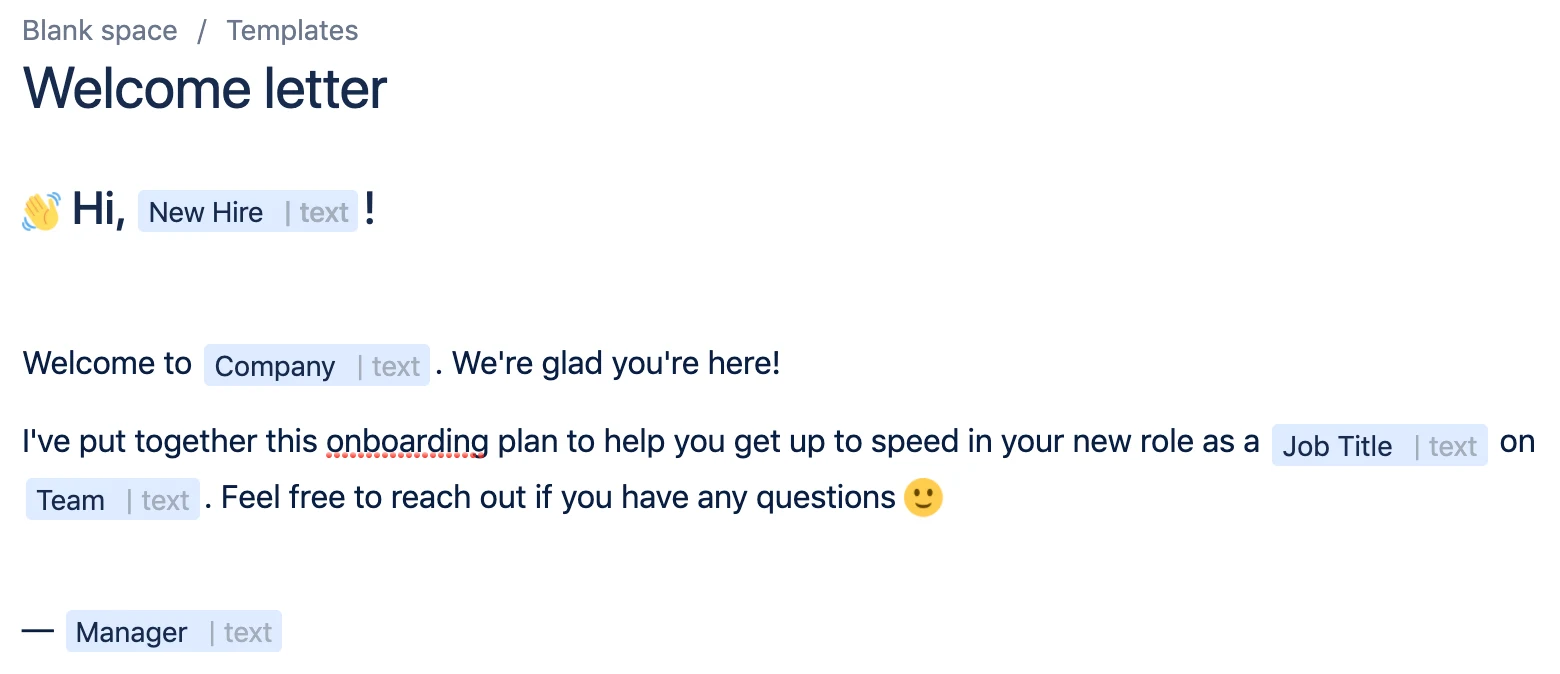
Confirm that each variable token displays its exact field name inline within your template layout. Screenshot source Add editor-only placeholder instructions
Place your cursor where authors need guidance, type /placeholder, and press Enter. Enter your sample prompt or instructions and press Enter again.
Placeholder text renders in grey while editing a page or live doc and stays invisible on the published version. Add brief instructions beside sections that require attachments so authors upload them after creating the draft.
Attach default labels to the template
Open the editor menu and select Add labels. Enter label names separated by the Space key, select Add, and select Close.
Pages and live docs created from this template inherit these labels automatically, making it easy to aggregate related records in a page properties report.
Save and add a template gallery description
Save the template, return to Space settings > Look and feel > Templates, and select the pencil icon in the Description column to summarize its purpose.
Create a test page or live doc from the template to verify the contributor experience. Confluence prompts users to fill out each variable before placing their entries into edit mode.
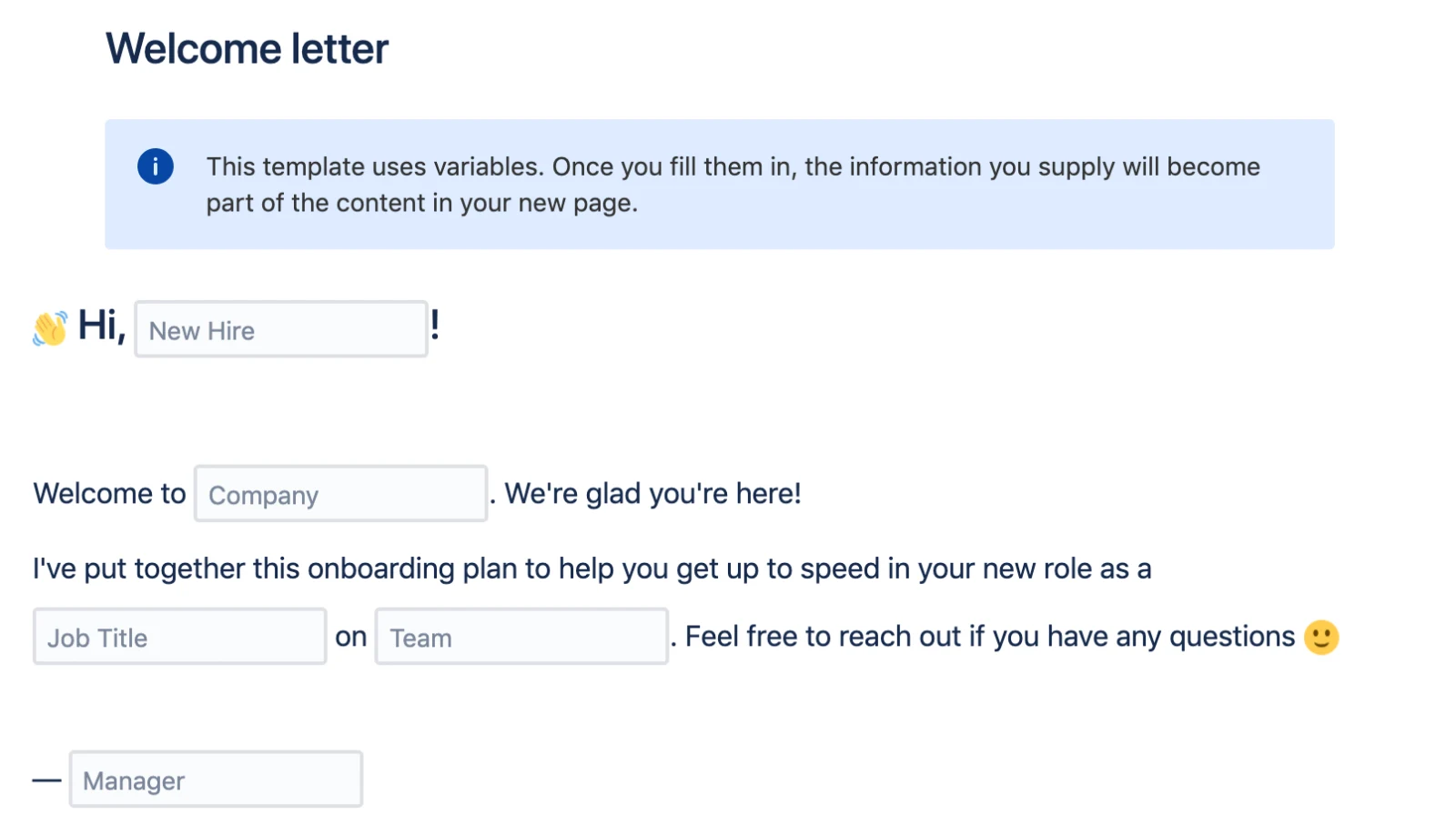
Verify that starting a page from the template displays input fields for every variable you configured. Screenshot source
How does this Confluence setup work in practice?
Worked example: Standardizing an employee onboarding template
A people operations space admin creates an onboarding template so hiring managers capture consistent starter details for every new hire.
| Choice | Why it matters | How to check |
|---|---|---|
| Add five Text variables for New Hire, Company, Job Title, Team, and Manager | Single-line fields prompt managers once and populate repeated mentions across the page. | All five green variable tokens appear in the template intro and checklist. |
| Insert /placeholder notes under first-week milestones | Guides managers during editing while staying hidden from readers in view mode. | Grey instructions display in edit mode and disappear once published. |
| Attach the onboarding-plan label via Add labels | Lets HR roll up every onboarding page automatically in a page properties report. | Every draft created from the template carries the onboarding-plan label. |
Hiring managers launch the template from the space gallery, complete five variable fields, and publish a labeled onboarding page in minutes.
How do you verify your result in Confluence?
Launch a test draft from your space template gallery to verify that your gallery description, variable fields, grey placeholder text, and labels load together. Pair your template label with a page properties report to track newly created pages across the space.
| Step | What you should see |
|---|---|
| Open Space settings and create a new template | The Confluence template editor opens with a blank title field and formatting toolbar. |
| Insert and configure dynamic variables | Each configured variable token displays its assigned name inline inside the template. |
| Add editor-only placeholder instructions | Grey instructional placeholder text appears inline within your template body. |
| Attach default labels to the template | Your preset label pills appear attached to the draft template. |
| Save and add a template gallery description | Your template displays its description under Templates and launches the variable prompt when used. |
Related Confluence guides include How to insert and configure a table of contents in Confluence and How to organize a space and publish pages in Confluence.
Which official Confluence sources were checked?
Every step and limit in this Confluence guide was verified against official documentation on 27 Nov 2026 following how we check figures, alongside more walkthroughs in our Confluence tutorials hub:
How do you troubleshoot common Confluence issues?
Why is the Look and feel card missing when I open Space settings?
Only space administrators can create or edit custom templates in Confluence Cloud. Ask an existing space admin to grant your account Admin permission for that space, then reload Space settings.
Why can I not upload images or attachments directly into my template?
Confluence Cloud templates do not currently support adding images or attachments in the template editor. Insert /placeholder instructions telling authors which file or screenshot to attach after creating a page from the template.
What happens if two variables share the same name with different settings?
Variables with identical names must share identical parameters because Confluence treats them as copies of one variable. Keep their input type and list options matched so one form entry populates every instance cleanly.
 Reviewed byDanny Kirk
Founder of ReddiReach.
 Checked byAndrés Felipe
Digital designer and marketer.
Every figure is checked against the vendor's own page. Read our editorial standards.