
Key Takeaways
- Organize every project or team inside a Confluence Space with an Overview, Blog, and a labeled hierarchy of Pages and Live docs.
- Ensure you hold Confluence Cloud workspace access with permission to create pages, attach files, and configure restrictions in your space.
- Follow five steps: set up your space overview and tree, pick a page or live doc, insert expands and attachments, publish with labels, and collaborate via inline comments and permissions.
- Confirm your setup when published pages appear in the space sidebar, update immediately in view mode, and track automatic version snapshots.
Structure team knowledge inside a dedicated Confluence space so project plans, policies, and discussions stay in one searchable workspace. Choosing between versioned pages and real-time live docs, adding expands and attachments, and configuring permissions keeps cross-functional work organized.
For plan limits and team seat pricing behind this workflow, read our Confluence review or connect Confluence to AI agents in Confluence API and MCP.
Key steps
What do you need before starting in Confluence?
Confluence requires the following workspace setup before you begin:
- Confluence Cloud workspace account with access to a team or project space
- Create and edit permissions to publish pages, upload files, and apply labels
- Permission privileges if restricting pages for external clients or public viewers
How do you complete the steps in Confluence?
Follow these 5 steps in Confluence in order:
Set up your space Overview, Blog, and content tree
Open your project Space in Confluence Cloud and review the sidebar for Overview, Blog, and pages. Add ownership context to the Overview and reserve the Blog for announcements.
Run a quick search first to reuse existing checklists or research rather than starting from scratch. Keeping each project in one space helps teammates locate assets fast.
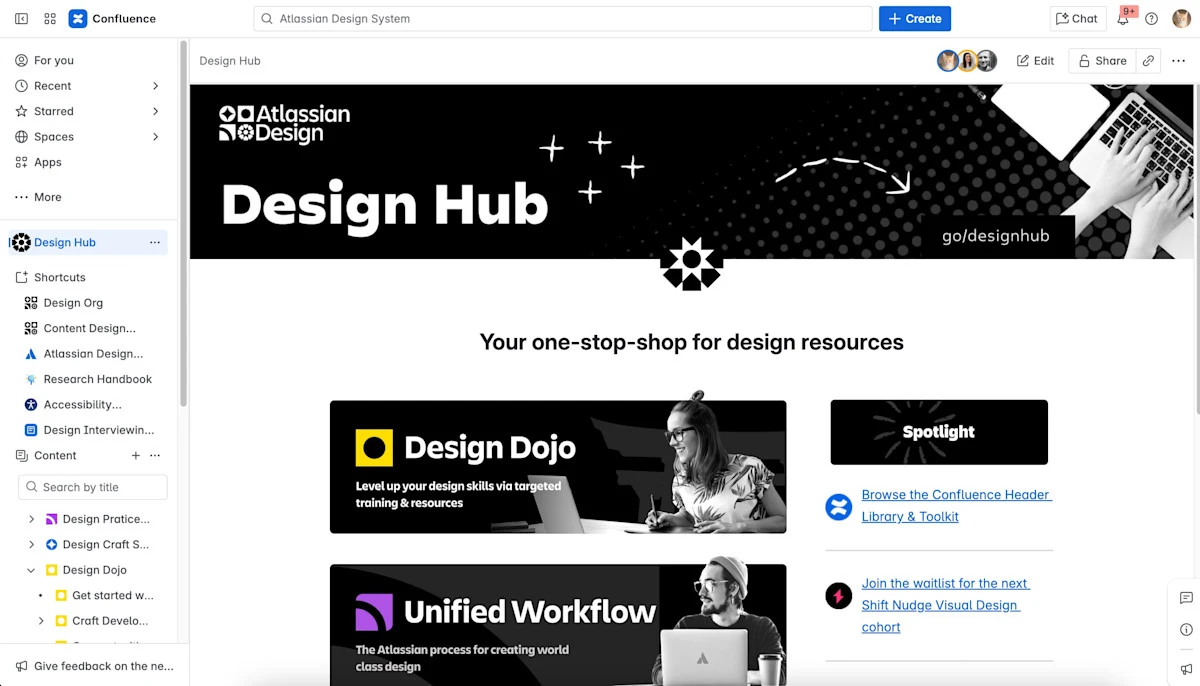
Check the space Overview and left sidebar navigation to confirm your team hub and page tree are structured clearly. Screenshot source Choose between a versioned Page and a collaborative Live doc
Create a Page for formal, versioned policy or documentation, or create a Live doc for simultaneous drafting. Save recurring layouts as templates.
Live docs support up to 30 simultaneous editors for meeting notes and plans, while Pages provide explicit publish checkpoints with automatic version history.
Add dynamic Expands and file attachments
Insert an Expand block, roadmap, or search bar to keep subsections collapsible. Attach graphic files directly and embed tools like a Trello board.
Supported files can be previewed and updated inline, and automatic versioning snapshots every file upload, live doc edit, or page update.
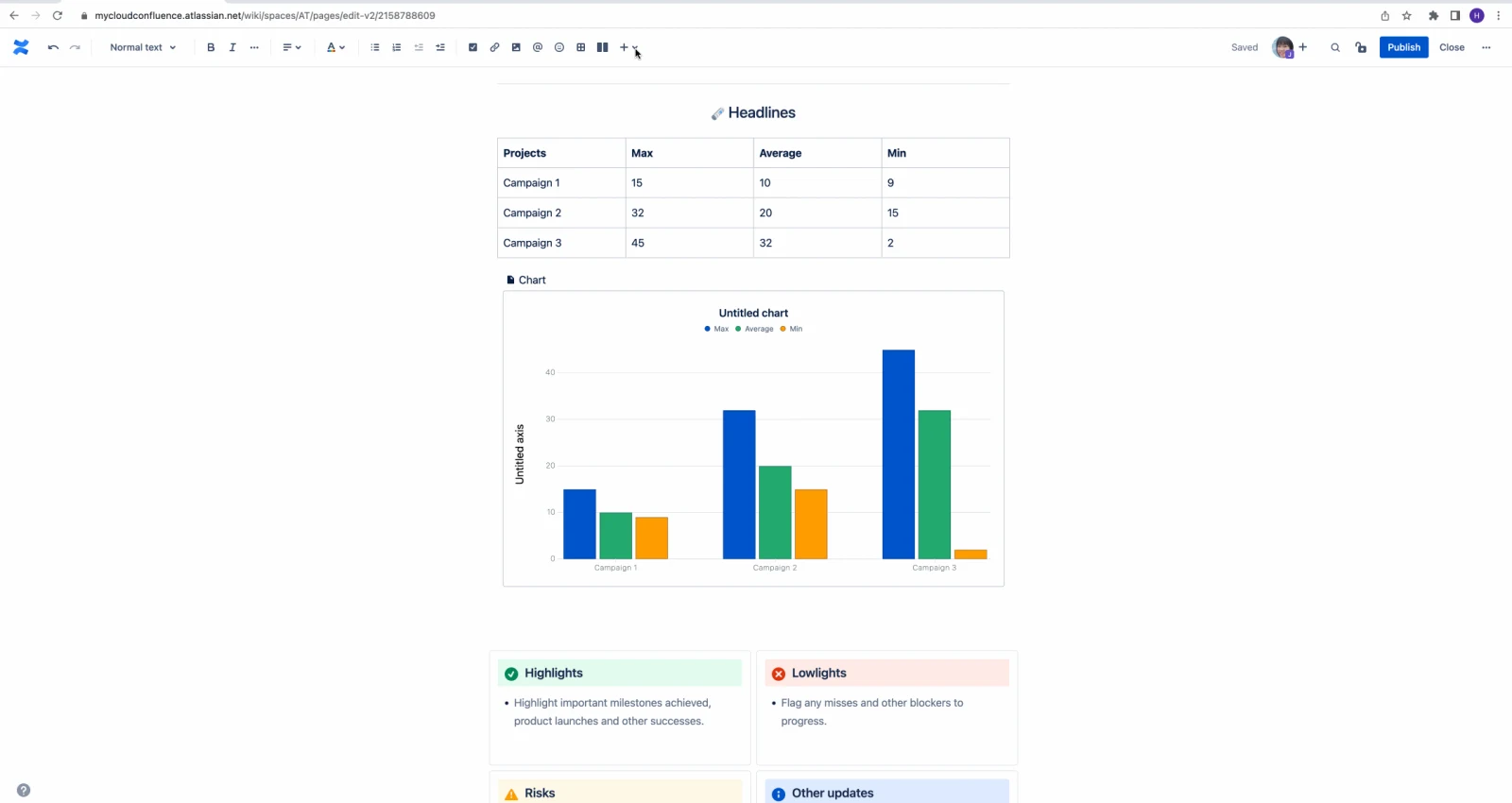
Insert an Expand block for detailed subsections and select Publish in the top bar when your page is ready. Screenshot source Publish the page and organize with hierarchy and labels
Click Publish on your Page (or finish Live doc edits) so updates appear immediately for all viewers. Nest the item in the sidebar hierarchy and add labels.
Immediate updates remove the need to redistribute email files, while hierarchy plus labels keeps content easy to find.
Collaborate with inline comments and set permissions
Highlight text, images, or files to start an Inline comment, or post in the footer or Comments panel. Log decisions, @mention owners on action items, and set Permissions.
Spaces are open internally by default, but restrictions let clients comment on one page or open a support space for read-only public access.
How does this Confluence setup work in practice?
Worked example: Organizing a product launch campaign space
A distributed marketing team replaces email attachments by managing launch plans, graphic assets, and agency reviews in one Confluence space.
| Choice | Why it matters | How to check |
|---|---|---|
| Draft the launch plan in a Live doc with attached graphics and an embedded Trello board | Up to 30 teammates co-edit plans in real time while previewing creative files and tasks inline. | Contributors edit simultaneously and preview graphic assets on the canvas. |
| Publish brand guidelines as a Page using Expand blocks for regional legal copy | Versioned pages safeguard approved rules while Expand blocks keep regional disclaimers compact. | Regional legal notes collapse neatly inside Expand sections on the live page. |
| Collect feedback via Inline comments and restrict external agency access to one page | Keeps copy discussions in context while hiding internal company spaces from external reviewers. | Agency partners comment on the campaign page without seeing internal pages. |
Teammates locate creative files, task boards, and approved copy in one space while automatic versioning protects every update.
How do you verify your result in Confluence?
Inspect your space sidebar tree, test Expand toggles and file previews on your published page, and verify restrictions for external viewers. Move ongoing review feedback out of email into inline comments and @mentioned action items.
| Step | What you should see |
|---|---|
| Set up your space Overview, Blog, and content tree | Your space shows an updated Overview and a clean sidebar separating Blog posts from pages. |
| Choose between a versioned Page and a collaborative Live doc | A new Page or Live doc editor opens inside your space. |
| Add dynamic Expands and file attachments | Collapsible Expand blocks, embedded boards, and attachments render inline. |
| Publish the page and organize with hierarchy and labels | The published page appears in the sidebar tree and updates immediately. |
| Collaborate with inline comments and set permissions | Inline comments, @mentioned action items, and access restrictions are active. |
Related Confluence guides include How to create a custom space template in Confluence and How to insert and configure a table of contents in Confluence.
Which official Confluence sources were checked?
Every step and limit in this Confluence guide was verified against official documentation on 27 Nov 2026 following how we check figures, alongside more walkthroughs in our Confluence tutorials hub:
How do you troubleshoot common Confluence issues?
When should we create a Confluence Page instead of a Live doc?
Create a Page when publishing versioned reference content like policies or documentation. Choose a Live doc when up to 30 teammates need simultaneous real-time editing for meeting notes or evolving plans.
How do I undo an accidental edit or file overwrite on a page?
Confluence saves automatic version snapshots whenever someone updates a page, edits a live doc, or uploads a new file version. Open the version history to review earlier snapshots and revert to the previous version.
Can external clients comment on one project page without seeing other spaces?
Yes, although Confluence is open internally by default, structured permissions and restrictions let you scope access tightly. Grant external clients view and comment rights on that single page while keeping other spaces restricted.
 Reviewed byDanny Kirk
Founder of ReddiReach.
 Checked byAndrés Felipe
Digital designer and marketer.
Every figure is checked against the vendor's own page. Read our editorial standards.