
Key Takeaways
- Establish new organizational boards in Trello to structure workflows into visual stage lists from backlog to completion.
- Ensure you have access to an active Trello Workspace with permissions allowing new board creation for collaborating team members.
- Follow the six steps to create the board container, select Workspace visibility, populate sequential list columns, and organize stage headers.
- Verify all newly created list titles render correctly on the board canvas and create an initial task card to test list progression.
Create a new project board in Trello from the top navigation menu, assign it to a Workspace, and add structured stage lists. Reorder or rename lists directly within the board view to match your team's workflow stages.
For plan limits and team seat pricing behind this workflow, read our Trello review or connect Trello to AI agents in Trello API and MCP.
Key steps
What do you need before starting in Trello?
Trello requires the following workspace setup before you begin:
- Sign in to your account.
- Have access to an existing Workspace, or be able to create one.
- Decide whether the board should be Workspace visible or Private before creating it.
How do you complete the steps in Trello?
Follow these 6 steps in Trello in order:
Start a board
From anywhere in Trello, select Create in the header, then select Create Board. This opens the board setup form. All Trello boards belong to a Workspace, so have one in mind before continuing.
If the project already has a home Workspace, use that rather than creating a second one. This keeps board ownership and access easier to manage. If several Workspaces are available, confirm the intended one with the people who will maintain the board before continuing.
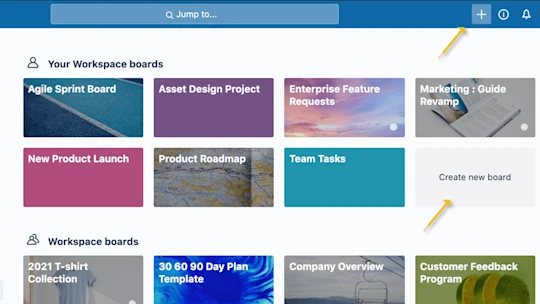
Use Create new board from the Workspace boards screen. Screenshot source Name the board and choose its Workspace
Enter a clear board title, such as “Website launch.” Select the Workspace where the board should live. New boards default to Workspace visible. If you want access limited to you and Workspace admins, set visibility to Private before creating the board.
For a cross-functional launch, choose a title that distinguishes this board from recurring work, such as “Spring site launch.” Workspace visible can make the board available to Workspace members. Private limits access to you and Workspace admins. Choose based on who should be able to find and manage the work.
Create the board
Review the details and create the board. Trello opens the board view after creation. You can change how you organize the work later by adding or rearranging lists.
Add the first list
On the board, select Add another list. Enter the first stage and confirm it. For a straightforward project workflow, start with “To do.” The list appears on the right side of the board.
Add the remaining stages
Select Add another list again for each stage. For example, add “Doing” and “Done” after “To do.” Keep names aligned with how you actually move work, using stages your team recognizes.
Use stages that describe the work’s actual movement. If tasks can be reviewed and then returned for changes, include a review stage only if the team will move cards into and out of it consistently. Too many narrow lists can make ownership and the next action harder to see.
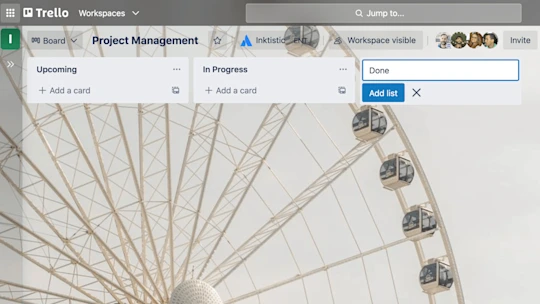
Enter the new list's name and select Add list. The new list appears to the right of the others. Screenshot source Adjust list order or names
Drag lists to reorder them. To rename a list, select its name, enter the replacement, and press Enter. If you need to insert a stage between two existing lists, double-click the gap between them.
Before renaming or reordering, check whether collaborators already rely on the current sequence. Put stages in the order work normally advances, left to right, and keep “Done” at the end if it represents completed work. Confirm the change by scanning the board with a teammate who uses it.
How does this Trello setup work in practice?
Set up a launch board for a small team
A three-person team is coordinating a spring website launch and needs a shared workspace view tracking backlog items, active work, and completed milestones.
| Choice | Why it matters | How to check |
|---|---|---|
| Title it “Spring site launch” | The project and timing make it distinguishable from ongoing site maintenance. | The board view shows this exact title after creation. |
| Choose the team’s existing Workspace and Workspace visible | The three collaborators are Workspace members and need to find the board there. | The setup form shows the intended Workspace and visibility before creation. |
| Create “To do,” “Doing,” and “Done” lists | These three stages cover the team’s current handoffs without adding unused process steps. | All three lists appear in left-to-right order. |
| Add a review stage only if review is a separate handoff | A distinct stage helps when someone must approve work before completion, but adds upkeep if review is informal. | The team can name who moves a card into and out of review. |
Confirm all launch stages display in sequence across the board canvas and agree on team transition criteria before populating project tasks.
How do you verify your result in Trello?
Confirm the board title and all intended stage lists are visible together in board view. Add a card to the first list to begin tracking work.
| Step | What you should see |
|---|---|
| Start a board | The Create Board form is open. |
| Name the board and choose its Workspace | The form shows the board title and intended Workspace, plus the visibility you chose. |
| Create the board | The board opens with the title you entered. |
| Add the first list | A list with your chosen name appears on the board. |
| Add the remaining stages | Each stage appears as its own list on the board. |
| Adjust list order or names | The lists are in the order you want, and each title is saved. |
Related Trello guides include How to add labels to Trello cards and How to attach a file to a Trello card.
Which official Trello sources were checked?
Every step and limit in this Trello guide was verified against official documentation on 21 Nov 2026 following how we check figures, alongside more walkthroughs in our Trello tutorials hub:
How do you troubleshoot common Trello issues?
Why can’t I create a board?
Check that you can create boards in the selected Workspace and that you have permission to do so. Trello notes that Workspace limits, permissions, or Enterprise settings can affect board creation.
Can I insert a list between two existing lists?
Yes. Double-click the space between the lists, then name the new list.
The board exists, but a collaborator cannot find it. What should I check?
Confirm that the board is in the intended Workspace and that its visibility matches the collaborator’s access. If it is Private, the collaborator may not be able to see it. Check the board’s access and Workspace membership before asking them to search again.
 Reviewed byDanny Kirk
Founder of ReddiReach.
 Checked byAndrés Felipe
Digital designer and marketer.
Every figure is checked against the vendor's own page. Read our editorial standards.