
Key Takeaways
- Structure formal review checkpoints in Asana by designating approval tasks that provide reviewers with explicit Approve, Changes, or Reject actions.
- Confirm editor access to the relevant Asana project and gather necessary review files or asset links before dispatching the request.
- Complete the five steps to initialize an approval task, attach instructions, assign the primary reviewer, specify deadlines, and publish.
- Confirm the pending approval task displays its special icon in the project view and verify assigned reviewers can record a formal decision.
Create an approval task in Asana by selecting + Add task and Add approval in your project, or convert an existing task via Mark as Approval. Add review criteria, attachments, and an assignee to record a clear decision.
For plan limits and team seat pricing behind this workflow, read our Asana review or connect Asana to AI agents in Asana API and MCP.
Key steps
What do you need before starting in Asana?
Asana requires the following workspace setup before you begin:
- Access to the Asana project where the approval request and related work are tracked.
- The deliverable or relevant files to attach, paired with concise instructions explaining what needs review.
- The intended approver and, if your workflow requires a review deadline, the target due date.
How do you complete the steps in Asana?
Follow these 5 steps in Asana in order:
Open the project for the approval
Open the Asana project that owns the deliverable needing sign-off. Keeping the approval inside the active project connects the request to supporting files and prior decisions in one place. If you must restrict sign-off strictly to the assigned reviewer, check whether the project uses comment-only permissions before adding the task.
Start a new approval task
Select + Add task in the top-left of the project and choose Add approval to create an item with approval status options rather than a standard completion checkbox. If a regular task already exists for this request, do not duplicate it: open its task pane, select the three dot icon, and choose Mark as Approval instead.
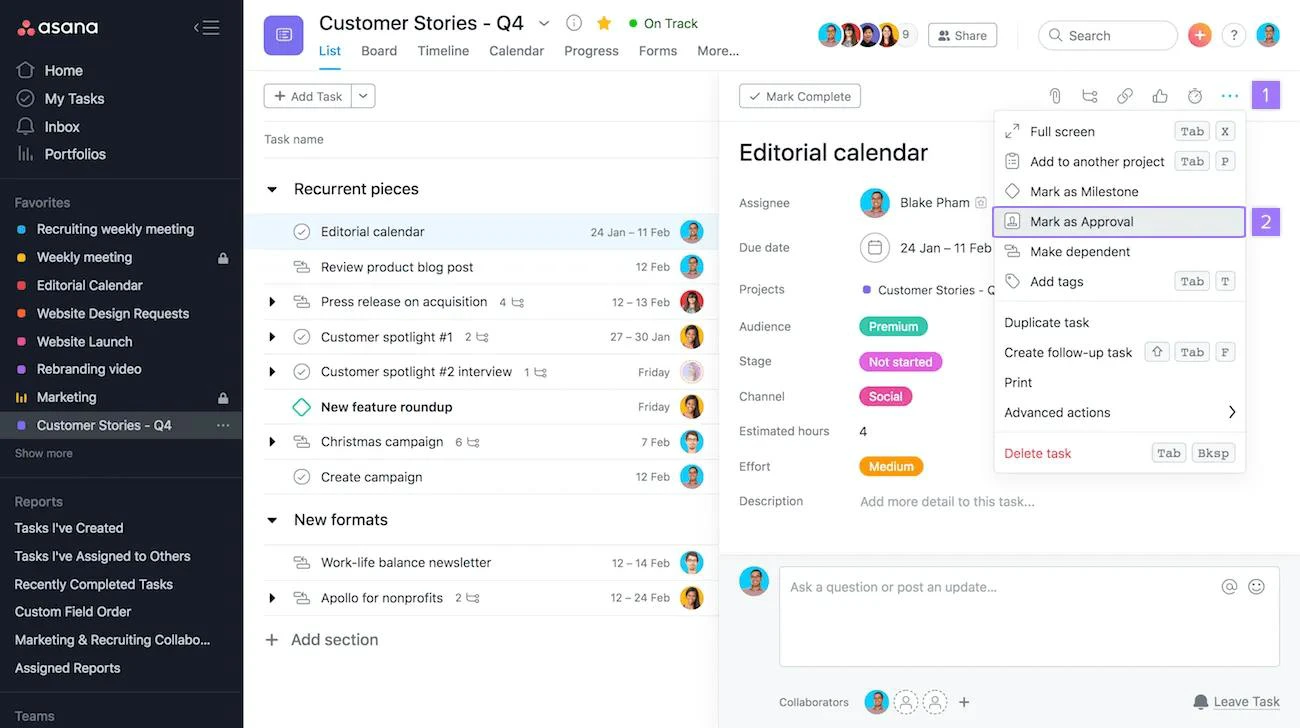
Use Mark as Approval in the existing task’s three-dot menu to turn it into an approval task. Screenshot source Name the request and explain what needs review
Enter a specific task name that identifies the deliverable, then write clear instructions in the description stating what the approver should inspect and what decision is required. Attach any relevant files directly to the task so the reviewer has every asset needed to evaluate the request without chasing external links.
Assign the approver and set a due date if needed
Assign the task to the person expected to review the work so the request appears in their My Tasks list with clear accountability. Set a due date only when your workflow has a real review deadline, leaving it blank if timing is flexible. Assignment and due dates frame expectations so you receive timely, actionable feedback.
Confirm the approval is pending and visible
Find the task in the project list or My Tasks and verify that it displays the approval icon instead of a standard checkmark. Every incomplete approval task starts in a pending state, and the icon updates once completed as Approved, Changes requested, or Rejected. Checking this icon confirms reviewers will see structured decision options.
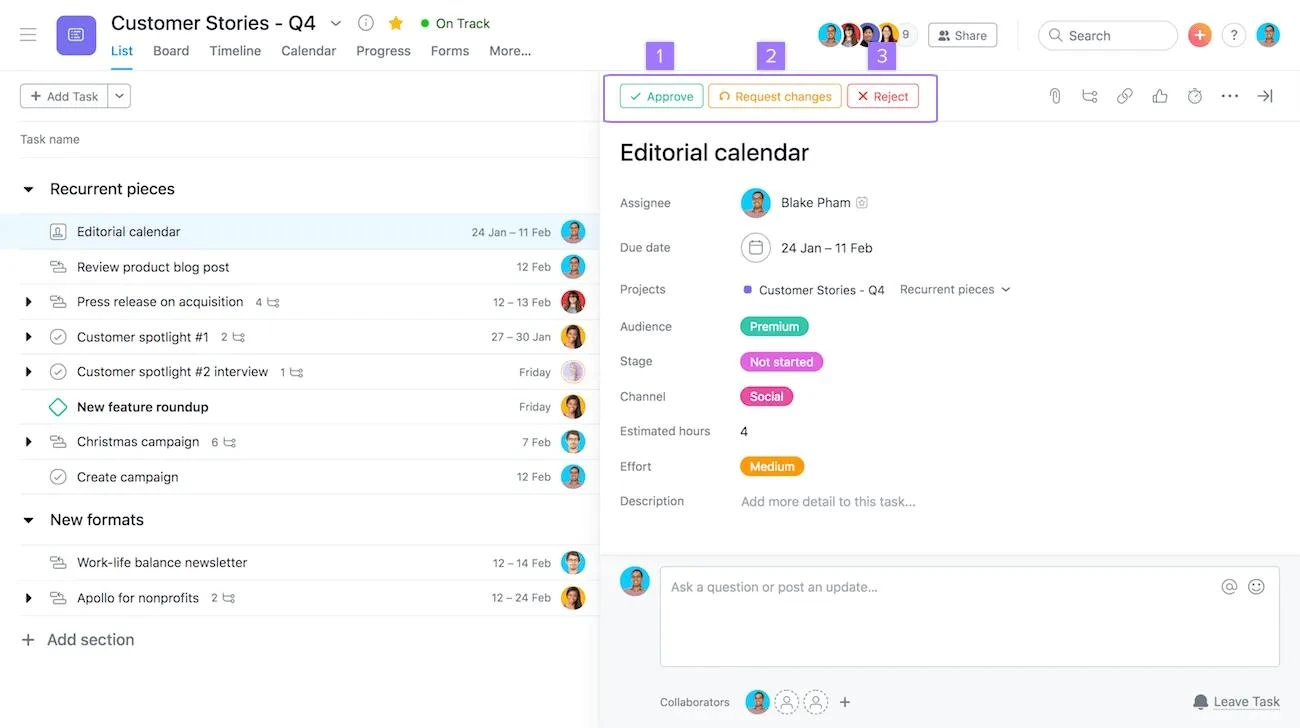
An approval task offers Approve, Request changes and Reject in the task pane. Screenshot source
How does this Asana setup work in practice?
Example: requesting sign-off on a launch blog post
An editor needs a product manager to review a launch post draft in Asana before scheduling publication.
| Choice | Why it matters | How to check |
|---|---|---|
| Select + Add task and Add approval in the editorial project. | Keeping sign-off in the owning project links the decision to related work. | Confirm the task appears in the editorial project. |
| Title the task for the draft and list claims to verify. | Specific instructions clarify the exact decision needed. | Confirm the description reads clearly without outside context. |
| Attach the draft and assign the product manager. | The reviewer gets the file and clear ownership together. | Confirm the attachment and intended assignee appear. |
| Set Thursday's review deadline and check the approval icon. | A real due date matches launch timing, and the pending icon shows no decision yet. | Verify Thursday's due date and the incomplete approval icon. |
After the reviewer responds, publish if Approved, revise using comments if Changes requested, or hold if Rejected.
How do you verify your result in Asana?
The request is tracked in Asana as a pending approval task with review instructions, an assignee, and any needed attachments or due date. Reviewers complete it as Approved, Changes requested, or Rejected and add context in comments. Anyone can complete an approval task unless project configuration, such as a comment-only project, restricts who can approve.
| Step | What you should see |
|---|---|
| Open the project for the approval | You are viewing the Asana project where the approval request belongs. |
| Start a new approval task | A new approval task appears in the list, or the existing task is marked as an approval. |
| Name the request and explain what needs review | The title and description explain the review clearly, and all required files are attached. |
| Assign the approver and set a due date if needed | The task displays the intended assignee and, when applicable, the accurate due date. |
| Confirm the approval is pending and visible | The task shows the incomplete approval icon, confirming the request is pending. |
Related Asana guides include How to add a custom field to an Asana project and How to add a numeric rollup to a portfolio in Asana.
Which official Asana sources were checked?
Every step and limit in this Asana guide was verified against official documentation on 21 Nov 2026 following how we check figures, alongside more walkthroughs in our Asana tutorials hub:
How do you troubleshoot common Asana issues?
I cannot find **Add approval** in the project list. Where is it?
Select + Add task in the top-left of the project and choose Add approval, or open an existing task pane, select the three dot icon, and choose Mark as Approval.
Why does the task show as pending?
Incomplete approval tasks stay pending until completed as Approved, Changes requested, or Rejected.
Can only the assigned person approve it?
No. Anyone can complete an approval task unless you use a comment-only project so only the assignee can approve it.
 Reviewed byDanny Kirk
Founder of ReddiReach.
 Checked byAndrés Felipe
Digital designer and marketer.
Every figure is checked against the vendor's own page. Read our editorial standards.