
Key Takeaways
- Extract page metadata spreadsheets from Ahrefs Site Audit by configuring column layouts within the Page Explorer report view.
- Confirm your user account has access to the target project in Ahrefs with an active or completed crawl snapshot ready.
- Follow the five steps to select a completed crawl, open Page Explorer, select text columns, apply configurations, and trigger export.
- Verify the downloaded CSV or Excel file displays full text strings under Title and Meta description columns rather than character counts.
Export page URLs with their Title and Meta description text in Ahrefs by opening a completed Site Audit crawl, customizing Columns in Page explorer, and selecting Export. Check that you select the Title and Meta description text fields rather than Title length or Meta description length before downloading.
For plan limits and team seat pricing behind this workflow, read our Ahrefs review or connect Ahrefs to AI agents in Ahrefs API and MCP.
Key steps
What do you need before starting in Ahrefs?
Ahrefs requires the following workspace setup before you begin:
- An Ahrefs Site Audit project containing a completed crawl ready for inspection.
- Agreement on which specific crawl snapshot you want to export for review.
How do you complete the steps in Ahrefs?
Follow these 5 steps in Ahrefs in order:
Open the project and choose a crawl
Go to Site Audit in Ahrefs and open the project whose page metadata you need to inspect. Select the exact completed crawl you want to report on so your export reflects that crawl's captured URLs and metadata rather than an earlier or later audit run.
Open Page explorer
Inside your selected crawl, open Page explorer. This report lists the pages crawled during that audit and provides the table where you customize visible metadata columns and trigger your export. Keep working inside the selected crawl so every row comes from the intended snapshot.
Open the column chooser
Select Columns in Page explorer to customize which fields appear in the report table. Because the chooser lists many crawl fields across grouped sections, look specifically for the Title and Meta description text entries instead of stopping at nearby length metrics.
Include Title and Meta description
Select Title in the title section and select Meta description in the meta section so both text fields are enabled for display. Each section also lists a separate length field, so verify that you pick Title rather than Title length and Meta description rather than Meta description length. Remove any unneeded columns if you want a cleaner table focused on page URLs and metadata copy.
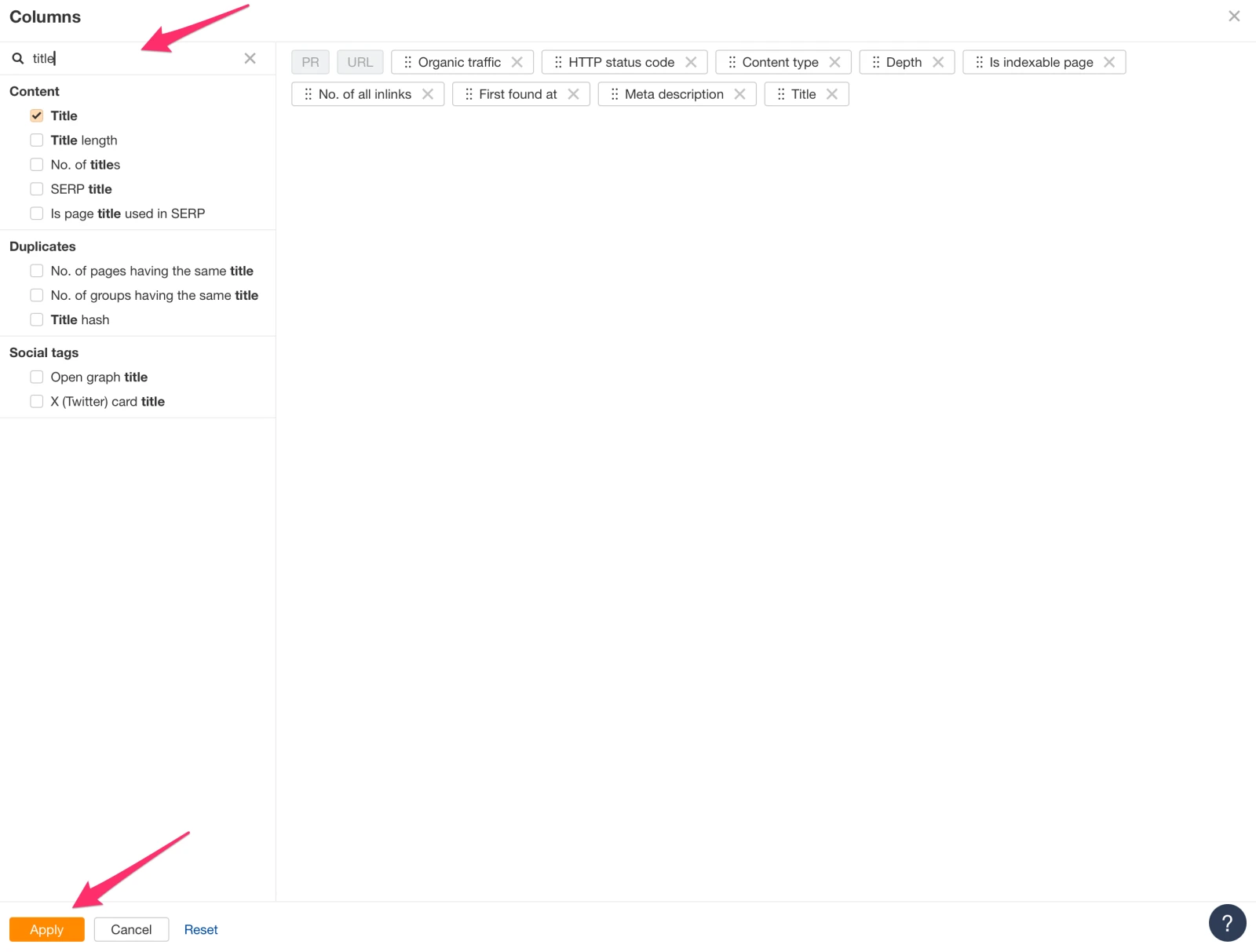
The visible title section distinguishes Title from title length, duplicate, and SERP title fields. Screenshot source 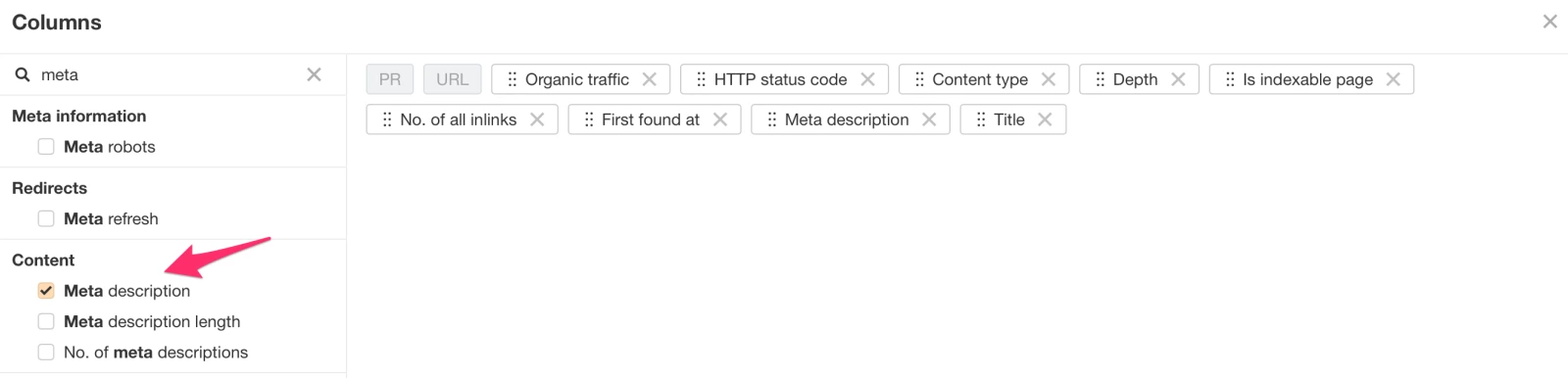
The visible meta section distinguishes Meta description text from its length field. Screenshot source Apply the columns and export
Apply your column choices so the Page explorer table updates with the selected metadata fields. Scan the displayed columns to confirm that page URLs appear alongside Title and Meta description text, then select Export to download the table for your review.
How does this Ahrefs setup work in practice?
Example: building a metadata review sheet for an agency client audit
An agency SEO specialist and a content editor are reviewing a completed Ahrefs Site Audit client crawl to update page titles and meta descriptions in a shared worksheet.
| Choice | Why it matters | How to check |
|---|---|---|
| Open the client project in Site Audit and choose the completed crawl scheduled for editorial review. | Selecting the agreed crawl keeps every exported URL tied to the exact audit snapshot under review. | The intended project and completed crawl are selected before opening Page explorer. |
| In Page explorer, open Columns and select Title in the title section plus Meta description in the meta section. | The editor needs full metadata copy to revise, whereas Title length and Meta description length only output length values. | Both text fields are selected in Columns, and unneeded columns are deselected. |
| Apply the column changes, confirm the visible table headers, and select Export. | Checking headers before downloading ensures the file contains page URLs with both metadata text columns. | Title and Meta description appear in the table, and the exported data includes both text columns. |
The SEO specialist shares the export with the content editor to prioritize pages needing updated titles or meta descriptions.
How do you verify your result in Ahrefs?
You have an export from Ahrefs Site Audit with page URLs, Title text, and Meta description text from your selected crawl. Checking visible headers before selecting Export ensures you download metadata text rather than length fields.
| Step | What you should see |
|---|---|
| Open the project and choose a crawl | The active Site Audit project and selected crawl match the audit snapshot you intend to export. |
| Open Page explorer | Page explorer is open and showing crawled pages for your selected crawl. |
| Open the column chooser | The Columns chooser is open and both metadata sections are easy to locate. |
| Include Title and Meta description | Both Title and Meta description are selected, and neither Title length nor Meta description length is mistaken for the text fields. |
| Apply the columns and export | The Page explorer table shows Title and Meta description columns, and you have initiated Export for the selected crawl. |
Related Ahrefs guides include Ahrefs Link Intersect guide and Find broken internal links in Ahrefs Site Audit.
Which official Ahrefs sources were checked?
Every step and limit in this Ahrefs guide was verified against official documentation on 21 Nov 2026 following how we check figures, alongside more walkthroughs in our Ahrefs tutorials hub:
How do you troubleshoot common Ahrefs issues?
Why is the Title text missing from my Site Audit export?
The Title field was not selected in Columns before exporting. Reopen Columns in Page explorer, select Title in the title section, apply your changes, and select Export again.
Why did I export a different set of pages than expected?
Page explorer exports data from the currently selected crawl. Recheck your project and crawl selection in Site Audit, open the intended crawl, and export from Page explorer again.
Why does my export show length values instead of meta description text?
Meta description length is a separate field from Meta description. In Columns, select Meta description in the meta section, apply the selection, and repeat the export.
 Reviewed byDanny Kirk
Founder of ReddiReach.
 Checked byAndrés Felipe
Digital designer and marketer.
Every figure is checked against the vendor's own page. Read our editorial standards.