
Key Takeaways
- Isolate specific backlink patterns in Ahrefs Site Explorer by applying regular expression filters within the Anchors report.
- Verify access to an Ahrefs account with active Site Explorer subscription credits and target domain backlink index data.
- Follow the five steps to open the Anchors report, introduce an Anchor rule, insert regex syntax, apply filters, and analyze matches.
- Verify the returned backlink rows match your intended naming pattern and adjust string boundaries if broader or narrower coverage is required.
Filter backlink anchor texts in Ahrefs Site Explorer by setting the Anchors report rule condition to Matches regex with your custom search pattern. Review the isolated rows to evaluate backlink patterns and refine anchor criteria across your target domain.
For plan limits and team seat pricing behind this workflow, read our Ahrefs review or connect Ahrefs to AI agents in Ahrefs API and MCP.
Key steps
What do you need before starting in Ahrefs?
Ahrefs requires the following workspace setup before you begin:
- An Ahrefs Site Explorer report with the Anchors view available.
- A clear description of the anchor text you want to find, including which characters or number of digits should qualify.
How do you complete the steps in Ahrefs?
Follow these 5 steps in Ahrefs in order:
Open the Anchors report
In Site Explorer, open the report for the site or target you are investigating and go to Anchors. Review the anchor rows first so you understand the kind of text the report contains and what you want to isolate.
Add an anchor rule
Use the report’s filter controls to add a rule for Anchor. Set the condition to Matches regex. This tells the report to compare the anchor text against a regular expression pattern.
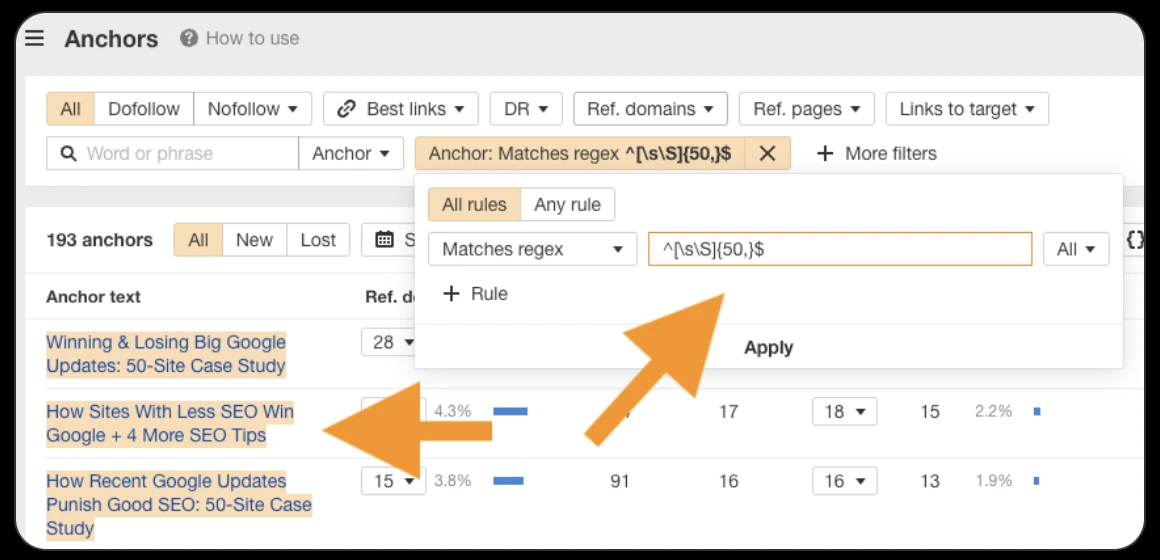
The visible filter is applied to Anchor in the Anchors report. The screenshot shows a longer-text example pattern, so use it as a reference for the control location, not as the Quote-label pattern in this guide. Screenshot source Enter a pattern for the intended text
For example, to match anchors such as “Quote 25” and “Quote 50,” use ^Quote [0-9]+$. The pattern requires the text to start with Quote , followed by one or more digits, and then end. It will match other whole labels in that same format as well.
The symbols have specific jobs: ^ marks the start, $ marks the end, [0-9] matches a digit, and + means one or more of the preceding item. The space after Quote is literal, so the pattern expects one space there.
Apply the filter
Click Apply to run the rule. Inspect the resulting anchor rows and compare them with the pattern: qualifying text should begin with “Quote ”, have digits after it, and contain no extra characters before or after that form.
Refine based on the rows
If the results are too broad or too narrow, adjust the pattern to reflect the labels you actually intend to include. For example, use a fixed digit count if only two-digit labels should qualify, or remove the start and end markers if matching text inside a longer anchor is appropriate. Apply the revised rule and inspect the rows again.
How does this Ahrefs setup work in practice?
Find numbered quote labels
An SEO analyst reviewing an Ahrefs Anchors report needs to isolate external links using repetitive labels formatted as Quote plus numeric digits.
| Choice | Why it matters | How to check |
|---|---|---|
| Use ^Quote [0-9]+$ | It expresses the complete label format: “Quote ” at the start, one or more digits, and no trailing text. | Confirm the pattern includes one literal space and both boundary markers. |
| Apply the rule in the Anchor field | The task concerns anchor text, so the rule must evaluate the Anchor field rather than another report attribute. | The rule label shows Anchor and the condition Matches regex. |
| Inspect “Quote 25” and “Quote 50” if they appear | These are concrete examples of the intended pattern. Other digit counts can also qualify because + allows one or more digits. | Each returned example starts and ends in the stated format. |
| Decide whether to retain the exact-label restriction | If the analyst also wants longer anchors containing these words, the start and end markers make the pattern too restrictive for that broader goal. | Choose whether the next filter should require a complete label or allow the phrase inside a longer anchor. |
Confirm the filtered report displays rows meeting the regular expression criteria and adjust regex anchors if phrase variations require inclusion.
How do you verify your result in Ahrefs?
The filtered Anchors report shows rows whose anchor text satisfies your pattern. Interpret the rows as matches within the report’s available data, not as proof that every possible backlink or anchor variant has been covered. The result depends on the exact pattern and on which anchors are present in the report.
| Step | What you should see |
|---|---|
| Open the Anchors report | The report displays anchor text rows, and you can identify the text pattern you want to filter. |
| Add an anchor rule | A rule for Anchor is visible with the Matches regex condition selected. |
| Enter a pattern for the intended text | The input contains the pattern exactly as intended, including the space, digit expression, and start/end markers. |
| Apply the filter | The report refreshes with rows that meet the pattern, such as “Quote 25” or “Quote 50,” if those anchors exist in the report. |
| Refine based on the rows | The displayed anchors fit the intended inclusion rule, and you have checked whether the pattern is matching complete labels or text within longer labels. |
Related Ahrefs guides include Ahrefs Link Intersect guide and Find broken internal links in Ahrefs Site Audit.
Which official Ahrefs sources were checked?
Every step and limit in this Ahrefs guide was verified against official documentation on 21 Nov 2026 following how we check figures, alongside more walkthroughs in our Ahrefs tutorials hub:
How do you troubleshoot common Ahrefs issues?
Why did no anchors appear after applying the rule?
The current report may not contain text in that exact format, or the pattern may be stricter than intended. Check the literal spaces and punctuation, then confirm whether the start and end markers should require the entire anchor to match.
Why are longer anchors missing even though they contain “Quote 25”?
The ^ and $ markers require the whole anchor to match the pattern. Remove one or both only if you want to match the phrase within a longer anchor, then apply the revised rule and review the results.
Why are anchors with a different number of digits included?
The + after [0-9] allows one or more digits. If you intend to match a fixed number, change the digit expression accordingly, then reapply and check the resulting labels.
 Reviewed byDanny Kirk
Founder of ReddiReach.
 Checked byAndrés Felipe
Digital designer and marketer.
Every figure is checked against the vendor's own page. Read our editorial standards.