
Key Takeaways
- Ahrefs Rank Tracker connects tracked keywords directly to Site Explorer, letting you open a competing URL's page-level Backlinks report straight from the live SERP dropdown.
- You need an active Ahrefs project with the target keyword already tracked in Rank Tracker and at least one competing URL appearing in its SERP view.
- Selecting the Backlinks count opens individual link rows for that exact URL, whereas selecting the Domains count opens the separate Referring Domains report in Site Explorer.
- Verify completion by confirming the Site Explorer target matches the exact competing page URL from the SERP row rather than the root domain or homepage.
Open a tracked keyword's SERP dropdown in Ahrefs Rank Tracker and select a competing result's Backlinks count to launch its page-level Backlinks report in Site Explorer. This direct handoff lets you audit the exact URL ranking for your target term instead of pulling links for the entire competing domain.
For plan limits and team seat pricing behind this workflow, read our Ahrefs review or connect Ahrefs to AI agents in Ahrefs API and MCP.
Key steps
What do you need before starting in Ahrefs?
Ahrefs requires the following workspace setup before you begin:
- An active Ahrefs project with your target keyword already added and tracked inside Rank Tracker.
- At least one competing page ranking in the tracked keyword's SERP results view.
How do you complete the steps in Ahrefs?
Follow these 4 steps in Ahrefs in order:
Open the tracked keyword in Rank Tracker
Navigate to Rank Tracker in Ahrefs and open the specific project that monitors your campaign terms. Inside the project Overview, select the Keywords tab and scan the table to locate the exact keyword whose search landscape you want to audit.
Because this workflow relies on stored ranking snapshots, you must begin from a keyword already tracked in your project. If you track multiple variations or regional entries for similar queries, verify that you select the exact keyword entry tied to the search results you plan to evaluate before expanding any row details.
Expand the keyword's SERP results dropdown
Locate the SERP control on your chosen keyword's row and select it. Ahrefs expands an inline dropdown listing the ranking search results captured for that keyword. Scan the listed URLs to pinpoint the specific competing page outranking or challenging your target page.
Within this SERP table, Ahrefs surfaces comparison metrics including Ahrefs Rank, Domain Rank, URL Rank, backlinks, referring domains, traffic, ranking keywords, top keyword, and search volume. Focus on the exact ranking URL first so you pick the right competing guide, product page, or landing page before clicking any link metric.
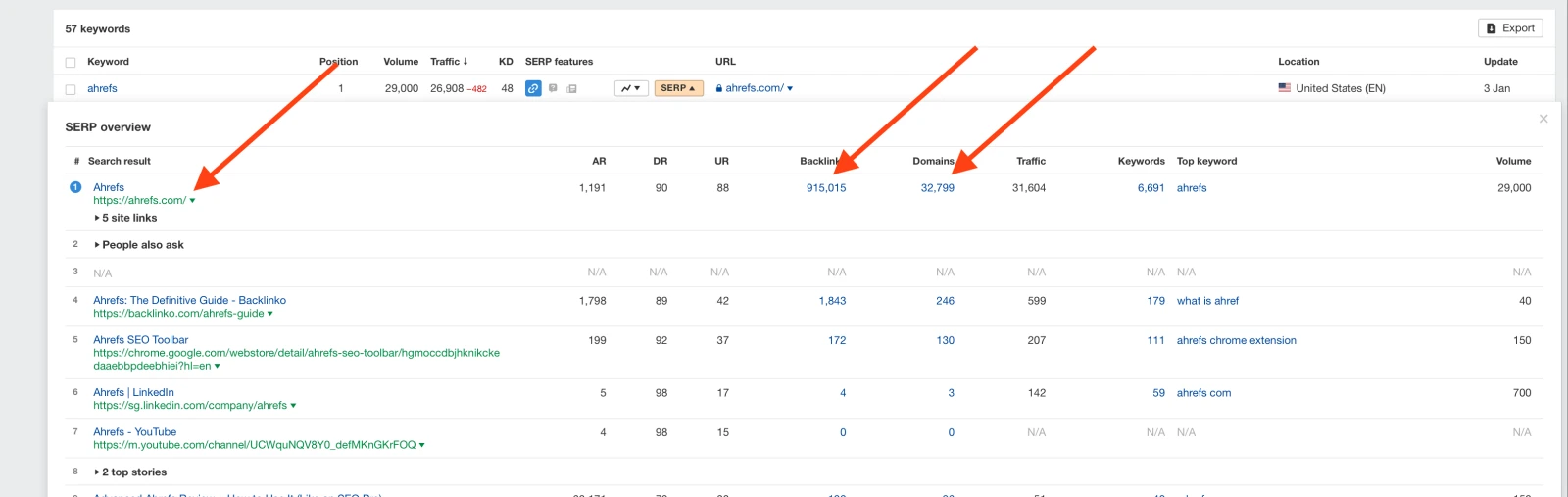
The SERP results expose the competing page rows and their backlink and domain counts. Screenshot source Open the competing page's Backlinks report
Stay on the row for your chosen competing URL and click the linked number under the Backlinks column. Ahrefs immediately opens Site Explorer to the Backlinks report scoped specifically to that ranking page.
Keep your eyes aligned with the exact URL row as you click the Backlinks figure, especially when dense SERP tables list several similar articles or multiple pages from the same domain. Opening the metric directly from the row ensures Site Explorer loads page-level data for that specific URL rather than broad domain-wide backlinks.
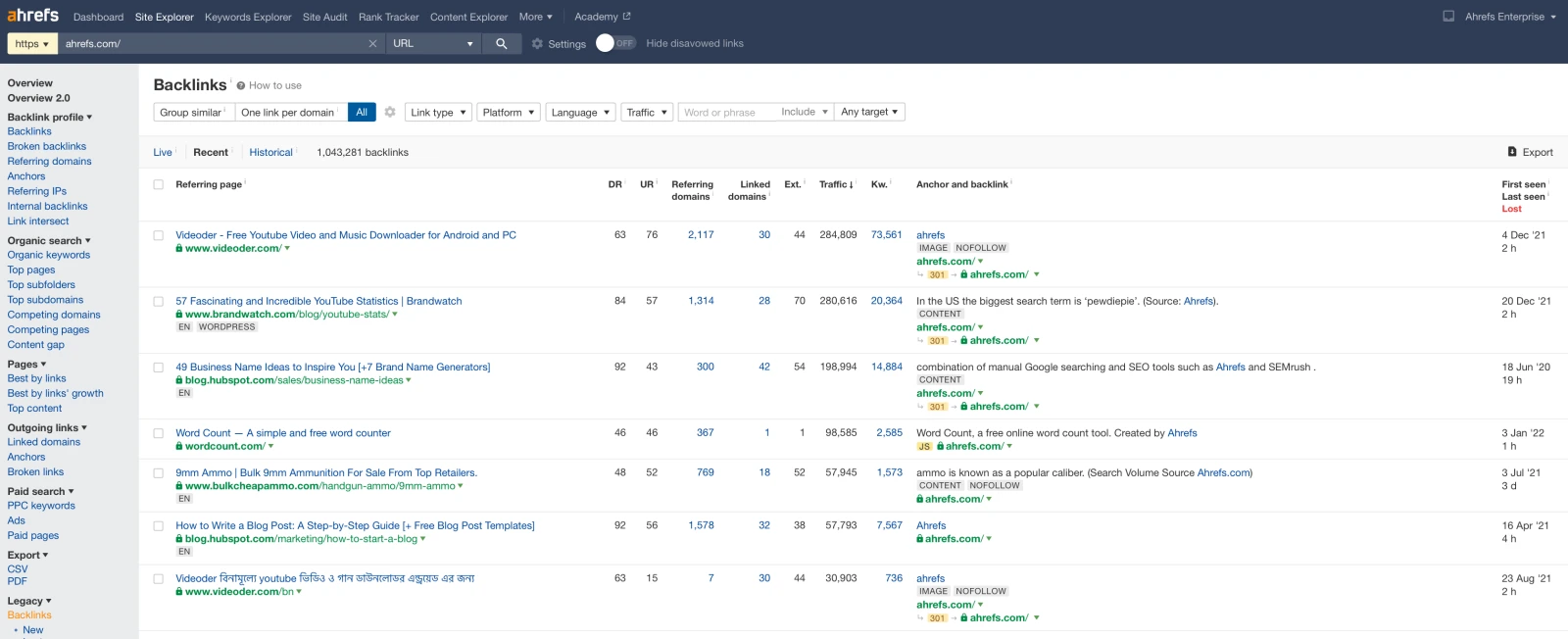
The Backlinks report opens in Site Explorer for the selected target page. Screenshot source Review page-level links or switch to Referring Domains
Examine the rows inside the Site Explorer Backlinks report to evaluate individual links pointing directly to the competing page. Remember that raw backlink counts in the SERP table do not reveal link placement, context, or authority, so reviewing the underlying rows is essential before deciding how much effort a page takes to outrank.
If you also want a consolidated list of unique websites linking to that URL, return to the Rank Tracker SERP dropdown and select the number under Domains on the same row. That action launches the separate Referring Domains report in Site Explorer.
How does this Ahrefs setup work in practice?
Example: auditing competing software guides in a content agency campaign
An agency SEO specialist manages a B2B SaaS client project in Ahrefs Rank Tracker and tracks the keyword "project planning software" to see why two competing editorial guides sit above the client's comparison page.
| Choice | Why it matters | How to check |
|---|---|---|
| Open the Overview Keywords tab in Rank Tracker and click SERP next to "project planning software". | Starting from the tracked keyword's SERP control anchors the audit to the exact search results competing for that query. | The inline SERP dropdown expands and displays the ranking URLs and page metrics for "project planning software". |
| Target the competing vendor's dedicated buyer guide URL row instead of a general homepage result. | Page-level link auditing requires inspecting the exact ranking asset that holds the organic position you want to overtake. | The selected row URL matches the specific buyer guide path rather than a root domain. |
| Click the number under Backlinks on that buyer guide's row. | Selecting the Backlinks figure sends that specific page URL straight into Site Explorer's Backlinks report. | Site Explorer loads with the buyer guide URL set as the target and lists individual backlink rows. |
| Return to the SERP dropdown and click Domains on the same row only when summarizing unique linking sites. | The Domains column opens the Referring Domains report in Site Explorer rather than individual backlink placements. | The active Site Explorer report matches whether the specialist needs individual links or unique referring domains. |
The specialist inspects the individual link rows for the first competing guide, notes which editorial placements actually support that URL, and repeats the exact SERP click workflow on the second competing guide to compare acquisition effort.
How do you verify your result in Ahrefs?
You have transitioned directly from a tracked keyword's SERP view in Rank Tracker to a page-specific Backlinks report in Site Explorer. Because the report targets the exact ranking URL rather than the broader root domain, your team can evaluate the specific links supporting that page while using the Domains count whenever a separate Referring Domains breakdown is needed. Raw link totals in the SERP dropdown never prove link relevance or editorial quality on their own, so use the opened report rows to decide which competing pages warrant deeper link acquisition research.
| Step | What you should see |
|---|---|
| Open the tracked keyword in Rank Tracker | Your target keyword is visible inside the Overview Keywords tab for the intended Rank Tracker project. |
| Expand the keyword's SERP results dropdown | The SERP dropdown is open under your keyword and you have identified the specific competing URL row you want to inspect. |
| Open the competing page's Backlinks report | Site Explorer opens to the Backlinks report and displays the exact competing page URL as the inspected target. |
| Review page-level links or switch to Referring Domains | You have confirmed Site Explorer shows backlink rows for the exact competing URL and know how to open Referring Domains via the Domains column when needed. |
Related Ahrefs guides include Ahrefs Link Intersect guide and Find broken internal links in Ahrefs Site Audit.
Which official Ahrefs sources were checked?
Every step and limit in this Ahrefs guide was verified against official documentation on 21 Nov 2026 following how we check figures, alongside more walkthroughs in our Ahrefs tutorials hub:
How do you troubleshoot common Ahrefs issues?
Why can't I find the SERP control for my keyword in Rank Tracker?
Confirm that you opened the right project inside Ahrefs Rank Tracker, navigated to the Overview section, and selected the Keywords tab. This workflow only starts from keywords already tracked and listed inside that view.
Site Explorer opened, so how do I verify it is showing the right competing page?
Compare the target URL displayed at the top of Site Explorer against the ranking URL row inside your keyword's SERP dropdown. If you clicked the wrong row or opened a broader domain view, return to the SERP dropdown and click the Backlinks number directly aligned with the specific competing URL.
When should I click Backlinks versus Domains in the SERP dropdown?
Click the number under Backlinks when you want to inspect every individual link pointing to that competing URL inside Site Explorer's Backlinks report. Click the number under Domains on that same row when you want to open the Referring Domains report and review unique linking websites instead.
 Reviewed byDanny Kirk
Founder of ReddiReach.
 Checked byAndrés Felipe
Digital designer and marketer.
Every figure is checked against the vendor's own page. Read our editorial standards.