
Key Takeaways
- Review the Semrush Position Tracking Cannibalization report to identify keywords triggering multiple ranking pages and evaluate overlapping site content.
- Configure an active Semrush Position Tracking campaign with target keywords, designated search engines, language settings, and geographic tracking parameters.
- Execute 6 detailed steps to open the report, examine keyword views, analyze multi-page overlap, filter issues, plan page-level edits, and track updates.
- Check that the Cannibalization Health score reflects your tracked keyword pool and verify which specific page pairs compete for the same queries.
Semrush Position Tracking includes a dedicated Cannibalization report that highlights keywords where multiple site URLs compete in organic search results. Review the Cannibalization Health score and compare individual page metrics to resolve self-competing content.
For plan limits and team seat pricing behind this workflow, read our Semrush review or connect Semrush to AI agents in Semrush API and MCP.
Key steps
What do you need before starting in Semrush?
Semrush requires the following workspace setup before you begin:
- A Semrush Position Tracking campaign with tracked keywords and available report data.
- The campaign and target you want to investigate, including its location, search engine, and language.
- A list or understanding of the site’s relevant pages so you can judge which URL best matches each keyword.
How do you complete the steps in Semrush?
Follow these 6 steps in Semrush in order:
Open the campaign’s Cannibalization report
Open the Position Tracking campaign you want to investigate and select Cannibalization from its report tabs. Confirm that the campaign, target, and date context match the analysis you intend to perform. The report identifies cases where multiple pages from your site rank for the same keyword in Google’s top 100 results.
The screenshot shows a campaign with 253 keywords and a Cannibalization report containing 30 affected keywords out of 51, with 15 cannibal pages out of 15. Those figures belong to the pictured campaign only. They are examples of what the report can display.
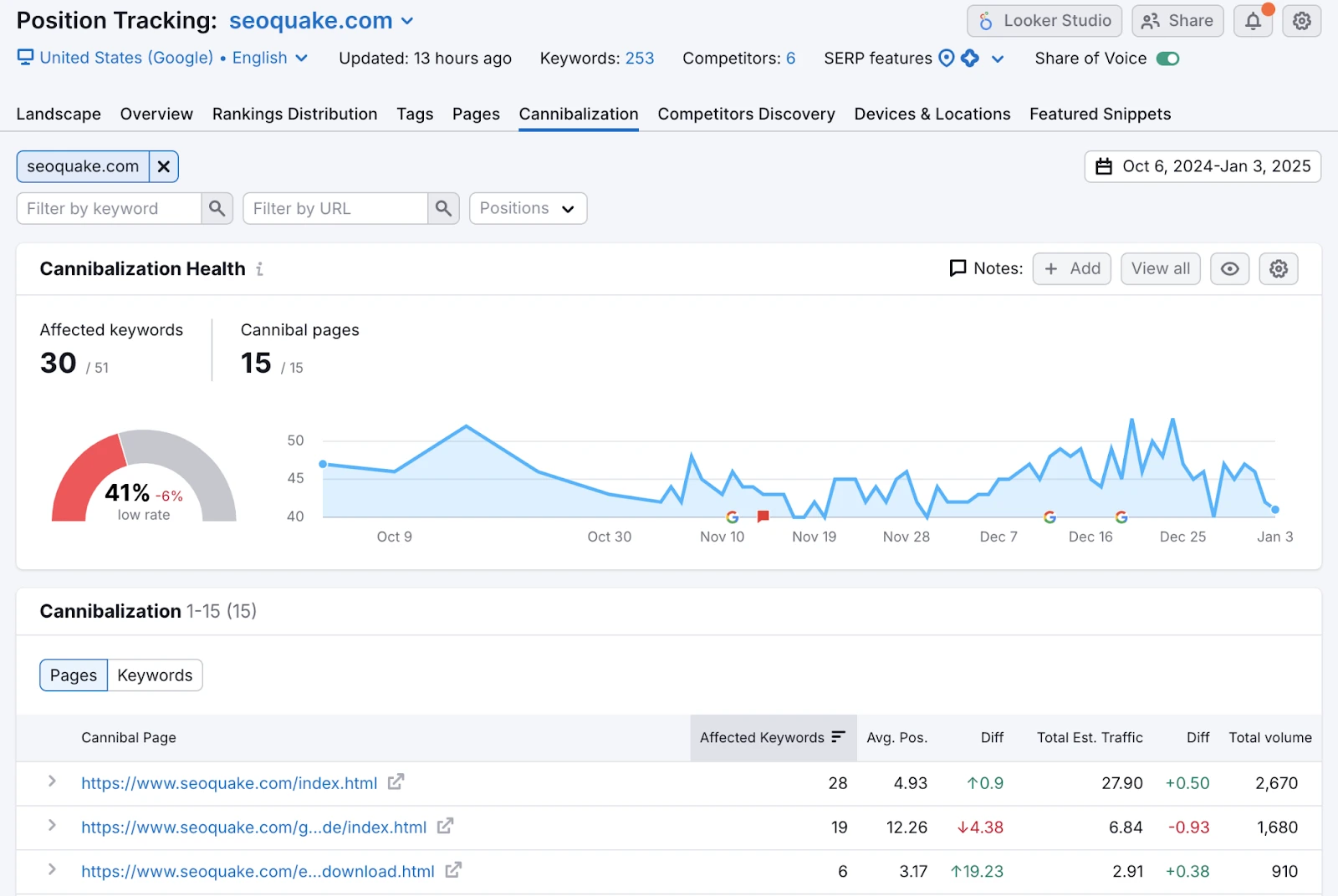
The screenshot shows the report overview and its campaign-level affected keyword and page figures. Screenshot source Review the Keywords view for competing URLs
Choose Keywords to see search terms that trigger multiple pages from your site in Google’s top 100. Review the keyword rows and the URLs associated with each term. This view helps you focus on a particular search term and see which pages are competing for it.
Select a keyword row to inspect its ranking trend. Compare the pages’ ranking histories over time. An interrupted trend line indicates a ghost page, meaning a URL that appears only occasionally in search results for that keyword.
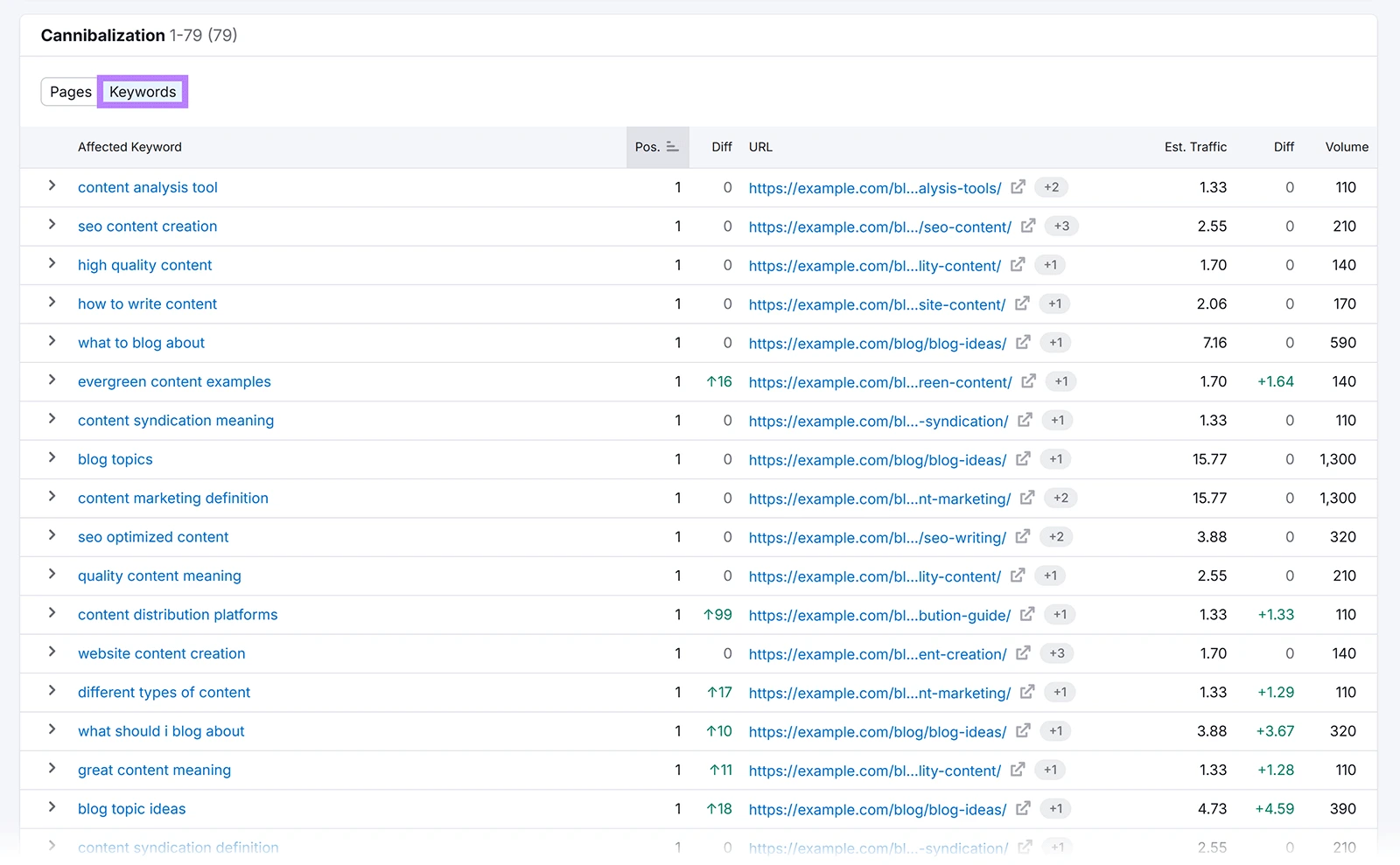
The selected Keywords tab organizes the report around search terms with competing pages. Screenshot source Use the Pages view to find URLs with broader overlap
Choose Pages to list URLs that rank for multiple affected keywords. This changes the organizing question: instead of asking which pages rank for one term, you are looking for pages that appear across several competing terms.
Review each page’s affected keyword count, average position, position difference, estimated traffic, traffic difference, and combined search volume. These figures help describe the observed overlap and its context. Click a page row to see its affected keywords, then assess whether that URL is a relevant result for each one.
Narrow the report to the issue you are investigating
Use Filter by keyword to focus on a search term or Filter by URL to focus on a full URL or URL pattern. Use Positions to select a ranking range such as Top 10 or #21-100, depending on the visibility range you are reviewing.
Use the date selector to review a supported preset or custom period. A date comparison can help you see when a reported issue appeared or whether it changed after a content update. Keep the selected range in mind when comparing displayed metrics.
Choose a page-level review for each affected keyword
For a keyword that has multiple ranking URLs, decide which page is the clearest match for the search intent and whether another relevant page exists. The report helps surface competing URLs. Use the Pages tab and your knowledge of the site to check how the candidate page ranks for the term.
Record the keyword, competing URLs, and reason for the next review. The report identifies potential conflicts, while your page and content review determines whether consolidation or refinement is appropriate.
Return after content changes to check the report
After making a content change, revisit the Cannibalization report for the same campaign and target. Review whether the affected keyword and page pattern changed, and check the Cannibalization Health score over time. The score is the percentage of campaign keywords free from cannibalization; 100% means none have multiple competing pages in Google’s top 100.
Treat the score as a campaign-level summary. Use the affected keywords and page details to understand what changed, rather than relying on the score alone.
How does this Semrush setup work in practice?
Worked example: reviewing keyword overlap before updating content
An editorial team identifies two separate company blog posts ranking simultaneously for the same high-intent topic and needs to resolve the overlap.
| Choice | Why it matters | How to check |
|---|---|---|
| Open the keyword row and inspect its trend. | The editor needs to understand whether both URLs appear consistently or one appears only at intervals. | The trend view shows the ranking history for the keyword’s pages. |
| Open each URL’s page row and review its affected keywords. | One of the pages may compete across several terms, which changes the scope of the review. | The editor records the terms associated with each URL. |
| Compare the URLs’ page purpose and relevance to “content planning.” | The report identifies overlap, but the editor must determine which page is the best match for the term. | The editor can explain which page is more relevant and why. |
| Defer an edit until the page review is complete, then recheck after any change. | The evidence identifies a review opportunity, not an automatic instruction to merge pages. | A later report review uses the same campaign and target for comparison. |
Decide whether the two pages serve distinct search intents or if the secondary article should be consolidated and redirected to the primary guide.
How do you verify your result in Semrush?
You will have a list of affected keywords and URLs, with trend and metric context to guide content review. The Cannibalization Health score summarizes the campaign’s share of keywords without multiple competing pages in Google’s top 100. The keyword and page rows show where the reported overlap occurs.
| Step | What you should see |
|---|---|
| Open the campaign’s Cannibalization report | The Cannibalization report is open for the intended campaign and target, and its displayed data is not being mistaken for another campaign’s. |
| Review the Keywords view for competing URLs | You can identify a keyword of interest and see which URLs rank for it, including any available trend history. |
| Use the Pages view to find URLs with broader overlap | You have inspected at least one page row and can name the affected keywords associated with that URL. |
| Narrow the report to the issue you are investigating | The filters reflect the keyword, page, position range, and time period relevant to your question. |
| Choose a page-level review for each affected keyword | Each issue you plan to act on has a keyword, competing URLs, and a specific next review decision. |
| Return after content changes to check the report | You have recorded the follow-up report context and compared the updated results with the earlier view. |
Related Semrush guides include How to add competitors in Semrush Position Tracking and How to build a Semrush My Reports report from a template.
Which official Semrush sources were checked?
Every step and limit in this Semrush guide was verified against official documentation on 21 Nov 2026 following how we check figures, alongside more walkthroughs in our Semrush tutorials hub:
How do you troubleshoot common Semrush issues?
The report does not show an affected keyword. What should I check?
Confirm that you opened the intended Position Tracking campaign and target, and that its tracked keyword set matches your investigation. The report describes multiple pages ranking for the same keyword in Google’s top 100, so a term outside that scope will not appear as an affected keyword there.
Why do I see a URL only occasionally in a keyword trend?
An interrupted trend line indicates a ghost page: a URL that appears only occasionally in search results for that keyword. Review the trend alongside the competing URLs before deciding what page-level review is needed.
Why does the health score not explain a specific issue?
The Cannibalization Health score is a campaign-level percentage of keywords free from cannibalization. Open the affected keyword or page rows to inspect the individual terms and URLs behind the report.
 Reviewed byDanny Kirk
Founder of ReddiReach.
 Checked byAndrés Felipe
Digital designer and marketer.
Every figure is checked against the vendor's own page. Read our editorial standards.