
Key Takeaways
- Use Semrush Backlink Gap to contrast backlink profiles across five websites and uncover referring domains that link to other players but not your domain.
- Log in to an active Semrush account and compile your target root domain alongside up to four relevant domain profiles for side-by-side comparison.
- Follow 5 concise steps to enter competing domains, run the gap analysis, set your domain as the prospect target, filter missing sources, and review candidates.
- Verify that the prospects table filters properly to missing domains and confirms that chosen targets link to multiple comparison sites without linking to you.
Semrush Backlink Gap compares referring domain profiles across up to five domains to surface high-authority sites linking to industry peers but not yours. Filter the prospects table by intersection type to isolate link-building opportunities for manual outreach.
For plan limits and team seat pricing behind this workflow, read our Semrush review or connect Semrush to AI agents in Semrush API and MCP.
Key steps
What do you need before starting in Semrush?
Semrush requires the following workspace setup before you begin:
- Sign in to Semrush.
- Know your domain and relevant competitor domains.
- Choose whether to compare root domains, subdomains, or specific URLs.
How do you complete the steps in Semrush?
Follow these 5 steps in Semrush in order:
Open Backlink Gap and enter sites
Open Backlink Gap from the SEO tools. Enter your domain in one field and add competitor domains in the others. The tool supports up to five websites, and entries can be root domains, subdomains, or URLs. Include your own domain so Semrush can distinguish links you have from those you are missing.
Keep comparison scope consistent: compare root domains when you want broad site-level prospects, or use matching subdomains or URLs when evaluating a particular section. Mixing a competitor’s root domain with only your own URL can make the gap reflect different portions of each site. Note the scope you chose so outreach reviewers understand the comparison.
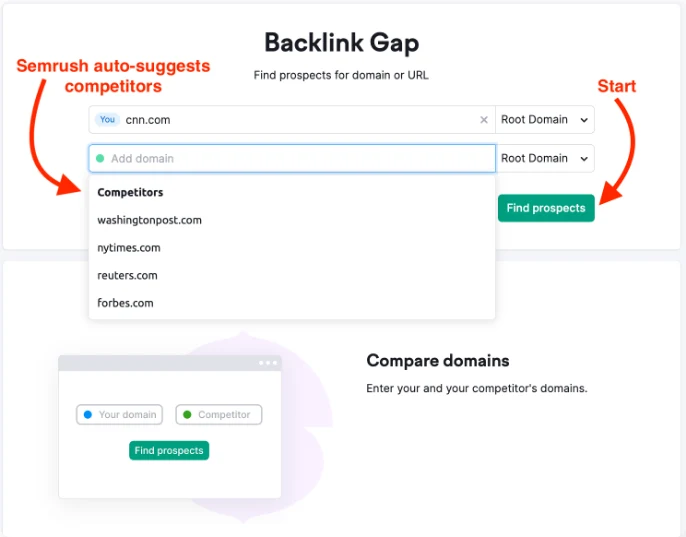
Enter your site and competitors, then start the comparison with Find prospects. Screenshot source Run the comparison
Select Find prospects to generate the comparison. Semrush displays a backlink trend graph and a referring-domain table. If you are evaluating a specific section, use the appropriate subdomain or URL consistently so the result answers the question you are asking.
Set the prospect target to your domain
Above the table, open the Prospects for dropdown and select your domain. This makes the table show opportunities relative to your backlink profile. If you have entered a URL or subdomain as the target, select that same target entry.
If your domain appears in multiple forms, select the exact entry used for your intended comparison. A URL-level target answers a narrower question than a root-domain target. Confirm the Prospects for selection before interpreting the missing sources.
Filter to missing prospects
Choose Best in the prospect-type control. Semrush defines Best as domains that link to all of your competitors but not you. If you want sources linking to some competitors but not your site, inspect the other available categories and compare the Matches column.
Best is a strict filter: a domain must link to every compared competitor and not your selected target. With several competitors, this can produce a short list. If the list is too small, inspect the other available prospect categories and Matches rather than changing the comparison without recording why.
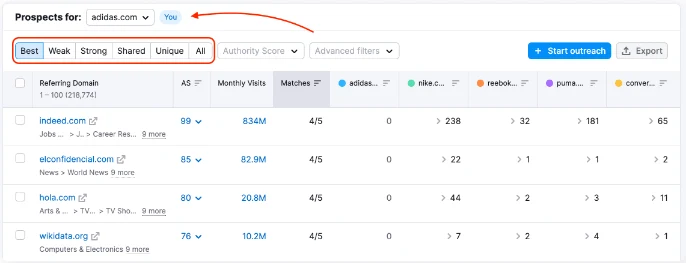
Choose your domain in Prospects for and switch the prospect category to Best. Screenshot source Review possible outreach sources
Use Matches to see how many analyzed sites each referring domain links to, and inspect the competitor columns before deciding whether a prospect is relevant. A domain linking to several competitors may be a useful lead, but review its site and context manually. Use export options if you need a working list for your outreach research.
Review the actual page and the context of a competitor’s link before treating a domain as an outreach lead. A domain may link to competitors through a directory, an old announcement, or an unrelated page. Keep the referring domain only when its audience and link context fit your offer.
How does this Semrush setup work in practice?
Worked example: finding editorial link prospects for a software launch
A B2B software team wants editorial link opportunities for a new product release by benchmarking their root domain against four industry leaders.
| Choice | Why it matters | How to check |
|---|---|---|
| Use root domains for all five sites | The question is broad site-level coverage, so matching the comparison scope makes the result easier to interpret. | Each comparison field uses a root domain rather than a mix of page and site entries. |
| Select the company’s root domain in Prospects for | This makes the opportunity set relative to the company’s whole-site backlink profile. | The control displays the company’s root-domain entry. |
| Start with Best | The team wants sources with links to every compared competitor, a high-overlap starting point for manual review. | The prospect type shows Best and the table is populated or clearly empty. |
| Inspect the source page and competitor link context | A match count alone does not show whether the link is editorial or relevant to the product audience. | The reviewer records the page context and relevance before adding a prospect to outreach research. |
Use the filtered table as a qualified prospect list, then check domain relevancy and contact details before adding individual sites to an outreach sequence.
How do you verify your result in Semrush?
Confirm the table is set to your domain and Best, then review candidate sites for relevance and suitability before adding any to an outreach plan.
| Step | What you should see |
|---|---|
| Open Backlink Gap and enter sites | Your domain and the intended competitor entries appear in the comparison fields. |
| Run the comparison | The report displays a trend graph and referring-domain table for the entered sites. |
| Set the prospect target to your domain | The Prospects for control displays your domain or selected site entry. |
| Filter to missing prospects | The Best view lists referring domains identified as linking to competitors but not your domain. |
| Review possible outreach sources | You can identify candidate referring domains and see their match counts against the compared sites. |
Related Semrush guides include How to add competitors in Semrush Position Tracking and How to build a Semrush My Reports report from a template.
Which official Semrush sources were checked?
Every step and limit in this Semrush guide was verified against official documentation on 21 Nov 2026 following how we check figures, alongside more walkthroughs in our Semrush tutorials hub:
How do you troubleshoot common Semrush issues?
Why does my domain have no missing prospects?
Check that your own domain is included in the comparison and selected in Prospects for. Also confirm you are looking at Best or another category that fits your desired comparison.
What does Matches mean?
Matches is the number of analyzed domains that have a backlink from that referring domain. A higher count means the source links to more of the sites in your comparison.
Why do the prospects look unrelated to my product?
Check whether the comparison uses the intended domains and scope, then inspect the source pages behind the referring domains. A domain can match because of a single unrelated link. Exclude it from outreach research when its audience or linking context does not fit.
 Reviewed byDanny Kirk
Founder of ReddiReach.
 Checked byAndrés Felipe
Digital designer and marketer.
Every figure is checked against the vendor's own page. Read our editorial standards.