
Key Takeaways
- Inspect the Semrush Keyword Gap report to surface valuable search queries where competing websites rank in search results but your domain holds no positions.
- Access a Semrush account and specify your primary domain alongside at least one direct market alternative sharing your topical focus.
- Work through 5 practical steps to submit domains, configure market databases, isolate the Missing intersection, evaluate intent data, and select target keywords.
- Confirm that the Missing filter displays zero rankings for your domain while verifying consistent ranking positions and landing page relevance across other sites.
Semrush Keyword Gap pinpoints shared organic keyword opportunities by identifying queries where multiple competing sites rank while your domain has no visibility. Use the Missing tab to uncover high-volume keyword gaps and align your editorial roadmap with proven market demand.
For plan limits and team seat pricing behind this workflow, read our Semrush review or connect Semrush to AI agents in Semrush API and MCP.
Key steps
What do you need before starting in Semrush?
Semrush requires the following workspace setup before you begin:
- Sign in to Semrush.
- Know your domain and at least one relevant competitor domain.
- Choose the country database and device context that match your search market.
How do you complete the steps in Semrush?
Follow these 5 steps in Semrush in order:
Open Keyword Gap and enter domains
Open Keyword Gap from the SEO tools. Enter your own domain in the first field labeled You, then add one or more competitor domains in the other fields. You can compare up to five domains. Semrush may suggest competitors after you enter your own domain. Keep the comparison focused on sites serving a similar audience.
Choose competitors that serve a similar audience and use the same kind of site scope as your domain. A publisher, marketplace, or unrelated business can rank for many terms your site would never target. If you include several competitors, remember that Missing requires every compared competitor to rank, so the choice of comparison set changes how strict the result is.
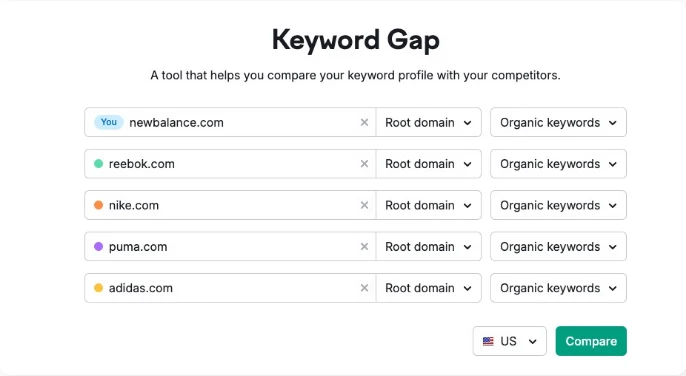
Put your own domain first, add relevant competitors, and set the organic ranking scope. Screenshot source Choose keyword type and market
Choose Organic keywords for search rankings, then select the regional database and device that match your research. Keyword Gap also supports paid and PLA keyword types, but use Organic for an organic visibility gap. Select Compare to generate the report.
Use the regional database and device that match the search market you are evaluating. If mobile and desktop behavior matter separately, run comparisons in the relevant device context and keep those findings distinct. The selected context determines which ranking evidence the report compares.
Open the Missing intersection
Scroll to the keyword table and select Missing in the intersection controls above it. Semrush defines Missing as keywords where all of your competitors have rankings but the domain in the You field has none. If you want broader ideas where only one competitor ranks, use Untapped instead.
Missing is an intersection across all competitors, so adding another competitor can remove terms from this view if that site does not rank for them. If you need a wider discovery set, inspect Untapped as well and record which competitors support each candidate.
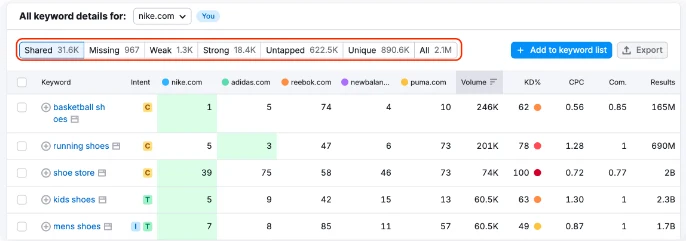
Use the intersection controls above the table to switch to Missing. Screenshot source Review intent and ranking context
Inspect each keyword and the competitor position columns. Use the report filters above the widgets to refine by intent, keyword difficulty, position, or terms to include or exclude. Hover over a position when you need to see the associated URL. For example, filter for informational intent to isolate topics that may suit guides or explanations.
Use a position or difficulty filter to focus review, but do not assume a high competitor position proves the term fits your site. Check the ranking URL and intent where available. A competitor may rank with a page that answers a different need than your existing content can serve.
Select terms for follow-up
Select a manageable set of keywords that fit your products, services, and existing pages. Use the table’s export or add-to-list controls if you want to continue analysis elsewhere in Semrush. Review the matching competitor pages before deciding whether to update an existing page or plan new content.
Before mapping a term to a new page, compare the relevant competitor landing pages with your own pages. If an existing page already addresses the same intent, an update may be more appropriate than creating a competing page. Keep the target page decision tied to the query’s purpose.
How does this Semrush setup work in practice?
Worked example: finding shared informational keyword gaps for a service website
A regional repair provider compares its organic keyword footprint against three local market players to identify missing informational topics for its support center.
| Choice | Why it matters | How to check |
|---|---|---|
| Use three comparable local competitors | Their audience and services make shared rankings more likely to reveal relevant topics than a large national publisher would. | Each competitor offers a similar service to the same regional audience. |
| Set Organic keywords and the target market context | The research is about organic visibility in the company’s service market. | The generated report shows the intended keyword type, regional database, and device. |
| Open Missing and inspect informational candidates | The team wants topics all three competitors rank for while the company has no ranking. | The table is on Missing and candidates show competitor positions without a company position. |
| Review ranking URLs before choosing a page action | The competing result may be a guide, service page, or another format, each implying a different response. | The team records whether an existing help page can satisfy the same intent before planning a new page. |
Select missing keywords matching your technical service capabilities, then create dedicated service guides targeting the validated ranking gaps.
How do you verify your result in Semrush?
Confirm that Missing is selected and the returned terms show competitor rankings without a ranking for your domain. Review the competitors’ landing pages, then map the best-fit terms to an existing or planned page.
| Step | What you should see |
|---|---|
| Open Keyword Gap and enter domains | Your domain occupies the first field and at least one competitor is listed. |
| Choose keyword type and market | The report reflects the selected keyword type, database, and device. |
| Open the Missing intersection | The table is filtered to Missing and shows terms absent from your domain’s rankings. |
| Review intent and ranking context | Candidate terms remain visible with competitor ranking context and any applied filters. |
| Select terms for follow-up | You have a selected or exported set of relevant missing terms for review. |
Related Semrush guides include How to add competitors in Semrush Position Tracking and How to build a Semrush My Reports report from a template.
Which official Semrush sources were checked?
Every step and limit in this Semrush guide was verified against official documentation on 21 Nov 2026 following how we check figures, alongside more walkthroughs in our Semrush tutorials hub:
How do you troubleshoot common Semrush issues?
Why is the Missing list empty?
Check that your domain is in the first You field, all entries use the intended keyword type, and the selected regional database is correct. If you want terms where any one competitor ranks, try Untapped.
What is the difference between Missing and Untapped?
Missing includes keywords where all competitors in the comparison rank and your You domain does not. Untapped includes keywords where your domain has no ranking but at least one competitor does.
Why did a term disappear from Missing after I added a competitor?
Missing requires every compared competitor to rank for the term while your You domain has none. Check the added competitor’s position. If it does not rank, the term no longer meets that definition. Review Untapped for broader candidates and reassess whether the added site belongs in this comparison.
 Reviewed byDanny Kirk
Founder of ReddiReach.
 Checked byAndrés Felipe
Digital designer and marketer.
Every figure is checked against the vendor's own page. Read our editorial standards.