
Key Takeaways
- Navigate Semrush Organic Rankings to examine a competing domain's non-branded topic clusters, traffic distribution, and high-performing content hubs.
- Maintain a Semrush Guru or Business tier subscription to access the Topics report and select a target domain with established search visibility.
- Follow 6 actionable steps to open Topics, analyze top-performing groups, inspect page tiles, review keyword positions, select topics, and export assets.
- Verify that the Topics overview breaks down non-branded traffic shares and displays corresponding page tiles with accessible keyword lists.
Semrush Organic Rankings features a Topics view that clusters a competitor's non-branded organic search traffic into high-level thematic groups and page tiles. Inspect top-performing topic clusters to uncover structural content patterns and identify specific URLs for keyword analysis.
For plan limits and team seat pricing behind this workflow, read our Semrush review or connect Semrush to AI agents in Semrush API and MCP.
Key steps
What do you need before starting in Semrush?
Semrush requires the following workspace setup before you begin:
- A competitor domain to review in Organic Rankings.
- Access to the Topics report. Source evidence states this feature is available with a Guru or Business subscription.
- A topic or content-structure question to guide the review.
How do you complete the steps in Semrush?
Follow these 6 steps in Semrush in order:
Open Topics for the domain
In Organic Rankings, select Topics for the domain you want to examine. The report shows non-branded topics that drive organic traffic to competitor domains.
The screenshot shows an older Topics layout for nike.com, including Best-Performing Topics and topic tiles. Its visible example includes topic and page data, but it does not establish results for another site. The source states that Topics is available with a Guru or Business subscription.
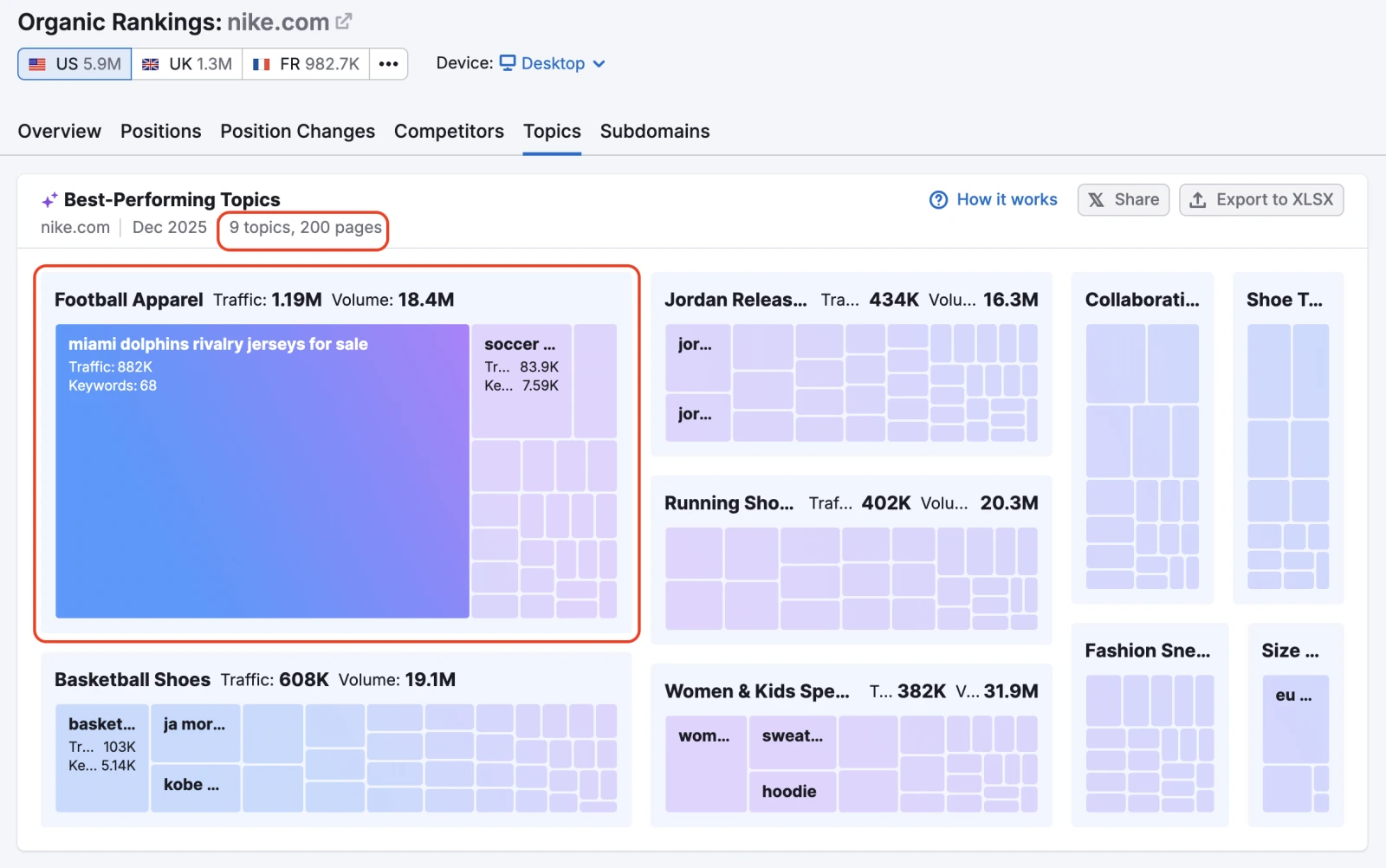
This older report view shows the Best-Performing Topics area and topic tiles, including the visible Football Apparel group and page details. Screenshot source Read the Best-Performing Topics snapshot
At the top, review the number of topics and number of pages. Number of Topics refers to the primary non-branded topics bringing traffic to the domain. Number of Pages is the total number of URLs within the topic structure.
Use these counts as a quick summary of the report’s scope. They do not describe every detail of the pages or explain why those pages perform.
Inspect topic groups and their pages
Review the grid of tiles. Each tile represents a page, organized with related pages under a broader topic. A topic is a broad subject, while pages within it cover more specific subjects.
The report can show estimated monthly organic traffic for a main topic and total search volume for its keywords. Hover over a page tile to see more detail, including the page’s estimated traffic, keywords, volume, and average KD. Use the values as report data for the selected domain, not as a forecast for your own content.
Open a page’s top keywords
Click a tile to open a detailed overview of that page’s top keywords. Use this view to understand the keyword themes associated with the page and to determine whether they are relevant to your own content research.
A competitor’s keyword set can inform a possible target cluster, but the report alone does not establish that the same page or topic will work for your site. Keep your next step tied to the evidence you actually reviewed.
Choose a topic for follow-up
Compare the topic hierarchy and the page-level details to identify a useful content research lead. Average Keyword Difficulty can help you assess relative ranking difficulty across topics, while the page’s top keywords can provide a starting point for further evaluation.
The report supports content-structure analysis. Treat the comparison as a way to choose what to investigate next, rather than as proof of ranking potential or a guarantee of traffic.
Export or save the page keyword list if useful
The report offers export to an Excel file and can send a page’s keyword list to an existing list in Keyword Strategy Builder. Use one of those options when you need to continue the analysis in a spreadsheet or an existing keyword list.
The screenshot shows an export control labeled Share and Export to XLSX in its older interface. Use the controls actually visible in your report version and confirm the resulting file or list contains the intended page’s keywords.
How does this Semrush setup work in practice?
Worked example: analyzing competitor topic groups for content planning
A content strategist reviews an established industry website's topical architecture to plan new thematic hubs for an upcoming site redesign.
| Choice | Why it matters | How to check |
|---|---|---|
| Open the competitor’s Topics report and note the topic and page counts. | The snapshot establishes the scope of the report before selecting a page. | Verify the selected domain and capture the displayed counts. |
| Choose one topic whose subject matches the analyst’s research question. | A topic groups related pages and can reveal how the competitor organizes that subject. | Confirm the selected topic is visible in the report. |
| Inspect a tile and note its displayed traffic, keywords, volume, and average KD. | These details support a more specific comparison of pages inside the topic. | Label the figures as report values for the competitor’s page. |
| Open the tile’s top keywords and select relevant terms for further evaluation. | The page-level keyword overview gives a concrete next step for content research. | Confirm the keyword list belongs to the selected page before using it. |
Select a top-performing topic cluster and assess keyword difficulty alongside user intent before structuring a detailed content cluster brief.
How do you verify your result in Semrush?
You should have a clear view of the competitor’s non-branded topic groups, examples of pages within a selected topic, and a page-level keyword set for follow-up. Choose a research lead based on the visible topic, page, and difficulty details, while treating competitor data as evidence about that domain only.
| Step | What you should see |
|---|---|
| Open Topics for the domain | Confirm the domain is the competitor you intend to research and the report displays its Topics view. |
| Read the Best-Performing Topics snapshot | Record the displayed topic and page counts, and label them as counts for the selected domain. |
| Inspect topic groups and their pages | Identify one topic and a page tile within it, then verify which details appear when you inspect that tile. |
| Open a page’s top keywords | Confirm the keyword overview corresponds to the page tile you selected and capture the terms relevant to your research question. |
| Choose a topic for follow-up | Name a specific topic or page for follow-up and state which report detail led you to select it. |
| Export or save the page keyword list if useful | Verify the export or destination list contains keywords for the selected page before using it in later analysis. |
Related Semrush guides include How to add competitors in Semrush Position Tracking and How to build a Semrush My Reports report from a template.
Which official Semrush sources were checked?
Every step and limit in this Semrush guide was verified against official documentation on 21 Nov 2026 following how we check figures, alongside more walkthroughs in our Semrush tutorials hub:
How do you troubleshoot common Semrush issues?
Why can’t I open the Topics report?
The source states that the feature is available with a Guru or Business subscription. Check whether your account has access to the feature.
What does a topic represent in this report?
A topic is a broad subject that groups multiple related pages. Each page within it provides more detail on a specific subject.
Does a competitor’s topic with high traffic predict results for my site?
No such prediction is established by this report. Its metrics describe the selected domain. Use the topic and page details to choose what to research further.
 Reviewed byDanny Kirk
Founder of ReddiReach.
 Checked byAndrés Felipe
Digital designer and marketer.
Every figure is checked against the vendor's own page. Read our editorial standards.