
Key Takeaways
- Framer manages permanent sub-path URL redirects inside your project's Site Settings under Hosting rather than the legacy Domains dashboard.
- Before adding rules, map your legacy sub-paths to live destination paths on your Framer site and confirm any full-domain redirects are handled at your external DNS or hosting provider.
- Across five steps, you open Hosting Redirects, add single-page redirects, configure wildcard or slug-matched folder rules, order rules by priority, and publish the project.
- Confirm your redirects are active by publishing the site and visiting an old sub-path URL in a browser to verify it lands immediately on the designated new URL.
You can preserve search engine rankings and prevent broken visitor links during site migrations or URL restructures by configuring permanent sub-path redirects in Framer. Wildcard rules, capture groups, and drag-and-drop rule ordering let teams route individual pages or entire legacy folders cleanly to new Framer URLs.
For plan limits and team seat pricing behind this workflow, read our Framer review or connect Framer to AI agents in Framer API and MCP.
Key steps
What do you need before starting in Framer?
Framer requires the following workspace setup before you begin:
- Project access with permission to edit Site Settings and publish updates in Framer
- A custom domain connected to your Framer project for live redirect testing
- A list of legacy source sub-paths (such as /old-pricing or /blog/*) and their new destination paths
How do you complete the steps in Framer?
Follow these 5 steps in Framer in order:
Open Redirects under Site Settings and Hosting
Open your Framer project and navigate to Site Settings > Hosting > Redirects. Note that redirect controls moved out of the old Domains dashboard and now live directly inside your project's Hosting settings.
Keep in mind that Framer redirects apply only to sub-paths within your current domain. If you are migrating from a completely different domain (for example, www.abc.com to www.xyz.com), set up the domain-level redirect at the hosting provider for the old domain first, connect the new domain in Framer, and then manage sub-path rules here.
Add single-page old and new URL rules
Enter the legacy source path in the old URL field (such as /services-old) and enter the target path or URL in the new URL field (such as /services) to create a redirect rule. If you ever need to modify a path or remove an obsolete rule later, click the ... menu on that redirect row to edit or delete it.
Remember that renaming a page sub-path on the Framer canvas or changing a Slug inside the CMS does not automatically create or update rows in Redirects. Whenever editors alter an already-indexed URL slug, add a manual redirect rule immediately so external backlinks and bookmarks do not break.
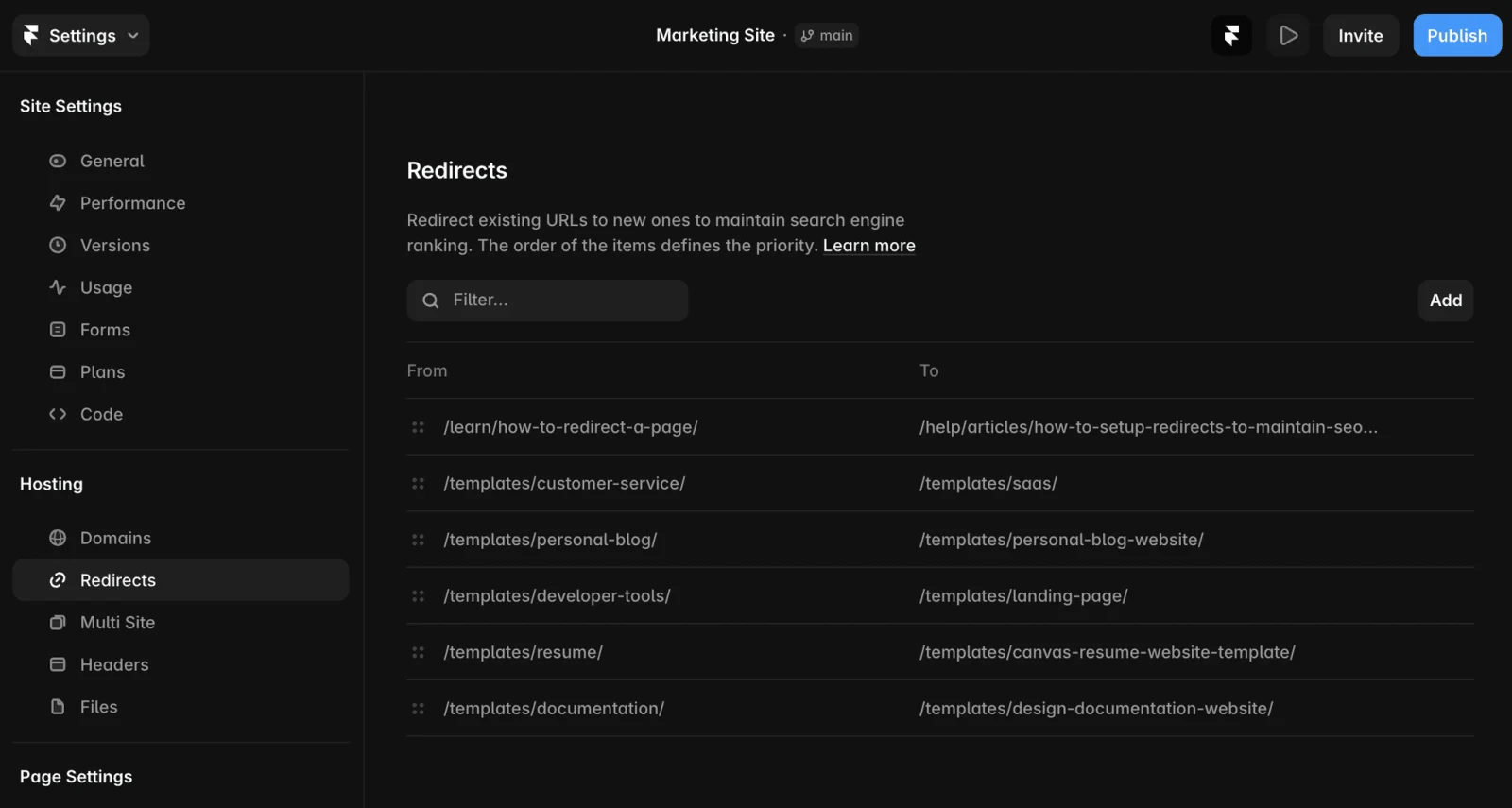
Check each row's source URL, destination URL, priority order, and the three-dot menu inside Site Settings > Hosting > Redirects. Screenshot source Redirect entire folders with wildcards, capture groups, or slug tokens
To route multiple URLs with a single rule in Redirects, use * in the old URL field to match any path segment (such as /blog/*) and reference matched wildcard segments in the new URL field using capture groups like :1 and :2 (for example, old URL /blog/*/post/* to new URL /article/:1/entry/:2). When you want to match single segments between slashes without catching deeper nested paths, use :slug style named tokens instead, such as old URL /blog/:year/:month/:day to new URL /article/:year-:month-:day.
Choose :slug tokens over * whenever legacy archives share a prefix with deeper category URLs you want handled differently. For instance, /blog/:year/:month/:day matches /blog/2022/07/18 cleanly without accidentally matching /blog/hello-world or /blog/2022/07/18/category/hello-world.
Drag and drop redirect rows to set evaluation priority
Review the sequence of rules in Site Settings > Hosting > Redirects and drag and drop rows vertically to control priority order. Place specific single-page exceptions and narrow :slug patterns above broad catch-all * folder rules.
Because broad wildcards like /blog/* match every path underneath /blog/, putting a catch-all rule above a specific page override prevents the specific rule below it from ever matching. Auditing top-to-bottom order whenever you add folder wildcards eliminates unexpected redirect targets.
Publish or update your site to activate redirects
Click Publish or Update in Framer to push your new and reordered redirect rules to your live hosted domain. Adding, editing, reordering, or deleting rows via the ... menu stays staged in settings until the site is published.
After publishing, test one single-page URL, one capture-group wildcard URL, and one unchanged live page in a fresh browser tab. Confirming both exact and pattern-matched paths right after deploy ensures search crawlers encounter clean permanent redirects without redirect chains.
How does this Framer setup work in practice?
Worked example: Migrating a legacy blog URL structure to Framer
An agency migrating a client site to Framer needs to move dated blog URLs from /blog/*/post/* to /article/:1/entry/:2 while routing one retired flagship post /blog/2021/post/pricing-guide directly to /pricing.
| Choice | Why it matters | How to check |
|---|---|---|
| Add /blog/2021/post/pricing-guide -> /pricing and drag it above wildcard rules | Ensures the specific retired pricing post routes to /pricing before the broad /blog/*/post/* rule is evaluated. | The exact /blog/2021/post/pricing-guide row sits at the top of the Redirects list. |
| Add wildcard rule /blog/*/post/* -> /article/:1/entry/:2 below the exception | Captures both dynamic path segments and maps every remaining legacy post to its new /article/ structure. | Requesting /blog/my-blog/post/getting-started resolves to /article/my-blog/entry/getting-started after publishing. |
| Click Update to deploy Hosting Redirects changes | Applies staged redirect rules to live traffic and search engine crawlers. | Both the /pricing override and sample /article/ URLs redirect immediately in a live browser check. |
Search rankings and inbound backlinks carry over across the entire legacy archive while high-intent visitors hitting the retired pricing article land directly on the current pricing page.
How do you verify your result in Framer?
Open an incognito browser window after publishing and request both a specific legacy URL and a wildcard-matched URL to confirm each forwards directly to its intended Framer page. Next, document a team checklist reminding editors to add a new entry in Site Settings > Hosting > Redirects whenever they change a published canvas path or CMS item slug.
| Step | What you should see |
|---|---|
| Open Redirects under Site Settings and Hosting | The Redirects table appears under Site Settings > Hosting with input fields for source and destination URLs. |
| Add single-page old and new URL rules | Each single-page redirect rule displays in the Redirects list pairing its old source path with its new destination path. |
| Redirect entire folders with wildcards, capture groups, or slug tokens | Your folder-level wildcard or named-segment rule appears in the Redirects list with matching capture tokens in the destination path. |
| Drag and drop redirect rows to set evaluation priority | Specific page overrides sit above broad wildcard folder rules in the ordered Redirects table. |
| Publish or update your site to activate redirects | Visiting the old sub-path on your published domain automatically forwards the browser to the new destination URL. |
Related Framer guides include How to build and connect a CMS collection with the Agent in Framer and How to create a CMS index page and collection list in Framer.
Which official Framer sources were checked?
Every step and limit in this Framer guide was verified against official documentation on 27 Nov 2026 following how we check figures, alongside more walkthroughs in our Framer tutorials hub:
How do you troubleshoot common Framer issues?
Why did my Framer redirect not update automatically when I changed a CMS slug or page path?
Changing a sub-path from the canvas or inside the CMS does not automatically update or generate rules in Site Settings > Hosting > Redirects. Open Redirects, use the ... menu to edit the existing rule or add a new redirect row manually, and publish your site.
Can I redirect an entire old root domain to a new domain inside Framer?
No, Framer only supports redirecting sub-paths within your current connected domain. To redirect an entire domain (such as www.abc.com to www.xyz.com), configure a domain-level redirect at the hosting provider for the old domain, connect the new domain in Framer, and then manage sub-path rules in Framer.
Why is a specific page redirect being ignored when I also have a wildcard folder rule?
Redirect priority follows the top-to-bottom row order in Site Settings > Hosting > Redirects, so a broad rule like /blog/* placed above a specific /blog/post-name rule catches traffic first. Drag and drop the specific rule row above the wildcard rule and republish your site.
 Reviewed byDanny Kirk
Founder of ReddiReach.
 Checked byAndrés Felipe
Digital designer and marketer.
Every figure is checked against the vendor's own page. Read our editorial standards.