
Key Takeaways
- Gorgias provides ready-made Auto-Tag Rule templates across General, Social Media, Shopify, Recharge, and Automate categories to label tickets automatically.
- Before enabling ecommerce or subscription templates, connect your Shopify, Recharge, social media, or Automate integrations so customer and order attributes resolve.
- In five steps, you deploy General topic and sentiment templates, customize Shopify VIP criteria, enable social media lead and sentiment tags, add Shopify shipping and pre-sale tags, and tailor Recharge or Automate templates.
- Confirm your templates work by checking incoming tickets in Gorgias to verify matching topic, VIP, social, or order-status tags attach automatically.
You can classify incoming customer tickets by topic, Shopify spend, social sentiment, or subscription status in minutes using Gorgias Auto-Tag Rule templates. Customizing built-in templates for VIP shoppers, pre-purchase questions, Recharge changes, and Automate Order Management keeps Views organized without writing complex conditions from scratch.
For plan limits and team seat pricing behind this workflow, read our Gorgias review or connect Gorgias to AI agents in Gorgias API and MCP.
Key steps
What do you need before starting in Gorgias?
Gorgias requires the following workspace setup before you begin:
- Rule configuration permissions in your Gorgias account
- Connected Shopify, Recharge, or social media integrations matching the template categories you plan to enable
- Consistent tag names defined for your support Views (such as VIP, return/exchange, or social leads)
How do you complete the steps in Gorgias?
Follow these 5 steps in Gorgias in order:
Enable General topic, return, discount, and note-mention templates
Navigate to Rules in Gorgias and select from the General Auto-Tag templates to cover core inbox triage: Primary Categories (tags tickets by topic), Return/Exchange Scenarios, Discount/Promo Request, Business hours (tags tickets created during vs outside business hours), Social sentiments, Feedback (applies distinct tags for positive vs negative feedback), and Mention in an internal note (tags a ticket with an agent's name when mentioned internally).
Enabling Primary Categories alongside Return/Exchange Scenarios and Feedback gives support leads immediate reporting visibility into contact drivers before building custom rules. Use Mention in an internal note so escalated threads surface in each specialist's personal View.
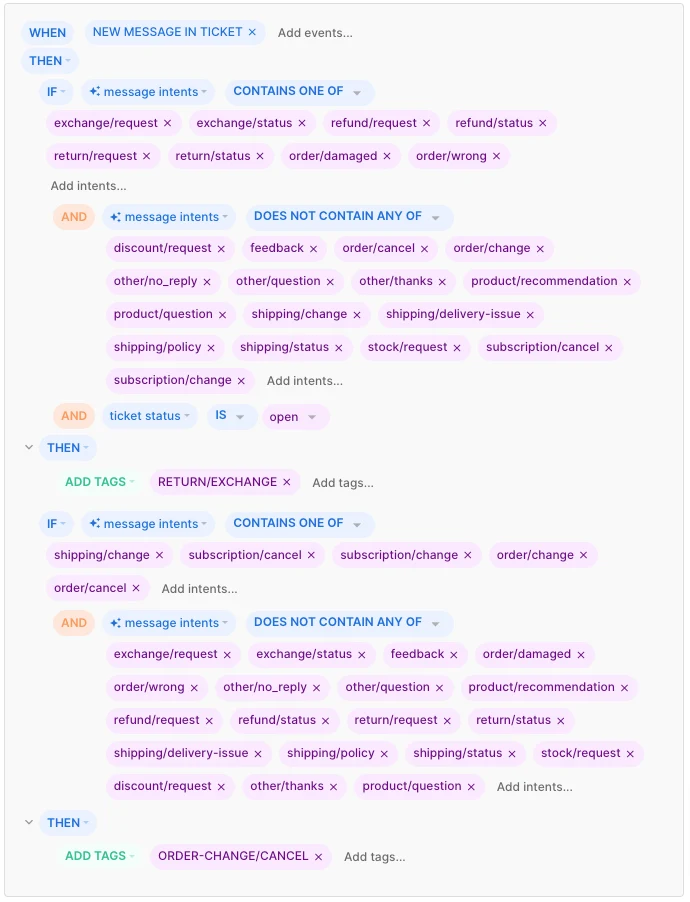
Inspect the topic conditions and applied tag action inside the Primary Categories Auto-Tag Rule template. Screenshot source Configure the VIP customers template with Shopify thresholds
Select the VIP customers Auto-Tag template under General, which queries Shopify data to check whether a requester meets your high-value customer criteria. Review the default threshold pre-populated at $1000+ total spend or 3 orders, adjust either number to match your brand's loyalty tiers if needed, and save the Rule.
Aligning the VIP customers spend and order-count thresholds with your retention team's definition lets you build a high-priority VIP View in Gorgias. Agents can then answer repeat buyers ahead of general queue volume without opening Shopify profiles manually.
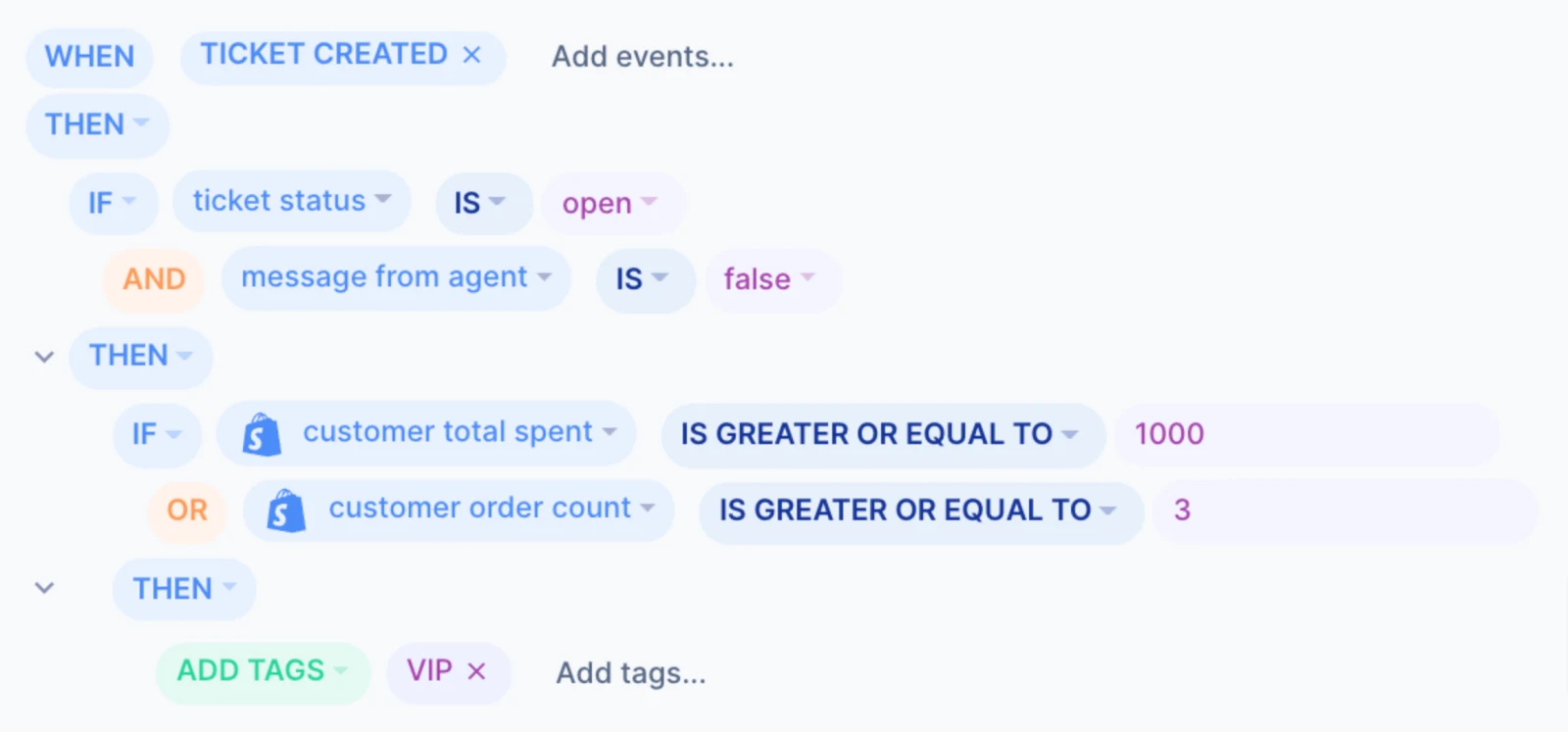
Review or customize the default $1000+ total spend or 3 orders Shopify conditions in the VIP customers Rule. Screenshot source Add Social Media templates for questions, sentiment, and leads
Under the Social Media template group, activate Auto-Tag Rules for Question (questions arriving via social channels), Negative, Positive, Neutral (social tickets that are neither positive, negative, nor questions), and Leads (incoming social messages that may be sales leads).
Tagging Leads and Question separately from Positive or Neutral comments lets revenue-focused agents reply rapidly to buying inquiries while community managers batch-review general brand praise.
Activate Shopify Shopping Scenarios and Potential Customers rules
Open the Shopify Auto-Tag section and enable Shopping Scenarios to tag shipping-related tickets with different tags depending on the customer's live order status in Shopify. Next, enable Potential Customers to automatically tag product questions sent by shoppers who have not placed an order yet.
Separating zero-order Potential Customers from post-purchase Shopping Scenarios helps ecommerce teams measure pre-sale conversion support separately from fulfillment troubleshooting.
Tailor Recharge subscription and Automate Order Management templates
If your store runs subscriptions on Recharge, enable the Subscription Cancel/Change template to tag cancellation or modification requests automatically. If you use Automate, select the Order Management template and customize its conditions to match the specific Order Management options configured in your Gorgias account.
Because Order Management flows in Automate are unique to each merchant's setup, always inspect and tailor every condition branch before activating that Rule so no custom self-serve path goes untagged.
How does this Gorgias setup work in practice?
Worked example: Segmenting VIP buyers, pre-sale leads, and subscription churn
A direct-to-consumer supplement brand using Shopify and Recharge wants Gorgias to separate pre-sale questions, high-spend buyers, and subscription cancellation requests automatically.
| Choice | Why it matters | How to check |
|---|---|---|
| Enable VIP customers template customized to $500+ total spend or 3 orders in Shopify | Flags loyal repeat supplement buyers immediately when they contact support. | Tickets from 3-order Shopify customers automatically receive the VIP tag. |
| Activate Shopify Potential Customers and Social Media Leads templates | Routes zero-order product questions and social buying inquiries to pre-sale specialists. | First-time shoppers asking dosage questions receive Potential Customers or Leads tags. |
| Enable Recharge Subscription Cancel/Change template | Highlights churn-risk subscription requests so retention agents can offer skip or swap options first. | Incoming Recharge cancel requests appear tagged in the retention View. |
Support agents work prioritized VIP, pre-sale, and retention queues immediately without reading every unassigned inbox message to triage urgency.
How do you verify your result in Gorgias?
Open recent tickets across email and social channels in Gorgias to confirm your enabled template tags appear accurately alongside Shopify and Recharge customer data. Next, build filtered Gorgias Views keyed to those tags so specialized agents can work dedicated queues.
| Step | What you should see |
|---|---|
| Enable General topic, return, discount, and note-mention templates | Your chosen General Auto-Tag Rules appear enabled with clear topic, feedback, and internal-mention tags mapped. |
| Configure the VIP customers template with Shopify thresholds | The VIP customers Rule displays your exact Shopify total spend or order count condition and target VIP tag. |
| Add Social Media templates for questions, sentiment, and leads | Incoming social media tickets receive distinct Question, Positive, Negative, Neutral, or Leads tags based on message content. |
| Activate Shopify Shopping Scenarios and Potential Customers rules | Shipping tickets receive order-status-specific tags and zero-order product questions receive the Potential Customers tag. |
| Tailor Recharge subscription and Automate Order Management templates | Recharge cancellation threads and customized Automate Order Management tickets display their assigned tags upon creation. |
Related Gorgias guides include How to configure custom auto-tag rules and ticket hygiene in Gorgias and How to set up business hours and order auto-reply rules in Gorgias.
Which official Gorgias sources were checked?
Every step and limit in this Gorgias guide was verified against official documentation on 27 Nov 2026 following how we check figures, alongside more walkthroughs in our Gorgias tutorials hub:
How do you troubleshoot common Gorgias issues?
How does the VIP customers Auto-Tag template decide who qualifies as a VIP?
The VIP customers Rule checks connected Shopify customer data and defaults to $1000+ in total spend or 3 orders. You can edit either threshold inside the Rule editor to match your store's exact VIP definition.
Why did the Automate Order Management template not match our custom self-serve options?
Order Management options inside Gorgias Automate are customizable and unique to each Gorgias account. Open the Order Management Rule conditions and tailor them to match the exact Order Management options enabled in your workspace.
Can I apply different tags to positive and negative customer feedback automatically?
Yes, both the General Feedback template and the Social Media Positive, Negative, and Neutral templates apply distinct tags depending on sentiment. This lets you route negative experiences for fast recovery while tracking positive praise separately.
 Reviewed byDanny Kirk
Founder of ReddiReach.
 Checked byAndrés Felipe
Digital designer and marketer.
Every figure is checked against the vendor's own page. Read our editorial standards.