
Key Takeaways
- Open Semrush Organic Rankings, enter the competitor domain, and select the Positions report to evaluate organic search rankings across chosen national databases.
- Ensure you have an active Semrush account subscription and identify the exact competitor root domain or subdomain you plan to analyze.
- Follow the 5-step workflow by opening Organic Rankings, navigating to Positions, analyzing ranking columns, filtering by metrics, and exporting relevant findings.
- Verify the analysis by checking that the selected national database is active and confirming that displayed keywords link to verified competitor landing pages.
Inspect competitor organic search performance using the Semrush Organic Rankings Positions report to analyze ranking keywords, positions, and associated URLs. Filtering this database helps identify keyword coverage gaps and valuable search query opportunities.
For plan limits and team seat pricing behind this workflow, read our Semrush review or connect Semrush to AI agents in Semrush API and MCP.
Key steps
What do you need before starting in Semrush?
Semrush requires the following workspace setup before you begin:
- Sign in to Semrush.
- Know the competitor’s domain to research.
- Choose a regional database that matches the market you want to inspect.
How do you complete the steps in Semrush?
Follow these 5 steps in Semrush in order:
Open Organic Rankings
In the SEO tools navigation, open Organic Rankings. Enter the competitor’s domain in the search field, select the regional database you want to study, and run the report. If Semrush lets you choose a domain scope, use the root domain for a broad overview or a subdomain or subfolder for a narrower section.
Choose the regional database where the competitor is trying to reach searchers, not simply the competitor’s headquarters. For a broad competitive scan, use the root domain. Use a subdomain or subfolder when the research question concerns a specific site section. These scopes can produce different keyword sets, so record which one you chose.
Open the Positions report
Select Positions in the report navigation. This report lists keywords for which the domain has pages ranking within Google’s top 100 results in the selected database. Use this view when you want the actual query and landing-page rows for each keyword you plan to investigate.
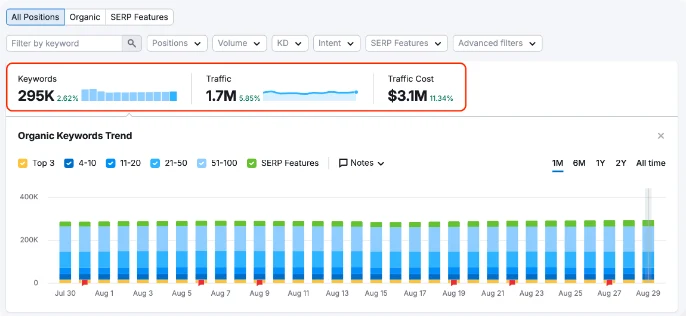
Check that the Positions report is open for your selected competitor before analyzing rows. Screenshot source Read the ranking and landing-page columns
Review Keyword, Position, Traffic, Volume, KD %, Intent, and URL. The report is sorted by traffic by default, so higher rows estimate more of the domain’s organic traffic. Click a column heading to sort by another metric, or click a keyword row to inspect its associated URL and SERP details.
Read Position alongside URL rather than treating a keyword as an isolated win. Several queries may lead to one landing page, while a single query’s ranking page may not match the page you expected. Traffic and Volume are estimates, so use them to prioritize investigation, not as confirmed visits or demand.
Filter to a useful slice
Use the keyword search field or Advanced filters to narrow the report. For example, filter by a topic term or Word count to focus on more specific queries. If you want non-branded discovery, exclude terms containing the competitor’s brand name where that filter is available. Treat estimated metrics as research indicators and inspect the ranking page for context.
Filter to a decision you can act on, such as non-branded queries around a product category. Excluding the competitor’s brand can reveal discovery topics, but it may also remove comparison searches that matter to your market. If the report supports the filter, inspect a few remaining keywords and their URLs to ensure the slice fits your question.
Capture relevant findings
Select a few relevant keyword and URL pairs for your content or competitor analysis. If you need to continue outside the report, use the export control in the top right of the Positions list to export to Excel or CSV, subject to the options available in your account.
Capture the keyword, Position, and URL together, along with the selected database and domain scope in your notes or export. This context helps prevent a later comparison from mixing markets or sections of the site. Before treating a row as a content opportunity, visit the landing page and check whether its intent and offering are relevant to your audience.
How does this Semrush setup work in practice?
Worked example: identifying competitor comparison topics for a regional content strategy
A content strategist reviews an industry competitor domain to discover which product comparison keywords generate organic search traffic and warrant dedicated article coverage.
| Choice | Why it matters | How to check |
|---|---|---|
| Enter the competitor’s root domain and select the database for the target market. | The question concerns broad visibility among that market’s searchers, rather than one site folder. | The report identifies the intended domain scope and regional database. |
| Open Positions and filter for a product category term, if the report’s filters support it. | A focused topic slice is easier to evaluate than the competitor’s entire keyword set. | The visible keywords relate to the category under review. |
| Exclude competitor brand terms only if the goal is discovery research. | This can surface generic queries, but would omit branded comparison searches relevant to another research question. | Inspect sample rows to confirm the filter did not remove the type of comparison query needed. |
| Review Position and URL for candidate comparison or evaluation queries. | The landing page reveals whether the competitor answers an intent that the planned article should address. | Open the listed page and confirm that its topic and audience are relevant. |
Review the filtered Positions table to identify high-volume ranking URLs and select relevant keyword targets for detailed content gap evaluation.
How do you verify your result in Semrush?
Confirm the Positions report belongs to the competitor and regional database you selected. Use the most relevant keyword and landing-page pairs to assess content coverage or identify pages worth comparing with your own.
| Step | What you should see |
|---|---|
| Open Organic Rankings | The Organic Rankings report opens for the intended competitor and database. |
| Open the Positions report | A keyword positions table appears for the competitor. |
| Read the ranking and landing-page columns | You can see keyword rows with positions and corresponding landing pages. |
| Filter to a useful slice | The table is filtered to the topic, query type, or ranking slice you intended to examine. |
| Capture relevant findings | You have a set of relevant competitor keywords and their ranking URLs for follow-up. |
Related Semrush guides include How to add competitors in Semrush Position Tracking and How to build a Semrush My Reports report from a template.
Which official Semrush sources were checked?
Every step and limit in this Semrush guide was verified against official documentation on 21 Nov 2026 following how we check figures, alongside more walkthroughs in our Semrush tutorials hub:
How do you troubleshoot common Semrush issues?
Why does Semrush show no keywords for a domain?
The selected regional database may not contain rankings for the domain, or Semrush may not have found rankings within the top 100 results it tracks. Check the domain spelling and try the market most relevant to your research.
Can I see which page ranks for a keyword?
Yes. The Positions report includes a URL column. Click a keyword row for more details or use the URL shown to inspect the competitor’s landing page.
Why does a keyword’s URL differ from the competitor page I expected?
The Positions row reports the landing page associated with that keyword in the selected database. Check the row’s URL and inspect that page. Rankings can point to a different site section than your hypothesis. If it is irrelevant to the research question, exclude it from the shortlist rather than attributing it to the expected page.
 Reviewed byDanny Kirk
Founder of ReddiReach.
 Checked byAndrés Felipe
Digital designer and marketer.
Every figure is checked against the vendor's own page. Read our editorial standards.