
Key Takeaways
- Open Page Inspect in Ahrefs Site Explorer to compare historic webpage snapshots and reveal added or deleted HTML markup and on-page copy.
- Verify your Ahrefs subscription includes access to Site Explorer and Page Inspect, and obtain the full URL of the webpage you intend to examine.
- Follow the 5-step procedure by opening Page Inspect, selecting the later crawl snapshot, choosing the earlier baseline date, reviewing diffs, and analyzing changes.
- Verify your findings by checking that the visual comparison highlights added text in green and removed content in red across the selected date range.
Use Ahrefs Page Inspect to compare two historic snapshots of a URL and isolate specific HTML code or text content modifications. Reviewing color-coded additions and deletions helps correlate structural content edits with recorded shifts in organic search performance.
For plan limits and team seat pricing behind this workflow, read our Ahrefs review or connect Ahrefs to AI agents in Ahrefs API and MCP.
Key steps
What do you need before starting in Ahrefs?
Ahrefs requires the following workspace setup before you begin:
- An Ahrefs account with access to Site Explorer and Page Inspect.
- The page URL you want to investigate.
- A reason to compare two points in time, such as a traffic change or a content update you want to review.
How do you complete the steps in Ahrefs?
Follow these 5 steps in Ahrefs in order:
Open Page Inspect for the page
Go to Site Explorer and open Page Inspect for the page you want to investigate. Confirm that the report is showing the intended page before reviewing any dates. The supplied example shows the report for an Ahrefs blog article about SEO consultants.
Choose the later version
Use the date control to choose the version that represents the later point in your comparison. In the screenshot, the displayed version is dated 1 Sep 2023, 12:44 AM. Treat that as an example of what the date control can show, not as a recommended date for your own investigation.
Choose the earlier version
Set the comparison date to the earlier point. The screenshot compares the displayed September version with 1 Aug 2023, 02:45 PM. For a traffic investigation, choose a date before the change you noticed and another after it, based on the period you are examining.
Review the text differences
Start with the HTML tab if you need to inspect markup or metadata. Switch to Page text to review copy changes. In the screenshot, red highlights deleted text and green highlights added text. Read the surrounding lines before deciding whether the change affects the part of the page you are investigating.
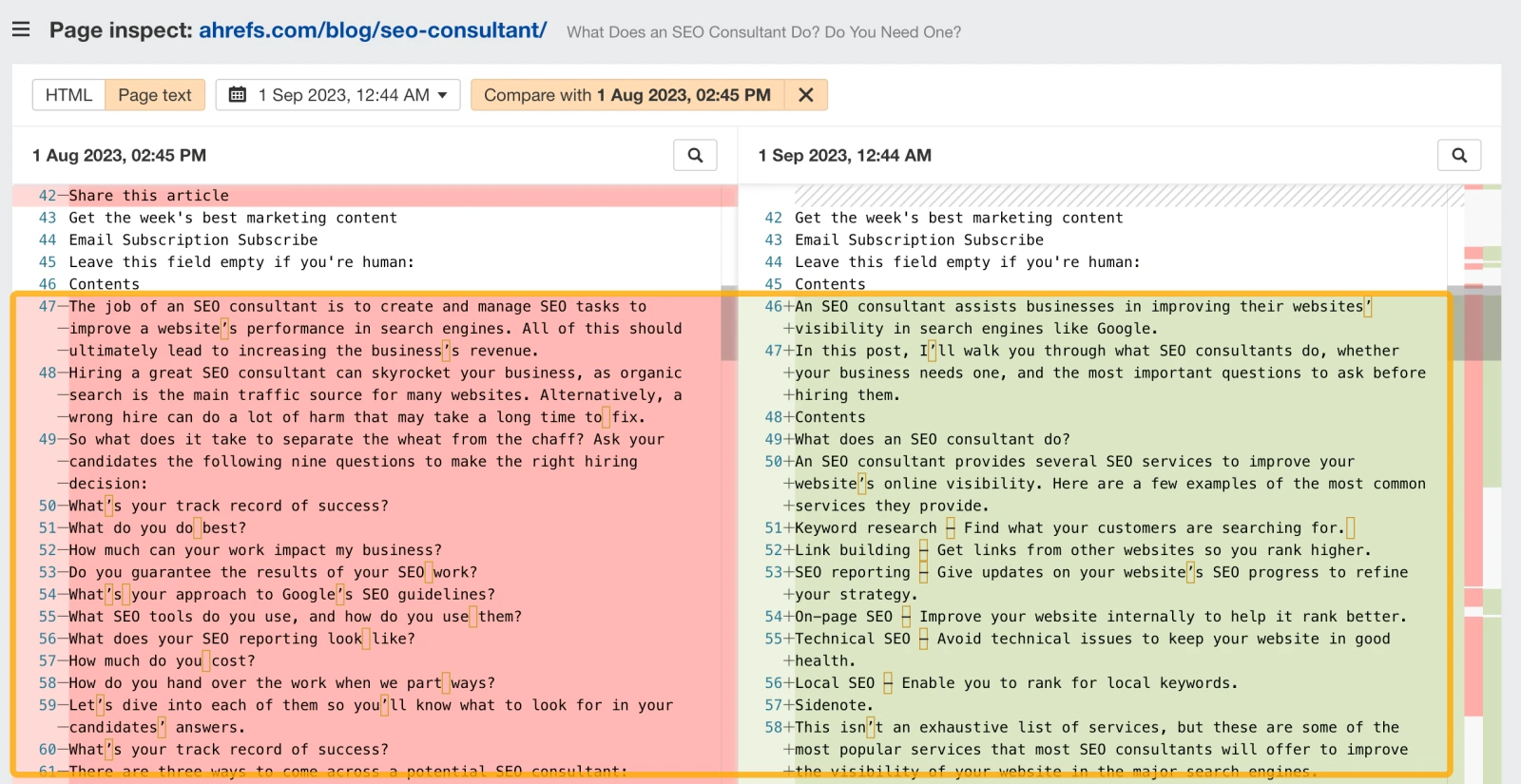
The screenshot shows the Page text control and a dated comparison. The visible text uses red for deletions and green for additions. Screenshot source Relate edits to the question you started with
Record the specific edits that could explain the change you are investigating. If your question concerns an organic traffic increase, compare the timing and substance of the edits with that increase. The comparison can show what changed. By itself, it does not establish that an edit caused a performance change.
How does this Ahrefs setup work in practice?
Worked example: investigating page modifications following an organic traffic increase
An SEO analyst detects a notable organic traffic increase on a key product landing page and wants to inspect whether recent copy updates influenced performance.
| Choice | Why it matters | How to check |
|---|---|---|
| Open Page Inspect for the page showing the change. | The comparison needs to examine the same page whose performance prompted the investigation. | The report identifies that page. |
| Choose a date before the observed increase and one after it. | A comparison across the period can reveal edits made between the two points. | Both selected dates bracket the period being investigated. |
| Select Page text and inspect red and green highlights. | The shown view distinguishes deleted text from added text. | The analyst records the content changes visible in the comparison. |
| Compare the edits’ timing with the traffic timeline before drawing a conclusion. | The text changes are evidence to evaluate, not proof that a particular edit caused the increase. | The analyst describes a plausible connection as a hypothesis, or notes that the comparison does not support one. |
Review the highlighted text additions and schema changes between the two crawl dates to isolate specific modifications that coincided with the ranking change.
How do you verify your result in Ahrefs?
You now have a date-bounded view of how the page text changed, with additions and deletions visually distinguished in the shown interface. Use the result as evidence for further analysis: it can help explain what changed around a performance shift, but the comparison alone does not prove why traffic or rankings moved.
| Step | What you should see |
|---|---|
| Open Page Inspect for the page | The Page Inspect report identifies the page you intended to inspect. |
| Choose the later version | The selected version is the later point you want to compare. |
| Choose the earlier version | The interface shows the two intended dates in the comparison. |
| Review the text differences | You can identify the additions and deletions shown for the chosen comparison. |
| Relate edits to the question you started with | You have a concise record of relevant edits and the dates compared. |
Related Ahrefs guides include Ahrefs Link Intersect guide and Find broken internal links in Ahrefs Site Audit.
Which official Ahrefs sources were checked?
Every step and limit in this Ahrefs guide was verified against official documentation on 21 Nov 2026 following how we check figures, alongside more walkthroughs in our Ahrefs tutorials hub:
How do you troubleshoot common Ahrefs issues?
Why can’t I find the page I want to compare?
The report may be open for a different target. Check the page identified at the top of Page Inspect and return to Site Explorer to open the intended page.
Why don’t the two dates answer my question?
The selected dates may fall on the same side of the change you are investigating. Choose one point before the relevant event and another after it, then review the comparison again.
Why do the highlights not tell me whether a change improved performance?
The text comparison describes page changes, not their cause or effect. Use the edits and dates as evidence to investigate alongside the performance change you observed.
 Reviewed byDanny Kirk
Founder of ReddiReach.
 Checked byAndrés Felipe
Digital designer and marketer.
Every figure is checked against the vendor's own page. Read our editorial standards.