
Key Takeaways
- Open Semrush Position Changes for a target domain, specify the comparison timeframe, and filter by Lost to isolate keywords falling below position 100.
- Ensure you have active Semrush access and establish a comparison timeframe that corresponds directly to the timeframe of your observed traffic decline.
- Follow the 6-step workflow by opening Position Changes, setting dates, filtering for Lost rankings, narrowing results, expanding keyword rows, and planning remediation.
- Verify the output by checking that each row represents a complete drop out of top-100 positions and inspecting historical URL performance trends.
Track dropped rankings using the Semrush Organic Rankings Position Changes report to locate keywords that recently fell outside the top 100 search results. Isolating lost terms from normal ranking fluctuations helps teams prioritize URL remediation and technical audits.
For plan limits and team seat pricing behind this workflow, read our Semrush review or connect Semrush to AI agents in Semrush API and MCP.
Key steps
What do you need before starting in Semrush?
Semrush requires the following workspace setup before you begin:
- A domain to investigate in Semrush Organic Rankings.
- A comparison period that matches the question you are trying to answer.
- An understanding that Position Changes reports historical changes for a domain, with data available for up to two years.
How do you complete the steps in Semrush?
Follow these 6 steps in Semrush in order:
Open Position Changes for the domain
In Organic Rankings, choose the domain you want to investigate and open Position Changes. The screenshot shows the report for nytimes.com in the US on desktop. It is an example of the older Position Changes layout, not a claim about your domain’s data.
The report is designed to show traffic changes, the keywords and URLs associated with them, and whether the domain entered or left SERP features. Use it to frame the investigation around a specific domain and time period.
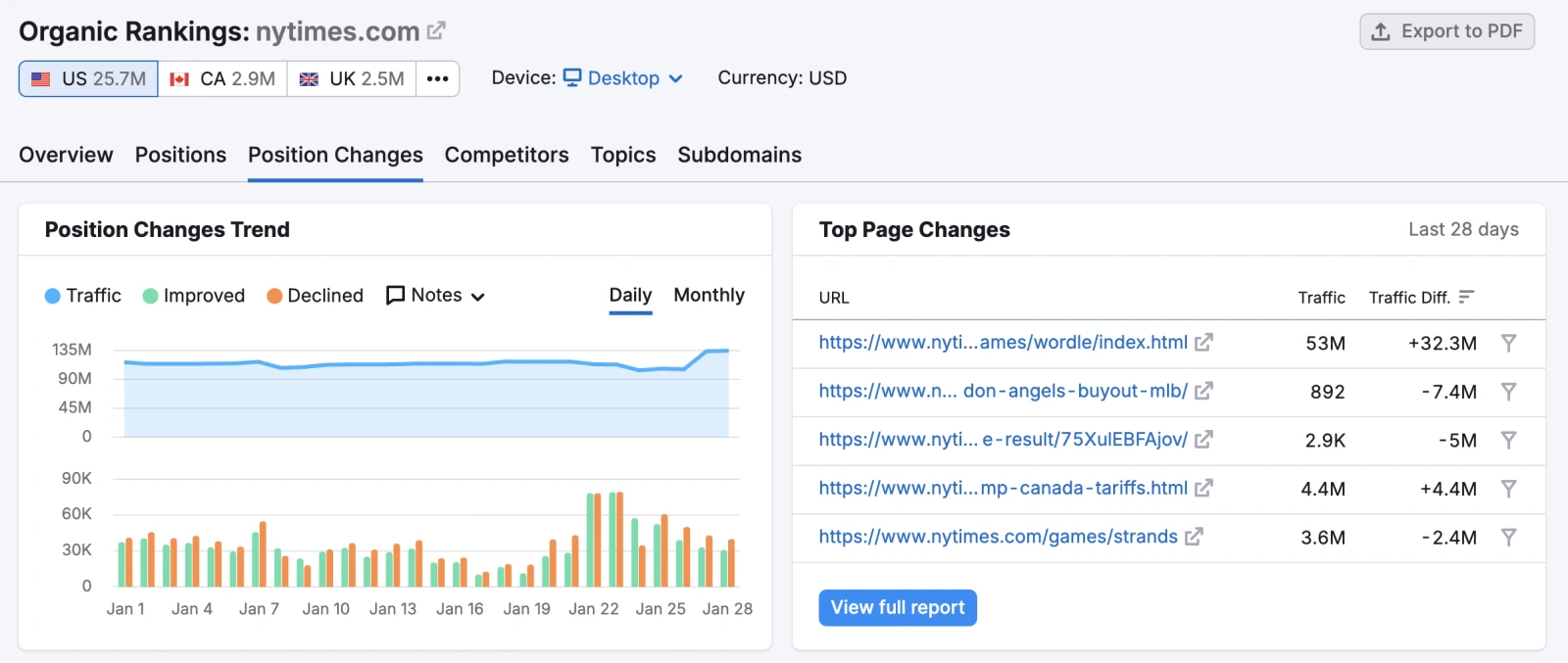
This screenshot shows the report’s older chart and page-change layout. It is useful for recognizing the Position Changes area, not as an example of Lost-filter results. Screenshot source Set the time period
Choose the period for the comparison using the time control above the preset filters. The report’s keyword groups are relative to the selected period. For example, a one-month comparison asks which keywords rank now but did not rank a month earlier, or which have dropped out since then.
Historical data in this report goes back a maximum of two years. Choose a period that fits the question, and keep that range consistent while reviewing the rows.
Filter for Lost keywords
Use Add filter to select the Lost keyword group. Lost means the domain previously ranked within the top 100 for the keyword but no longer does in the current comparison. This is different from Declined, where the ranking fell but remains within the top 100.
The report also has preset filters such as All Changes, Improved, Declined, and Changes on SERP. The screenshot shows the chart and Top Page Changes area in this report. The evidence does not show a Lost filter selected, so use the report’s described filter workflow rather than interpreting the pictured chart as a lost-keyword list.
Narrow the result set if needed
Use the positions dropdown to focus on a rank band, such as top 10 or positions 21–50, when that filter is appropriate to your question. Advanced filters under Add filter can further narrow by metrics including keyword, traffic difference, or CPC.
Apply only filters that help answer the investigation. The result is a subset of the Lost group, so keep the filter settings with any exported or shared analysis.
Expand a relevant keyword row
Click a keyword row to see its keyword, URL, category, and associated SERP features, along with a snapshot graph of its position across the designated period. The Lost group represents keywords that are no longer in the top 100, so use the row details to connect the loss to its URL and history.
For New, Improved, and Declined keywords, the report can show a current rank in Positions. For Improved and Declined, it can show old and new positions. Do not expect those current-position details to describe a Lost keyword in the same way.
Choose the next investigation
Review whether several lost terms point to the same URL or topic, then decide what evidence to gather next. The report can help surface a competitor’s weak spots or recent campaigns, but a lost keyword by itself does not establish why the ranking changed.
If a page or keyword group merits follow-up, use the row details and the comparison period to guide the next review. Keep the cause open until you have supporting evidence.
How does this Semrush setup work in practice?
Worked example: triaging lost organic keywords across core product pages
An SEO manager discovers an aggregate organic visibility decline across several category URLs and needs to separate minor position slips from complete ranking drops.
| Choice | Why it matters | How to check |
|---|---|---|
| Select the competitor domain and a period relevant to the question. | Position changes are relative to the selected domain and comparison period. | Capture the domain and period before reviewing results. |
| Filter to Lost before comparing keyword rows. | This isolates keywords that dropped out of the top 100 from those that merely declined. | Confirm Lost is the active group and note any other filters. |
| Expand a relevant row and record its URL and available history. | The row details connect the keyword to a page and the period’s position snapshot. | The notes distinguish visible row data from any assumed cause. |
| Group related lost keywords by URL for the next review. | A shared URL is a concrete lead for page-level investigation, without claiming it caused the losses. | Choose one URL or group and specify what evidence you need next. |
Examine the filtered Lost keywords table to identify which specific URLs lost index visibility and require content or technical inspection.
How do you verify your result in Semrush?
You should have a period-specific set of keywords that the selected domain has dropped from the top 100, with relevant row details and URLs for follow-up. Keep Lost separate from Declined: one is no longer in the top 100, while the other remains in it at a lower position.
| Step | What you should see |
|---|---|
| Open Position Changes for the domain | Confirm the domain shown in the report is the one whose lost keywords you need to examine. |
| Set the time period | Confirm the selected period is visible and record it with your findings. |
| Filter for Lost keywords | Verify that the report is filtered to Lost and that the results correspond to the selected comparison period. |
| Narrow the result set if needed | Read back the active filters and confirm they do not exclude the keywords relevant to the investigation. |
| Expand a relevant keyword row | For each selected lost keyword, record the associated URL and the visible period context. Do not infer a current rank from the Lost label. |
| Choose the next investigation | Write down a specific URL or keyword group to investigate next and the evidence still needed to explain the loss. |
Related Semrush guides include How to add competitors in Semrush Position Tracking and How to build a Semrush My Reports report from a template.
Which official Semrush sources were checked?
Every step and limit in this Semrush guide was verified against official documentation on 21 Nov 2026 following how we check figures, alongside more walkthroughs in our Semrush tutorials hub:
How do you troubleshoot common Semrush issues?
Why are there no Lost keywords in the report?
The domain may have no keywords that left the top 100 during the selected period, or the chosen period and filters may narrow the results. Check the domain, date range, and active filters before concluding there were no losses.
Does Lost mean the page disappeared from search entirely?
The report defines Lost as previously within the top 100 and now no longer within it. That does not establish whether the page is indexed or whether it appears beyond the tracked range.
Why does a keyword with a worse position appear under Declined instead?
Declined covers rankings that fell but remain within the top 100. Lost is reserved for rankings that were in the top 100 and are no longer there for the selected comparison.
 Reviewed byDanny Kirk
Founder of ReddiReach.
 Checked byAndrés Felipe
Digital designer and marketer.
Every figure is checked against the vendor's own page. Read our editorial standards.