
Key Takeaways
- Use Edit > Edit and enhance video > Insert Loom video on a video share page to merge recent Looms, keyword search results, or pasted Loom URLs into one sequence.
- Clip stitching requires a paid Loom Business, Business + AI, or Enterprise plan, plus creator, editor, or enabled viewer stitch permissions on every clip you add.
- Complete the setup in five steps: open the video enhancer, pick a timeline placement, select or paste the clip to insert, reorder video parts before finishing, and adjust viewer stitch permissions.
- Verify your combined video on the share page by playing through the splice points and confirming that each original source recording remains unchanged in your library.
Combine separate Loom recordings into a single seamless video so viewers watch one link instead of switching between scattered clips. Teams use clip stitching to pair reusable sales intros or outros with custom demos, merge mobile and desktop walkthroughs, and insert forgotten topics into finished recordings.
For plan limits and team seat pricing behind this workflow, read our Loom review.
Key steps
What do you need before starting in Loom?
Loom requires the following workspace setup before you begin:
- Paid Loom account on a Business, Business + AI, or Enterprise plan
- At least two recorded Loom videos, or the URL of a teammate's Loom video with viewer stitching enabled
- Total combined runtime of five minutes or less if your workspace seat uses the Creator Lite role
How do you complete the steps in Loom?
Follow these 5 steps in Loom in order:
Open the stitch editor from the video share page
Open the video share page for the Loom recording that will serve as your base video. Select Edit, select Edit and enhance video, and then select Insert Loom video directly underneath your video player.
Stitching clips is exclusive to Business, Business + AI, and Enterprise plans. Inserting another clip into your base recording never modifies the original source video of the added clip, so you can safely pull from shared intros or product walkthroughs without altering them.
Choose where to place the new clip on your timeline
Select the placement option for your incoming video: at the start of your existing video, at the end of your existing video, or at the currently selected timestamp on the playhead.
Choose start or end placement when attaching standardized sales demo intros, closing calls to action, or cross-platform mobile follow-ups. Choose the current timestamp when inserting a topic you forgot to mention mid-recording, because Loom automatically splits your existing video at that timestamp and places the new clip between the two halves.
Select or paste the Loom video to stitch
Choose the clip you want to insert using one of three lookup methods: pick a recording from the list of your recently created Looms, search your existing Looms by keywords, or paste a Loom URL directly from a recording created by you or a teammate.
Keyword search looks for close matches rather than exact phrases alone, and search results do not appear in alphabetical order. When pasting someone else's Loom URL for collaborative content, make sure you are an editor on that video or that its creator enabled viewer stitching; repeat Insert Loom video whenever you want to add further clips.
Reorder video parts and select Finish
Review the sequence of clips in your timeline. To change the playback order, select the three dots (...) next to a clip name and choose Move Loom video left or Move Loom video right, or drag the video part directly to the desired spot, then select Finish.
Keep two editing rules in mind before saving. You can reorder entire added video clips, not individual trimmed segments inside a single added clip, and Creator Lite users on paid plans have a five-minute maximum duration, so any stitched video over five minutes must be trimmed down to five minutes or less.
Manage viewer stitch permissions in Video settings
Control whether teammates or external viewers can reuse your recording as a clip in their own Looms by navigating to Settings > Audience > Stitch on the video share page. Enable Viewers can stitch this video to others inside Video settings to share reusable clips, or toggle Stitch off to block viewer reuse.
Creators and editors of a video can always stitch it into another Loom regardless of audience toggles. Viewers holding the video URL can only stitch the clip when Stitch is turned on, making this toggle ideal for unlocking shared demo intros while keeping internal leadership updates restricted.
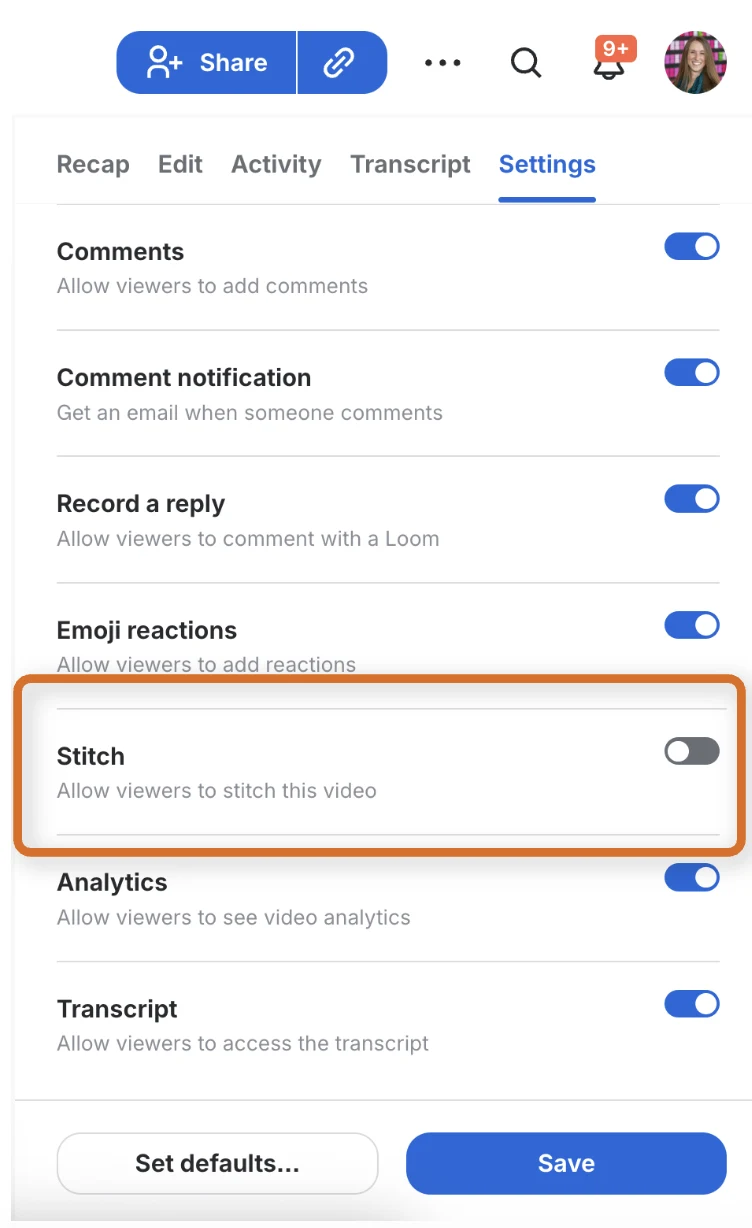
Open Settings and expand Audience to inspect the Stitch toggle that controls whether viewers can add your video clip. Screenshot source
How does this Loom setup work in practice?
Worked example: Assembling a cross-platform sales demo with a reusable intro
An account executive combines a reusable team intro, a custom desktop walkthrough, and a mobile app capture into a single prospect video.
| Choice | Why it matters | How to check |
|---|---|---|
| Paste the shared sales intro URL via Insert Loom video at the start | Reuses an approved opening clip enabled via Viewers can stitch this video to others without re-recording. | The intro video part appears ahead of the desktop demo without modifying the original team intro. |
| Insert a mobile Loom recording at a mid-demo timestamp | Splits the desktop walkthrough cleanly at the playhead to show mobile notifications in context. | The desktop video divides into two halves with the mobile clip positioned between them. |
| Toggle off Stitch under Settings > Audience > Stitch on the finished demo | Prevents external prospect viewers with the URL from stitching custom pricing footage into other videos. | Stitch shows disabled in Video settings while internal editors retain full editing access. |
The account executive selects Finish and shares one unified Loom URL that plays the intro, split desktop demo, and mobile segment in order.
How do you verify your result in Loom?
Play the finished recording on the video share page to confirm each transition between stitched clips runs smoothly and check your library to verify the source clips remain untouched. Share the combined video URL with your audience or enable Stitch under Settings > Audience if teammates should reuse the new recording.
| Step | What you should see |
|---|---|
| Open the stitch editor from the video share page | The clip insertion options appear below your video player inside the Edit and enhance video view. |
| Choose where to place the new clip on your timeline | Your chosen insertion point at the start, end, or active timestamp is selected for the next clip. |
| Select or paste the Loom video to stitch | The selected recording appears in the editor as one or more video parts alongside your existing video. |
| Reorder video parts and select Finish | Loom saves your clip order and returns to the combined video with all stitched parts merged into one timeline. |
| Manage viewer stitch permissions in Video settings | The Stitch toggle under Settings and Audience reflects whether viewers are allowed to add your video to other Looms. |
Related Loom guides include How to record your screen and camera with Loom on macOS and How to trim a recording and set video defaults in Loom.
Which official Loom sources were checked?
Every step and limit in this Loom guide was verified against official documentation on 27 Nov 2026 following how we check figures, alongside more walkthroughs in our Loom tutorials hub:
How do you troubleshoot common Loom issues?
Does stitching a clip into another video change the original source Loom?
No changes are ever made to the original video source when you add a clip to another recording. Reordering or removing the added clip inside your combined video affects only the stitched Loom and leaves the original recording intact.
Why am I unable to stitch a teammate's Loom URL into my video?
Creators and editors of a recording can always stitch it, whereas viewers can only insert a video if its owner turned on viewer stitching. Ask the video creator to open Settings > Audience > Stitch on their share page and enable Viewers can stitch this video to others.
Can I reorder individual trimmed sections inside a clip I stitched in?
No, Loom only supports reordering entire added video clips rather than individual trims made inside an added clip. Use the three dots (...) next to the clip name to select Move Loom video left or Move Loom video right for the whole clip instead.
 Reviewed byDanny Kirk
Founder of ReddiReach.
 Checked byAndrés Felipe
Digital designer and marketer.
Every figure is checked against the vendor's own page. Read our editorial standards.