
Key Takeaways
- Cut unwanted footage through Edit > Edit your video, Trim and Stitch, or Edit by Transcript, and set account-wide reuse policies via Settings > Set defaults > Audience > Stitch.
- Waveform trimming requires a Business, Business + AI, or Enterprise plan on videos five hours or shorter, while Edit by Transcript requires Business + AI or Enterprise.
- Follow four steps: trim start or end setup noise on the waveform, split and cut middle sections, remove spoken slips via the transcript, and save default audience settings.
- Confirm that light gray untimestamped segments no longer play on your saved video and that Set defaults retains your chosen Stitch toggle.
Remove false starts, mid-video pauses, and spoken mistakes from Loom recordings while standardizing sharing rules for every new video you create. Teams pair waveform or transcript trimming with default audience settings so finished updates stay concise and restricted from unwanted clip reuse.
For plan limits and team seat pricing behind this workflow, read our Loom review.
Key steps
What do you need before starting in Loom?
Loom requires the following workspace setup before you begin:
- Paid Loom account on Business, Business + AI, or Enterprise (Business + AI or Enterprise required for Edit by Transcript)
- Recorded Loom video five hours or less in length with fewer than 500 planned trims
- Creator or editor access to the recording and workspace video settings
How do you complete the steps in Loom?
Follow these 4 steps in Loom in order:
Trim the start or end of your video with the waveform editor
Open your recorded video, select Edit from the video side panel, and select Edit your video to enter trimming mode. Drag the Trim bar handles inward from the beginning or end of the timeline to the exact point where your video should start or stop, then select Save Changes if you only need endpoint cleanup.
When cutting tight transitions around intro pauses or screen-sharing setup, select the Fit tool to zoom into specific sections of the audio waveform for accurate handle placement. Loom supports waveform trimming on videos five hours or less in length and allows up to 500 trims per clip on Business, Business + AI, and Enterprise plans.
Split and remove middle sections in Trim and Stitch
To cut errors out of the middle of a recording, select Edit from the video side panel and select Trim and Stitch. Select the timeline section you want to remove, click Split to divide the video into two clips, and drag the handles at the end of each split clip, or hold and drag directly across the portion you wish to delete, before selecting Save Changes.
Check the timeline shading before saving: any portion displayed in a light gray color without a timestamp will be removed from the final video. You can trim multiple sections during the same trimming session and return to adjust previously made trims whenever a cut clips a word too early.
Remove spoken mishaps using Edit by Transcript
On Business + AI and Enterprise plans, open the video share page and select Edit by Transcript to cut bad takes directly from text instead of scrubbing footage. Use the search feature to locate a specific word or sentence, highlight the text you want to cut, and select Trim, then select Done when finished.
Every text cut syncs automatically with your waveform editor so you can inspect visual timing alongside the transcript. If you remove a phrase by mistake, select the clock icon at the top right to undo your edit or click directly on the trimmed word or sentence in the transcript to restore it.
Set default Audience and Stitch rules for future videos
Standardize permissions for every new recording you capture by navigating to Settings > Set defaults > Audience > Stitch. Update the Stitch toggle to enable or disable viewer clip reuse across all future videos, then press Save defaults.
Configuring Set defaults eliminates manual permission checks after each recording session. Teams sharing external customer walkthroughs or confidential product reviews typically save default settings with Stitch disabled so none of their future recordings can be added as clips by other creators.
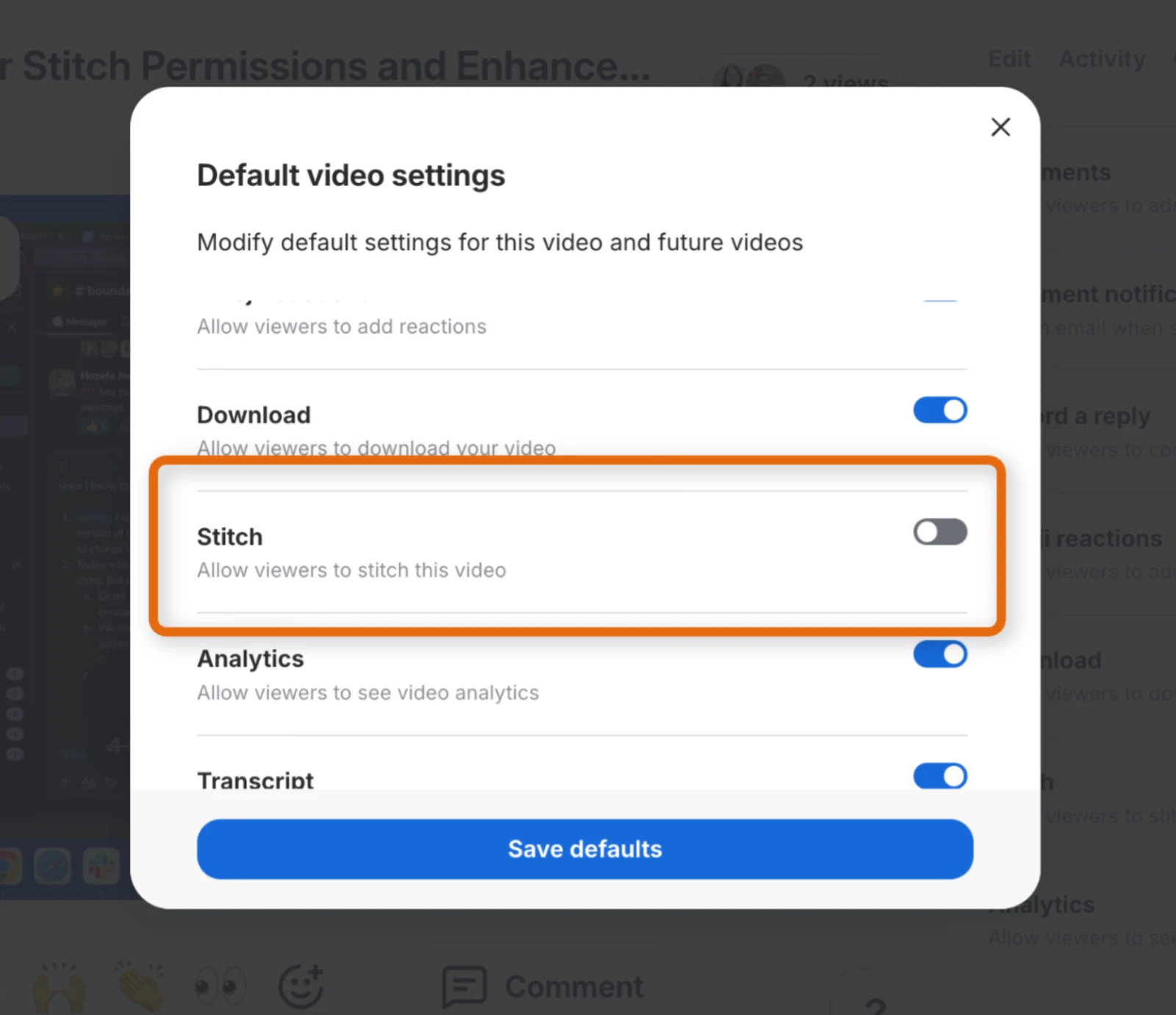
Check the Stitch toggle under Audience in Set defaults and select Save defaults to apply permissions to future videos. Screenshot source
How does this Loom setup work in practice?
Worked example: Cleaning up an engineering bug report and locking future defaults
A QA lead on a Business + AI workspace trims dead air and a misread test step from a bug reproduction Loom before locking default stitch rules for future customer tickets.
| Choice | Why it matters | How to check |
|---|---|---|
| Zoom in with the Fit tool and drag the start Trim bar handle | Cuts twelve seconds of local environment setup before the reproduction steps begin. | Playback starts cleanly on the first browser action after selecting Save Changes. |
| Search the misread error code in Edit by Transcript and select Trim | Removes a spoken stumble without scrubbing through several minutes of log output. | The cut sentence updates in both the transcript and the audio waveform before selecting Done. |
| Disable Stitch under Settings > Set defaults > Audience > Stitch | Blocks external ticket viewers from adding future QA videos as clips in other Looms. | Save defaults confirms the disabled Stitch setting for all upcoming recordings. |
Developers watch a concise bug walkthrough with zero filler, and every subsequent QA recording inherits the locked-down viewer stitch policy automatically.
How do you verify your result in Loom?
Play your edited video from the share page to verify that endpoint trims, split middle cuts, and transcript edits transition cleanly with no light gray timeline gaps remaining. Record a short test clip to confirm your Set defaults > Audience > Stitch preference carries over automatically before sharing links with stakeholders.
| Step | What you should see |
|---|---|
| Trim the start or end of your video with the waveform editor | The Trim bar handles bracket your active playback range and exclude silent setup or closing seconds. |
| Split and remove middle sections in Trim and Stitch | Removed middle segments appear in light gray without timestamps and disappear from playback once Save Changes completes. |
| Remove spoken mishaps using Edit by Transcript | Highlighted transcript phrases show as trimmed in both the transcript view and waveform editor after selecting Done. |
| Set default Audience and Stitch rules for future videos | Loom saves your updated Audience preference and applies the Stitch toggle automatically to future recordings. |
Related Loom guides include How to record your screen and camera with Loom on macOS and How to stitch multiple video clips together in Loom.
Which official Loom sources were checked?
Every step and limit in this Loom guide was verified against official documentation on 27 Nov 2026 following how we check figures, alongside more walkthroughs in our Loom tutorials hub:
How do you troubleshoot common Loom issues?
What should I do if my Loom trim stays stuck processing for more than 30 minutes?
Your recording is not lost if processing stalls past 30 minutes. Open the trim page, slightly adjust one of your current trims, and publish that minor change to reprocess all trims, or select Revert to Original, restart your Chrome browser, and apply your trim again.
Why is there a limit on how much or how often I can trim a single Loom video?
Loom's waveform editor supports videos that are five hours or less in length and allows up to 500 trims per clip. If you reach the 500-trim cap on a heavily edited session, combine adjacent cuts into wider single trims using the Trim bar handles.
Why can I see waveform trimming on my account while Edit by Transcript is unavailable?
Waveform trimming via Edit your video and Trim and Stitch is included on Business, Business + AI, and Enterprise plans, whereas Edit by Transcript requires Business + AI or Enterprise. Workspace admins on a standard Business plan must upgrade to Business + AI or Enterprise to unlock transcript-based trimming.
 Reviewed byDanny Kirk
Founder of ReddiReach.
 Checked byAndrés Felipe
Digital designer and marketer.
Every figure is checked against the vendor's own page. Read our editorial standards.